
Overview
The Certificate Generator allows you to create beautiful, professional certificate PDFs using pre-designed templates. Choose from Classic, Modern, or Elegant designs to match your organization’s brand.
What it does:
- Generates PDF certificates from your existing certificate records
- Offers 3 professional templates
- Creates high-quality, print-ready PDFs
- Automatically saves PDFs to your certificate records
Time to generate: ~10 seconds per certificate
When to Use the Certificate Generator
Use the Generator When:
✅ You created certificates without PDFs – Used the “Create Certificate” form but didn’t upload a custom PDF
✅ You want to change certificate design – Switch from Classic to Modern template
✅ You need professional-looking certificates – Generate polished PDFs instead of creating them manually
✅ You’re migrating from another system – Have certificate data but need PDFs
✅ You want consistent branding – Use the same template for all certificates
Don’t Use the Generator When:
❌ You already have custom PDFs – If you uploaded your own PDF during certificate creation
❌ You need custom designs – Templates can’t be fully customized (yet)
❌ You need certificates in other formats – Generator only creates PDFs
Three Professional Templates
Classic Template
Style:
- Traditional, formal design
- Serif fonts (Georgia, Baskerville)
- Decorative borders
- Classic certificate layout
Best for:
- Academic institutions
- Professional certifications
- Government programs
- Traditional organizations
- Formal achievements
Text style:
- Title: “Certificate of Achievement”
- Prefix: “This is to certify that”
- Elegant, timeless appearance
Modern Template
Style:
- Clean, contemporary design
- Sans-serif fonts (Montserrat, Open Sans)
- Minimalist aesthetic
- Bold typography
- Ample white space
Best for:
- Tech companies
- Startups
- Modern businesses
- Professional development programs
- Innovation-focused organizations
Text style:
- Title: “Certificate” with subtitle “of Achievement”
- Prefix: “This certifies that”
- Fresh, current look
Elegant Template
Style:
- Sophisticated, refined design
- Decorative serif fonts (Playfair Display, Pinyon Script)
- Ornamental elements
- Balance of traditional and contemporary
- Artistic flourishes
Best for:
- Arts organizations
- Upscale training centers
- Premium brands
- Special recognition awards
- High-end certifications
Text style:
- Title: “Certificate of Excellence”
- Prefix: “This document certifies that”
- Luxurious, distinguished appearance
How to Access the Certificate Generator
Option 1: From Navigation Menu
- Log into CertLister
- Click “Certificates” in the top navigation
- In the dropdown, select “Generate PDF”
- You’ll be taken to the Certificate Generator page
Option 2: Direct URL
Navigate to: https://app.certlister.com/certificates/generator
Step-by-Step: Generate a Certificate PDF
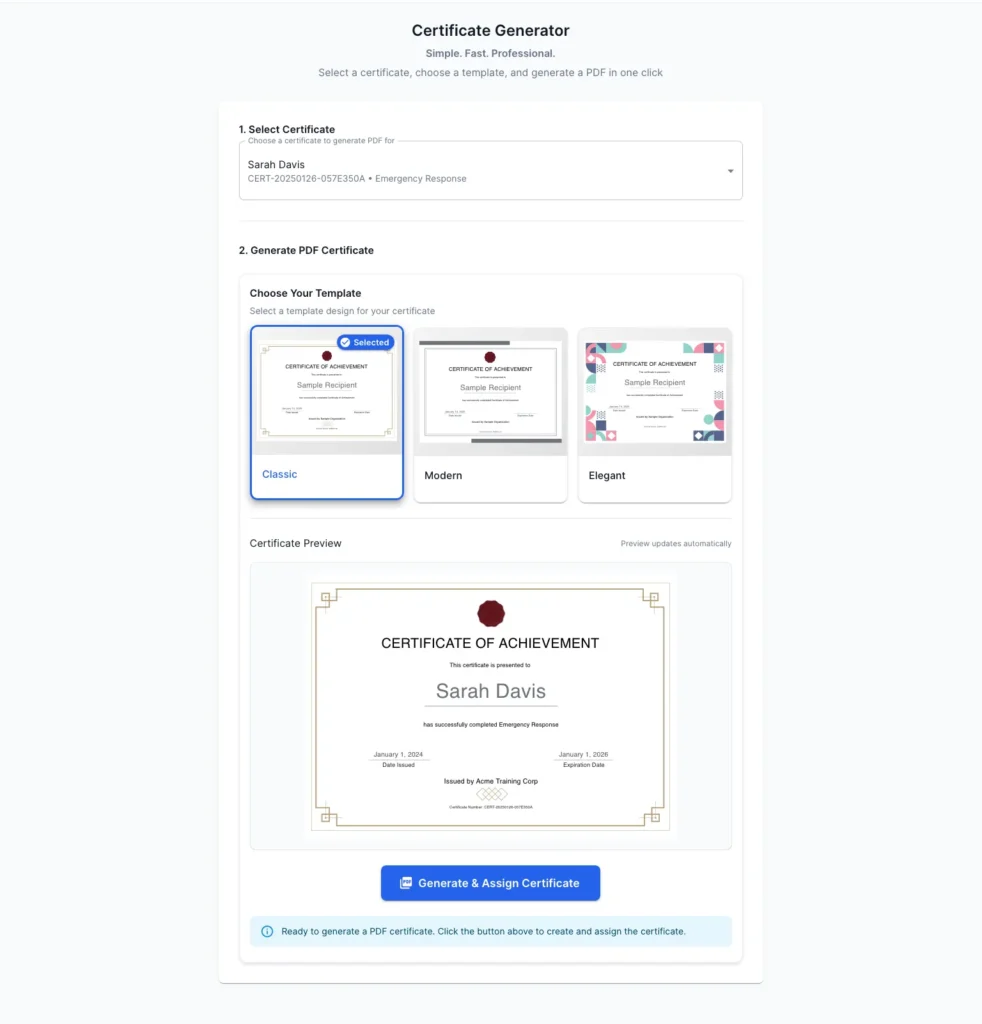
Step 1: Select a Certificate
On the Generator page:
- You’ll see a dropdown labeled “Select Certificate”
- Click the dropdown
- Browse your certificates (sorted by most recent first)
- Select the certificate you want to generate a PDF for
Dropdown shows:
- Recipient name
- Certificate title
- Certificate number
Example: “Sarah Johnson – CPR Certification – CERT-2025-001”
Tip: If you have many certificates, start typing the recipient’s name to filter.
Step 2: Choose a Template
After selecting a certificate:
- You’ll see 3 template options with previews
- Click on each template to see a live preview
- Review how your certificate looks with each template
- Click the template you want to use
Templates available:
- Classic (traditional)
- Modern (contemporary)
- Elegant (sophisticated)
Live preview shows:
- Actual recipient name
- Certificate title
- Issue date
- Organization name
- Certificate number
The preview updates instantly when you switch templates.
Step 3: Review the Preview
Before generating:
- Check the live preview on the right side
- Verify all information is correct:
- Recipient name spelled correctly
- Certificate title accurate
- Dates formatted properly
- Organization name correct
- Ensure the design looks professional
- Check that all text is readable
Preview is interactive:
- Zoom in/out to see details
- Scroll to view entire certificate
- See exact layout as it will appear in PDF
Step 4: Generate the PDF
When you’re ready:
- Click the “Generate & Assign PDF” button
- Wait 5-10 seconds while the PDF is created
- You’ll see a progress indicator
What happens behind the scenes:
- Template is populated with certificate data
- PDF is generated at high resolution (print-quality)
- PDF is uploaded to Google Cloud Storage
- Certificate record is updated with PDF URL
- Template information is saved to the certificate
You’ll see a success message: “Certificate PDF generated and uploaded successfully!”
Step 5: View or Download the PDF
After generation:
- A “View PDF” button appears
- Click it to open the PDF in a new tab
- From there, you can:
- View the certificate
- Download it
- Print it
- Share it
The PDF is now permanently attached to this certificate record.
What Information Appears on the Certificate
All Templates Include:
Recipient Information:
- Recipient name (large, prominent)
Certificate Details:
- Certificate title (what they achieved)
- Issue date
- Expiration date (if applicable)
Organization Info:
- Your organization name
- Certificate number (for verification)
Category (if assigned):
- Certificate category name
What’s NOT Included:
❌ Recipient email address
❌ Internal notes/description
❌ QR code (coming soon)
❌ Organization logo (coming soon)
❌ Custom signatures (coming soon)
Advanced Features
Template Customization (Coming Soon)
Future updates will allow:
- Custom colors to match your brand
- Upload organization logo
- Add signature images
- Customize fonts
- Adjust layout spacing
- Add QR codes for verification
Currently: Templates use default styling only.
Batch PDF Generation
To generate PDFs for multiple certificates:
Currently, you must generate PDFs one at a time. For bulk generation:
Workaround:
- Go to Certificate Generator page
- Select first certificate
- Choose template
- Generate PDF
- Repeat for next certificate
Future feature: Batch generate PDFs for all certificates at once.
Troubleshooting
Certificate Dropdown is Empty
Problem: No certificates appear in the dropdown.
Causes:
- You haven’t created any certificates yet
- All certificates already have PDFs
Solutions:
- Create certificates first using Certificates → Create New Certificate
- Import certificates via Certificates → Import
- Check that you’re logged into the correct organization
PDF Generation Failed
Problem: Error message appears after clicking “Generate & Assign PDF”.
Common causes:
- Internet connection interrupted
- Server timeout
- Invalid certificate data
Solutions:
- Refresh the page and try again
- Check your internet connection
- Verify certificate data is complete (recipient name, title, etc.)
- Try a different template
- Contact support if problem persists
Preview Not Loading
Problem: Template preview is blank or doesn’t update.
Solutions:
- Wait a few seconds (preview loads after you select certificate)
- Refresh the browser page
- Clear browser cache
- Try a different browser
- Ensure JavaScript is enabled
Generated PDF Looks Different from Preview
Problem: Final PDF doesn’t match the preview exactly.
Reason: Minor font rendering differences between preview and PDF generation.
Solutions:
- Preview is ~95% accurate
- Most differences are very subtle
- Always download and review final PDF
- If significantly different, contact support
Can’t View Generated PDF
Problem: “View PDF” button doesn’t work or shows error.
Solutions:
- Check popup blocker settings (allow popups from app.certlister.com)
- Try right-click → “Open in New Tab”
- Go to Certificates page → Find certificate → Click PDF icon
- Clear browser cache and try again
Certificate Already Has a PDF
Problem: Certificate already has a PDF attached.
What to do:
- Generator will replace the existing PDF with the new one
- Old PDF is overwritten
- Make sure you want to replace before proceeding
- Download the old PDF first if you want to keep it
Note: This is useful for changing templates or updating certificate design.
Best Practices
1. Choose the Right Template for Your Brand
Consider:
- Your organization’s industry (academic = classic, tech = modern)
- Your audience (traditional vs contemporary)
- Your brand identity
Tip: Generate one certificate with each template to see which fits best, then use that template consistently.
2. Generate PDFs for All Certificates
Why:
- Recipients can’t verify certificates without PDFs
- PDFs are required for distribution
- Professional appearance matters
When to generate:
- Immediately after creating certificates
- Before sending to recipients
- After importing bulk certificates
3. Review Before Generating
Always check:
- Recipient name spelling
- Certificate title accuracy
- Dates are correct
- Organization name is professional
Once generated, you can’t “undo” – you’d need to regenerate with corrections.
4. Keep Template Consistent
For professional branding:
- Use the same template for all certificates in a category
- Don’t mix Classic and Modern randomly
- Consistency builds trust and recognition
Example: All “CPR Certification” certificates use Classic template.
5. Download and Store PDFs
Best practice:
- Download generated PDFs to your computer
- Store in organized folders by category or date
- Keep backups of important certificates
- CertLister stores PDFs securely, but local backups are wise
Frequently Asked Questions
Q: Can I customize the templates with my logo?
A: Not yet. Custom branding (logos, colors, fonts) is coming in a future update. Currently, templates use default styling.
Q: How long does PDF generation take?
A: Usually 5-10 seconds. Factors affecting speed:
- Internet connection speed
- Server load
- Certificate data complexity
Q: What resolution are the generated PDFs?
A: PDFs are generated at print-quality resolution (300 DPI equivalent). They look sharp on screen and when printed.
Q: Can I generate PDFs for certificates I imported via CSV?
A: Yes! The generator works with any certificate in your database, regardless of how it was created (manual entry, CSV import, or bulk upload).
Q: What if I don’t like any of the three templates?
A: Currently, only Classic, Modern, and Elegant are available. More templates are planned for future releases. If you need custom design now, create PDFs externally and upload them when creating certificates.
Q: Can I edit the PDF after it’s generated?
A: No. PDFs are read-only. To make changes:
- Edit the certificate data (Certificates → Edit)
- Regenerate the PDF with updated information
Q: Will regenerating a PDF notify the recipient?
A: No. Regenerating a PDF doesn’t trigger any notifications. Recipients are only notified if you manually send them the new PDF.
Q: Can I see which template was used for a certificate?
A: Yes. Go to the certificate details page. The template type is shown under “Template Information”.
Q: Are generated PDFs stored permanently?
A: Yes. PDFs are stored in Google Cloud Storage and remain accessible as long as your CertLister account is active.
Q: Can I delete a generated PDF?
A: You can’t delete just the PDF, but you can:
- Upload a different PDF to replace it
- Generate a new PDF with a different template
- Delete the entire certificate (which deletes the PDF)
Comparison: Generator vs Custom Upload
| Feature | Certificate Generator | Custom PDF Upload |
|---|---|---|
| Design | Pre-made templates (3 options) | Fully custom design |
| Speed | Fast (~10 seconds) | Depends on creation time |
| Branding | Standard templates | Your exact branding |
| Customization | Limited (template choice only) | Unlimited |
| Ease of use | Very easy (click and generate) | Requires PDF creation skills |
| Best for | Most certificates, consistent branding | Special occasions, unique designs |
| Quality | Professional, print-ready | Depends on your design |
| Cost | Free (included) | Free (but requires design time/tools) |
Next Steps
1. Create Certificates Without PDFs
If you haven’t yet:
- Read: Create Your First Certificate
- Create certificate records with just the data (no PDF upload)
- Then use the generator to add PDFs
2. Try All Three Templates
Generate one test certificate with each template to see which you prefer:
- Select a test certificate
- Generate with Classic
- Regenerate with Modern
- Regenerate with Elegant
- Compare and decide
3. Batch Generate for Imported Certificates
If you imported certificates via CSV without PDFs:
- Go to Certificate Generator
- Work through your certificates
- Generate PDFs using your chosen template
- Recipients can now verify and download certificates


