
Overview
CertLister offers two ways for employers and others to verify certificates:
- Public Verification Portal – A standalone web page where anyone can verify certificates
- Embeddable Widget – A JavaScript component you can add to your own website
Both options are free and available on all plans.
Feature 1: Public Verification Portal
What It Is
A dedicated web page where employers, auditors, and others can verify certificate authenticity without logging in.
URL Format: https://app.certlister.com/verify/{your-organization-id}
Example: https://app.certlister.com/verify/org_abc123xyz
How It Works
Step 1: Share Your Verification URL
- Include it on printed certificates
- Add to email signatures
- Post on your website
- Share with employers directly
Step 2: Visitors Access the Portal
- No login required
- No account needed
- Works on any device (desktop, mobile, tablet)
Step 3: Visitors Search for Certificates
- Search by Recipient Name (e.g., “Sarah Johnson”)
- Or search by Certificate Number (e.g., “CERT-2025-001”)
Step 4: View Results
- See certificate details
- Verify authenticity
- Check expiration status
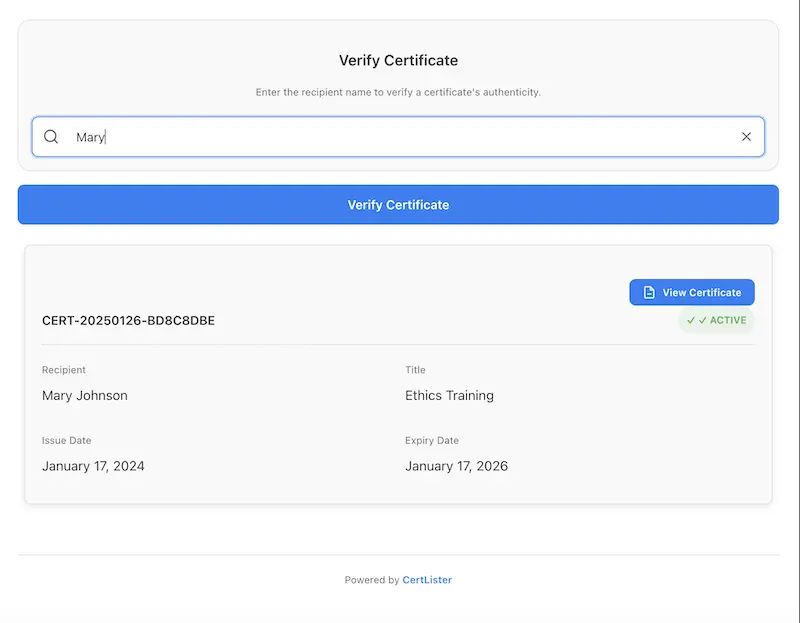
What Visitors See
Search Interface:
- Clean search box
- Option to search by name or certificate number
- “Search” button
- Your organization branding
Results for Valid Certificate:
- ✅ Green checkmark – Certificate is valid
- Recipient name
- Certificate title (e.g., “CPR Certification”)
- Issue date
- Expiry date (if applicable)
- Status – Active, Expired, or Revoked
- Category (if assigned)
Results for Not Found:
- ❌ Red X – Certificate not found
- Message: “No certificate found matching your search”
Results for Expired Certificate:
- ⚠️ Yellow warning – Certificate expired
- All certificate details shown
- Expiration date highlighted
Results for Revoked Certificate:
- 🚫 Red warning – Certificate revoked
- Message: “This certificate has been revoked and is no longer valid”
How to Find Your Verification URL
Option A: From Dashboard
- Log into CertLister
- Go to Verification in the navigation
- Look for “Public Verification Portal” section
- Copy your URL:
https://app.certlister.com/verify/org_xxxxxxx
Option B: From Settings
- Go to Settings → Verification
- Find “Public Portal URL”
- Click “Copy URL” button
How to Share Your Verification URL
On Printed Certificates
Add text like this:
Verify this certificate at:
https://app.certlister.com/verify/org_abc123

Enter certificate number: CERT-2025-001
Or use a QR code:
- Generate QR code for your verification URL
- Include QR code on certificate PDF
- Employers scan with phone to verify instantly
On Your Website
Add a verification link:
<a href="https://app.certlister.com/verify/org_abc123">
  Verify Certificates
</a>
Or create a dedicated page:
- Create page: yourschool.edu/verify-certificates
- Add your verification URL
- Include instructions for employers
In Email Signatures
Example:
Sarah Johnson
Training Director
ABC Training Institute

Verify our certificates:
https://app.certlister.com/verify/org_abc123
Customization Options
Currently available:
- Your organization name displays at the top
- Search by name or certificate number
- Results show your organization branding
Coming soon:
- Custom domain (verify.yourschool.edu)
- Logo upload
- Color scheme customization
- Custom welcome message
Privacy & Security
What’s Public:
- Certificate recipient name
- Certificate title
- Issue date and expiry date
- Certificate status (active/expired/revoked)
What’s NOT Public:
- Recipient email addresses
- Internal notes/descriptions
- Organization contact information (unless you add it)
- Total number of certificates issued
Security features:
- Rate limiting (prevents spam searches)
- No sensitive data exposed
- Audit log of verification attempts (visible to you)
Feature 2: Embeddable Widget
What It Is
A JavaScript web component (<certlister-verify>) that you can embed on your own website to provide certificate verification without sending visitors to CertLister.
Benefits:
- Verification happens on YOUR website
- Your branding and domain
- Seamless user experience
- Professional appearance
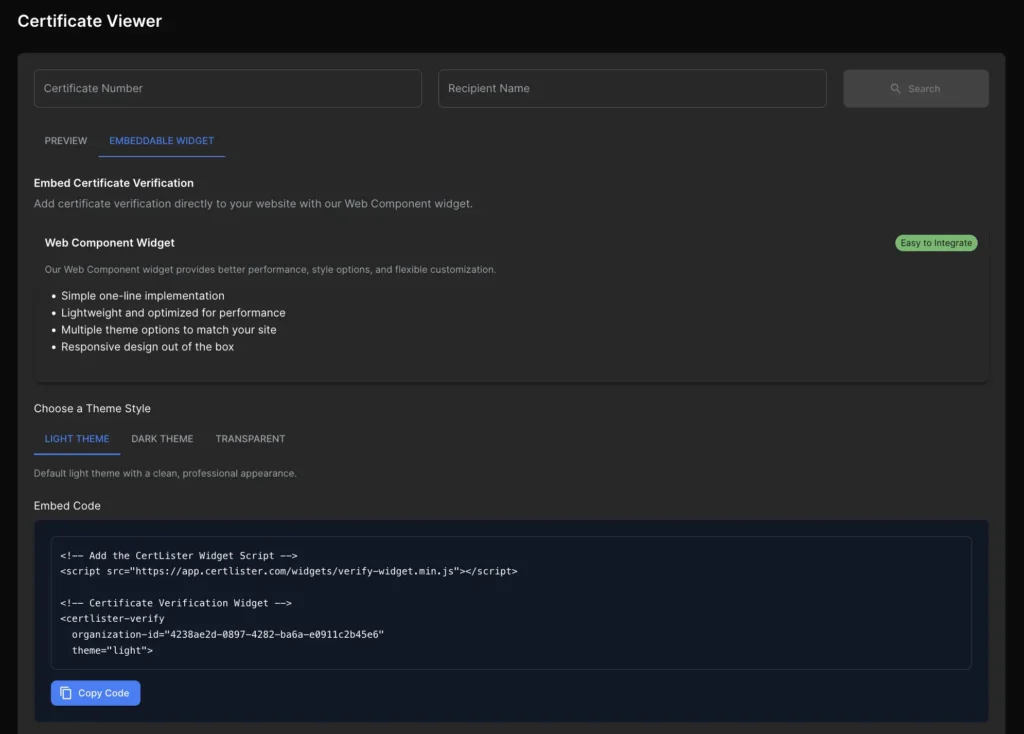
How It Works
You add a simple HTML tag to your website:
<certlister-verify organization-id="org_abc123"></certlister-verify>Visitors interact with it directly on your site:
- Enter certificate number or name
- Click “Verify”
- See results instantly
- Never leave your website
Step-by-Step Implementation
Step 1: Get Your Organization ID
- Log into CertLister
- Go to Verification → Embeddable Widget
- Copy your Organization ID (e.g.,
org_abc123xyz)
Step 2: Add JavaScript to Your Website
Add this to your HTML <head> section:
<script type="module" src="https://app.certlister.com/widget.js"></script>Or load before closing </body> tag:
<script type="module" src="https://app.certlister.com/widget.js"></script>
</body>
</html>
Note: Only add this once per page, even if you have multiple widgets.
Step 3: Add Widget Tag Where You Want It
Basic implementation:
<certlister-verify organization-id="org_abc123"></certlister-verify>Example in a webpage:
<!DOCTYPE html>
<html>
<head>
  <title>Verify Certificates - ABC Training</title>
  <script type="module" src="https://app.certlister.com/widget.js"></script>
</head>
<body>
  <h1>Verify Certificates</h1>
  <p>Enter a certificate number or recipient name to verify:</p>

  <certlister-verify organization-id="org_abc123"></certlister-verify>

  <p>Questions? Contact us at verify@abctraining.com</p>
</body>
</html>
Widget Customization
Theme
Set theme to match your website:
<!-- Light theme (default) -->
<certlister-verify
  organization-id="org_abc123"
  theme="light">
</certlister-verify>

<!-- Dark theme -->
<certlister-verify
  organization-id="org_abc123"
  theme="dark">
</certlister-verify>

<!-- Auto (follows system preference) -->
<certlister-verify
  organization-id="org_abc123"
  theme="auto">
</certlister-verify>
Width & Height
Control widget size:
<certlister-verify
  organization-id="org_abc123"
  width="100%"
  height="500px">
</certlister-verify>
Responsive (recommended):
<certlister-verify
  organization-id="org_abc123"
  width="100%"
  height="auto">
</certlister-verify>
All Available Attributes
| Attribute | Type | Default | Description |
|---|---|---|---|
organization-id | String | Required | Your organization ID |
theme | String | light | light, dark, or auto |
width | String | 100% | CSS width value |
height | String | auto | CSS height value |
show-logo | Boolean | true | Show/hide organization logo |
show-header | Boolean | true | Show/hide widget header |
primary-color | String | #1976d2 | Primary color (hex) |
border-radius | String | 8px | Border radius (CSS value) |
Advanced Customization with CSS
Target the widget with custom CSS:
<style>
  certlister-verify {
    --primary-color: #0066cc;
    --background-color: #ffffff;
    --text-color: #333333;
    --border-color: #e0e0e0;
    --success-color: #28a745;
    --error-color: #dc3545;
    --warning-color: #ffc107;
    font-family: 'Arial', sans-serif;
  }
</style>

<certlister-verify organization-id="org_abc123"></certlister-verify>
Available CSS Variables:
--primary-color– Main brand color--background-color– Widget background--text-color– Text color--border-color– Border color--success-color– Valid certificate indicator--error-color– Not found / revoked indicator--warning-color– Expired certificate indicator--font-family– Font family--border-radius– Rounded corners--box-shadow– Shadow effect
JavaScript API (Advanced)
Access widget programmatically:
<certlister-verify id="myWidget" organization-id="org_abc123"></certlister-verify>

<script>
  const widget = document.getElementById('myWidget');

  // Listen for verification events
  widget.addEventListener('verify-success', (event) => {
    console.log('Certificate verified:', event.detail);
  });

  widget.addEventListener('verify-error', (event) => {
    console.log('Verification failed:', event.detail);
  });

  // Programmatically trigger verification
  widget.verify('CERT-2025-001');
</script>
Available Events:
verify-success– Certificate found and validverify-error– Certificate not foundverify-expired– Certificate expiredverify-revoked– Certificate revoked
Methods:
verify(query)– Trigger verificationreset()– Clear results and search boxsetTheme(theme)– Change theme dynamically
Platform-Specific Instructions
WordPress
Method 1: HTML Block
- Edit page where you want widget
- Add HTML block
- Paste widget code:
<script type="module" src="https://app.certlister.com/widget.js"></script>
<certlister-verify organization-id="org_abc123"></certlister-verify>- Publish page
Method 2: Theme Functions
Add to theme’s functions.php:
function add_certlister_widget() {
  echo '<script type="module" src="https://app.certlister.com/widget.js"></script>';
}
add_action('wp_footer', 'add_certlister_widget');
Then use shortcode in any post/page:
[certlister-verify organization-id="org_abc123"]Wix
- Add HTML iframe/embed element
- Paste widget code
- Adjust size as needed
- Publish
Note: Wix may sanitize JavaScript. Use iFrame method if widget doesn’t load.
Squarespace
- Edit page
- Add Code Block
- Paste widget code
- Save and publish
Webflow
- Add Embed element
- Paste widget code
- Publish site
Troubleshooting
Widget Not Loading
Problem: Widget tag appears but nothing displays.
Solutions:
- Verify JavaScript is loaded:
<script type="module" src="https://app.certlister.com/widget.js"></script> - Check browser console for errors (F12 → Console tab)
- Ensure organization ID is correct
- Try clearing browser cache
Widget Shows Error: “Invalid Organization ID”
Problem: Widget displays error message.
Solutions:
- Double-check organization ID (Settings → Verification → Organization ID)
- Ensure no extra spaces in attribute
- Correct format:
org_followed by alphanumeric characters
Widget Theme Doesn’t Match
Problem: Widget colors don’t match your site.
Solutions:
- Use
theme="dark"attribute for dark sites - Add custom CSS variables (see Advanced Customization section)
- Contact support for advanced branding options
Widget Not Responsive on Mobile
Problem: Widget doesn’t resize on mobile devices.
Solutions:
- Set
width="100%"andheight="auto" - Remove fixed pixel widths
- Test on actual mobile device (not just browser resize)
Comparison: Portal vs Widget
| Feature | Public Portal | Embeddable Widget |
|---|---|---|
| Setup | No setup needed | Requires adding code to website |
| Time to implement | 0 minutes | 15-30 minutes |
| Branding | CertLister URL | Your website URL |
| Customization | Limited | Full CSS customization |
| Maintenance | None | Minimal (code stays updated) |
| Best for | Quick sharing, emails | Professional website integration |
| Cost | Free | Free |
Best Practices
1. Use Both Options
Portal for:
- Sharing in emails
- Printing on certificates
- Quick verification requests
Widget for:
- Your main website
- Professional appearance
- Keeping visitors on your site
2. Test Before Sharing
Always verify your setup works:
- Access your verification portal URL
- Search for a test certificate
- Verify results display correctly
- Test on mobile devices
For widgets:
- Test on your website
- Verify search works
- Check responsive design
- Test on different browsers
3. Include Instructions
When sharing verification URL:
To verify this certificate:
1. Visit: https://app.certlister.com/verify/org_abc123
2. Enter certificate number: CERT-2025-001
3. Or search by name: Sarah Johnson
On your website widget page:
- Add clear instructions above widget
- Explain what information to enter
- Provide contact info for questions
4. Monitor Verification Activity
View logs:
- Go to Verification → Logs in CertLister
- See who’s verifying certificates
- Track frequency and patterns
- Identify popular certificates
Security & Compliance
Data Protection:
- Only public certificate information is exposed
- No personal contact information shared
- Complies with data privacy regulations
Verification Integrity:
- Results are real-time (not cached)
- Changes to certificate status reflect immediately
- Revoked certificates show as invalid instantly
Audit Trail:
- All verification attempts logged
- Timestamps recorded
- Organization owners can review logs
Frequently Asked Questions
Q: Can I use a custom domain for the verification portal?
A: Custom domains (e.g., verify.yourschool.edu) are available on Enterprise plans. Contact support@certlister.com for details.
Q: Does the widget require ongoing maintenance?
A: No. The widget JavaScript auto-updates from our CDN. Your embedded code stays the same.
Q: Can I embed multiple widgets on one page?
A: Yes. Load the JavaScript once, then add multiple <certlister-verify> tags as needed.
Q: What if I revoke a certificate – does it update immediately?
A: Yes. Both the portal and widget show real-time data. Revoked certificates display as invalid instantly.
Q: Can I see who’s verifying certificates?
A: Yes. Go to Verification → Logs to see verification attempts (anonymized for privacy).
Q: Is there a verification limit?
A: No limits on the Free tier. Unlimited verifications for all plans.
Q: Can I customize what information displays?
A: Standard fields are shown by default. Enterprise plans can customize fields displayed. Contact support for custom configurations.
Q: Does the widget work on all browsers?
A: Yes. The widget works on Chrome, Firefox, Safari, Edge, and all modern browsers (IE 11 not supported).


