Certificate Automation: Issuance Emails, Expiry Reminders & Auto-Expiry
Time to read: 9 minutes
Overview
CertLister can automate three things for you so you don't have to do them manually:
- Issuance email — send each recipient their certificate the moment it is created
- Expiry reminder — automatically email recipients a set number of days before their certificate expires
- Auto-expiry — automatically flip a certificate's status from Active to Expired when its expiry date passes
All three are configured at the category level, so every new certificate in that category inherits the setting. You can then override the email settings on individual certificates where needed.
Plan Availability
| Feature | Free | Basic | Pro |
|---|---|---|---|
| Issuance email to recipient | No | Yes | Yes |
| Expiry reminder email to recipient | No | Yes | Yes |
| Auto-expiry (status flip) | Yes | Yes | Yes |
| Weekly expiry digest for admins | No | Yes | Yes |
Auto-expiry is available on all plans because it affects data integrity — it simply reflects reality when a certificate's date has passed.
Email features require Basic or Pro, since email delivery is part of the email notifications feature set.
How Automation Flows
Category settings (defaults)
  → apply to all new certificates in that category

Certificate settings (overrides)
  → null  = inherit from category default
  → on    = always send, regardless of category setting
  → off   = never send, regardless of category setting

Organization setting
  → expiry_reminder_days: how many days before expiry to send the reminder
Part 1: Set Automation Defaults on a Category
This is the primary place to configure automation. Settings here apply to every certificate created in the category.
Step 1: Open a Category for Editing
- Log into CertLister at https://app.certlister.com
- Click Categories in the left navigation
- Find the category you want to configure
- Click the Edit (pencil) icon to open the category dialog
Step 2: Configure the Automation Section
The dialog has an Automation section below the name and description fields. It contains three switches:
Switch 1: Send issuance email
What it does: When a new certificate is created in this category and the recipient has an email address, CertLister sends them an email with their certificate details.
Email the recipient receives:
- Subject:
Your "[Certificate Title]" is ready - Content: Recipient name, certificate title, issue date, a link to view and verify the certificate
When to turn on:
- Training providers who want recipients to receive their certificates immediately
- Compliance programmes where proof of certification needs to be delivered fast
- Any time you want to avoid manually distributing certificates
When to leave off:
- You send certificates through your own system or LMS
- You create certificates in bulk before recipients are ready to receive them
- The recipient email field is often blank in this category
Requires: Basic or Pro plan. The switch is disabled with an upgrade tooltip on Free.
Switch 2: Send expiry reminder email
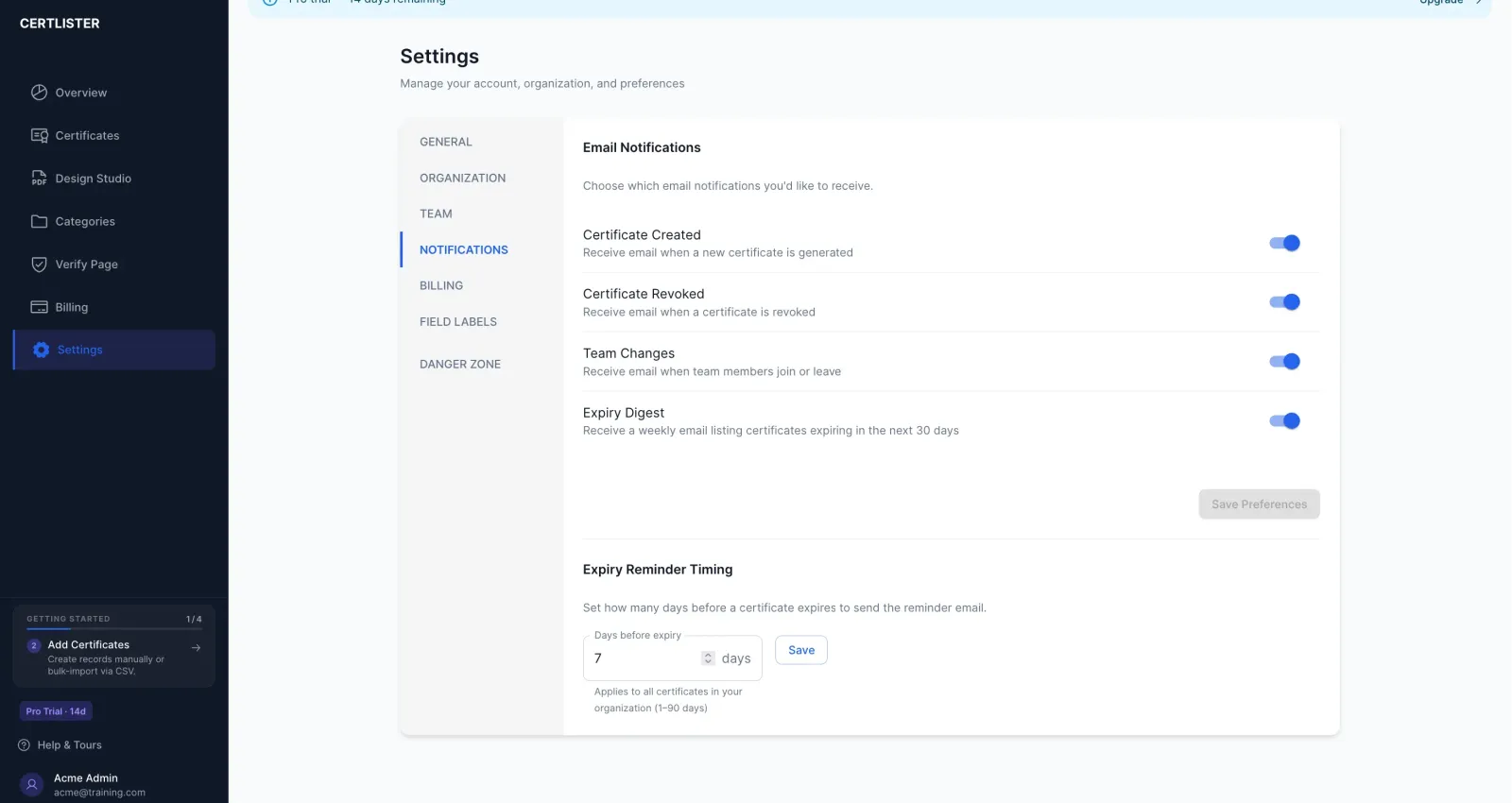
What it does: CertLister sends the recipient an email a set number of days before their certificate expires. The number of days is configured organization-wide in Settings → Notifications (default: 7 days).
Email the recipient receives:
- Subject:
Your "[Certificate Title]" certificate expires in N days - Content: Recipient name, certificate title, expiry date, a link to the verify page
When to turn on:
- Safety or compliance certifications where renewals are mandatory (CPR, food safety, OSHA)
- Professional licences that must be renewed to remain valid
- Anywhere that an expired certificate has real consequences for the recipient
When to leave off:
- Certificates that don't have an expiry date set (the reminder only fires when an expiry date exists)
- You manage renewal reminders through another system
- Recipients do not need to take action on expiry
Requires: Basic or Pro plan.
Switch 3: Auto-expire past expiry date
What it does: Every day at 2 AM UTC, CertLister checks all certificates in this category. Any certificate whose Expiry Date is in the past and whose status is still Active is automatically flipped to Expired.
This keeps your verification page accurate without manual intervention. When someone verifies a certificate that has auto-expired, they see a clear Expired status rather than an incorrect Active status.
When to turn on:
- Almost always — if you set expiry dates, you almost certainly want them enforced automatically
- Any category where expired certificates must not appear as valid
When to leave off:
- You manage expiry status manually and do not want automatic changes
- Certificates in this category regularly run over their nominal expiry date (e.g., grace periods managed externally)
Available on all plans. No plan gate.
Step 3: Save
Click Save (or Update) to apply the automation settings to the category.
Important: These settings apply to certificates created from this point forward. Certificates that already exist are not retroactively changed, except for auto-expiry — the daily job processes all certificates in the category regardless of when they were created.
Part 2: Override Email Settings Per Certificate
When a certificate is in a category with email automation enabled, you may sometimes want to send (or suppress) emails for individual certificates regardless of the category default.
Where to Find the Override
The Email Notifications section appears in the Create Certificate and Edit Certificate dialogs — but only when the certificate has a Recipient Email filled in.
The Three States
Each email toggle is a tri-state checkbox:
| State | What it means |
|---|---|
| Indeterminate (dash) | Inherit from category default |
| Checked | Always send for this certificate, regardless of category setting |
| Unchecked | Never send for this certificate, regardless of category setting |
Click the checkbox to cycle through: Indeterminate → Checked → Unchecked → Indeterminate
Helper text below each checkbox shows the current category default so you know what "inherit" means for this certificate. For example: "Category default: on"
Override: Send issuance email
Visible whenever the certificate has a Recipient Email value and your plan supports email delivery.
Use cases for checking (always send):
- The category default is off, but this particular recipient should receive their certificate immediately
Use cases for unchecking (never send):
- The category default is on, but this certificate is a test or draft you're not ready to send
Note: The issuance email only fires at creation time. Editing an existing certificate and switching the override to Checked does not trigger a send — the email was already sent (or not) when the certificate was first saved.
Override: Send expiry reminder
Visible when the certificate has a Recipient Email value, an Expiry Date set, and your plan supports expiry reminders.
Use cases for unchecking (never send):
- The recipient manages their own renewal and does not want automated emails
- You are extending the expiry date but do not want to trigger a reminder for the original date
Part 3: Configure the Expiry Reminder Lead Time (Organization Setting)
The number of days before expiry that the reminder fires is a single organization-level setting. It applies to all certificates across all categories.
Default: 7 days before expiry
Range: 1–90 days
How to Change It
- Go to Settings → click the Notifications tab
- Scroll to the Expiry Reminders section
- Change the number in the Days before expiry field
- Click Save (Admin only — non-admins see the field disabled)
Requires: Basic or Pro plan. The field is not visible on Free.
Example: If you set this to 30, CertLister emails recipients 30 days before their certificate expires — giving them a full month's notice to renew.
Part 4: Weekly Admin Expiry Digest
In addition to the automated recipient emails, CertLister sends a weekly summary to organization admins and managers showing all certificates expiring in the next 30 days.
Email sent every Monday at 9 AM UTC.
Subject: N certificates expiring soon — [Your Organization]
Content: A table of certificates expiring within 30 days — recipient name, certificate title, expiry date, and days remaining.
Enabling the Weekly Digest
- Go to Settings → Notifications tab
- Find the Weekly expiry digest toggle
- Turn it on or off per user (each team member controls their own preference)
Requires: Basic or Pro plan. The toggle is disabled on Free.
The weekly digest is independent of the per-certificate expiry reminders. Both can be on at the same time: recipients get an individual reminder email, and admins get a Monday summary.
When Do the Automated Jobs Run?
| Job | Schedule | What it does |
|---|---|---|
| Auto-expiry + expiry reminders | Daily at 2 AM UTC | Flips overdue certificates to Expired; sends reminder emails to recipients whose cert expires in exactly N days |
| Weekly admin digest | Every Monday at 9 AM UTC | Sends a summary of all certs expiring in the next 30 days to admins/managers with digest enabled |
Important for expiry reminders: The reminder fires on the day that is exactly expiry_reminder_days before the expiry date. For example, with a 7-day setting, a certificate expiring on March 10 triggers a reminder on March 3 (the morning job on March 3 sends it). There is no second reminder — only one email per certificate.
Common Setup Scenarios
Scenario 1: Training provider — immediate delivery
You run CPR training sessions. Participants should receive their certificates right away.
Category settings:
- Send issuance email: On
- Send expiry reminder: On
- Auto-expire: On
Org setting:
- Days before expiry: 30 (give participants a month's notice to renew)
Scenario 2: Compliance tracking — no recipient emails
You manage compliance certificates internally. Recipients are employees who should not receive individual emails.
Category settings:
- Send issuance email: Off
- Send expiry reminder: Off
- Auto-expire: On
Weekly admin digest: On (so HR is alerted every Monday about upcoming renewals)
Scenario 3: One-off exception
Your category default is "no issuance email" but a specific recipient requests to be notified.
- Open the certificate dialog for that person
- In the Email Notifications section, click the issuance email checkbox to set it to Checked
- Save the certificate — this certificate sends an email on creation; others in the category do not
Troubleshooting
No email received after creating a certificate
Check in order:
- Plan — email delivery requires Basic or Pro. Go to https://app.certlister.com/billing to confirm your plan.
- Category setting — open the category dialog. Is Send issuance email turned on?
- Recipient email — open the certificate. Is the
Recipient Emailfield filled in and correctly formatted? - Certificate override — in the certificate dialog, is the issuance email checkbox explicitly Unchecked (overriding the category on)? Switch it to Indeterminate or Checked.
- Timing — the email is sent at creation time only. Editing an existing certificate does not re-trigger the email.
- Spam folder — ask the recipient to check spam/junk.
Expiry reminder email not received
Check in order:
- Plan — expiry reminders require Basic or Pro.
- Category setting — is Send expiry reminder turned on?
- Expiry date — the certificate must have an expiry date set. Open the certificate and confirm.
- Recipient email — the certificate must have a recipient email.
- Timing — the reminder fires once, on the morning that is exactly
expiry_reminder_daysbefore the expiry date. If that date already passed, the reminder will not fire again. - Days setting — go to Settings → Notifications and confirm the days setting is what you expect.
- Certificate override — in the certificate dialog, is the expiry reminder checkbox explicitly Unchecked?
Certificate not auto-expiring
Check:
- Is Auto-expire past expiry date turned on for the category?
- Does the certificate have an expiry date set?
- Has 2 AM UTC passed since the expiry date? The job runs once per day — a certificate that expired yesterday will be updated during tonight's run.
- Was the certificate already manually set to Expired or Revoked? The job only processes Active certificates.
Weekly digest not arriving
Check:
- Plan — requires Basic or Pro.
- Preference — go to Settings → Notifications and confirm Weekly expiry digest is turned on for your user account.
- Role — only Admins and Managers receive the digest. User role does not receive it.
- No expiring certificates — the digest is only sent when there are certificates expiring in the next 30 days. If nothing is expiring, no email is sent that week.
- Timing — the digest is sent every Monday at 9 AM UTC.
Frequently Asked Questions
Q: Can I send issuance emails to recipients who don't have an email address on file?
A: No. An email address must be saved on the certificate. If the Recipient Email field is blank, no email is sent even if the category has issuance email turned on.
Q: How many expiry reminder emails will a recipient receive?
A: Exactly one — on the day that is expiry_reminder_days before their expiry date. CertLister does not send follow-up reminders. If you want a second reminder closer to the date, you can set the days to a shorter window (e.g., change from 30 days to 7 days), but this changes the timing for all certificates.
Q: What happens if I change the expiry_reminder_days setting mid-cycle?
A: The new setting takes effect from the next daily run onward. Past reminders that have already fired are not re-sent. Reminders that have not yet fired will use the new day count.
Q: Does auto-expiry affect the public verification page?
A: Yes. When auto-expiry flips a certificate to Expired, the verification page immediately shows it as Expired — not Active. This is the intended behaviour: the verify page reflects the true current status.
Q: Can I undo an auto-expiry?
A: Yes. Open the certificate, change the Status field back to Active, and save. Note that if the expiry date is still in the past and auto-expire is still on for the category, the daily job will flip it back to Expired the next night. To prevent this: either extend the expiry date, turn off auto-expire for the category, or set the certificate's expiry date to blank.
Q: Does the issuance email include a copy of the PDF?
A: Not as an attachment. The email contains the certificate details and a link to the public verify page where the recipient can view and download the PDF. This avoids large email attachments and ensures the recipient always links to the live, canonical verification record.
Q: Are email sends logged anywhere?
A: Email delivery is fire-and-forget. There is no per-certificate email send log in the UI. Verification activity (who looked up the certificate) is logged on Basic and Pro plans in the dashboard.
Q: Can I customise the email templates?
A: Not currently. Email content is standardised. Custom email templates may be considered for future Pro or enterprise plans.
Q: Does auto-expiry send any notification to the admin?
A: Not directly. The weekly expiry digest on Monday warns admins about certificates about to expire. After they have expired, the digest stops listing them (it only shows upcoming expirations). The admin can filter certificates by status on the Certificates page to see all Expired certificates.