How to Create Your CertLister Account
Time required: 5 minutes
What you'll need:
- First and last name
- Email address
- Password (or use Google Sign-In)
Overview
Setting up your CertLister account takes less than 5 minutes. You'll create your organization, set up your profile, and be ready to start issuing certificates.
Method 1: Sign Up with Email and Password
Step 1: Go to the Sign Up Page
- Visit https://certlister.com
- Click the "Get Started" or "Sign Up" button in the top right corner
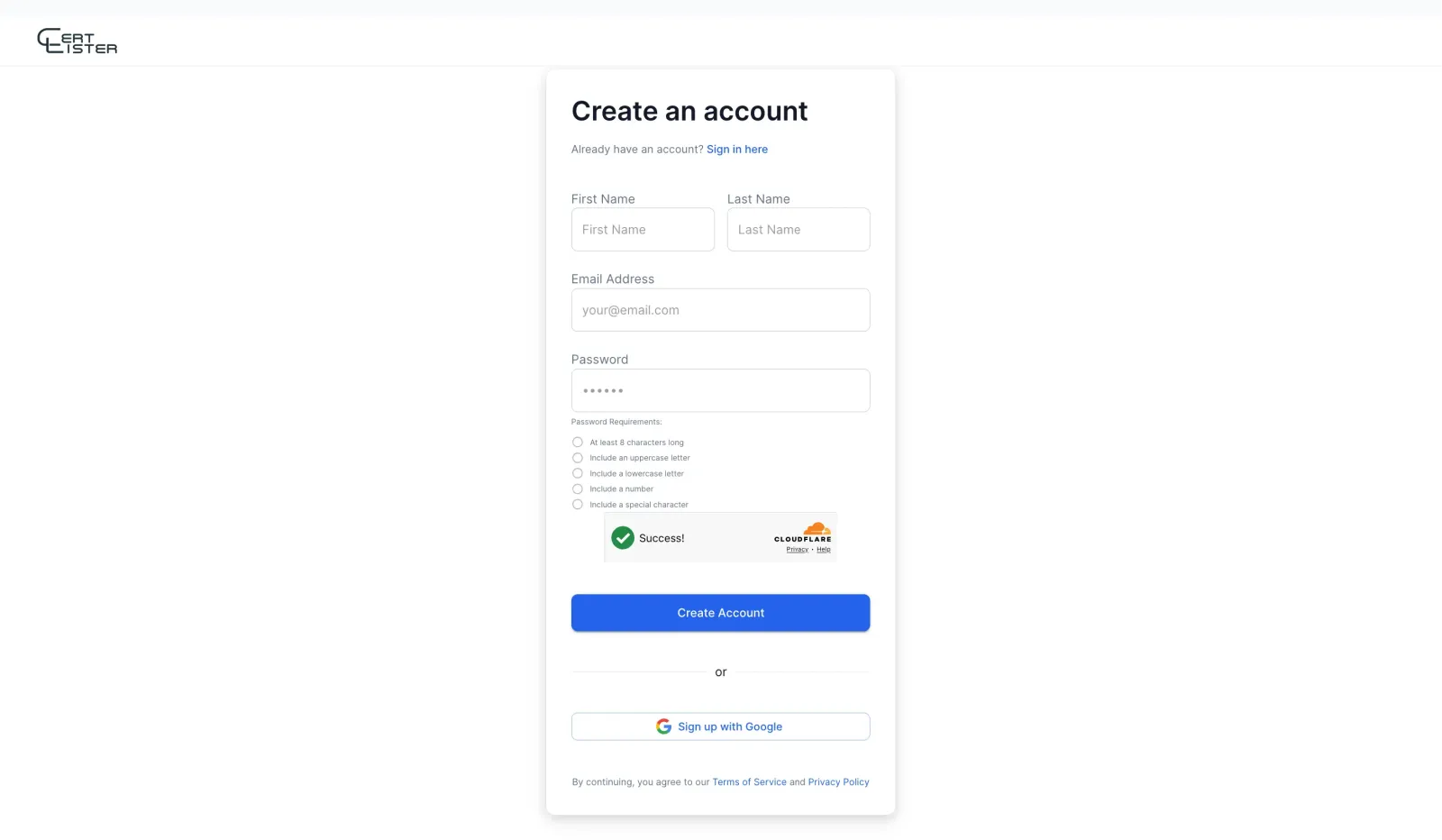
Step 2: Fill Out the Registration Form
You'll see a registration form with these fields:
Your Account Information:
- First Name - Your first name
- Example: "Sarah"
- Last Name - Your last name
- Example: "Johnson"
- Email Address - Your work email (you'll use this to log in)
- Example: "sarah@yourschool.edu"
- Password - Must meet security requirements:
- At least 8 characters long
- One uppercase letter (A-Z)
- One lowercase letter (a-z)
- One number (0-9)
- One special character (!@#$%^&* etc.)
- Example: "MySchool2024!"
Important: Your organization will be automatically created as "[Your First Name]'s Organization". You can change this later in Settings.
Accept Terms:
- By continuing, you agree to the Terms of Service and Privacy Policy (links provided on the form)
Step 3: Complete CAPTCHA Verification
CertLister uses Cloudflare Turnstile to prevent spam accounts.
- You'll see a CAPTCHA verification box
- Check the box that says "I am human"
- Wait for the green checkmark
Step 4: Click "Create Account"
- Review all information for accuracy
- Click the "Create Account" button
- Wait a few seconds while your account is created
Step 5: Verify Your Email (if required)
Depending on your settings, you may need to verify your email:
- Check your email inbox for a message from CertLister
- Click the verification link in the email
- You'll be redirected back to CertLister
Didn't receive the email?
- Check your spam/junk folder
- Wait 5 minutes (sometimes emails are delayed)
- Request a new verification email from the login page
Method 2: Sign Up with Google
Faster option if you have a Google account
Step 1: Click "Sign Up with Google"
- On the registration page, click the "Sign Up with Google" button
- A Google sign-in popup will appear
Step 2: Choose Your Google Account
- Select the Google account you want to use
- Review the permissions CertLister is requesting
- Basic profile information (name, email)
- This is used only for your account setup
- Click "Continue" or "Allow"
Step 3: Complete Setup
Since you're signing in with Google, CertLister already has your name and email.
Your organization will be automatically created as "[Your First Name]'s Organization". You can change this later in Settings → Organization.
Click "Complete Setup" to finish registration.
What Happens After Sign Up?
Automatic Setup
When you create your account, CertLister automatically:
- Creates your organization database
- Sets you as the organization Admin
- Generates 5 sample certificate categories
- Creates 20 sample certificates (for testing)
- Sets up your verification portal
- Initializes your dashboard
This all happens in under 5 seconds.
You'll Be Redirected to Your Dashboard
After successful sign-up, you'll see:
- Welcome message - "Welcome to CertLister!"
- Interactive tour prompt - Option to take a guided tour (recommended for new users)
- Your dashboard - Showing your sample data
Take the Interactive Tour (Recommended)
For new users, we recommend taking the 3-minute interactive tour:
- Click "Start Tour" when prompted
- Follow the step-by-step guide
- Learn where everything is located
Tour covers:
- Dashboard overview
- Creating certificates
- Managing categories
- Verification system
- Settings and team members
You can skip the tour and take it later from Settings → Help & Tours.
Your Free Tier Account
When you sign up, you automatically get:
- 50 certificates - More than enough to get started
- 1 user - That's you (invite more with Basic or Pro)
- All core features - Certificate management, verification, expiration tracking
- Public verification portal - Let employers verify certificates instantly
- Professional templates - 4 certificate templates to choose from
- No credit card required - Completely free, no trial limitations
- No time limit - Use the Free tier forever
Want more? Upgrade to Basic or Pro for more certificates and team collaboration.
Next Steps
Now that your account is created, here's what to do next:
1. Explore Your Dashboard (5 minutes)
Learn what the dashboard shows and where to find features.
2. Delete Sample Data (2 minutes)
CertLister created sample certificates for testing. Delete them before adding real data.
How to delete sample certificates:
- Go to Certificates page
- Select all certificates (checkbox at top)
- Click "Delete Selected"
- Confirm deletion
How to delete sample categories:
- Go to Categories page
- Delete or rename the sample categories
3. Create Your First Real Certificate (10 minutes)
Follow our step-by-step guide to issue your first certificate.
4. Invite Team Members (Optional, 5 minutes)
If others will help manage certificates, invite them now.
Troubleshooting
"Email already exists"
Problem: You already have an account with that email.
Solution:
- Try logging in instead of signing up
- Use the "Forgot Password" link if you don't remember your password
- Use a different email address if you want a separate account
"Password too weak"
Problem: Your password doesn't meet security requirements.
Requirements:
- At least 8 characters long
- One uppercase letter (A-Z)
- One lowercase letter (a-z)
- One number (0-9)
- One special character (!@#$%^&*)
Solution:
- Use a mix of all required character types
- Avoid common passwords (like "Password123!")
- Example: "MySchool2026!"
"First name required" or "Last name required"
Problem: You didn't enter your name.
Solution:
- Enter both your first name and last name
- These are used to create your account and auto-generate your organization name
- Use your real name for better professionalism
CAPTCHA not working
Problem: The verification box won't load or accept your input.
Solution:
- Refresh the page and try again
- Disable browser extensions (especially ad blockers) temporarily
- Try a different browser (Chrome, Firefox, Safari, Edge all work)
- Check your internet connection
Account created but can't log in
Problem: You created an account but login fails.
Possible causes:
- Email verification required - Check your email for a verification link
- Wrong password - Use "Forgot Password" to reset
- Account locked - After 5 failed login attempts, accounts lock for 15 minutes
Solution:
- Check your email for verification message
- Wait 15 minutes if account is locked
- Use "Forgot Password" if you're unsure of your password
Google Sign-In not working
Problem: Google button doesn't work or shows an error.
Common issues:
- Popup blocked - Allow popups for certlister.com in your browser
- Third-party cookies disabled - Enable cookies in browser settings
- Google account issue - Try signing out of Google and back in
Solution:
- Check browser settings to allow popups and cookies
- Try regular email/password sign-up instead
- Clear browser cache and try again
Security Tips
Keep Your Account Secure
- Use a strong password - At least 12 characters with mixed types
- Don't share your login - Each team member should have their own account
- Log out on shared computers - Don't stay logged in on public/shared devices
- Keep email secure - Your account recovery goes through email
Your Data is Safe
CertLister uses enterprise-level security:
- Encrypted connections - All data transmitted over HTTPS
- Secure passwords - Passwords are hashed with bcrypt (never stored as plain text)
- Isolated data - Your organization's data is isolated from others
- Regular backups - Data backed up daily
- Google Cloud Platform - Hosted on secure, reliable infrastructure
Frequently Asked Questions
Q: Is the Free tier really free forever?
A: Yes. There's no time limit, no credit card required, and no surprise charges. You can use the Free tier (50 certificates, 1 user) indefinitely.
Q: Can I create multiple organizations?
A: Each email address can have one organization. If you need multiple separate organizations (e.g., different schools), use different email addresses or contact support for multi-organization accounts.
Q: Can I change my organization name later?
A: Yes. Go to Settings → Organization and update your organization name anytime.
Q: What happens to my sample data?
A: Sample certificates and categories are created to help you learn the system. You can delete them anytime. They count toward your 50-certificate limit on the Free tier.
Q: Can I upgrade to Basic or Pro later?
A: Absolutely. You can upgrade from Free to Basic or Pro anytime. Your existing certificates and data remain intact.
Q: What if I need help?
A: We're here to help:
- Help Center - Browse all help articles (you're reading one now!)
- Contact Support - Email support@certlister.com
- Response time - Usually within 24 hours on business days