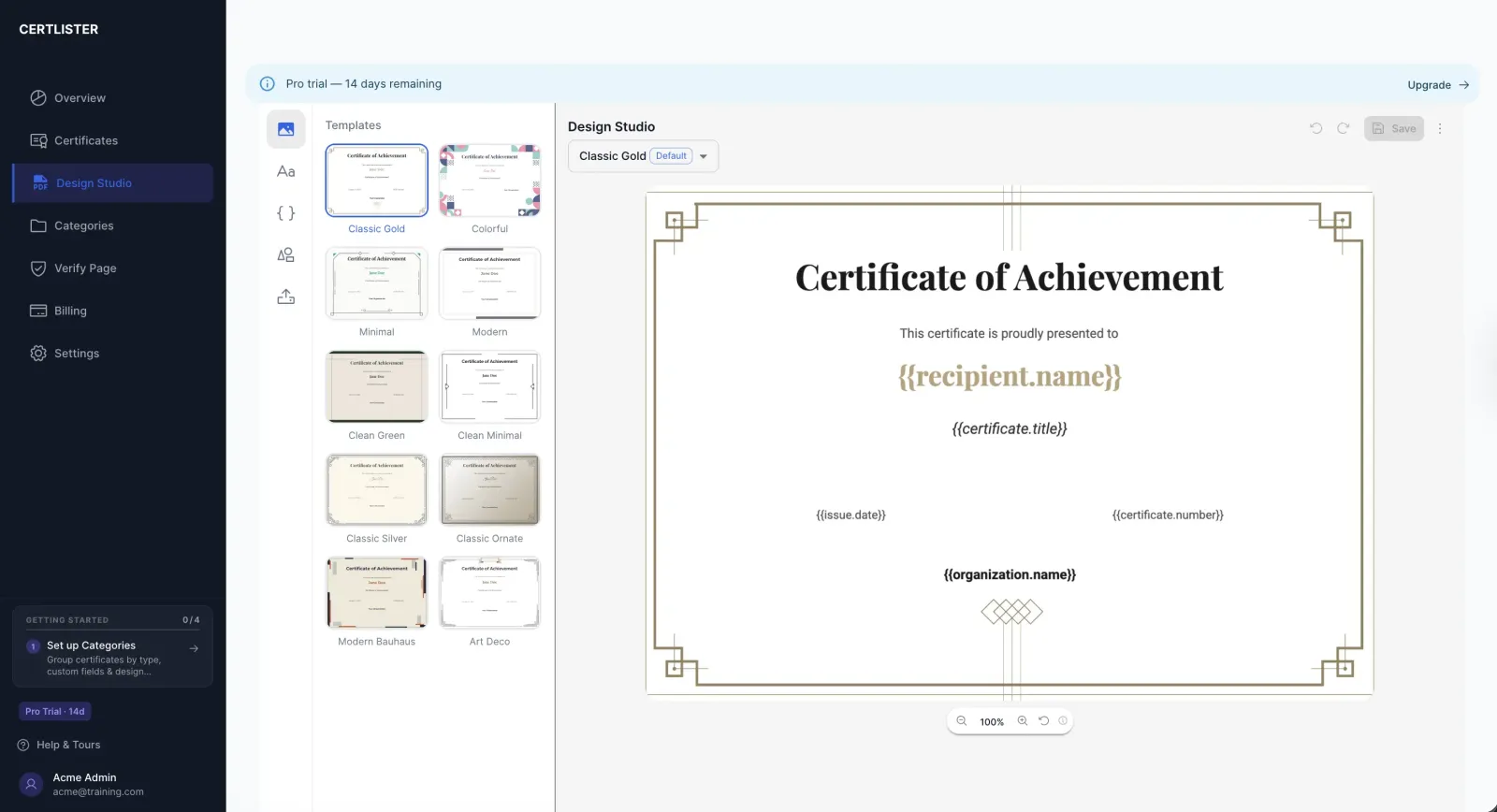
Design Studio: Create Custom Certificate Designs
Time to read: 10 minutes
Overview
The Design Studio is CertLister's visual certificate editor. Build a fully custom certificate design by placing text, attribute tokens, decorative elements, and images on a professional background — then generate print-quality PDFs for individual certificates or in bulk.
What you can do:
- Choose from 4 professional JPG background templates
- Add and position text, labels, and dynamic data tokens
- Insert decorative SVG elements, icons, ribbons, and line dividers
- Upload your own images — logos, signatures, seals (Pro)
- Save multiple named designs and switch between them
- Generate PDFs for one certificate or hundreds at once
Available on: All plans (Free: 1 design, 1 template; Basic: 5 designs, all templates; Pro: unlimited)
Design Studio vs the Legacy Generator
CertLister has two PDF generation methods. The Design Studio is the recommended option for all new work.
| Design Studio | Legacy Generator | |
|---|---|---|
| Templates | 4 JPG backgrounds | 3 classic SVG templates |
| Customization | Full visual editor | Template choice only |
| Bulk generation | Yes (Basic & Pro) | One at a time |
| Custom attribute tokens | Yes (Pro) | Basic support |
| Uploaded images | Yes (Pro) | No |
| Recommended | Yes | For existing legacy designs only |
The legacy generator remains available and is described in a separate help article. If you are starting fresh, use the Design Studio.
How to Open the Design Studio
- Log into CertLister at https://app.certlister.com
- Click Generate in the left navigation
- The Design Studio opens with your current or default design loaded
Direct URL: https://app.certlister.com/certificates/generator
The Three-Panel Layout
The Design Studio is organized into three areas:
1. Tools Sidebar (far left, narrow) A vertical strip of icons for switching active tools:
- Templates — Choose a background
- Text — Add and style text elements
- Attributes — Insert dynamic certificate data tokens
- Elements — Add decorative SVG shapes, icons, ribbons, and line dividers
- Uploads — Add your own images (Pro)
2. Selection Panel (left, wider) Shows options for the currently active tool — for example, the Text tool shows font, size, colour, and alignment controls.
3. Canvas (centre) Your live design. Click any element to select it. Drag elements to reposition them. Drag corner handles to resize.
Step 1: Choose a Background Template
- Click the Templates icon (top of the left toolbar)
- The Selection Panel shows 4 background options:
| Template ID | Style | Best for |
|---|---|---|
| Classic-01 | Gold geometric border, formal | Academic qualifications, professional certifications |
| Elegant-01 | Colourful abstract corners, contemporary | Workshops, creative or modern brands |
| Elegant-02 | Thin border with diamond ornaments, minimal | Clean, understated awards |
| Modern-01 | Grey bars with rose-gold inner border, corporate | Business training programs, compliance certifications |
- Click a template thumbnail to apply it to the canvas instantly
Plan note: Classic-01 is available on all plans. Templates Elegant-01, Elegant-02, and Modern-01 require a Basic or Pro plan. Free plan users will see a lock icon on those templates.
Step 2: Add Text Elements
- Click the Text icon in the left toolbar
- In the Selection Panel, click one of three text styles to add it to the canvas:
- Heading — Large, prominent text. Use for the recipient name or certificate title.
- Subheading — Medium text. Use for the course name, category, or organization.
- Body — Smaller supporting text. Use for dates, descriptions, or fine print.
- The element appears on the canvas — drag it to the position you want
- Double-click the element on the canvas to edit its text content directly
- Use the font, size, colour, and alignment controls in the Selection Panel to style it
Available fonts: Playfair Display, Roboto, Open Sans, Lato, Montserrat, Merriweather, Oswald, Raleway, Dancing Script, Great Vibes
Step 3: Insert Certificate Attribute Tokens
Attribute tokens are dynamic placeholders that are replaced with real certificate data when a PDF is generated. For example, {{recipient.name}} becomes "Sarah Johnson" in the final PDF.
- Click the Attributes icon in the left toolbar
- The Selection Panel shows all available tokens:
| Token | What it inserts |
|---|---|
{{recipient.name}} | Recipient's full name |
{{certificate.title}} | Certificate title |
{{issue.date}} | Issue date |
{{expiry.date}} | Expiry date (blank if none) |
{{certificate.number}} | Unique certificate number |
{{organization.name}} | Your organization name |
{{category.name}} | Certificate category name |
{{custom.fieldkey}} | Custom attribute value (Pro) |
- Click a token button to add it to the canvas at a default position, or drag the button directly onto the canvas where you want it
- Style the token element like any other text element — font, size, colour, alignment
Tip: Place {{recipient.name}} as a large Heading. It is the most prominent piece of information on most certificate designs.
Custom attributes are a Pro feature. See the Custom Certificate Attributes help article for a full guide.
Step 4: Add Decorative Elements
- Click the Elements icon in the left toolbar
- Browse the panel:
- Icons & Ribbons — Award icons, ribbon shapes, badges, seals
- Shapes — Geometric shapes and frames
- Lines — Horizontal or vertical line dividers to structure your design
- Click an element to add it to the canvas, or drag it to a specific position
- For SVG elements, use the colour picker in the panel to change the element's colour to match your brand
Tip: A horizontal line divider between the certificate title and the recipient name gives the design a clean, structured look.
Step 5: Upload Your Own Images (Pro)
- Click the Uploads icon in the left toolbar
- Click Upload Image and select a JPG, PNG, or SVG file (max 2 MB per file)
- The uploaded image appears in your gallery and persists across sessions
- Click the image thumbnail to add it to the canvas, or drag it directly onto the canvas
Common uses: Organization logos, signature images, official seals, stamps, watermarks
Requires Pro plan. Basic and Free plan users see a lock icon on the Uploads panel.
Working with Elements on the Canvas
Once elements are on the canvas:
- Move: Click and drag to reposition
- Resize: Drag the corner or edge handles
- Select: Click any element to select it (handles appear around it)
- Delete: Select an element, then click Delete Element in the Selection Panel — or press the Delete/Backspace key
- Layer order: Elements placed later appear in front. If elements overlap and you need to reorder them, delete and re-add the element in the correct order
Managing Multiple Designs
Your organization can save multiple named designs and use different ones for different certificate types.
Switching Between Designs
- Click the design name dropdown in the top header bar
- Select any saved design to load it on the canvas
Creating a New Design
- Click the design name dropdown
- Select New Design
- Enter a name (e.g., "Annual Award 2026", "CPR Certification Template")
- Start with a blank canvas or choose a background template
Renaming, Duplicating, or Deleting a Design
Click the overflow menu (three dots) next to the design name dropdown to access:
- Rename — Update the design name
- Save as New — Duplicate the current design under a new name
- Set as Default — Mark this design as the default (used for bulk PDF generation)
- Delete — Permanently remove the design (requires at least one design to remain)
Unsaved Changes
An orange dot appears next to the design name when there are unsaved changes. If you try to leave the page, the browser will warn you. Click Save before navigating away.
Design Limits by Plan
| Plan | Saved designs |
|---|---|
| Free | 1 |
| Basic | 5 |
| Pro | Unlimited |
Saving Your Design
Click Save in the top right corner of the header. A confirmation message appears when the design is saved successfully.
Note: Only Admin users can create, edit, or delete designs. Manager and User roles can view designs but cannot save changes.
Generating PDFs from Your Design
Once your design is saved, use it to generate certificate PDFs.
Single Certificate PDF
- Go to Certificates
- Find the certificate you want
- Click the Generate PDF action (or use the certificate's action menu)
- Select your design from the picker
- Click Generate — the PDF is created and attached to the certificate record
Bulk PDF Generation (Basic & Pro)
- Go to Certificates or Categories
- Check the boxes next to the certificates you want
- Click Generate PDFs in the bulk action bar that appears
- The design picker shows your saved designs — the default design is pre-selected
- Click Generate
- A progress bar tracks generation. PDFs are created and saved to each certificate record simultaneously
Troubleshooting
Changes are not saving
- Click Save in the top right before navigating away
- Check for the orange unsaved-changes dot next to the design name
- Confirm you have the Admin role — Managers and Users cannot save design changes
A template shows a padlock icon
- That template requires a Basic or Pro plan
- Upgrade at https://app.certlister.com/billing
Custom attribute tokens show as [fieldname] in the canvas preview
This is normal. The design preview has no real certificate data, so {{custom.score}} is shown as [score] as a placeholder. When you generate an actual PDF, the placeholder is replaced with the real value (e.g., "92%").
The Uploads panel shows a lock icon
- Image uploads require a Pro plan
- Upgrade at https://app.certlister.com/billing
Text is cut off in the generated PDF
- The text element on the canvas may be too narrow for the font size
- Select the element and widen it or reduce the font size
- Re-generate the PDF after saving the design change
Generated PDF looks slightly different from the canvas preview
Minor font rendering differences between the canvas (browser) and the PDF engine are normal. The preview is approximately 95–98% accurate. Always download and review a sample PDF before bulk generating.
Frequently Asked Questions
Q: Can I use the Design Studio on the Free plan?
A: Yes. Free plan includes one saved design and access to the Classic-01 background template. Upgrading to Basic unlocks all 4 background templates and up to 5 saved designs. Pro gives you unlimited designs and all templates.
Q: Can multiple team members edit the same design at the same time?
A: The Design Studio does not currently lock designs for exclusive editing. If two Admin users save the same design simultaneously, one save will overwrite the other. Coordinate with your team to avoid this.
Q: What fonts are available?
A: 10 fonts are loaded from Google Fonts: Playfair Display, Roboto, Open Sans, Lato, Montserrat, Merriweather, Oswald, Raleway, Dancing Script, Great Vibes.
Q: Can I import my own fonts?
A: Not currently. Only the 10 built-in fonts are available.
Q: What image formats can I upload?
A: JPG, PNG, and SVG — up to 2 MB per file. Pro plan required.
Q: Can I export a design to use outside CertLister?
A: Not currently. Designs are used only within CertLister to generate certificate PDFs.
Q: Do I need design experience to use the Design Studio?
A: No. Start by choosing a background template, then drag the standard attribute tokens onto the canvas. Most organizations have a working design in under 15 minutes.
Q: What canvas resolution do generated PDFs use?
A: The canvas is 2480 × 1754 pixels — A4 landscape at 300 DPI — producing print-quality PDFs.