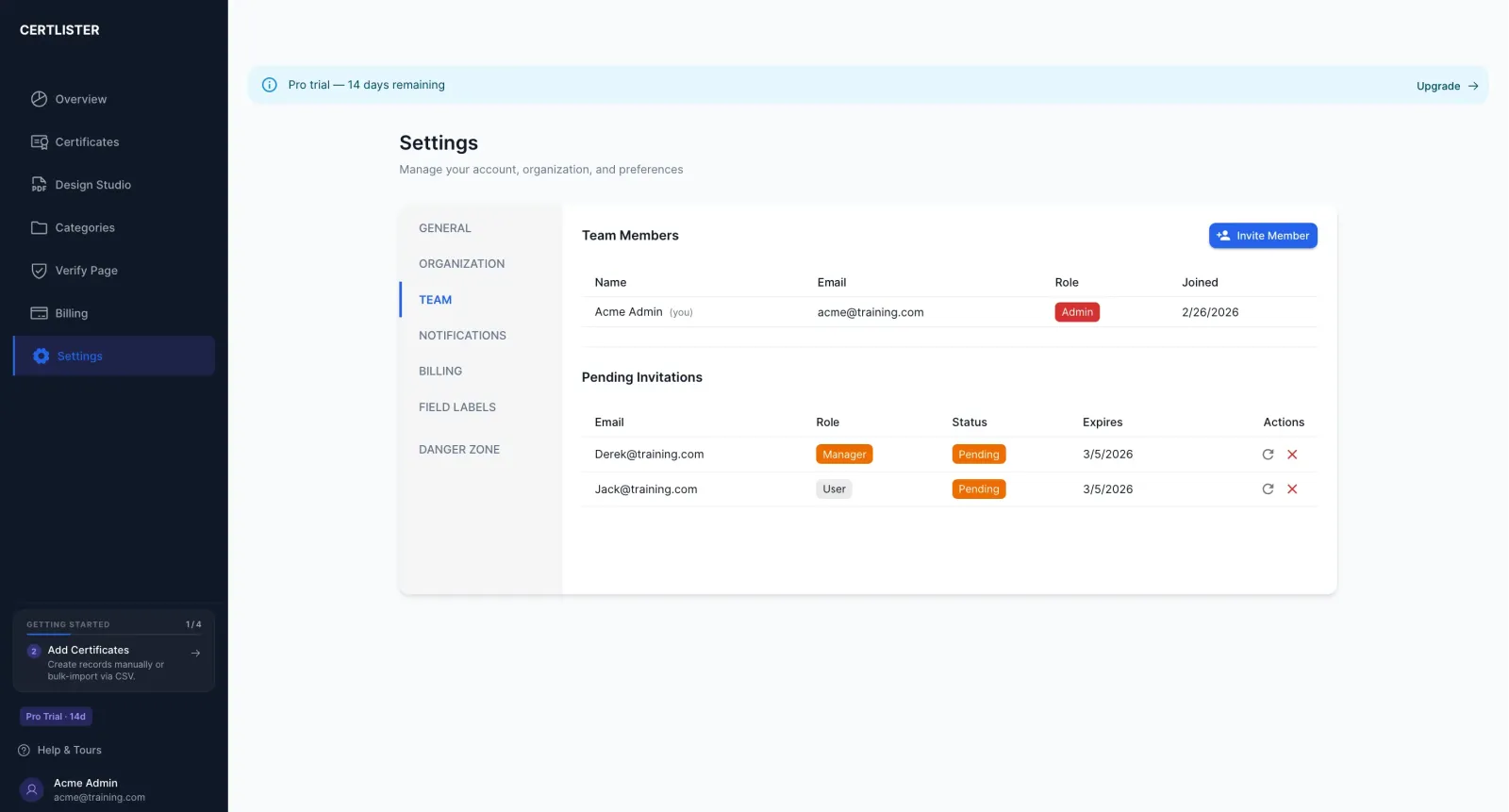
Invite Team Members
Overview
CertLister supports multi-user organizations on Basic and Pro plans. You can invite team members and assign them one of three roles: Admin, Manager, or User.
Available on: Basic (up to 5 members) and Pro (unlimited members)
User Roles
| Role | What they can do |
|---|---|
| Admin | Full access: manage certificates, categories, team, billing, and settings |
| Manager | Create and manage certificates and categories; cannot access billing or team settings |
| User | View certificates and categories; cannot create, edit, or delete |
How to Invite a Team Member
- Go to Settings → Team
- Click "Invite Member"
- Enter their email address
- Select their role (Admin, Manager, or User)
- Click "Send Invitation"
The invited person will receive an email with a link to join your organization. The invitation expires after 7 days.
Managing Pending Invitations
Pending invitations (sent but not yet accepted) are shown in the Team tab under "Pending Invitations."
You can:
- Resend an invitation if the email wasn't received
- Cancel an invitation if you sent it by mistake
Changing a Member's Role
- Go to Settings → Team
- Find the team member in the list
- Click the role dropdown next to their name
- Select the new role
- The change takes effect immediately
Only Admins can change roles.
Removing a Team Member
- Go to Settings → Team
- Find the team member
- Click the remove icon (or three-dot menu)
- Confirm removal
Removed members immediately lose access to your organization. Their certificates and data remain — only the user account link is removed.
Troubleshooting
Invitation email not received
- Ask the member to check their spam/junk folder
- Verify you entered the correct email address
- Click "Resend" in Settings → Team → Pending Invitations
- Invitation links expire after 7 days — resend if needed
"Team member limit reached"
You've reached the member limit for your plan (5 on Basic). Upgrade to Pro for unlimited team members, or remove an existing member to make room.
Invited the wrong person
Cancel the invitation immediately from Settings → Team → Pending Invitations. If they already accepted, remove them from the team members list.