Employee Certification Tracking: The Complete HR Guide
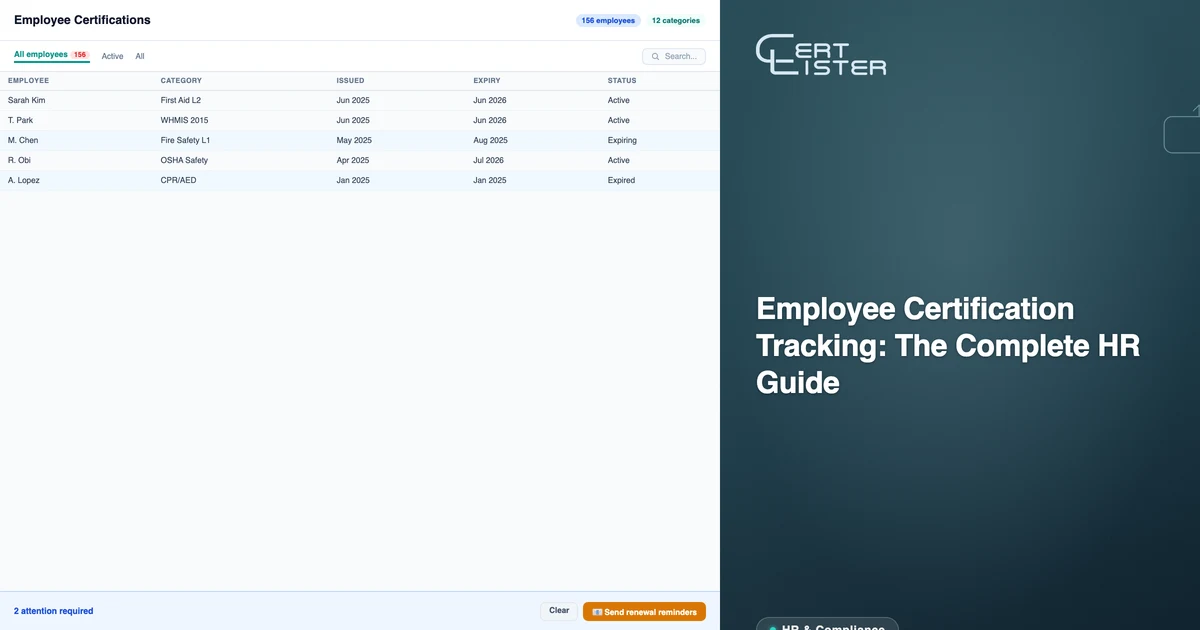
Employee certification tracking is one of those tasks that looks simple until it isn't. A small company with 20 employees and three certification types manages fine with a spreadsheet. Add another location, a new compliance requirement, staff turnover, and certifications that expire on different schedules — and the spreadsheet starts to fail.
The failures aren't dramatic. They're quiet: someone's forklift license expired two weeks ago and nobody noticed. A new hire's food safety certification wasn't tracked because it happened before the current system was set up. An auditor asks for a report of everyone with a current WHMIS certification, and you're spending an afternoon assembling it from three different sources.
This guide covers what a proper employee certification tracking for HR teams system looks like, what it needs to do, and how to set one up with CertLister.
What Employee Certification Tracking Actually Requires
Before choosing a tool or process, it's worth being clear on what the system needs to handle:
A complete, searchable record of every certification. You need to know who has what, when it was issued, and when it expires — across all certification types, all locations, and all employees, including former employees whose records you may need for audits.
Expiry visibility before expiry happens. The point of tracking expiry dates is to act before they lapse, not after. A useful system surfaces certifications expiring in the next 30, 60, or 90 days — not just ones that have already expired.
Automatic reminders. Relying on a calendar reminder or a manual weekly check to send renewal notices is fragile. The reminder system needs to run on its own.
Proof of certification for audits. When a regulator, client, or internal auditor asks for documentation, you need to be able to produce it quickly — ideally with a filtered list and exportable records, not a manual search through email attachments. This is the core requirement behind compliance certificate tracking.
Accessible verification. In some industries, external parties (clients, licensing bodies, jobsite supervisors) need to verify a certification independently. A QR code on a credential that links to a public credential verification page handles this without involving your HR team.
What to Record for Each Certification
| Field | Why it matters |
|---|---|
| Holder name and email | Who the certification belongs to, and where reminders go |
| Certification type | Lets you report on one type at a time, such as every first aid certification |
| Issuing body | Tells an auditor who can confirm it |
| Certificate or license number | The reference the issuer uses to look it up |
| Issue date | Shows when the person became certified |
| Expiry date | Drives reminders and status. Leave it blank only if the certification never expires |
| Evidence | A copy of the certificate, or a link where it can be verified |
| Status | Active, expiring soon or expired, so nobody has to work it out from the dates |
In CertLister, the category holds the certification type, and the holder, credential number and dates are standard fields. Custom fields can hold anything else, such as the issuing body.
Your Options for Tracking Employee Certifications
Most HR teams choose between four kinds of tool. The right one depends on who holds the certifications and who needs to check them.
A spreadsheet works for a small team with a few certification types and one careful owner. It has no reminders and no status of its own, so it fails quietly when that owner is busy or leaves.
An HR system or HCM module can track certifications for the people already in it. If every certification belongs to an employee and nobody outside the company needs to verify one, it may be all you need. Before relying on it, check two things: that it can send reminders for every certification type you track, and that contractors can be added without being set up as employees.
A learning management system records the courses people complete inside it. It tends to be weaker for certifications earned elsewhere, such as a first aid certificate from an outside provider.
A dedicated tracker such as CertLister holds any certification for anyone, including contractors, sends reminders on a schedule you set, and lets clients or inspectors check a certification without logging in. Our side-by-side comparison shows when each option is enough.
Setting Up Your Certification Categories
In CertLister, certifications are organized into categories. A category represents a certification type — WHMIS, First Aid, Forklift Operation, Food Handler, etc. Each category has its own credential template, default expiry rules, and automation settings.
Creating categories before importing records pays off. When you import a CSV of employee certifications, each row is assigned to a category. If all your certifications are in one flat list, filtering and reporting become harder later.
Category setup checklist:
- One category per certification type (not one per cohort or session)
- Set a default expiry on each category — for example, "expires 2 years after issue date." This pre-fills the expiry date field when you create records, reducing data entry errors.
- Configure the verify page fields for each category — choose which custom fields (e.g., instructor name, course code, certificate number) are visible on the public verification page
- Set up the category's credential template in Design Studio if you want branded PDFs
Certifications Employers Commonly Track
If you are starting your category list, these are typical by industry.
| Industry | Certifications often tracked |
|---|---|
| Construction and trades | Working at heights, forklift and aerial lift operation, first aid, WHMIS or hazardous materials |
| Healthcare | CPR and BLS, ACLS, professional licenses, infection control training |
| Food service | Food handler certificates, allergen awareness, responsible alcohol service |
| Manufacturing and warehousing | Forklift operation, lockout/tagout, hazardous materials, first aid |
| Transportation | Commercial driver's licenses, dangerous goods handling, driver medical certificates |
| Security | Security guard licenses, first aid, use-of-force training |
| Education and childcare | First aid and CPR, background checks, child protection training |
How long each one stays valid depends on the issuer and the jurisdiction, so take the expiry date from the certificate itself rather than from a general list.
Importing Your Existing Records
If you're ready to replace your spreadsheet with a proper tracking system, the import process is straightforward.
Export your spreadsheet to CSV. The only required column is Recipient Name; new credentials also need Title (unless the category has a default title) and Issue Date. Recommended additional columns: Recipient Email, Expiry Date, and any certification-specific fields (course name, score, license number).
Go to Credentials in CertLister and click Import CSV. Upload the CSV, map the columns, review the validation summary, and confirm. Records with missing required fields or malformed emails are flagged before import — fix those rows and re-import the corrected batch.
For organizations with certifications across multiple types, add a Category column so each row lands in its certification type, or import each type separately. Either way, your records are organized correctly from the start.
Managing Expiry Dates and Status
Every certification record in CertLister has a status: Active, Expired, Revoked, or Replaced (by a renewal). With Auto-expire turned on for its category, a credential moves from Active to Expired the night after its expiry date passes. The public verification page shows it as expired from that date either way.
"Expiring soon" is a filter, not a status. On the Credentials list, the expiry filter shows credentials expiring in the next 30, 60 or 90 days. When you want to see everyone whose First Aid certification expires in the next 30 days, filter by the category and 30d. The result is a real-time list ready to act on.
For compliance reporting, the filter and sort tools let you produce the specific views auditors typically ask for: everyone with a current certification in a given category, everyone with an expired certification, everyone issued after a specific date.
Automating Expiry Reminders
Manual follow-up on expiring certifications is the most time-consuming part of certification management for most HR teams. Workflow automations replace this with a set-it-and-forget-it process. For how reminders work on every plan, see certification expiry tracking software.
A standard setup for each certification type is below. The free plan includes one automation, Basic three, and Pro as many as you need.
- 60-day reminder — automation triggers 60 days before expiry, sends recipient an email with their expiry date and a link to renewal information
- 14-day reminder — automation triggers 14 days before expiry for anyone who hasn't renewed yet
- Notification once expired — a rule for expired credentials emails your admins once a credential in that category has expired (turn on Auto-expire for the category so the rule runs)
Once these automations are configured for each certification category, the entire reminder workflow runs without manual input. HR's role shifts from chasing renewals to reviewing exceptions.
Verification and Audit Response
When an auditor, client, or jobsite supervisor asks for certification documentation, CertLister gives you two options:
Show the live record. The Credentials list in CertLister is filterable, sortable, and exportable to CSV. For internal audits, you can walk through the list with an auditor or export a filtered view as a CSV report.
Share a verification URL. Every credential has a unique verification page that shows the certification details, issuer, dates, and status. The URL is permanent — it resolves as long as the record exists. Share it directly, or include the QR code on the printed credential. The verifier sees the current status of the certification without needing access to your CertLister account.
For regulated industries where credentials need to be verified by third parties on-site (construction, food service, healthcare), the QR code on the PDF credential is the fastest path. A phone scan shows the credential status instantly.
Handling Employee Departures and Transfers
When an employee leaves, their certification records should be retained — you may need them for audits or to confirm what certifications a former employee held during their tenure.
In CertLister, deactivating an employee doesn't delete their credential records. You can filter by recipient email to pull a full history of certifications issued to a specific person. For organizations that need a record of who held what certification at what time (common in regulated industries), this history is an important part of the system.
When an employee transfers between departments or locations, their credentials follow the email address — the same records are visible regardless of which category or team context they're in.
Organizing a Multi-Site Workforce
If you run several sites, decide early whether you report by certification type or by site. It shapes how you set up records.
CertLister has no separate location field. Keep one category per certification type, as described above, and put the site in the credential title, for example "First Aid (Hamilton plant)". The search box on the credentials list matches titles, so a site name plus the category and expiry filters gives a site manager their own list, and the title comes through in the CSV export. The title also shows on the credential's PDF and verification page, so use a site name you are happy to show publicly. You can also add a Location custom field, which shows on the credential and, if you choose, on its verification page.
However you record it, name one person at each site who acts on that site's expiring certifications. A central register only works if someone local follows up.
What Good Certification Tracking Looks Like
A well-configured system in CertLister means:
- Every active employee certification is in the system with accurate issue and expiry dates
- The credentials list gives you a current view of status across all certification types at any moment
- Expiry reminders run automatically — HR doesn't touch them except to review exceptions
- Any auditor request can be answered in under 5 minutes with a filtered list or a CSV export
- Recipients can access their own certification records through the portal and share verification links without contacting HR
The setup work — creating categories, importing existing records, configuring automations — takes a few hours. What it eliminates is hours of manual work per month, indefinitely.
If you're currently managing employee certifications in a spreadsheet, the single most valuable upgrade is getting expiry dates into a system that surfaces them automatically and sends reminders on your behalf. Everything else builds from there.
See it in action. No card, no commitment
Join schools, companies, and training centers using CertLister. Free plan available, no credit card required.
Get Started Free