Stop Answering
"Where's My Credential?"
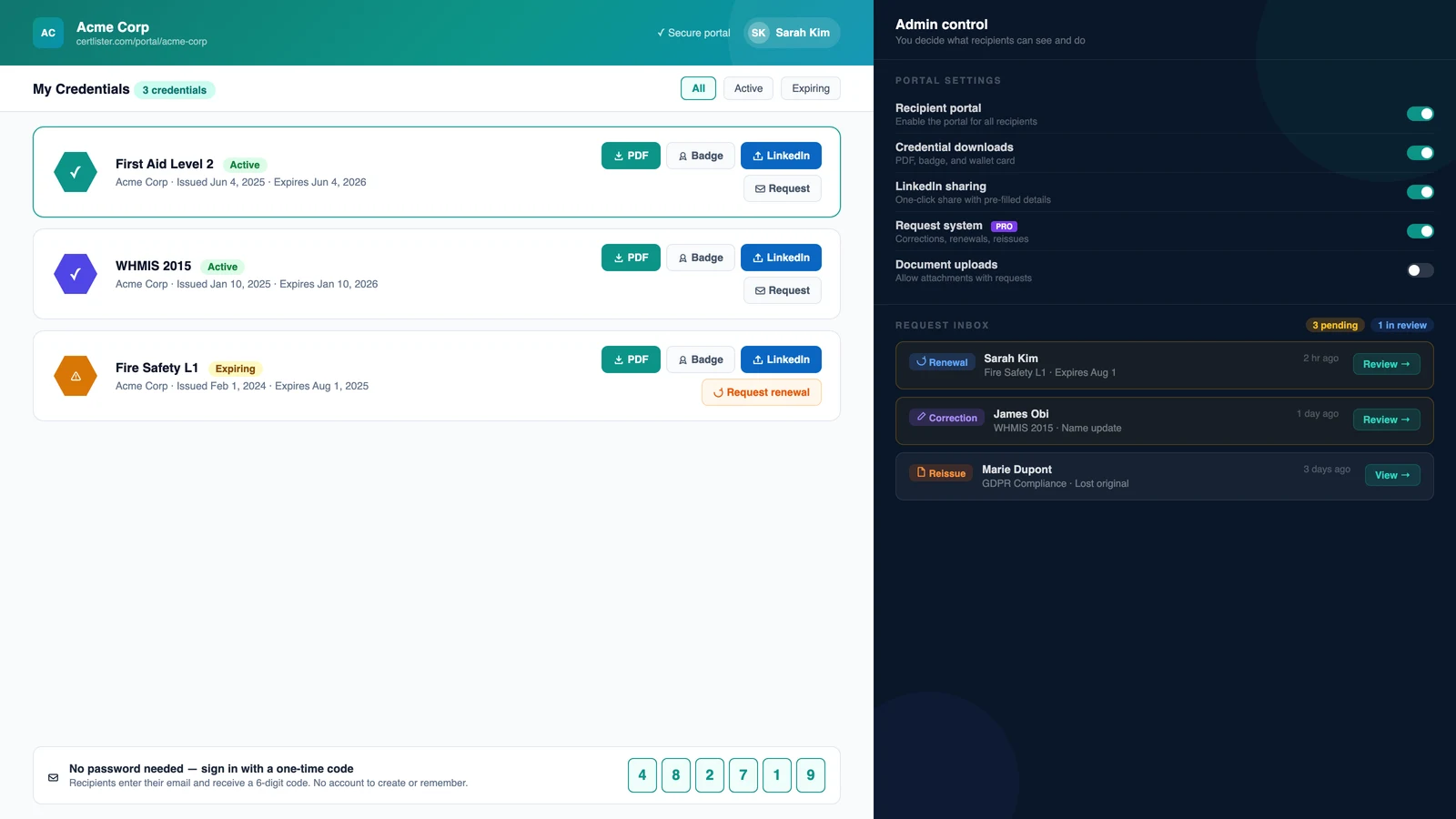
CertLister's recipient portal gives credential holders a self-service hub: sign in with email, view and download every credential, share to LinkedIn, and submit requests. No inbox digging required on either side.
Available on Basic and above · Request inbox on Pro · No password required for recipients
Features
Everything Recipients Need, Without Contacting You
Email OTP Login: No Password, No Account
Recipients sign in with just their email address. CertLister sends a one-time code, with no password to create and no account to manage. The portal lists every credential issued to that email address, with download options for PDF, digital badges, and wallet card all in one place.
- Email OTP sign-in: no password or account required
- All credentials from your organization in one list
- PDF, badge, and wallet card download per credential
- One-click LinkedIn share with pre-filled details
Request Inbox: Name Corrections, Renewals, Disputes
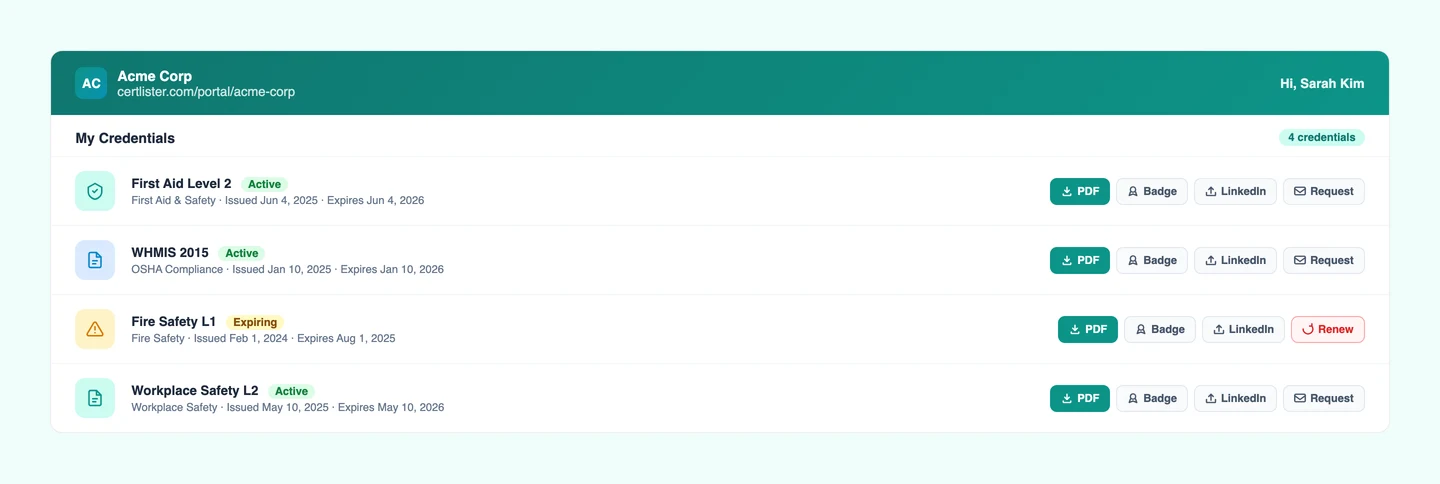
Recipients can submit formal requests from the portal: a name correction, a renewal application, a reissue request, or a dispute. Each request lands in your admin inbox with the recipient's details, their message, and the credential in question. You review, act, and close — no email chain required.
- Request types: correction, renewal, reissue, dispute
- Admin inbox with full request context
- Email notification when a new request arrives
- Recipients can upload supporting documents (PDF submission)
Full Admin Control Over What Recipients See
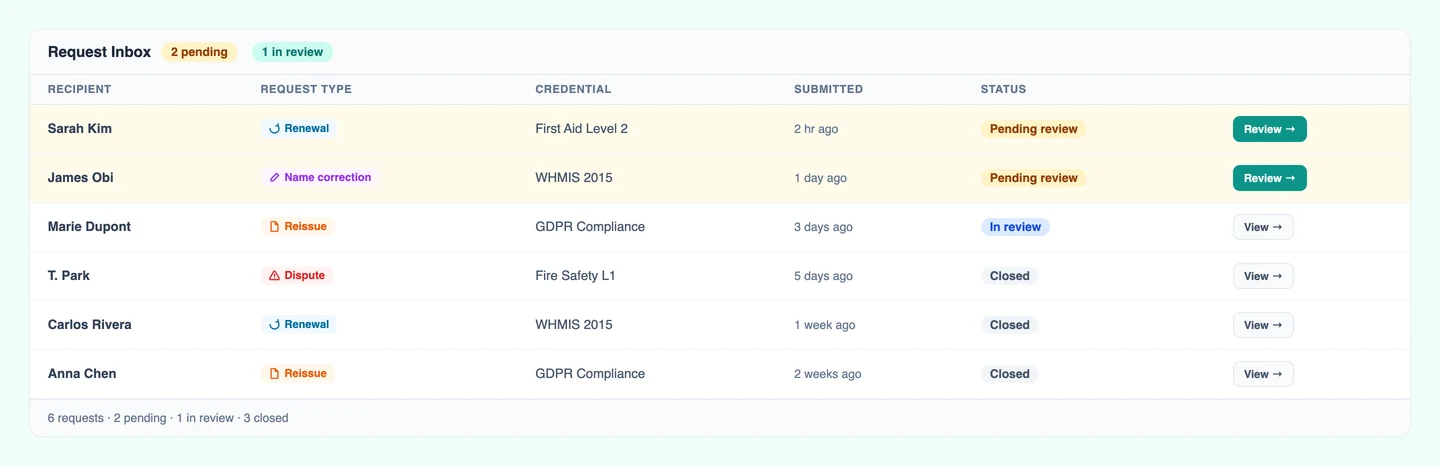
Enable or disable the portal with a single toggle. Control which features are available, so you can offer downloads without enabling the request system, for example. Opt individual categories out of the portal entirely for credentials that should stay internal.
- Master enable/disable toggle per organization
- Independent toggles for downloads, requests, and submissions
- Open your live portal in one click to check what recipients see
Frequently Asked Questions
What is the recipient portal?
The recipient portal is a self-service hub where your credential holders can sign in (via email OTP, no password required), view all their credentials from your organization, download PDFs and badges, share to LinkedIn, and submit requests like name corrections or renewal applications.
How do recipients sign in to the portal?
Recipients sign in using their email address. CertLister sends a one-time code to that address — no password or account creation required. The session is tied to the email address associated with their credentials.
Can recipients download their PDF credential and badge from the portal?
Yes. Every credential in the portal has download buttons for the PDF, the badge PNG (if generated), and the wallet card (if applicable). Recipients can also share directly to LinkedIn from the portal.
What is a recipient request?
A recipient request is a formal message from the credential holder asking for a change: a name correction, a reissue, a renewal, or a dispute. Requests appear in your admin request inbox and include the recipient's details and their message. Available on the Pro plan.
Can recipients upload supporting documents?
Yes, on the Pro plan. The PDF submission feature allows recipients to upload documents as part of a request, for example uploading proof of renewal before you reissue a credential.
Can I disable the portal or specific features within it?
Yes. The portal has a master enable/disable toggle per organization. Individual features (such as the request system or PDF submissions) can be toggled on or off independently on the Recipient Portal page.
From the blog
Digital Badge vs PDF Credential: What's the Difference and Which Should You Issue?
Digital badges and PDF credentials serve different moments. Here's how they compare, and why most organizations should issue both.
Read moreHow to Set Up a Self-Service Credential Portal for Your Recipients
A step-by-step guide to setting up a recipient portal where earners can view, download, and share their credentials without emailing you.
Read moreStop Answering Credential Emails: Let Recipients Self-Serve
Set up the recipient portal in minutes. Available on Basic and Pro. Start on the free plan and upgrade when you're ready.