Set It Once.
Run It Every Time.
Stop manually sending emails, generating PDFs, and notifying admins after every credential event. Configure a trigger, chain your actions, and CertLister handles the rest: automatically, every time.
3 automations on Basic · Unlimited on Pro · Run logs on all plans
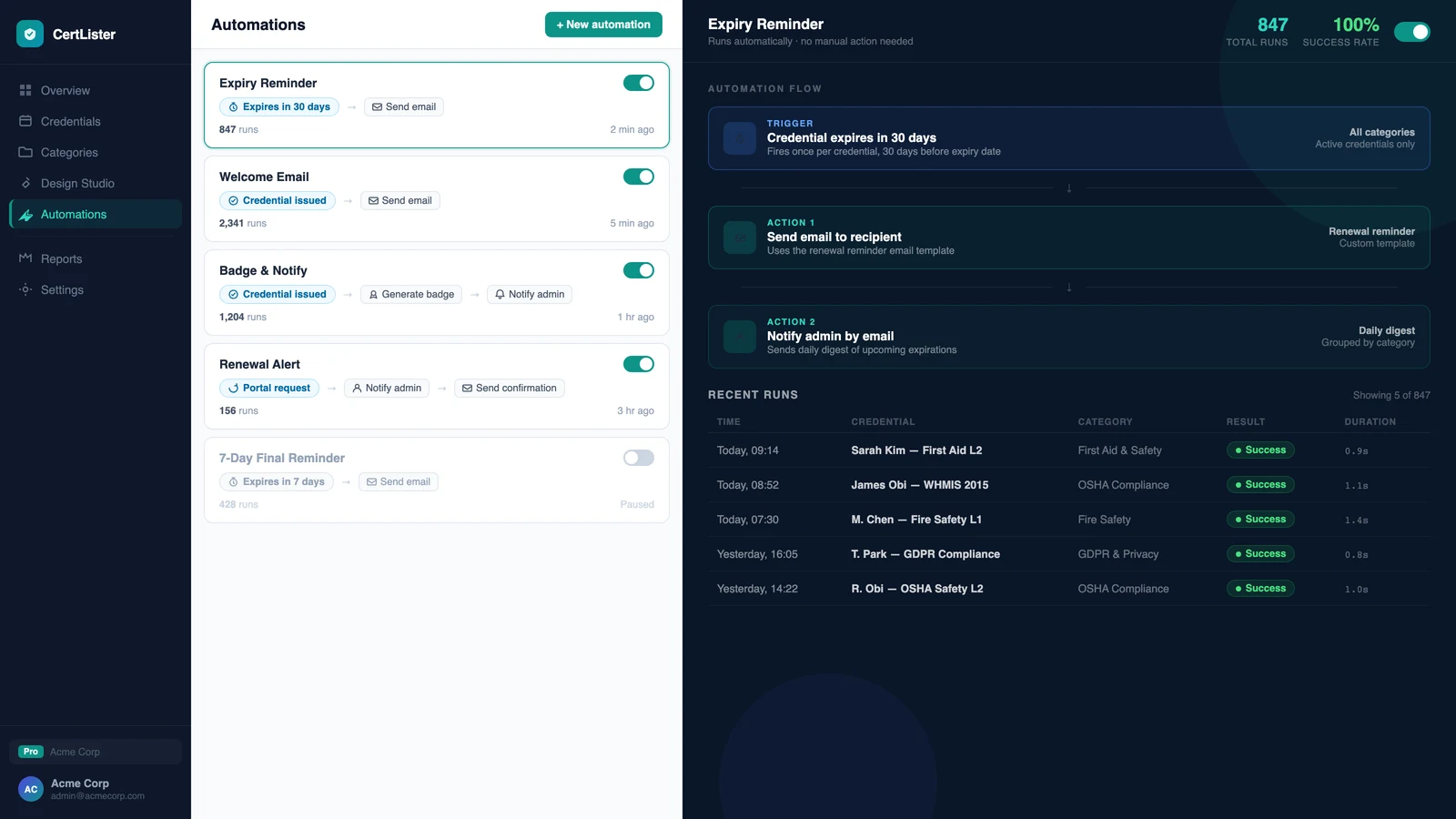
How It Works
Trigger → Conditions → Actions
Every automation follows the same pattern. Configure it once and CertLister runs it automatically, every time the trigger fires, without exception.
Trigger
Select the event that starts the automation: credential issued, expiry approaching, portal request received, or bulk import completed.
Conditions (optional)
Filter which credentials qualify: by category, status, or custom attribute. Leave blank to run on every matching trigger event.
Actions
Chain one or more actions in sequence: send email to recipient, notify admin, generate PDF, generate badge. Runs in order, every time.
Ready-to-Use Scenarios
Four Automations Worth Setting Up First
Issue + email in one step
The most common setup. Every time a credential is issued, CertLister generates the PDF and emails it to the recipient automatically — no manual follow-up.
Expiry reminder sequence
Configure the advance notice window (e.g. 30 days before expiry) and CertLister sends the reminder automatically. Combine with a second automation at 7 days for a multi-step sequence. See how certification expiry tracking works, and read the certificate expiration tracking best practices.
New request notification
When a recipient submits a correction, renewal, or reissue request through the recipient portal, the admin gets an email immediately, with no polling required.
Import completion alert
After a large CSV import finishes, send one summary notification to your admin rather than triggering one email per credential.
Not sure where to start? Read what to automate first in credential management.
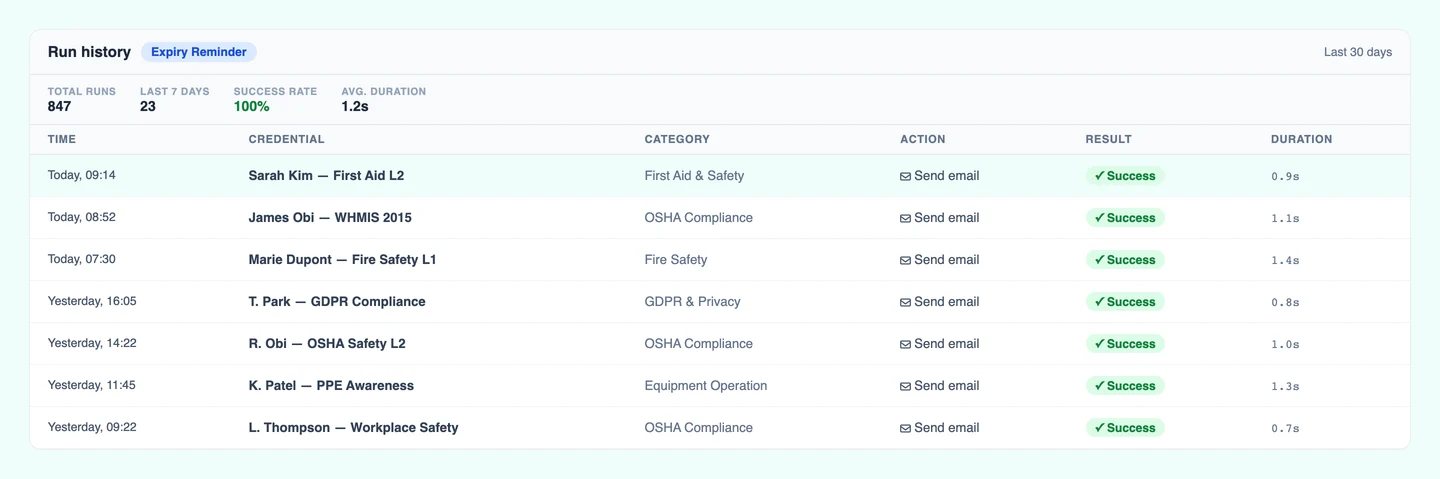
Full Run History for Every Automation
Every automation execution is logged — which credential triggered it, when it ran, whether each action succeeded or failed, and how long it took. If something goes wrong, the log tells you exactly which action failed and why, so you can diagnose without guesswork.
- Per-execution log with action-level results
- Timestamp, credential, and duration on every run
- Error details when an action fails
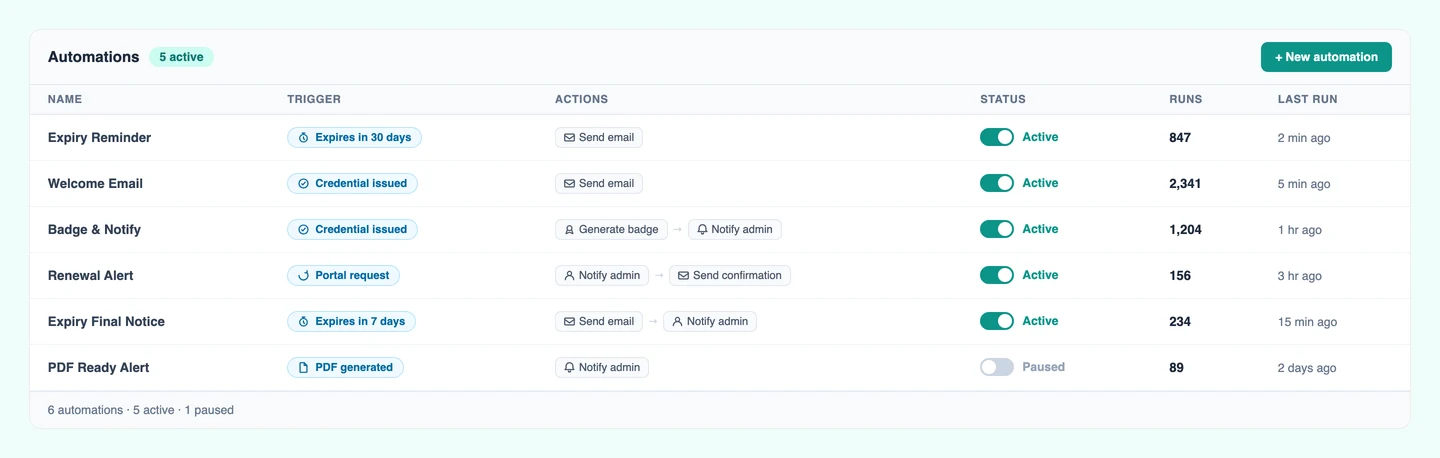
- Run count and last run time shown on each automation
Frequently Asked Questions
What is a workflow automation in CertLister?
A workflow automation is a rule you configure once: when a specific event happens (the trigger), CertLister automatically runs a sequence of actions: generating a PDF, sending an email, or notifying an admin. No manual steps required after setup.
What triggers are available?
Current triggers include: credential issued, credential expiry approaching (with configurable advance notice), credential expired, portal request received, and bulk import completed. Each trigger fires the action sequence automatically when the condition is met.
What actions can an automation perform?
Available actions include: send email to recipient, send email to admin, generate PDF, generate badge PNG, and add an internal note to the credential. Actions run in sequence, so you can chain multiple actions in one automation.
Can I add conditions so an automation only runs for certain credentials?
Yes. You can add optional conditions to filter which credentials trigger the automation, for example only when the credential belongs to a specific category, or only when the credential has a particular status.
How many automations can I have?
Basic plans include up to 3 active automations. Pro plans include unlimited automations. All plans can view automation run logs to see what has executed and when.
Can I see whether an automation ran successfully?
Yes. Each automation has a run log showing every execution: timestamp, which credential triggered it, whether each action succeeded or failed, and how long it took. If an action fails, the log shows the error so you can diagnose it.
Do automations work with bulk imports?
Yes. The bulk import completed trigger fires once after a CSV import finishes, with the full batch as context. This is useful for sending a single summary notification to an admin after a large import, rather than one email per credential.
From the blog
Can Your HR System Track Employee Certifications?
Most HR systems (HRIS or HCM) can track certifications for the employees in them. Where they fall short: agency workers and contractors, certificates earned elsewhere, reminders with enough notice, and proof an auditor can check. Six questions to ask yours before you add another tool.
Read moreCertification Expiry Tracking: 7 Best Practices
How to track certification expiry dates, choose reminder lead times and handle a lapse before it becomes a compliance gap. Seven practices for HR and compliance teams.
Read moreCertLister vs Accredible: An Honest Comparison
A direct comparison of CertLister and Accredible: pricing model, features, and which platform fits which type of organization.
Read moreSet a Trigger. Chain Your Actions. Never Do It Manually Again.
Create your first automation in under 5 minutes. Available on Basic and Pro. Start on the free plan and upgrade when you're ready.