Instant Certificate Verification.
No Login. No App.
CertLister gives every credential you issue a permanent public verification URL. Employers, auditors, and clients can confirm authenticity in seconds, without an account, a phone call, or a PDF that can be faked.
Available on all plans · Custom URL included · White-label on Pro
See It in Action
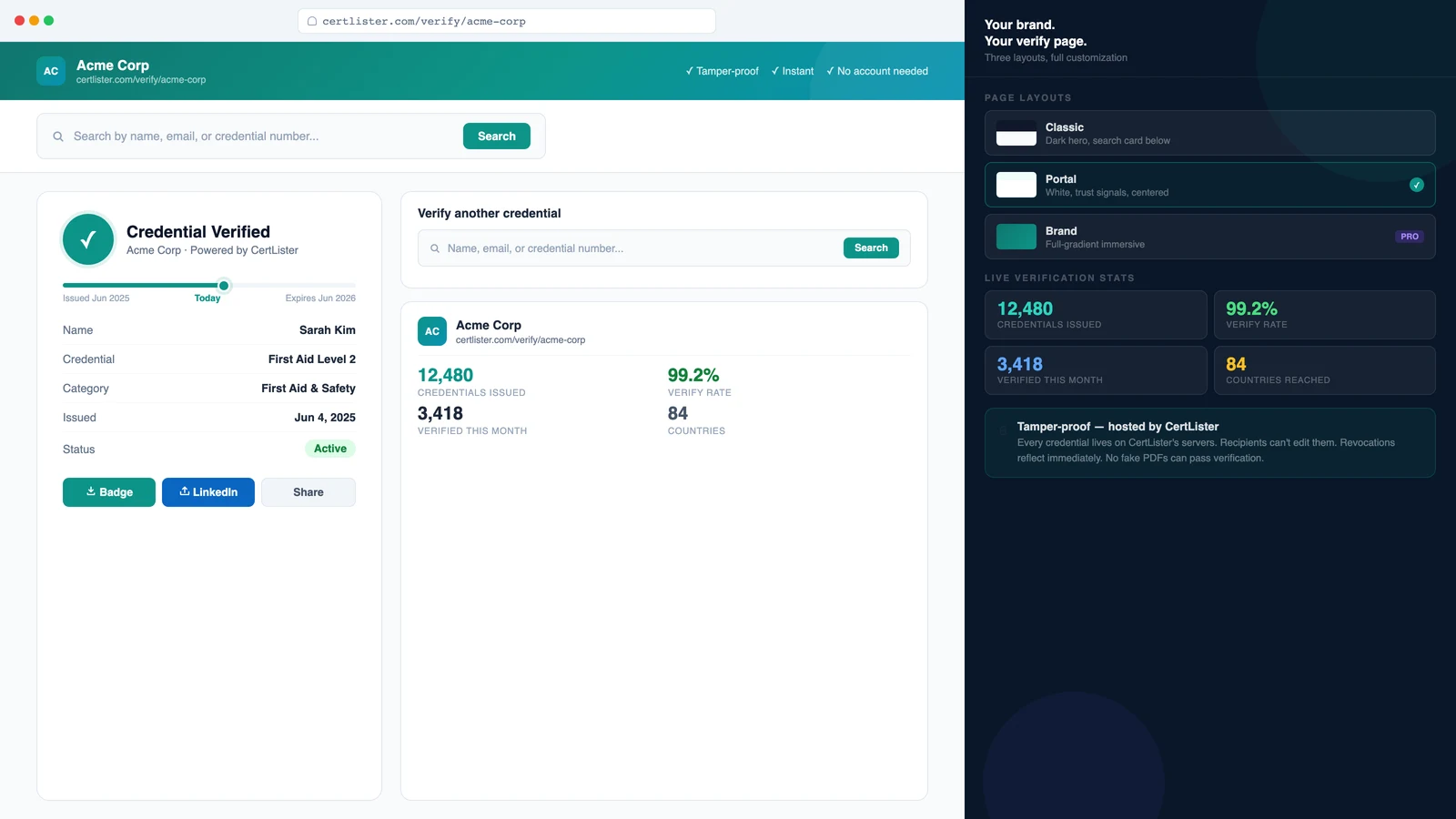
Try the Verify Experience
This is exactly what an employer or auditor sees when they follow a credential link, or search your public verify portal directly. No login, no app, instant result.
The demo cycles through both search methods: by credential number and by recipient name. Click pause any time to read the result card.
How It Works
Three Seconds from Link to Verified
No account required — for you, your recipients, or the people verifying their credentials.
Recipient shares the link
Every credential gets a unique public URL the moment it's issued. Recipients include it on LinkedIn, in a CV, or in an email signature.
Verifier opens the page
The verify page loads instantly. They can also search by credential number or recipient name. No link required.
Result appears immediately
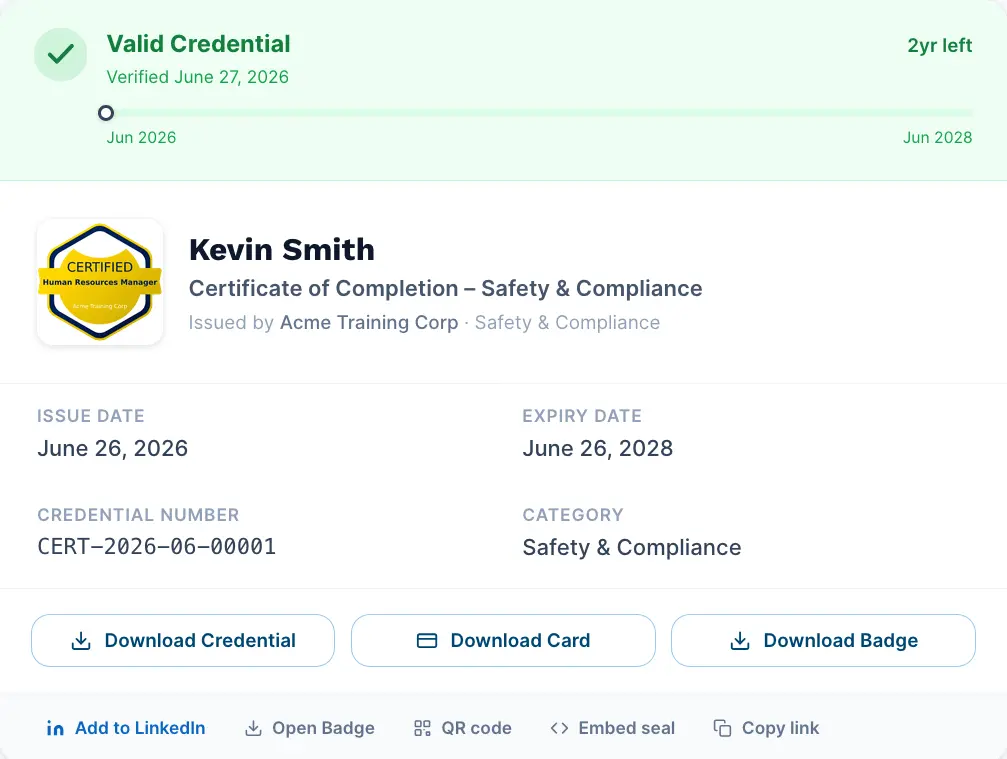
Active, Expired, or Revoked status is shown with issue date, credential title, and any fields you've made public. No ambiguity.
Accessible Everywhere
One Link. Every Channel.
Recipients share the verification link wherever they share their credentials: LinkedIn, email, QR code on the PDF, or a direct URL. Anyone who follows it gets an instant trusted result.
Show anyone that a credential is real
Every credential gets a verification page. An employer enters its number or scans the QR code and sees whether it is valid.
Issue Your First Verifiable CredentialFree plan, no credit card.
Features
A Verify Page That Looks Like Yours
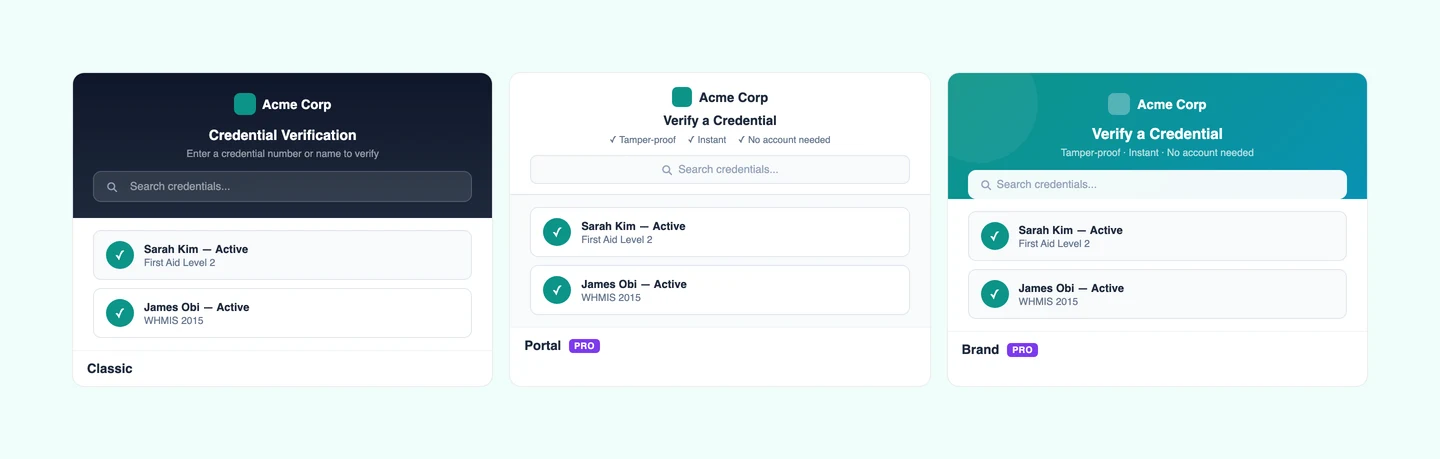
Three Verify Page Layouts
Choose the shell that fits your brand. Classic: a dark hero with a search card below, clean and professional. Portal: a white identity band with centered search and trust signals. Brand: an immersive full-gradient hero with search embedded, ideal for organizations with a strong visual identity.
- Switch layouts at any time in the app
- All layouts are fully mobile-responsive
- Your logo, brand color, and org name on every layout
- Brand and Portal layouts are Pro features
Two Result Card Layouts
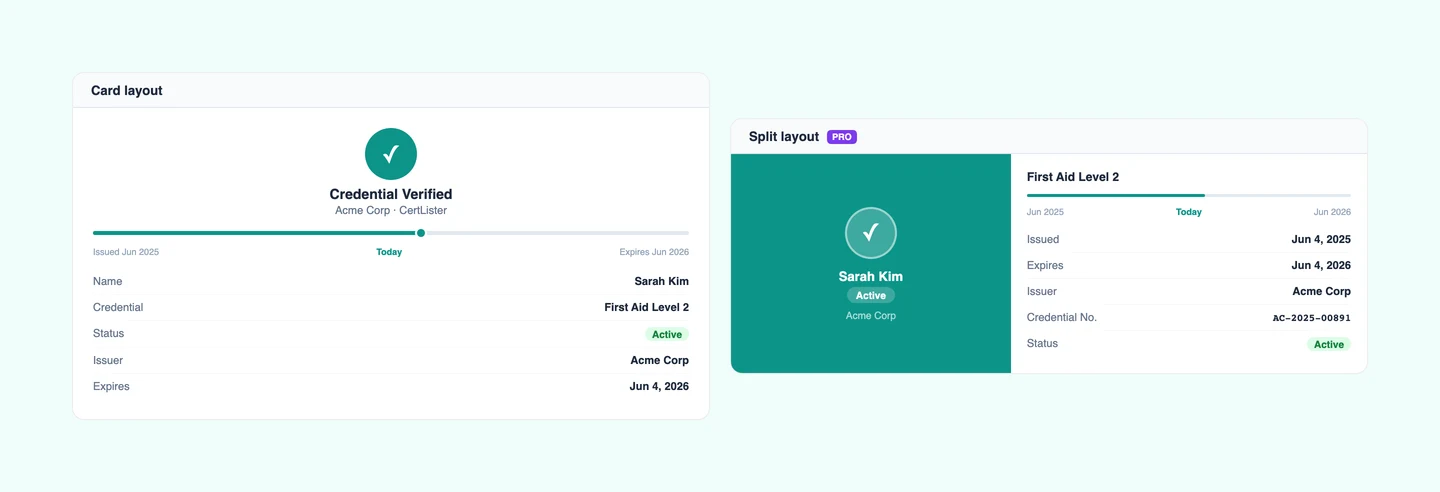
Control how the verification result is presented. Card: a stacked layout with identity, timeline bar, and credential details flowing top to bottom. Split: a two-panel layout with the verification seal and holder name on the left, detail fields on the right. Both include the status seal, validity timeline, and your issuer information.
- Animated status seal: green (Active), amber (Expiring), red (Expired)
- Timeline bar showing issue date → today → expiry
- Issuer trust section with org logo, stats, and website link
- Split layout: on every plan
Your Brand, Not Ours
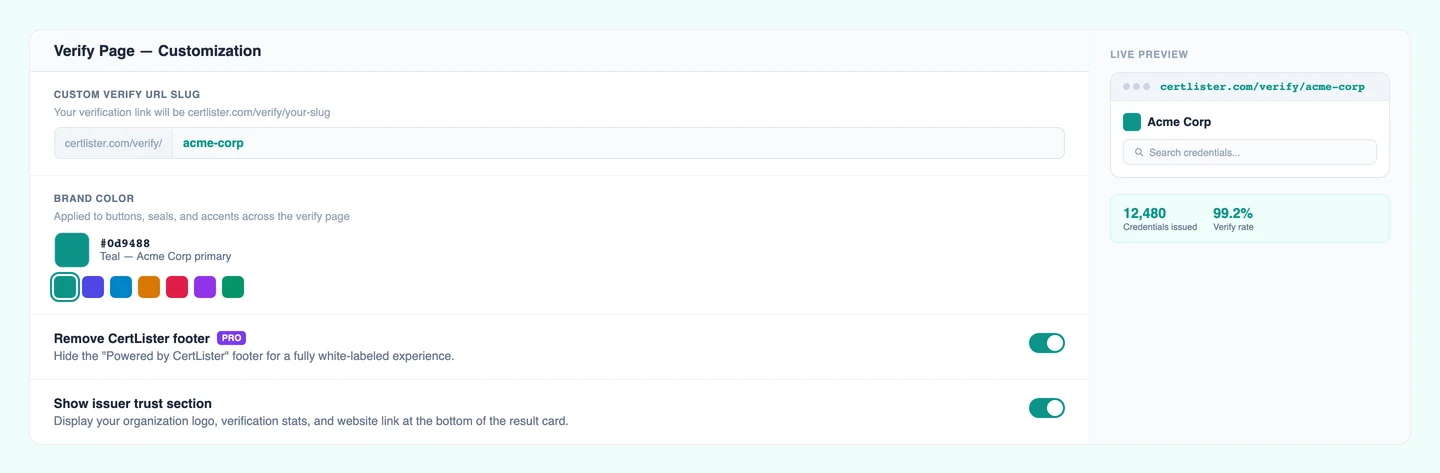
Set a custom verify URL slug so the link reads as your organization's. Upload your logo, set your brand color, and on Pro remove the CertLister footer entirely. Recipients see a professionally branded experience — the platform running behind it is invisible.
- Custom verify slug: certlister.com/verify/your-org
- Organization logo and brand color on the verify page
- Control which credential fields are publicly visible
- Remove "Powered by CertLister" (Pro)
Mobile-Ready and Embeddable
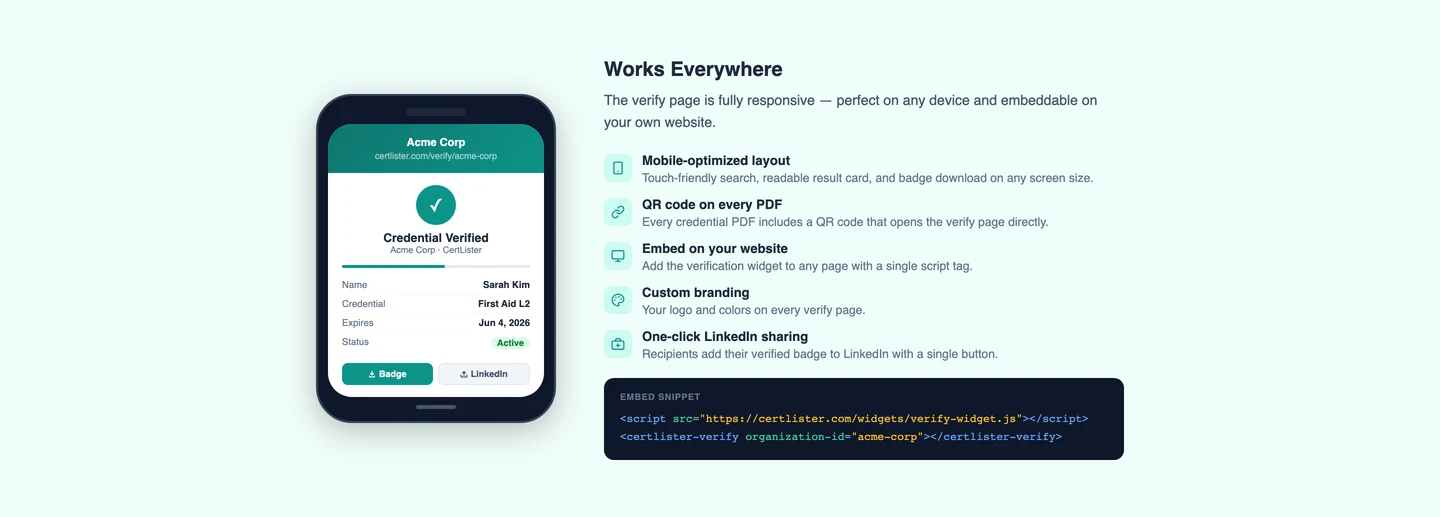
The verify page is fully responsive — employers tapping a LinkedIn link on their phone get the same clean experience as on desktop. For organizations that want verification embedded in their own site or intranet, CertLister provides a copy-paste widget snippet that requires no developer work.
- Fully responsive on mobile and tablet
- Copy-paste embed snippet for any website
- Widget requires no developer integration
- Search by credential number or recipient name in the widget
Build Your Own Verify Page, No Code
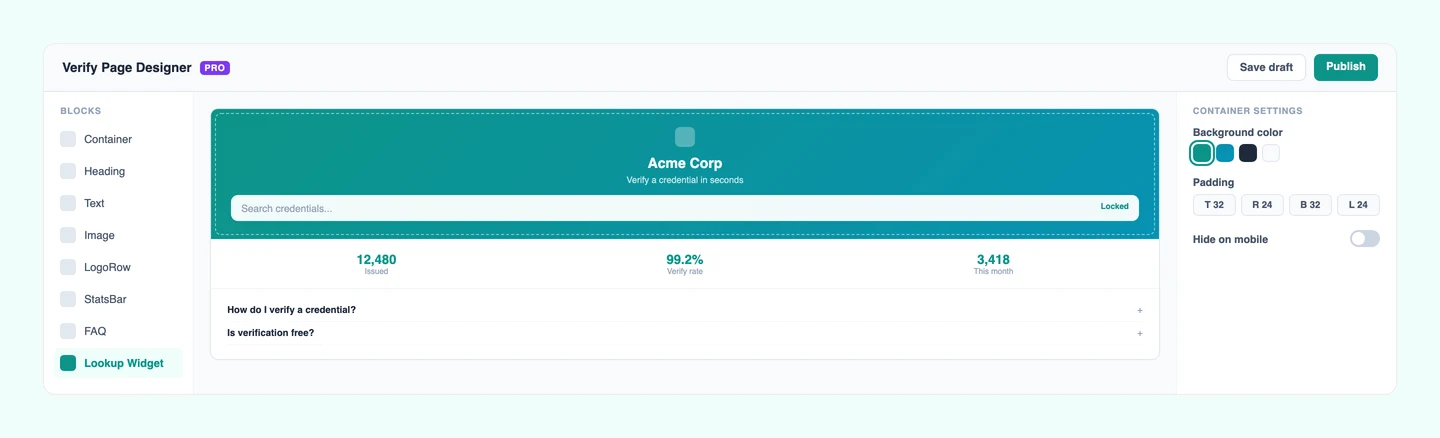
The Verify Page Designer replaces the standard layout with a fully custom one you build yourself: drag in a hero section, logos, stats, an FAQ, and links to your website, all around the credential lookup, which always stays in place. Pick a starter template or start from a blank page.
- Drag-and-drop editor: no code required
- 3 designed starter templates, or start blank
- Save up to 5 designs, one active at a time
- Build and preview on any plan, publish on Pro
Your Own Domain, Not Ours
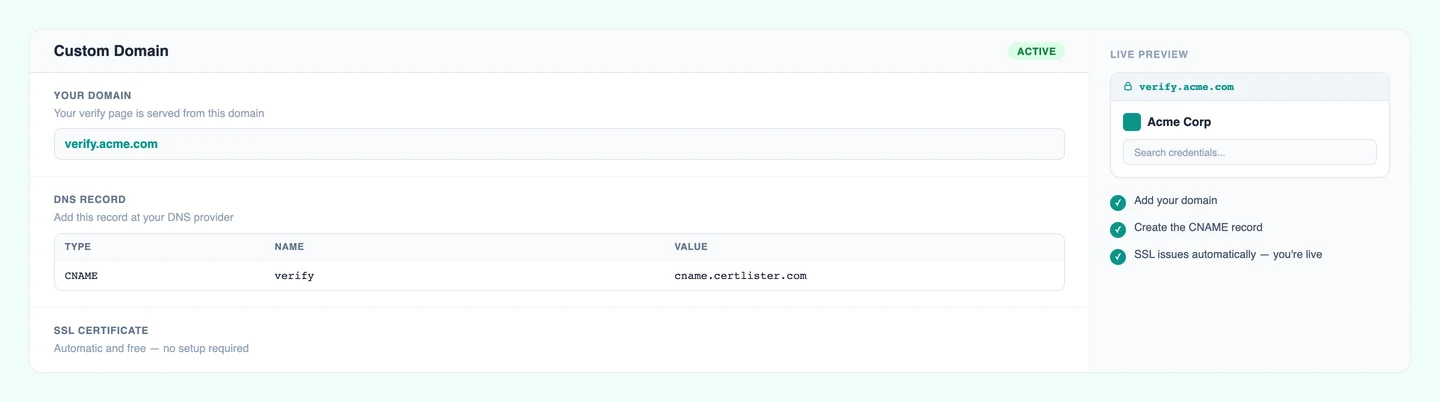
Serve your verify page from your own subdomain: verify.yourcompany.com
instead of certlister.com. One CNAME record and a free,
automatically issued SSL certificate, with no server to manage. Existing certlister.com links,
QR codes, and embeds keep working unchanged.
- Setup takes about 10 minutes, plus DNS propagation
- SSL certificate issued and renewed automatically, at no cost
- certlister.com links forward to your domain automatically
- Custom domain is a Pro feature
See Who Verified What, and When
Verification logs record every lookup against your verify page. The Reports section gives you a full activity feed: credential verified, timestamp, approximate location, plus a leaderboard of your most-verified credentials. Useful for understanding where your credentials get the most traction.
- Full verification activity feed in Reports
- Top credentials by verification count
- Timestamps and approximate verifier location
- Export verification data via CSV
< 1s
Verification speed
100%
No login required
3
Verify page layouts
∞
Verifications per credential
Frequently Asked Questions
Do recipients need an account to verify a credential?
No. The verify page is fully public. Anyone (an employer, an auditor, a client) can confirm a credential is authentic by visiting the URL or searching by credential number or recipient name. No login, no app, no friction.
Can I use my own URL for the verify page?
Yes. On every plan you can set a custom slug, for example certlister.com/verify/your-org-name. This makes the verify link feel like yours, not ours.
Can I embed verification on my own website?
Yes. CertLister generates a copy-paste embed snippet you can drop into any website or intranet. Visitors search and see results inline, without leaving your site.
What information appears on the verification result?
The result shows the credential holder's name, credential title, issuing organization, issue date, expiry date (if set), current status (Active, Expired, Revoked), and any custom fields you've enabled for public display. You control exactly which fields are visible. Recipients who share digital badges get the same instant verification experience.
Can I see who has verified credentials and when?
Yes, on the Pro plan. Verification logs record every lookup: credential number, timestamp, and approximate location. The Reports page includes a verification activity feed and top-verified credentials report.
Is the verify page mobile-friendly?
Yes. The verify page is fully responsive and works on phones and tablets without any configuration. Recipients sharing links on LinkedIn or via email will always get a clean result regardless of the device.
Can I remove CertLister branding from the verify page?
Yes, on the Pro plan. You can remove the "Powered by CertLister" footer so the page shows only your organization's branding: logo, name, and brand color.
Can I check an Open Badges 3.0 credential from another issuer?
Yes. The free Open Badges 3.0 validator checks any OB3 credential, whoever issued it: its structure, expiry date and issuer, and for JWT credentials its signature. No account needed.
From the blog
Certificate Fraud Is More Common Than You Think — Here's How Training Providers Can Fight Back
Credential fraud costs employers and legitimate graduates more than most realize. Here's how training centers can issue fraud-resistant credentials and protect their reputation.
Read moreHow to Verify an Open Badge 3.0 (OB3) Credential
A step-by-step guide to verifying OB3 credentials — what gets checked, what the results mean, what to do when verification fails, and how to check a PDF certificate with its issuer.
Read moreHow to Issue Verifiable Digital Credentials
Learn how to issue digital credentials that employers can verify instantly online. A practical guide for training centers, schools, and associations on building a verifiable credential system.
Read moreIssue a Credential. Share the Link. Watch It Get Verified.
Create a free account and issue your first verifiable credential in under 10 minutes. No credit card, no sales call.