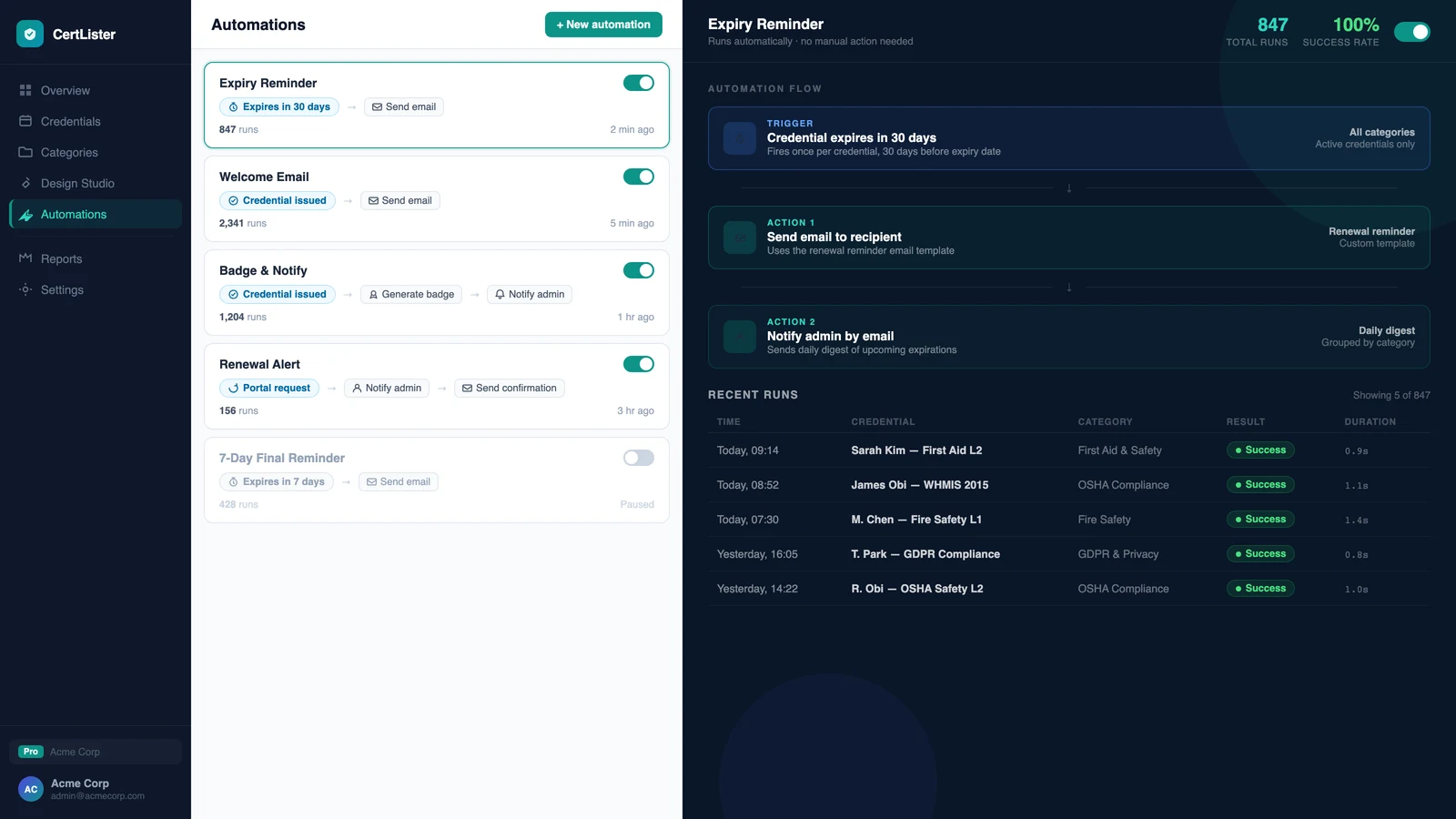
Workflow Automations for Credential Management: What to Automate First
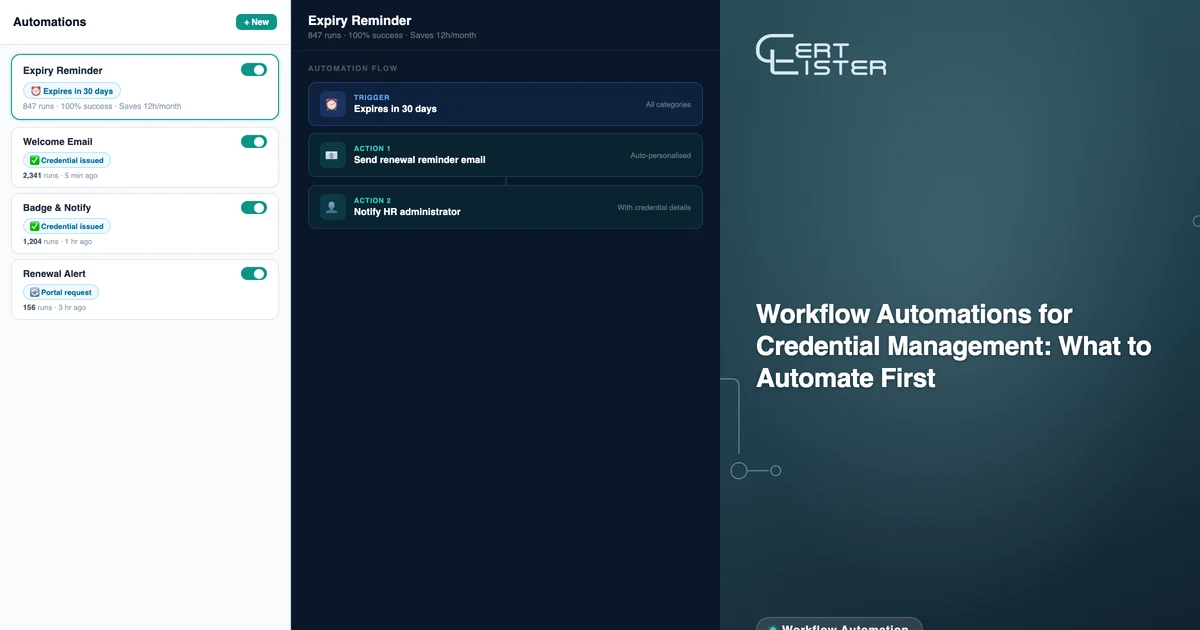
Most credential management tasks follow the same patterns. A certification expires, so someone sends a reminder. A new cohort completes training, so credentials get issued. An expiry date passes without renewal, so the status needs to change and a follow-up gets sent.
These are predictable, repeating events. The people doing them manually every week or month aren't adding value — they're executing logic that could run on its own.
CertLister's workflow automation engine lets you define that logic once and have it run automatically. Here's which tasks are worth automating first, and how to set each one up.
How the Automation Engine Works
Each automation has three parts:
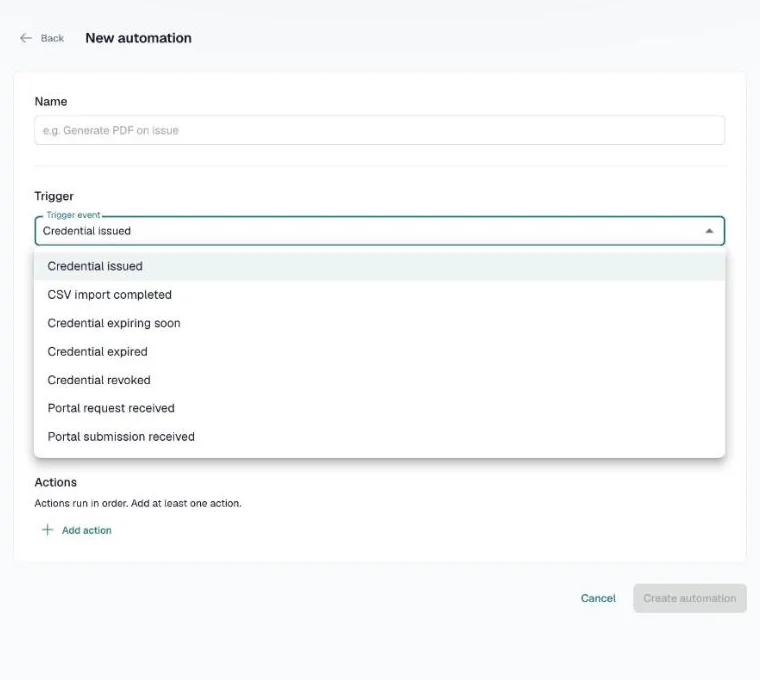
Trigger — the event that starts the automation: a credential is issued, a CSV import completes, a credential is expiring soon (a set number of days before), a credential expires, a credential is revoked, or a recipient sends a request or a file through the portal.
Conditions — optional filters that narrow when the automation runs. For example: only credentials in the "First Aid" category, or only credentials that have a recipient email.
Actions — what happens when the trigger fires and the conditions are met: generate a PDF, generate a badge, send the recipient their credential email, send an expiry reminder, notify an admin, wait a few minutes, or send a webhook to another system (Pro).
You can chain up to 10 actions in one automation. An automation can generate the PDF, wait two minutes, and email it to the recipient — all as one rule.
Go to Automations in the sidebar and pick a template, or click New automation to start from scratch. The Free plan includes one automation, Basic three, and Pro as many as you need.
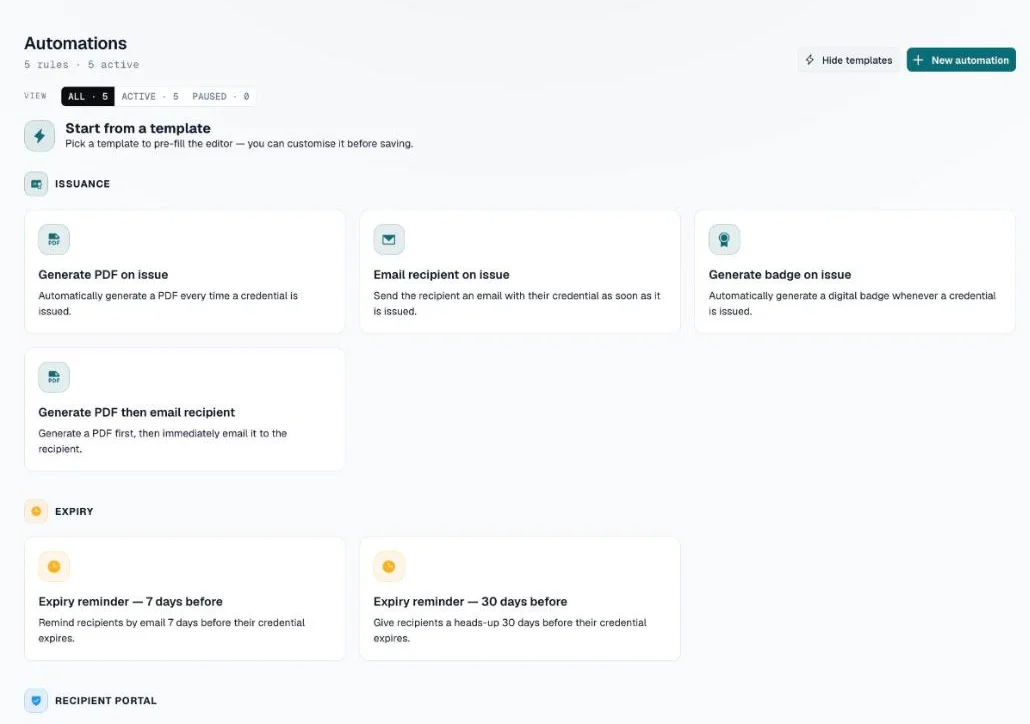
Automation 1: Expiry Reminder Emails
This is the highest-value automation for most organizations. If you track expiry dates, the manual version of this task involves filtering your credentials list by expiry date, identifying who's expiring soon, and sending individual or batch reminder emails. It's tedious and easy to let slip. For a deeper look at the strategy behind this, see certificate expiration tracking best practices.
How to set it up:
- Create a new automation. Set the trigger to Credential expiring soon and set how many days before expiry — for example, 60.
- (Optional) Limit it to one category — for example, only credentials in "WHMIS Certification."
- Add the action Send expiry reminder. The recipient gets your standard expiry reminder email, with your organization's branding.
- Click Create automation. It is on as soon as you save it.
The automation now runs every day for every credential matching it, on the day that falls 60 days before expiry. No manual filtering, no batch email sessions.
Recommended setup: Send two reminders — one at 60 days and one at 14 days. The 60-day reminder gives recipients time to act. The 14-day reminder is the nudge for people who didn't act on the first one.
You may not need an automation for this at all. Every category has a Send expiry reminder email switch, and Settings → Notifications sets when those reminders go out — up to five, each a number of days before expiry. Use one or the other for a category, not both, or recipients get two emails.
Automation 2: Issue, Generate the PDF, and Email It
When you issue a credential, the recipient should get it right away — with the PDF, not just a link. This is the most common automation, and it needs no manual step.
How to set it up:
- Create a new automation. Set the trigger to Credential issued and, if you like, limit it to one category.
- Add the action Generate PDF. It uses the category's default design.
- Add the action Send recipient email and tick Attach PDF.
- (Optional) Add a condition Has recipient email is set, so credentials without an email address are skipped instead of failing.
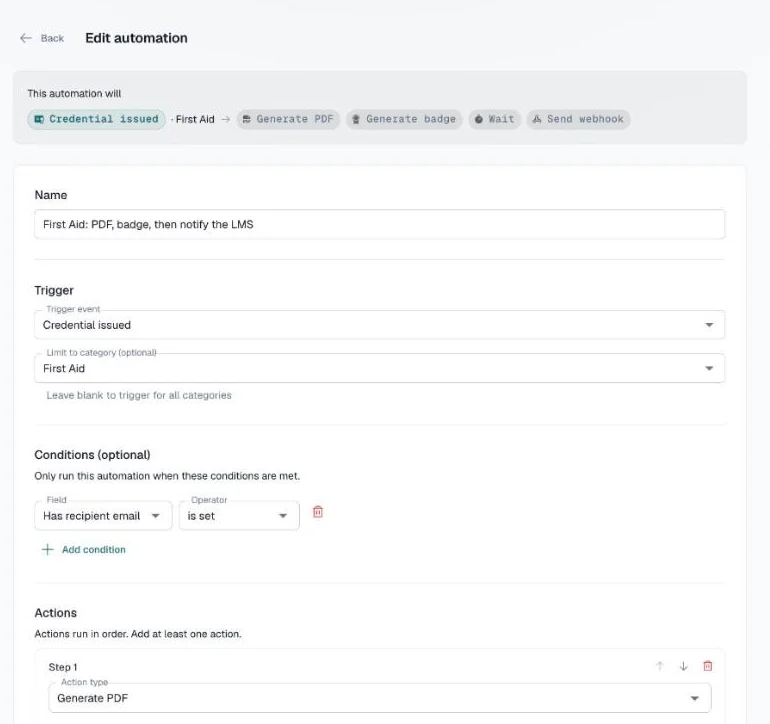
The line at the top of the editor, This automation will, sums up the rule in one sentence, so you can check it before you save. Credentials issued one at a time, by CSV import, or through the API all start it.
Automation 3: Status Change on Expiry
Credentials that pass their expiry date should show "Expired" — otherwise your credentials list shows accurate dates but stale statuses, which creates confusion when recipients or auditors check.
This one isn't an automation rule. It is a switch on the category:
- Go to Categories and click the pencil icon on the category.
- In the automation section, turn on Auto-expire past expiry date.
- Save the category.
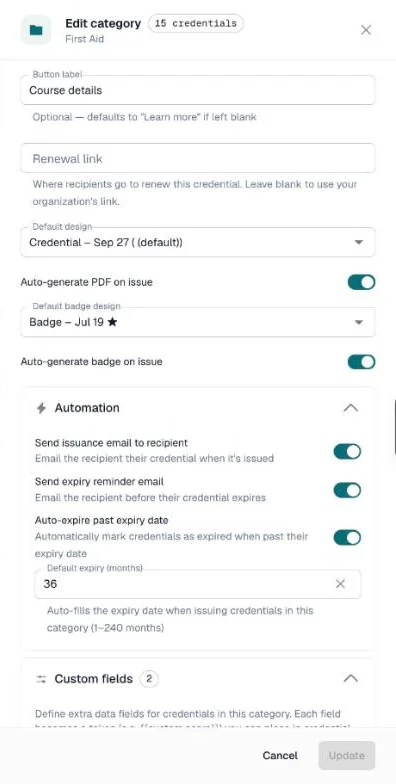
Every night at 2 AM UTC, CertLister moves each active credential in that category whose expiry date has passed to Expired. Your credentials list and your verification page stay accurate without manual batch updates.
Automation 4: Expiry Notification to Admins
Some organizations want their HR team or compliance officer to know immediately when a credential expires — not as a batch report, but as a real-time notification. This is particularly useful for HR certification tracking in safety-critical roles where a lapsed credential means an employee can't legally perform a task.
How to set it up:
- Create a new automation. Set the trigger to Credential expired.
- Add a condition Category is one of, and choose your compliance-critical categories (e.g., "Forklift Certification," "Confined Space Entry").
- Add the action Notify admin. An email goes to your organization's admin notification address.
Your compliance team gets a notification for every critical expiry, without having to check reports or filter lists manually. It needs Auto-expire turned on for those categories, because the trigger fires when a credential's status changes to Expired.
Automation 5: Issuing Credentials on a Cohort Schedule
If you run recurring training cohorts and issue credentials at the end of each cohort, you're probably doing a manual CSV import at the end of each session. Automations don't replace this (they're trigger-based, not schedule-based), but they take over everything after the import: the Credential issued trigger fires once for every imported row, and CSV import completed fires once for the whole file — a good place for a Notify admin step.
With the REST API (Pro), your registration system creates the credential record the moment a participant completes the course, and your Credential issued automations run on it straight away. On Moodle, the native integration does the same on course completion without any API work.
Checking the Run Log
Every time an automation fires, the outcome is recorded. Click the Run Log icon on the automation's card to see:
- When it ran, and how long it took
- Which credential started it
- Whether it succeeded, partly succeeded, failed, or was skipped because the conditions didn't match
- The result of each action, with any error message — click a row to expand it
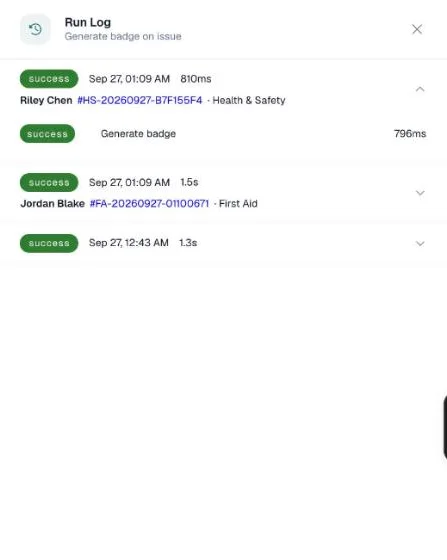
The run log is useful for audits — you can show exactly when reminder emails were sent, to whom, and for which credential. It's also the first place to check if an automation doesn't seem to be firing as expected.
What to Automate First
If you're starting from scratch, the order of priority is:
- Expiry reminders — this is where the most manual work lives for most organizations
- Auto-expire — keeps your records accurate without manual batch updates
- Issue, generate the PDF, and email it — every recipient gets their PDF without anyone lifting a finger
- Admin notifications for critical expirations — required if you have compliance-critical certifications
Each automation takes about 5 minutes to configure. For organizations issuing credentials with expiry dates, the time saved in the first month alone typically exceeds the setup time by a significant margin.
The automations engine isn't designed to replace human judgment — it handles the mechanical, predictable parts so that human attention goes where it's actually needed. Set up the expiry reminder workflow first. Everything else builds on top of that foundation.
Let the routine steps run on their own
Build an automation for the step your team repeats most.
Free plan: 10 credentials a month and one automation. No credit card.