How to Set Up a Self-Service Credential Portal for Your Recipients
Every credential your organization issues creates a support obligation. Recipients email asking for re-sends. They lose the original PDF and need another copy. They want a shareable link for LinkedIn and don't know where to find it. They change email addresses and lose access entirely.
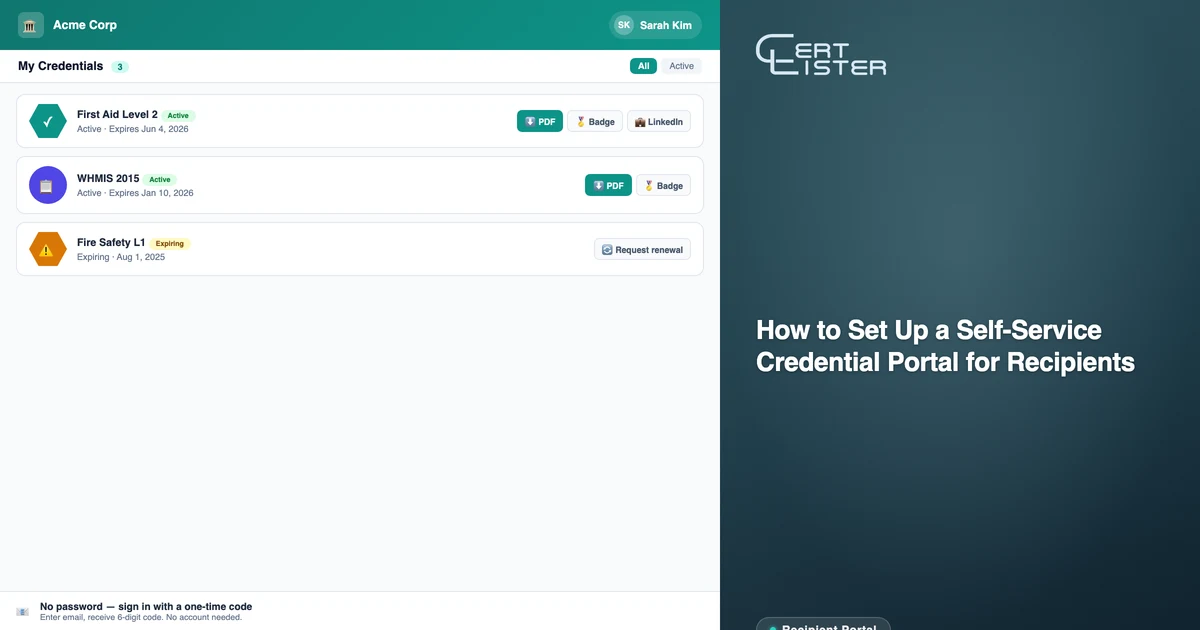
The solution is a self-service portal — a place where recipients can log in, see every credential they've earned, download PDFs, get their badge files, and share to LinkedIn, all without contacting anyone on your team.
CertLister's recipient portal does this out of the box. Here's how to set it up and what your recipients will experience once it's live.
What the Recipient Portal Does
Before walking through setup, it's worth being clear on what the portal actually gives recipients access to:
- All credentials in one place. Every credential your organization issued to a recipient's email address appears in their portal, regardless of which category or cohort it came from.
- PDF download. One-click download of the credential PDF, without needing to email you for a re-send. Not sure which format to offer? See digital badges vs PDF credentials for a comparison.
- Wallet card download. If you issue wallet cards, recipients can download theirs too.
- Add to LinkedIn. A direct flow that pre-fills the credential in the recipient's LinkedIn profile.
- Verification link. Each credential opens its public verification page, which anyone can use to confirm it is genuine.
- Requests (Pro). Recipients can send your organization a request about a credential — a name correction, a reissue, a renewal, a dispute, or a question. Requests arrive in your admin inbox.
Step 1: Enable the Recipient Portal
The portal URL is built from your verify URL slug. If you haven't set one yet, go to Settings → Customization and set the Verify URL slug first.
Then click Recipient Portal in the sidebar (under Grow). On the Configuration tab, turn on Enable recipient portal. Your portal is now live, and its address appears below the switch with a copy button:
app.certlister.com/portal/[your-org-slug]
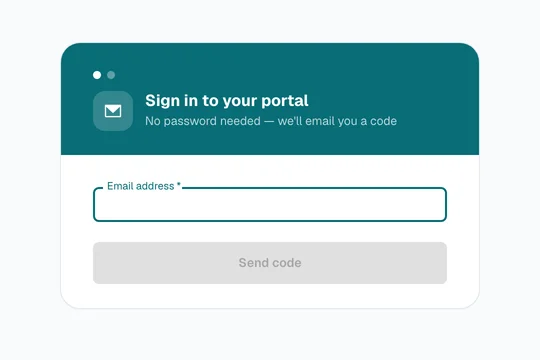
Any recipient with credentials from your organization can now sign in. They enter their email address, receive a 6-digit code, and see every credential issued to that address. No password to set, no account to create in advance.
Step 2: Choose What Recipients Can Do
On the same Configuration tab, switches control each action in the portal:
- PDF download, LinkedIn sharing, and Wallet card download — on by default
- Recipient request inbox and Credential PDF submissions — off by default, Pro
Turning a switch off hides that button for every recipient at once.
Step 3: Set Up the Verification Page
The portal and the public verification page are connected — every credential in the portal links to its verification page. Take a few minutes to make sure that page looks like your organization.
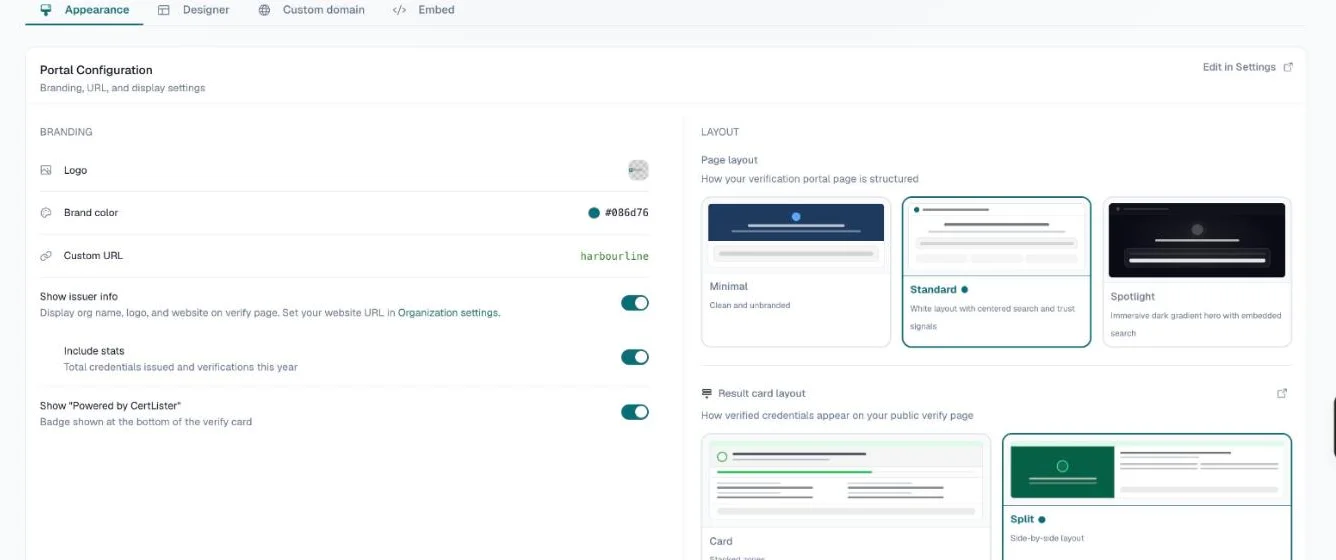
Under Verification Page → Appearance, set:
- Logo and Brand color — shown in the page header
- Page layout — Minimal, Standard, or Spotlight
- Result card layout — how each credential is shown when someone finds it
- Show issuer info — your organization's details below the result
Step 4: Add the Portal Link to Your Credential Emails
The portal is only useful if recipients know it exists. The easiest way to drive traffic there is to include a link in the email recipients receive when a credential is issued.
Under Settings → Email, edit the intro or footer text of your credential email and add a line pointing to your portal:
Access your credential portal at any time: app.certlister.com/portal/[your-slug]
Recipients who bookmark this link can return any time to access all their credentials — current and future.
Step 5: Add Verification to Your Own Website (Optional)
If you want people to check credentials on your organization's website rather than on certlister.com, embed the verification widget.
Under Verification Page → Embed, choose a theme and accent colour, then copy the embed code. It's a short snippet you paste into any page on your website, and it shows a search box where anyone can look up a credential. Link to your portal address from the same page, so recipients find both in one place.
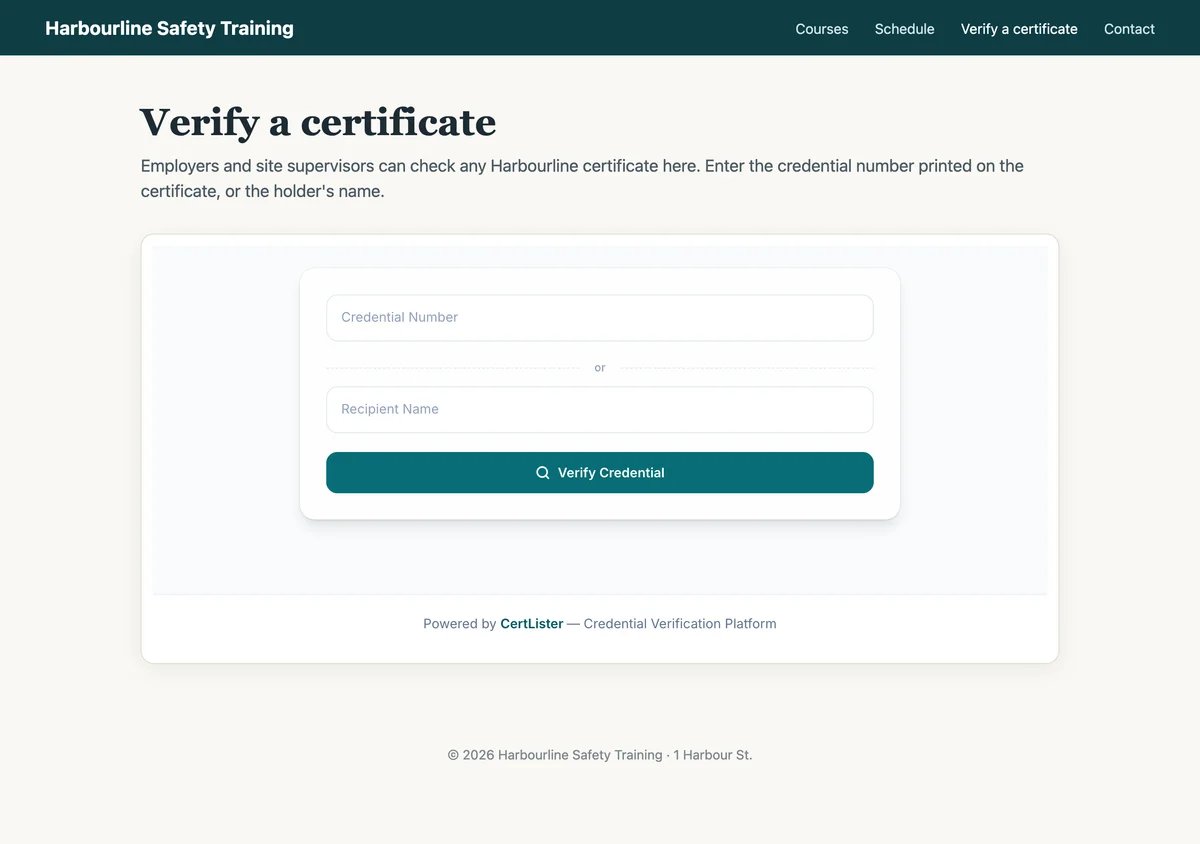
This is useful for training companies that want credential checks on their own branded domain, and for associations that want to keep visitors within their member site.
Managing Recipient Requests (Pro)
Turn on Recipient request inbox and recipients see a Submit a request button in the portal. They pick one of their credentials and a request type:
- Name correction — a recipient's name was misspelled in the original credential
- Reissue request — the credential was lost or needs regenerating
- Renewal request — the credential has expired or is about to
- Dispute or General inquiry — anything else
All requests appear under Recipient Portal → Requests, with the recipient's email, the type, the credential, and the message. Set a status, add a response — the recipient is emailed when you do — and for a name correction, enter the corrected name and CertLister updates the credential for you.
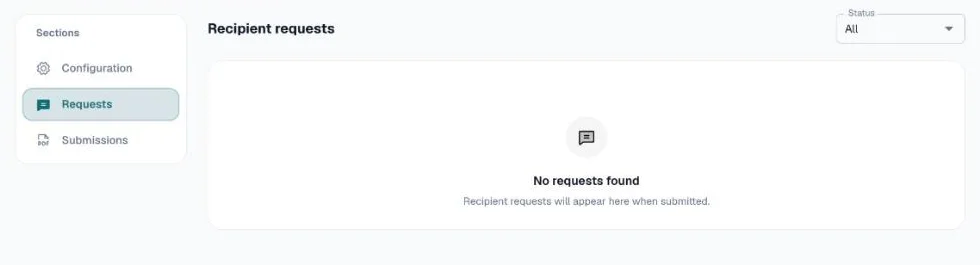
Enabling requests turns your portal from a one-way distribution channel into a two-way system — recipients can self-serve the simple things (download, share), and escalate only what needs your attention.
What Recipients Experience
Once your portal is live, a recipient's flow looks like this:
- They receive a credential email with a link to the portal
- They visit the portal URL and enter their email address
- They receive a 6-digit code by email (it expires in 10 minutes)
- They enter the code and see all their credentials
- From there: download the PDF or wallet card, add it to LinkedIn, open its verification page, or submit a request
A session lasts 24 hours. After that, they sign in again with a new code. There's nothing to install and no password to manage.
The Practical Impact
The credential portal eliminates an entire category of support work. Once it's live:
- Re-send requests go to zero — recipients download on their own
- "Can I get a copy for LinkedIn?" goes to zero — the share flow is built in
- "I changed email addresses and lost my certificates" goes to near zero — you update the email address on their credentials and they sign in with the new one
- Your admin inbox contains only things that actually need a human
For organizations issuing more than a few dozen credentials per month, the time savings from eliminating these support requests is substantial. For recipients, having a permanent, self-service record of everything they've earned is a meaningful improvement over an email attachment that might be in a deleted folder.
Set it up once. It handles itself from there.
See it in action. No card, no commitment
Join schools, companies, and training centers using CertLister. Free plan available, no credit card required.
Get Started Free