How Professional Associations Can Issue and Manage Member Credentials Digitally
Every year, it starts the same way. The membership renewal cycle opens and a coordinator exports the member list, opens a Canva template, drags a name in, saves a PDF, attaches it to an email, and clicks send. Three hundred and forty times.
When a member from last year's cohort writes in to ask whether their employer can check the credential online, the answer is: not really. You can resend the PDF. The employer has to take it on faith.
This is the state of credential management at most professional associations — not because associations don't take their credentials seriously, but because the tools they've had access to were built for other purposes. A digital credential management system for professional associations changes all of this, and setting one up takes less time than most people expect.
What Association Credential Management Actually Involves
Issuing a PDF and emailing it is issuance. Managing member credentials is something broader. There are four responsibilities that a PDF workflow cannot handle:
Live standing. A PDF certificate is a document. Once sent, it cannot be updated, recalled, or invalidated. If a member's standing changes — they resign, their CPD requirement lapses, their membership is suspended — the PDF they already shared with employers says nothing about that. A credential registry reflects the current state of a credential regardless of when or how it was shared.
CPD renewal cycles. Most professional associations require members to complete continuing professional development on an annual or biennial schedule. Tracking which members are current, which are approaching renewal, and which have lapsed requires more than a spreadsheet — especially at scale.
Multiple membership tiers. Associations typically issue credentials across several designation levels: Associate, Member, Fellow, Honorary, and sometimes designation-specific credentials for CPD completions or program certifications. Each tier may have distinct eligibility requirements, custom fields, and credential designs. Managing these independently is cumbersome without category-level structure.
Employer-accessible verification. Increasingly, employers and clients want to verify professional standing without calling your office. A public verification URL that shows live status — without requiring the verifier to create an account or contact anyone — is the baseline expectation for professional credentials in most regulated fields.
A purpose-built credential registry handles all four.
Setting Up Your Membership Tiers
In CertLister, credential types are organized into categories. For a professional association, each category represents a designation: Associate Member, Full Member, Fellow, Honorary Fellow, or any CPD or program-specific credential your association issues.
Getting the category structure right before you import any member data pays off. Setup checklist for each tier:
- Name the category for the designation, not the cohort or year. "Fellow" rather than "Fellows 2025." Members hold this designation across multiple renewal cycles.
- Set a default expiry rule. If your Fellowship requires annual renewal, set "expires 1 year after issue date" as the default. This pre-fills the expiry date on every credential issued into this category, reducing data entry errors.
- Add custom fields for your tier. Membership number, CPD hours completed, specialization area, license number, registration body — whatever belongs on the credential or the public verification page. Fields can be public or internal.
- Configure the verify page display. Decide which fields appear on the public verification URL. Membership number and designation type are typically public. Internal administrative notes are not.
- Assign a credential template. Each category can have its own design — a Fellow credential looks visually distinct from an Associate credential with no manual adjustment at issuance time.
Once your categories are configured, every credential you issue into that tier is consistent, regardless of who's operating the system.
Designing Your Credential Template
Each membership category can have its own credential template. Open the Design Studio to build it:
- Upload your association logo
- Select or upload a credential background that matches your brand
- Set fonts and brand colors
- Add dynamic fields: member name, designation level, issue date, expiry date, membership number
Dynamic fields fill automatically at issuance — you design the template once, and every credential generated from it pulls the right data from the member's record. Save the completed template as the default for the category. Every credential issued into that category from then on uses it automatically.
Issuing Credentials: Individual and Bulk
Issuing a single credential takes about a minute. Navigate to the category, click to issue a new credential, fill in the member's details, and confirm. CertLister generates the PDF and a unique public verification URL simultaneously.
Bulk issuance for renewal season is where the time savings are substantial:
- Export your renewing member list to CSV
- Include columns for first name, last name, email, membership tier, expiry date, membership number, and any custom fields your category uses
- Import the CSV into the category in CertLister
- Map the columns to the corresponding fields (CertLister pre-populates likely matches)
- Review the validation summary — rows with missing required fields are flagged before anything is generated
- Confirm and generate
Every member in the CSV gets a credential record, a PDF, and a unique verification link in one operation. What used to take a week of individual emails takes an afternoon of preparation and a few minutes of processing. See the bulk credential generation guide for full import options.
CPD Tracking and Renewal Cycles
Setting an expiry date on each credential is what transforms a static record into a live one. CertLister tracks status automatically:
- Active — expiry date is more than 30 days away, or no expiry set
- Expiring Soon — expiry date is within the next 30 days
- Expired — expiry date has passed
Before your next renewal cycle opens, filter by the relevant category and "Expiring Soon" to see exactly which members need to renew. When members complete renewal, bulk-update the expiry dates for the entire cohort: select the records, update the expiry, and CertLister reissues credentials with the new dates.
For CPD tracked year-round, workflow automations send expiry reminder emails automatically — 60 days out, 30 days out, on the expiry date — without manual intervention. Configure the automation once per category and it runs every cycle.
Revoking a Credential and What Employers See
When a member's standing changes, revocation is a single action from the credential record. Click Revoke, confirm. The public verification page updates immediately.
This is where PDF workflows fail. If a member sends their PDF to a prospective employer today, the employer sees a document with no way to know whether the membership is still current, was revoked last month, or whether the PDF was edited. The verification URL removes that ambiguity entirely.
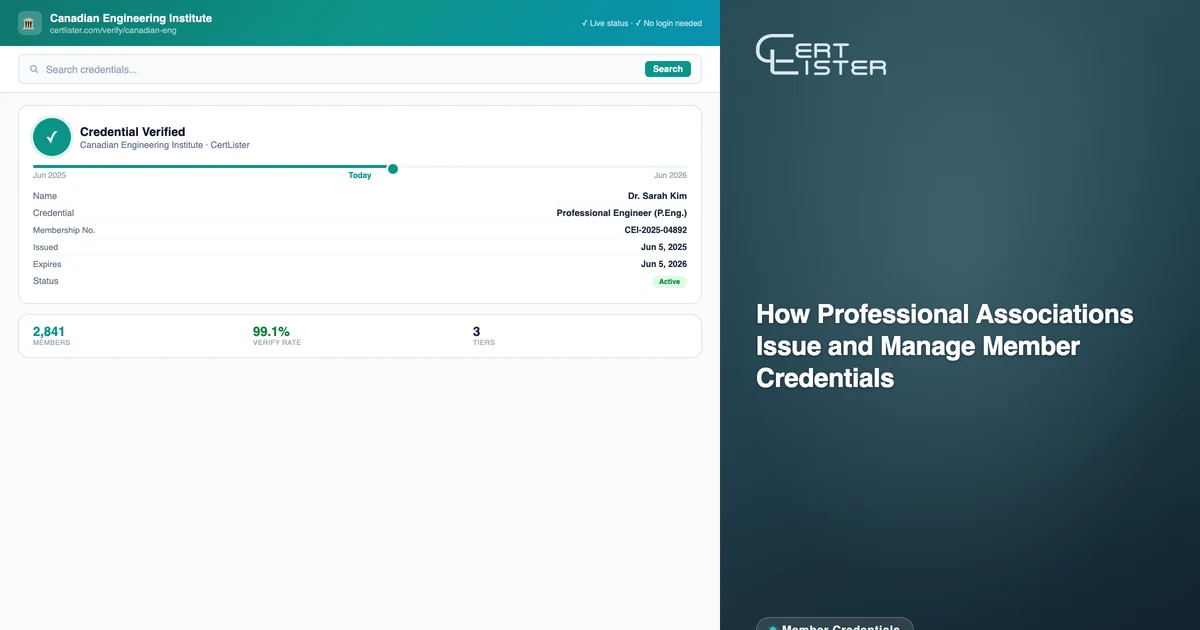
What appears on the public verification page:
- Member name
- Your association's name
- Designation type and tier
- Issue date and expiry date
- Current status: Active, Expired, or Revoked
- Any custom fields configured as public for that category (membership number, specialization area, etc.)
For industries where credential fraud carries real consequences — healthcare, engineering, legal — this is the verification standard that employers and licensing bodies expect. For context on the broader risk, see certificate fraud and how to prevent it.
What Members Can Do with Their Credentials
The verification URL belongs to the member. They can share it anywhere a PDF would previously have been attached:
- LinkedIn profile (as a certification entry or in the About section)
- Email signatures
- Job applications and CVs
- Proposals to prospective clients
- Professional directory listings
Anyone who follows the link sees the verified record — no login required, no need to call your office. The page shows live status: if the membership is current, it says so. If it has since expired or been revoked, that's reflected immediately.
For associations with a self-service recipient portal enabled, members can log in to access their full credential history, download PDFs, and share verification links — all without contacting membership services.
CertLister is digital credential management software for professional associations. Issue verifiable member credentials, track CPD renewal cycles, and give every member a shareable verification link — set up in one session. Start free →
See it in action. No card, no commitment
Join schools, companies, and training centers using CertLister. Free plan available, no credit card required.
Get Started Free