How to Create a Custom Credential Design (Without a Designer)
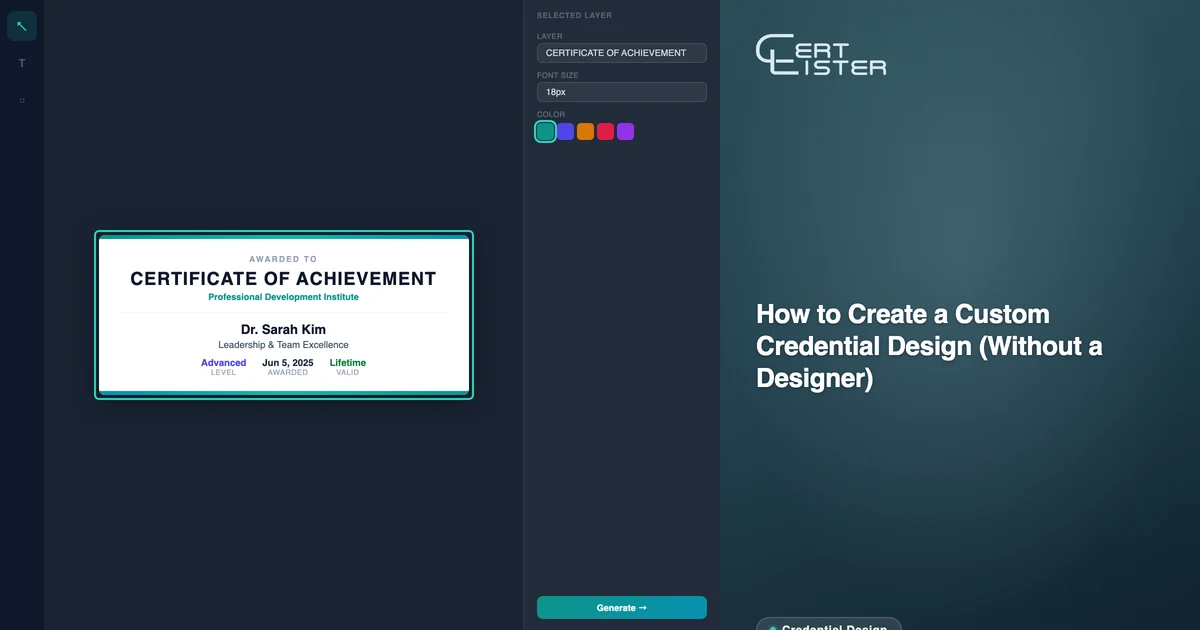
Most credential platforms give you a list of templates to choose from and limited customization — change the color, add a logo, and that's roughly it. The result is credentials that look like credentials from that platform, not like your organization.
CertLister's Design Studio is different. It includes digital credential design tools built around a full canvas editor — drag text, images, shapes, and fields anywhere on the page, set custom fonts and colors, and upload your own background images. The result is a credential that looks exactly like you want it to, not like a modified version of someone else's template. See where it sits among the credential creation features.
This walkthrough covers how to build a credential design from scratch, even if you don't have a background in design.
Starting a New Design
Go to Design Studio from the sidebar. It opens with your default design loaded — new organizations start with the Editorial design.
To start another one, click the design name dropdown at the top and choose New credential design, then give it a name.
The tabs at the top pick what you are designing:
- Credential (default) — A4 landscape, 2480×1754px at 300 DPI. This is the right choice for most training certificates, compliance records, and professional credentials.
- Wallet card — credit card-sized, front and back, for printing as a physical card or keeping as a PDF on a phone.
- Badge — the image for a digital badge.
For most organizations starting out, the Credential tab is the right place to begin.
Building the Background
The background is the foundation of the credential. You have two paths:
Use a template. Click Templates in the tool rail on the left. There are 14: four layouts (Editorial, Side Panel, Portrait, and Licence) that come with text and fields already placed, and ten decorative frames for you to fill. Click a thumbnail to apply it. The Template colors swatches above the canvas recolour the template's border, panel, or accent to match your brand. Every template is on every plan.

Upload your own background image (Pro). If your organization has a branded credential design already (from Canva, Illustrator, or a designer), export it as a JPG or PNG at 2480×1754px, under 5 MB, and click the Upload card at the start of the Templates panel. Your existing design becomes the canvas background, and you place the dynamic fields (recipient name, issue date, credential number) on top of it.
The upload path is the fastest way to get a pixel-perfect match with your brand if you have existing credential artwork.
Adding Dynamic Fields
Dynamic fields are placeholders that fill with real data when a credential is generated. They're what makes a single template produce thousands of personalized credentials.
To add a dynamic field:
- Click Attributes in the tool rail
- Click a field, or drag it onto the canvas: Recipient Name, Credential Title, Issue Date, Expiry Date, Credential Number, Organization Name, Category Name, or any custom field your categories define
- Drag it to the right place on the canvas
- Style it with the formatting toolbar above the canvas: font, size, colour, alignment, bold and italic
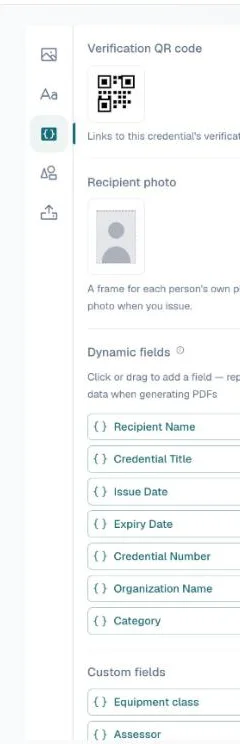
You can also type a field inside any text, for example Awarded to {{recipient.name}}.
Recipient Name is the most important field to get right. Set it to a large, prominent font — this is the element recipients look at first. Use a serif font for traditional credentials, a clean sans-serif for modern designs.
For placement guidance: the recipient name typically sits in the center of the credential, below the credential title. Issue date and expiry date go near the bottom. Credential number goes bottom-right or as a small element near the QR code.
Adding Static Elements
Static elements appear on every credential generated from this template — they don't change per recipient.
Your organization name and logo. Upload your logo under Uploads in the tool rail (Pro) and click it to add it, then position it in the header area. For a text-based organization name, click Text → Add heading and type the name directly.
Credential title. If every credential from this template has the same title (e.g., "Certificate of Completion — WHMIS Training"), add it as a static text element. If the title varies per recipient, use the dynamic Credential Title field instead.
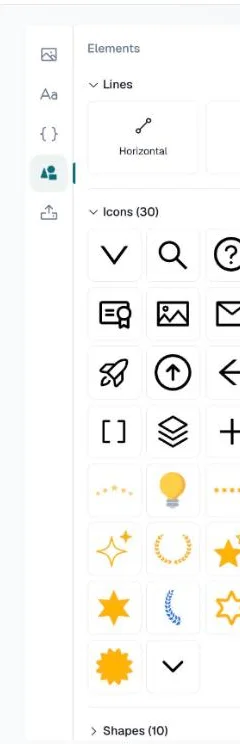
Decorative elements. Lines, icons, and shapes are under Elements in the tool rail. These add visual structure to the credential — a horizontal rule between the header and body, or icons in the corners.
Issuer signature line. Many organizations include a signature image (scanned from an actual signature) and a name/title line below it. Upload the signature as a PNG with a transparent background, position it in the bottom-left, and add a static text element with the signatory's name and title below.
Adding the QR Code
The QR code links to the public verification page for each individual credential. Add it from the top of the Attributes panel — Verification QR code. Position it in one of the bottom corners — bottom-right is the most common placement.
Size the QR code large enough to scan reliably from a printed credential. 200×200px on the canvas is a reasonable minimum; larger is safer.
The QR code is dynamic — each generated credential gets a unique QR code pointing to that specific credential's verification URL. You don't need to configure anything beyond placing it.
Previewing and Testing
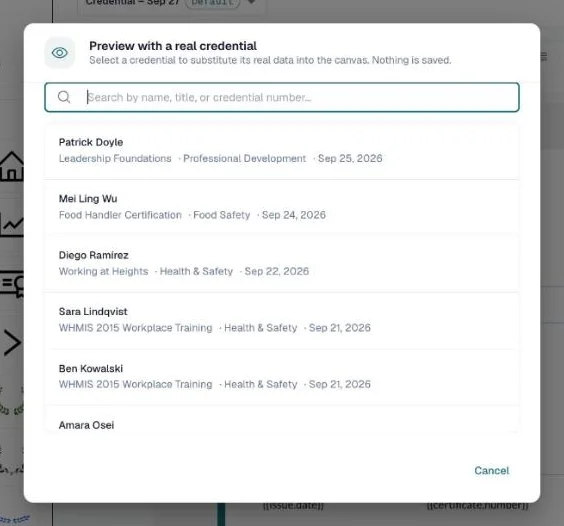
Before relying on the design, click Preview at the top and pick one of your credentials. The design fills with that person's real data, so you can check typography, alignment, and spacing with realistic content. Nothing is saved.
Common issues to check in preview:
- Long recipient names overflowing text fields — increase the field width or reduce font size
- Date formats — verify they display in your preferred format
- QR code position — make sure it doesn't overlap other elements
Once the preview looks right, click Save. The design is now available to assign to a category.
Assigning the Template to a Category
Each category has a Default design — the design its credential PDFs use. You can still pick another design each time you generate PDFs.
To assign:
- Go to Categories and click the pencil icon on the category you want to use the design for
- Under Default design, select the design you just created
- Turn on Auto-generate PDF on issue if you want a PDF made for each credential as soon as it is issued
- Save the category
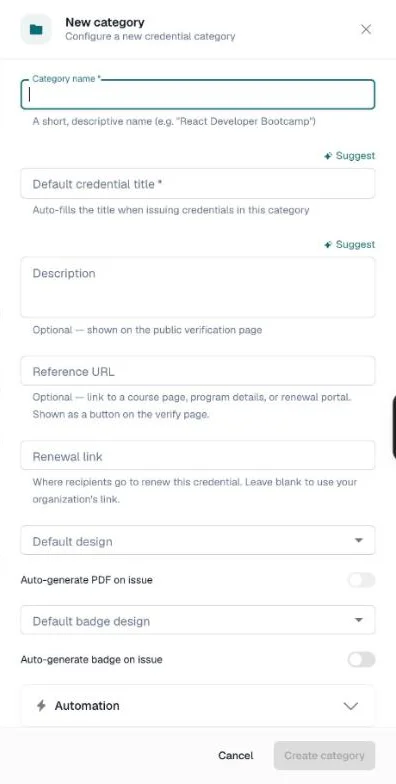
Now when you issue credentials in this category — individually, via import, or via bulk generation — CertLister uses your custom template for every PDF generated. For a full walkthrough of issuing verifiable credentials to recipients, see our dedicated guide.
Tips for Better-Looking Credentials
Use a two-color palette. Choose your organization's primary brand color and a neutral (white, light gray, or cream). Use the brand color for headers and accent elements; keep the body clean. Busy, multicolor designs look unprofessional.
Generous margins. Credentials with content pushed to the edges look cramped. Leave at least 60–80px of clear space around the perimeter.
Make the recipient's name the largest text element. The credential is about the recipient. Their name should be the visual focus, not the issuing organization's logo.
Test at actual print size. If recipients will print the credential, print a test copy on A4 paper before finalizing. Text that looks fine on screen can become unreadably small at print size.
Use PDF, not screenshot. The final credential is a generated PDF, not a screenshot of the canvas. The PDF output is higher quality than the canvas preview — evaluate the final design from a downloaded PDF, not the editor preview. If you're still deciding between formats, see our breakdown of digital badge vs PDF credential to choose what's right for your use case.
The Design Studio is built for non-designers. You don't need Figma skills or graphic design experience — you need a clear sense of what your organization's credentials should look like, and the patience to iterate a few times until the preview looks right. Most organizations get to a design they're happy with in under an hour.
See it in action. No card, no commitment
Join schools, companies, and training centers using CertLister. Free plan available, no credit card required.
Get Started Free