
Open Badge 3.0 (OB3) Credentials
Time to read: 6 minutes
Open Badges 3.0 sits under Digital badges. If an admin turned that off in Settings → Features, the Open Badges 3.0 option and download disappear too.
Overview
Open Badge 3.0 (OB3) is a global open standard for digital credentials published by 1EdTech (formerly IMS Global). When OB3 is enabled for your organization, every credential you issue can be downloaded as a cryptographically signed OB3 credential — a portable, machine-verifiable file that recipients can share with employers, LinkedIn, and badge platforms.
What recipients get: A .jwt file containing a signed credential that proves their credential is authentic and was issued by your organization. The credential can be verified with any OB3-compatible tool.
Available on: every plan
How It Works
- An admin turns on Open Badge 3.0 in Verification Page → Options
- Optionally, a criteria narrative is added per credential category
- Recipients visit your public verify page for any credential
- An Open Badge button appears — clicking it downloads a signed
.jwtfile - Recipients can verify the credential with online tools or share it on compatible platforms
Part 1: Enable OB3 for Your Organization
Requires: Admin role
- Go to Verification Page in the left navigation
- Open the Options tab
- Turn on Open Badge 3.0
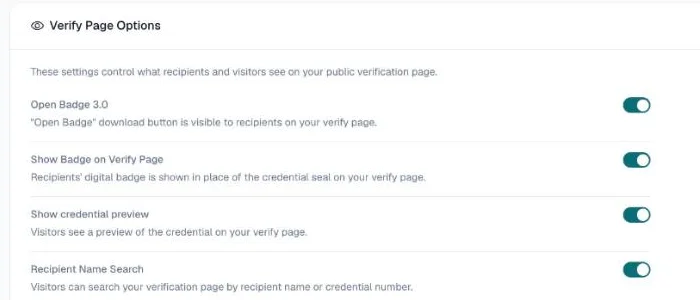
Once enabled, the OB3 download button appears automatically on the verify page of every credential that is not revoked or replaced. No other configuration is required.
Part 2: Add Criteria Narrative per Category (Optional)
The criteria narrative describes what a recipient must have done to earn a credential in a given category. It is embedded in the OB3 credential and visible to verifiers on badge platforms.
Example criteria: "Recipients of this badge have successfully completed the Python Training program delivered by Acme Corp and demonstrated proficiency in Python programming fundamentals."
How to Add a Criteria Narrative
- Go to Categories in the left navigation
- Click the pencil icon on the category you want to update
- The Open Badge criteria section appears near the bottom of the drawer (only visible when OB3 is enabled for your org)
- Choose a preset to auto-fill a template, or write your own narrative
- Click Update
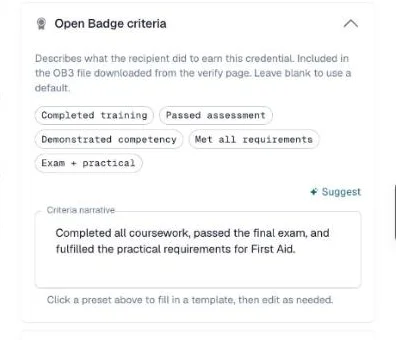
Preset templates are available for common scenarios. Presets use {category} and {org} as placeholders that are automatically filled with your category name and organization name when you select them. You can edit the text after selecting a preset.
If no criteria narrative is set for a category, the credential is still valid — it carries a default narrative instead: "Awarded for completing <category name>."
Part 3: Recipients — Downloading an OB3 Badge
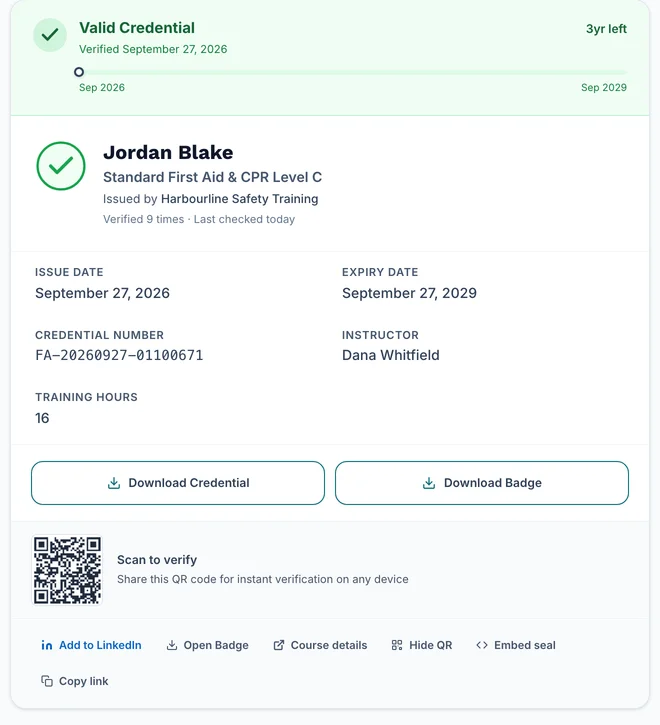
Recipients do not need a CertLister account. They can download their OB3 badge directly from the public verify page.
- Visit the credential's verify page (e.g.,
https://certlister.com/verify/your-org/?cn=CERT-001) - Click Open Badge in the footer area of the page
- A
.jwtfile downloads automatically - The file can be shared with employers, uploaded to badge platforms, or verified with online tools
Part 4: Verifying an OB3 Credential
Online — CertLister OB3 Validator
CertLister provides a free public validator that works with OB3 credentials from any issuer — not just CertLister.
- Go to https://certlister.com/ob3-validator/
- Drop the
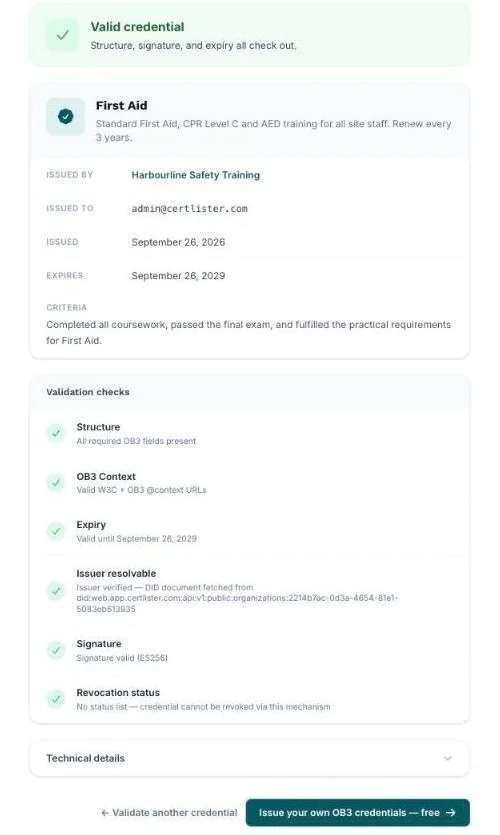
.jwtfile onto the page, paste the credential URL, or paste the JWT string directly - The validator checks structure,
@contextURLs, expiry, issuer DID document, and cryptographic signature - Results are shown inline — no page reload, no account required

Online — vc.1ed.tech (Official 1EdTech Validator)
The official 1EdTech validator also supports OB3 JWT credentials.
- Go to https://vc.1ed.tech
- Select Upload file and choose the
.jwtfile - A green result confirms the credential is valid and untampered
Other Verification Tools
| Tool | URL | Notes |
|---|---|---|
| CertLister Validator | certlister.com/ob3-validator/ | Free, works with any OB3 issuer — drop a file or paste a URL |
| 1EdTech Validator | vc.1ed.tech | Official validator from the OB3 spec body |
| Badgr | badgr.com | Upload JWT for display and sharing |
| Open Badge Passport | openbadgepassport.com | Supports OB3 import |
| jwt.io | jwt.io | Decodes the JWT payload, but shows a key warning — this is expected (see FAQ) |
Credential Format
CertLister OB3 credentials are:
- Format: JWT (JSON Web Token), signed with ES256 (ECDSA P-256)
- Standard: Open Badges 3.0 (1EdTech)
- DID:
did:web:app.certlister.com:api:v1:public:organizations:{orgId} - File extension:
.jwt
Frequently Asked Questions
Q: What is the difference between an OB3 badge and a PDF credential?
A: The PDF credential is a printable document for formal use (framing, printing, email attachment). The OB3 badge is a machine-readable digital credential — a cryptographically signed file that proves authenticity and can be verified programmatically or submitted to badge platforms.
Q: jwt.io shows "Unable to retrieve public key from issuer" — is the credential broken?
A: No. jwt.io expects the iss (issuer) field to be a standard HTTPS URL pointing to an OIDC discovery endpoint. CertLister uses a did:web DID as the issuer, which is the correct OB3 format but not what jwt.io expects. Use vc.1ed.tech to properly validate OB3 credentials — it supports DID-based issuers natively.
Q: Can recipients add the badge to LinkedIn?
A: LinkedIn's native "Add to Profile" badge flow requires a Credly or Acclaim issuer integration. CertLister OB3 credentials are not currently integrated with LinkedIn's badge import. Recipients can link to their verify page on LinkedIn manually.
Q: Can recipients add the badge to a mobile wallet app?
A: Not currently. Mobile wallet apps like the Learner Credential Wallet (LCW) require OID4VCI QR code scanning or JSON-LD format for import. CertLister issues JWT-VC format credentials which are not compatible with LCW's file import or paste options. Wallet claiming via QR code is planned for a future release.
Q: Does every credential get an OB3 badge automatically?
A: Yes — once OB3 is enabled for your organization, the download button appears on the verify page for every credential that is not revoked or replaced, including ones issued before you enabled OB3.
Q: What happens to OB3 badges if I change plans?
A: Nothing changes — OB3 is on every plan. Previously issued .jwt files that recipients have already downloaded remain valid — they are cryptographically signed, and a file expires only when its credential has an expiry date.
Q: Can I customize what appears in the OB3 credential?
A: The credential includes your organization's name, logo URL, credential title, recipient name, issue date, expiry date (if set), and the criteria narrative (if set on the category). The credential format follows the OB3 standard — the fields are fixed by the specification.
Q: Is the criteria narrative required?
A: No. It is optional. If no criteria narrative is set for a category, the credential is still generated and fully valid, with a default narrative ("Awarded for completing <category name>."). Adding a criteria narrative makes the badge more meaningful to verifiers and badge platforms that display criteria.
Troubleshooting
The OB3 download button does not appear on the verify page
Check:
- Open Badge 3.0 is on in Verification Page → Options
- Hard-refresh the verify page (Ctrl+Shift+R or Cmd+Shift+R) to clear any cached page
vc.1ed.tech shows the credential as invalid
Possible causes:
| Cause | Fix |
|---|---|
The .jwt file was modified after download | Re-download a fresh copy from the verify page |
The file was saved with a .txt extension | Rename it to .jwt before uploading |
| The credential was deleted | Deleted credentials cannot produce valid OB3 credentials |
The criteria narrative is not visible in the category drawer
Cause: OB3 is not enabled for your organization. The criteria narrative section only appears in the category drawer when OB3 is on.
Solution: Turn on Open Badge 3.0 in Verification Page → Options first.