
Digital Badges: Design, Issue, and Share
Time to read: 8 minutes
Don't see badges anywhere in the app? An admin may have turned Digital badges off in Settings → Features.
Overview
Digital badges are square PNG images that recipients can share on LinkedIn, add to email signatures, and display anywhere they want to show off their achievement. Badges are separate from PDF credentials — they are compact, shareable graphics designed for digital use. The digital badges feature page covers the templates and the sharing options.
What you can do:
- Design a custom badge in the same Design Studio used for credentials
- Choose from 9 badge shapes and 8 one-click colour palettes, or pick your own colours with the swatches
- Customize colors with per-slot color pickers
- Link a badge design to a credential category and auto-generate badges on issue
- Show the badge on your public verify page
- Recipients receive their badge as an inline image in their issue email
Available on: every plan
How It Works — Quick Summary
- Design — Create a badge design in the Design Studio (Badge canvas type)
- Configure — Assign the badge design to a credential category; optionally enable auto-generation
- Generate — Badges are created automatically on issue, or manually on demand
- Share — Recipients get their badge by email; it also appears on the verify page
Part 1 (Admin): Design a Badge
Badges are designed in the same Design Studio as credentials. The key difference is the canvas type.
Open the Design Studio
- Go to Design Studio in the left navigation (
/credentials/generator) - In the canvas size toggle at the top of the editor, click the Badge button (medal icon)
Plan note: Badges are on every plan. A badge design counts toward your saved-design limit (Free: 3, Basic: 5, Pro: unlimited).
Choose a Shape
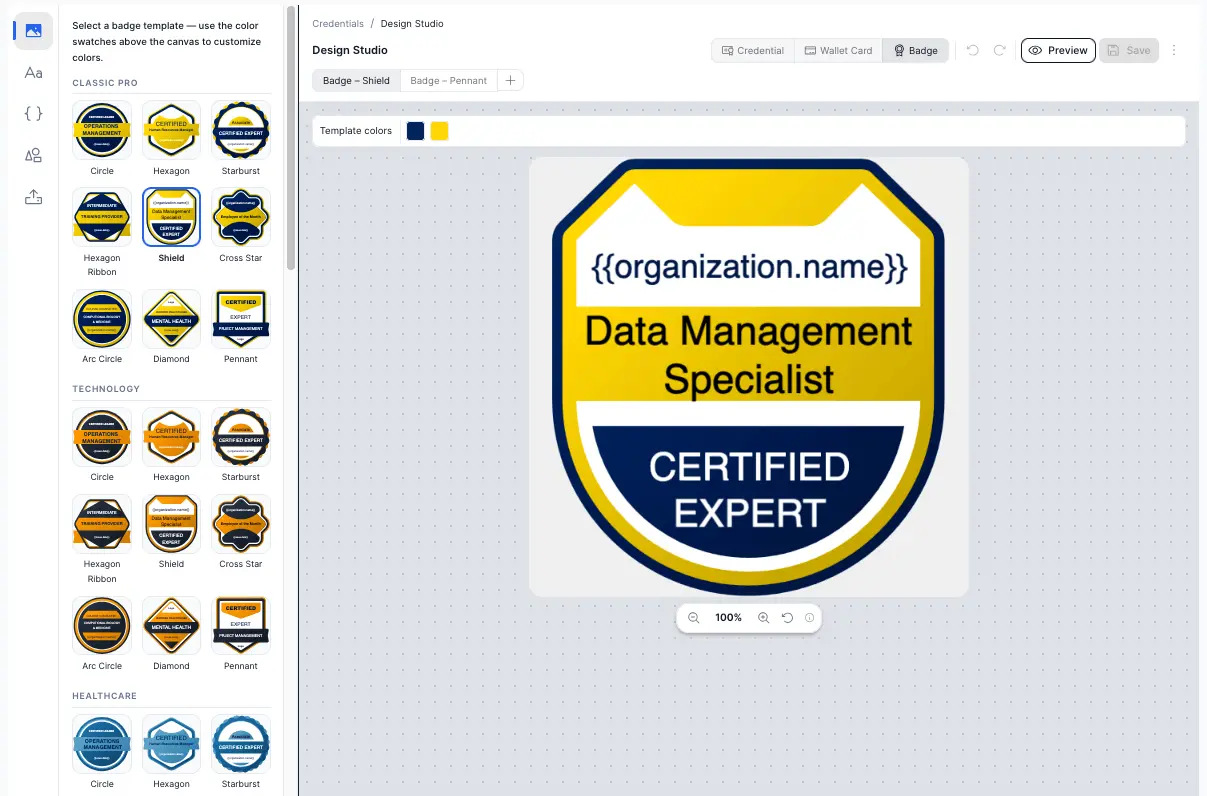
- Click the Templates icon in the tool rail
- The panel switches to show the badge gallery — 9 badge shapes (Circle, Hexagon, Starburst, Hexagon ribbon, Shield, Cross star, Arc circle, Diamond, Pennant), each starting in the Classic Pro colours
- Click a shape's thumbnail to apply it to the badge canvas instantly
- Each shape comes with 2–3 color slots (e.g., Body, Accent, Shadow)
Apply a Palette
Above the canvas, the colour bar has a Palettes row — 8 one-click colour presets you can apply to any shape:
| Palette | Colours |
|---|---|
| Classic Pro | Navy and gold — timeless, formal |
| Technology | Charcoal and amber — clean, modern |
| Healthcare | Blue tones — calm, trustworthy |
| Finance | Navy and bronze — structured, professional |
| Creative | Purple and violet — expressive |
| Sustainability | Green and teal — eco-focused |
| Modern Platform | Teal and cyan — contemporary |
| Accessible | Blue and orange — high-contrast, inclusive |
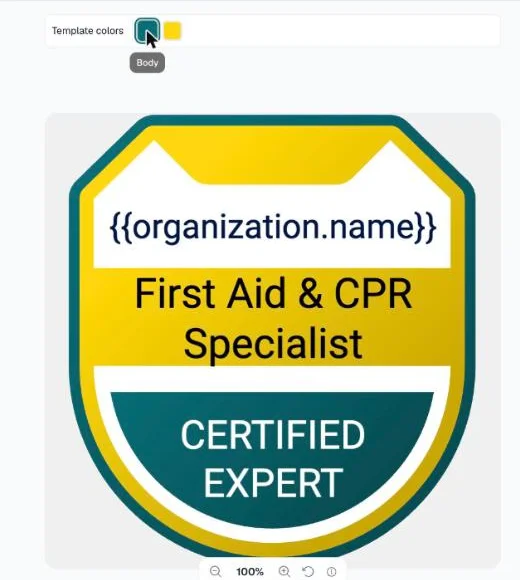
Click a palette swatch to recolour the badge instantly. Changing shapes keeps your chosen colours, so you can try a palette (or your own colours from the swatches below), then switch between shapes without losing it.
Customize Colors
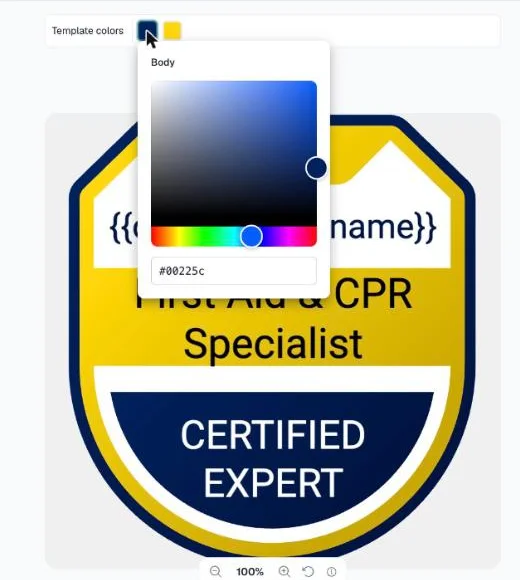
With a badge template active and no element selected, the Template colors swatches appear above the canvas — one swatch per colour slot.
- Click a swatch to open the colour picker
- Drag in the picker for a live preview on the canvas
- Close the picker to commit the colour change (supports undo)
Edit Text Elements
When you select a badge template, its text elements — sample wording you replace with your own, plus your organization's name as a field — are placed on the canvas as editable elements. To show the recipient or the credential title, add those fields from the Attributes panel.
- Click any text element to select it, then edit its content and use the formatting toolbar above the canvas for font, size, colour, and alignment
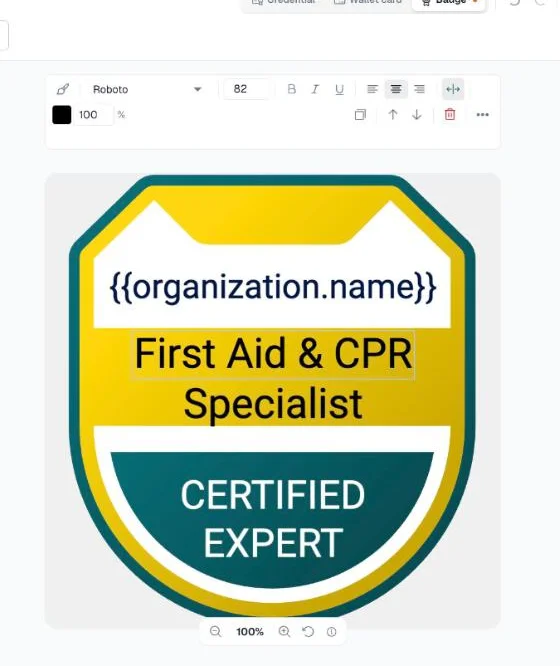
- Text elements behave exactly like text in a standard credential design
- Dynamic attribute tokens like
{{recipient.name}}and{{certificate.title}}are replaced with real data when the badge PNG is generated
Save the Badge Design
- Click Save in the top right corner. The first save names the design for you ("Badge – <date>"), and the first badge design you save becomes your organization's default
- To give it a clearer name (e.g., "Workshop Badge 2026", "Membership Badge"), open the ⋮ design actions menu and choose Rename…
Badge designs are stored separately from credential designs and wallet card designs. You can have multiple badge designs.
Part 2 (Admin): Configure a Category to Use a Badge
Once a badge design is saved, link it to a credential category so it can be used for badge generation.
Assign a Badge Design to a Category
- Go to Categories in the left navigation
- Click the pencil icon on the category row to open the category drawer
- Find Default badge design, below the default design
- Select your saved badge design from the dropdown
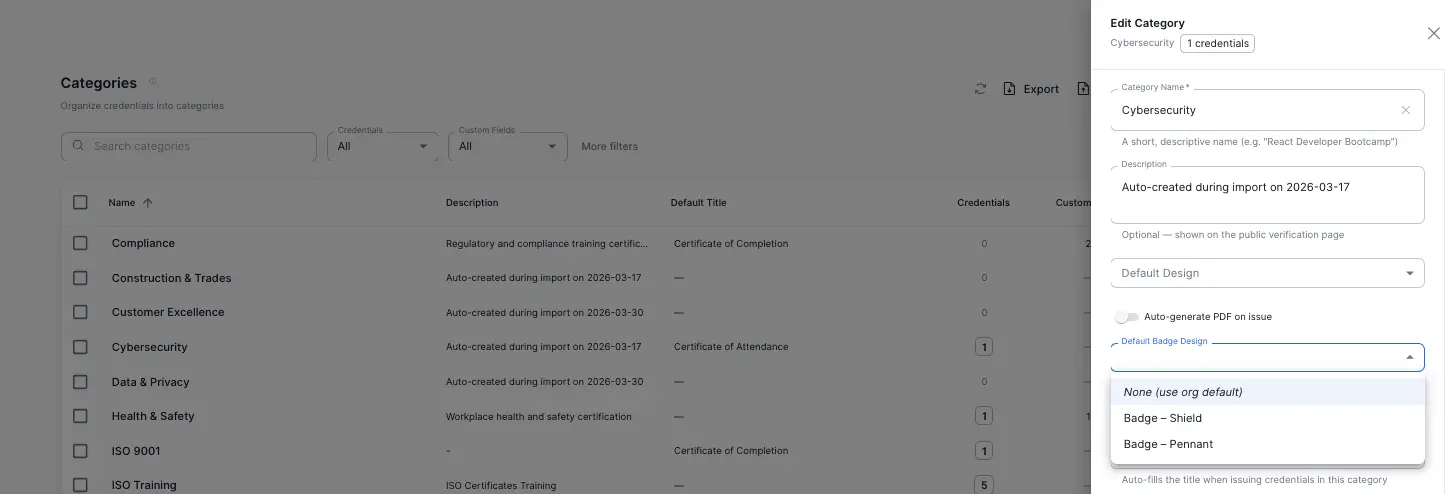
Enable Auto-Generate on Issue
Below the badge design picker, there is an Auto-generate badge on issue switch.
- On — A badge PNG is generated automatically every time a new credential is issued in this category
- Off — No badge is generated automatically; admins generate badges manually on demand
Note: Picking a design on the category is optional. With none picked, auto-generate uses your organization's default badge design. The switch can only be turned on when one of the two exists.
Email timing: When auto-generate is on, badge generation runs synchronously before the issue email is sent — so the recipient's email always includes their badge if one was successfully generated.
Part 3 (Admin): Show Badge on the Verify Page
- Go to Verification Page in the left navigation
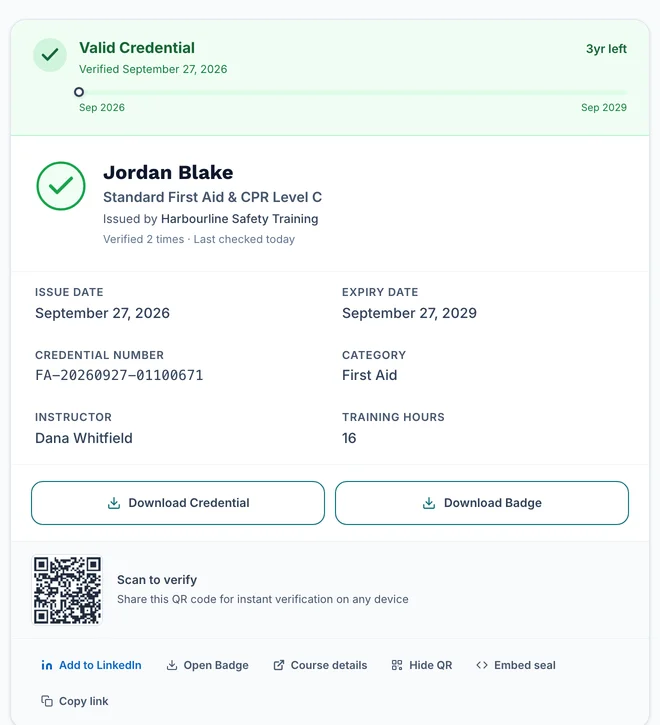
- Open the Options tab and turn on Show Badge on Verify Page
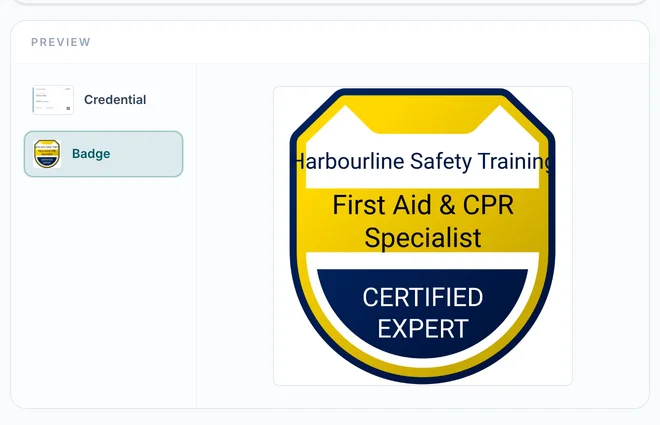
When a credential has a badge, its verify page then offers a Download Badge button. If you also turn on Show credential preview, the preview panel below the card has a Badge tile that shows the badge image.
Available on every plan.
Part 4 (Admin): Generate Badges
There are four ways to generate badge PNGs for your credentials.
Automatic — On Issue
Set up in Part 2. Fires when a credential is issued one at a time in a category whose Auto-generate badge on issue switch is on. Credentials imported from CSV are not badged automatically — use the batch actions below.
Manual — Single Credential
- Go to Credentials in the left navigation
- Find the credential you want
- Click the ⋯ menu on the credential row
- Click Generate badge (or Regenerate badge if one already exists)
The badge PNG is generated and attached to the credential. If a badge already existed, the old one is deleted and replaced.
Bulk — Multiple Selected Credentials
- Go to Credentials
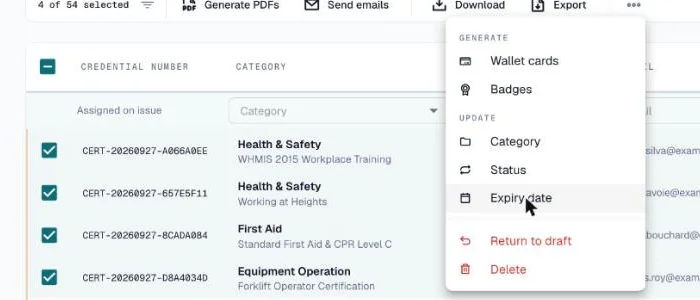
- Check the boxes next to the credentials you want to badge
- In the selection bar, open the ⋯ menu and click Badges (under Generate)
- Badges are generated one after another for each selected credential
Batch — All Credentials in a Category
Use this to backfill badges for an entire category at once — useful when you add a badge design to an existing category that already has many credentials.
- Go to Categories
- Click the ⋯ menu on the category row
- Click Generate badges
- The system queues badge generation for all credentials in that category that do not yet have a badge PNG — credentials with an existing badge are skipped
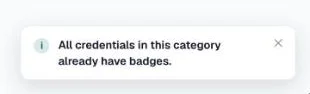
Generation runs in the background, and a message tells you how many badges are being made — or that every credential in the category already has one. Depending on the number of credentials, this may take a few minutes.
Part 5 (Recipient): How to Use Your Digital Badge
Recipients do not need a CertLister account to receive or use their badge.
In Your Issue Email
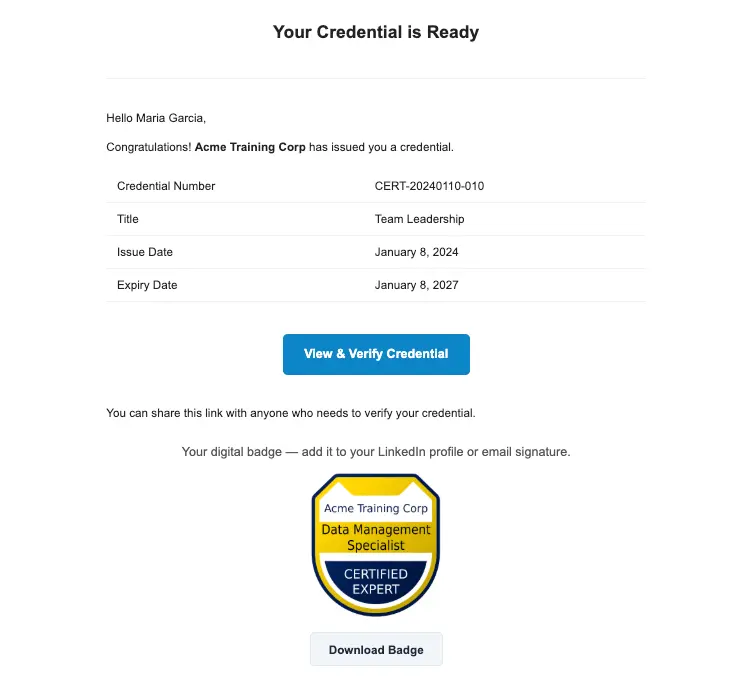
When an admin issues a credential and your category is configured to generate badges, your badge appears inline in the issue email you receive.
The email shows your badge image inline. To save the PNG file, use the Download Badge button on your verify page.
On the Verify Page
If the issuing organization has enabled "Show badge on verify page", your badge appears on your credential's public verify page — the same page linked from your email and shareable URL.
Share on LinkedIn
On the verify page, click Add to LinkedIn. This opens LinkedIn's certification add flow pre-filled with:
- Credential title
- Issuing organization name
- Issue and expiry dates
- A link to your verify page
Add to an Email Signature
You can add your badge to a Gmail or Outlook email signature using the badge image you downloaded.
Gmail:
- Open Gmail → Settings → See all settings → General → scroll to Signature
- Click the image icon in the signature editor and upload your badge PNG
- Resize it to about 80–100 px wide
- Link the image to your verify page URL so anyone who clicks the badge can verify it
Outlook:
- Go to File → Options → Mail → Signatures
- In the signature editor, click the image icon and insert your badge PNG
- Right-click the image → Hyperlink → paste your verify page URL
Tip: Keep badges small in email signatures — 80 px wide is a good size. A larger badge can push your signature below the fold.
Plan Availability
| Feature | Free | Basic | Pro |
|---|---|---|---|
| Design badges in Design Studio | ✅ | ✅ | ✅ |
| Assign badge design to category | ✅ | ✅ | ✅ |
| Auto-generate badge on issue | ✅ | ✅ | ✅ |
| Generate badge manually per credential | ✅ | ✅ | ✅ |
| Bulk badge generation | ✅ | ✅ | ✅ |
| Batch badge generation per category | ✅ | ✅ | ✅ |
| Show badge on verify page | ✅ | ✅ | ✅ |
| Recipients receive badge in email | ✅ | ✅ | ✅ |
Frequently Asked Questions
Q: Do I need to create a badge design before I can generate badges?
A: Yes. Go to the Design Studio, switch to the Badge canvas type, choose a template, and save your design. Once saved, you can assign it to a category.
Q: Can I have different badge designs for different credential categories?
A: Yes. Each category has its own badge design picker. You can assign a different badge design to each category — for example, one style for workshop completions and another for annual memberships.
Q: What happens to existing credentials when I add a badge design to a category?
A: Existing credentials are not automatically badged. Use the Generate badges batch action on the category (⋯ menu → Generate badges) to backfill badges for all existing credentials in that category.
Q: Can a recipient download the badge from the verify page?
A: Yes. When Show Badge on Verify Page is on, the verify page has a Download Badge button that saves the PNG.
Q: What format is the badge?
A: Badges are 900 × 900 px PNG files. This is a standard format compatible with LinkedIn, email signatures, and most digital platforms.
Q: What happens if I regenerate a badge?
A: The previous badge PNG is deleted from storage and a new one is generated using the current badge design and colors. Any verify page showing that credential will immediately show the new badge. If the recipient had already downloaded the old badge, they would need to download the new one.
Q: Can I remove a badge from a credential?
A: Yes. Open the credential with the pencil icon, expand its Badge section, and remove the badge. The badge PNG is deleted, and the verify page no longer offers it.
Q: Does generating a badge affect the PDF credential?
A: No. Badges and PDF credentials are independent. Generating a badge does not change or regenerate the PDF.
Q: What is the difference between a Digital Badge and an OB3 credential?
A: A digital badge is a branded PNG image — a visual asset recipients use for sharing and display. An OB3 credential is a cryptographically signed .jwt file that proves authenticity and can be verified programmatically. They serve different purposes and are configured separately. See the Open Badge 3.0 (OB3) Credentials help article for details on OB3.
Troubleshooting
The "Generate Badge" action is not visible on credentials
Check:
- You have the Admin or Manager role — User role cannot generate badges
- Hard-refresh the page if you just upgraded
The batch "Generate badges" option is greyed out in the category menu
Cause: Neither the category nor your organization has a badge design.
Solution: Save a badge design in Design Studio (your first one becomes the default), or pick one in the category drawer. When every credential in the category already has a badge, the option reads Regenerate badges instead.
Auto-generate is on but the badge is not appearing on new credentials
Check:
- Digital badges is on in Settings → Features
- The credential was issued one at a time — credentials imported from CSV are not badged automatically
- A badge design exists: the category's, or your organization's default
The badge on the verify page is not showing, even though the credential has a badge
Check:
- Show Badge on Verify Page is on in Verification Page → Options
- Hard-refresh the verify page to clear cached content
The badge image looks stretched or blurry
Badge templates are designed at 900 × 900 px. Stretching the image beyond its native size in an email signature or on a webpage will reduce quality. For email signatures, use a display size of 80–120 px wide.