
Custom Credential Attributes
Time to read: 8 minutes
Overview
Custom credential attributes let you attach domain-specific data fields to credentials at the category level. Define fields like "Score", "Instructor", "Training Hours", or "Permit Number" — then fill them in for each credential recipient. Values appear in generated PDFs and on the public verify page. Custom fields appear across the certification tracking and verification software.
Example use cases:
- A Python training provider adds "Score" and "Instructor" fields to their "Python Training" category
- A food safety certifier adds "Permit Number" and "Issuing Authority" to their compliance category
- A fitness organization adds "Hours Completed" and "Trainer Name" to each certification
Available on: every plan
How the Feature Works
Custom attributes follow a four-step flow:
- Define fields on a category (Admin)
- Enter values when creating or editing individual credentials
- Place tokens in your credential design to print the values in PDFs
- Verify page shows the values publicly when someone looks up a credential
Part 1: Define Custom Fields on a Category
Requires: Admin role
Step 1: Go to Categories
- Log into CertLister at https://app.certlister.com
- Click Categories in the left navigation
Step 2: Open the Custom Fields Section
- Find the category you want to add fields to
- Click the pencil icon on its row — the category drawer opens
- Open the Custom fields section
Step 3: Add Fields
- Click Add field
- Fill in each field:
| Property | Description | Rules |
|---|---|---|
| Label | Display name shown in the credential form and on the verify page | Max 50 characters. Example: Training hours. The key fills in from the label as you type |
| Key | Internal identifier used in design tokens | Lowercase letters, numbers, and underscores only. Max 30 characters. Example: training_hours |
| Required | Whether this field must be filled in before a credential is saved | Tick or leave unticked |
| Public | Whether the value is shown on the public verify page | Switch on or off |
- Add as many fields as you need
- Click Update (or Create category) when done
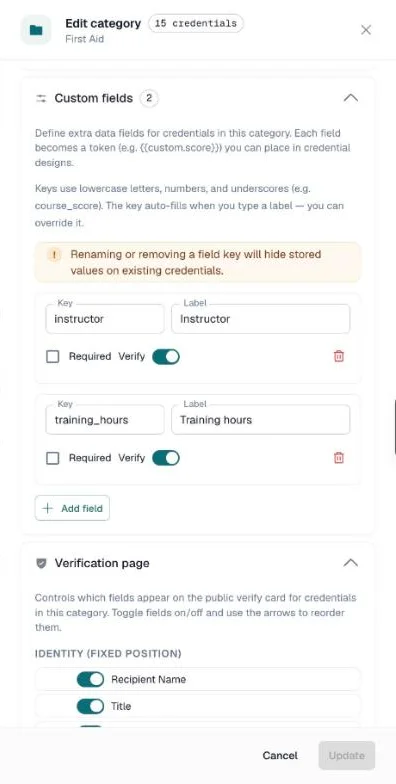
Example setup for a "Python Training" category:
| Key | Label | Required |
|---|---|---|
score | Score | No |
instructor | Instructor | Yes |
hours | Training Hours | No |
Important: Renaming or Removing Field Keys
Values on credentials are stored under the field's key. If you change the key of a saved field, a note under it says so. If you remove a saved field from a category that already has credentials, you are asked to confirm. Either way the stored values are not deleted — they show again if you restore the original key. Change keys carefully, ideally before credentials are created in that category.
Part 2: Enter Values When Creating a Credential
Once a category has custom fields, those fields appear automatically in the New credential panel and the Edit view when that category is selected.
Creating a Credential with Custom Fields
- Go to Credentials → click New credential
- Pick a category that has custom fields defined — it is the first field, and it fills in the default title
- Fill in the recipient and the dates
- The custom fields appear under More options, which opens on its own — fill them in
- Required fields are marked with an asterisk (*) and must be completed before saving
- Click Issue credential
Editing Existing Credentials
- Open a credential that belongs to a category with custom fields
- Click the pencil Edit icon on its row
- The custom fields appear with any previously saved values
- Update values as needed and click Update
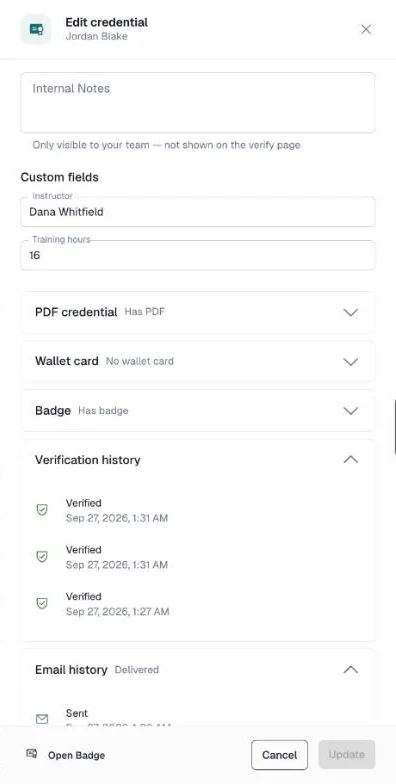
Note: Adding custom fields to a category does not retroactively fill in values for existing credentials. Edit each credential to add the values, or re-import a CSV that maps those columns to fill them in bulk (see Part 5 below).
Part 3: Use Tokens in Credential Designs
Custom attribute tokens follow the format {{custom.fieldkey}}. Place them in the Design Studio to print custom values in generated PDFs.
Step 1: Open the Design Studio
- Click Design Studio in the left navigation
- Open the design you want to update — or create a new one
Step 2: Find Custom Field Tokens in the Attributes Panel
- Click the Attributes icon in the tool rail
- Scroll down to the Custom fields section of the panel
- Your custom field tokens appear as clickable buttons — one per unique field key, across all of your organization's categories
- If two categories have a field with the same key but different labels (e.g., "Score" in one and "Test Score" in another), both labels are shown merged on the button
Step 3: Add a Token to the Canvas
- Click a token button to add it to the canvas at a default position
- Drag the token button directly onto the canvas to place it exactly where you want it
- Style the token element like any other text element: font, size, color, alignment
Step 4: Save the Design
Click Save in the top right. The design is now ready to generate PDFs with custom values.
At generation time:
{{custom.score}}→ replaced with the actual score for each recipient (e.g., "92%"){{custom.instructor}}→ replaced with the instructor's name (e.g., "Dr. Smith")- If a credential has no value for a token, the token is replaced with an empty string (blank space)
Part 4: Custom Attributes on the Public Verify Page
When someone looks up a credential on your public verify page, its custom fields appear in the credential card with the other details — for example Instructor and Training hours next to the issue date and credential number.
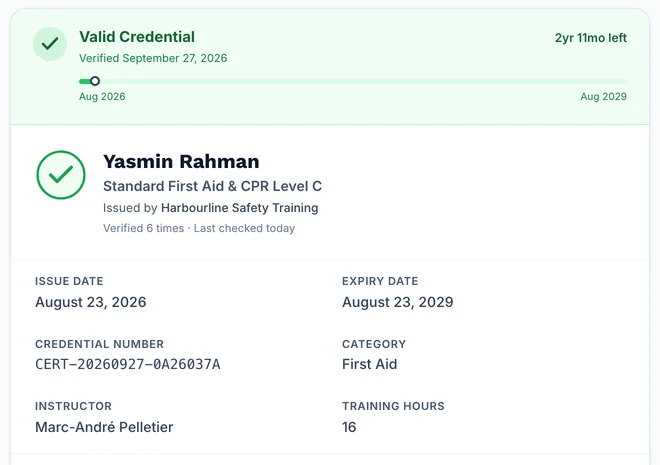
A field is shown when it has a saved value and its Public switch is on. You can also hide all custom fields, or move them, in the category's Verification page section. Email addresses, internal notes, and other private data are never shown on the verify page.
Part 5: Custom Attributes and CSV Import
The import wizard can set custom attribute values from your CSV. In the Map columns step, a Custom fields table appears below the standard one, listing every custom field defined on any of your categories. Map a column to a field the same way you map the standard fields.
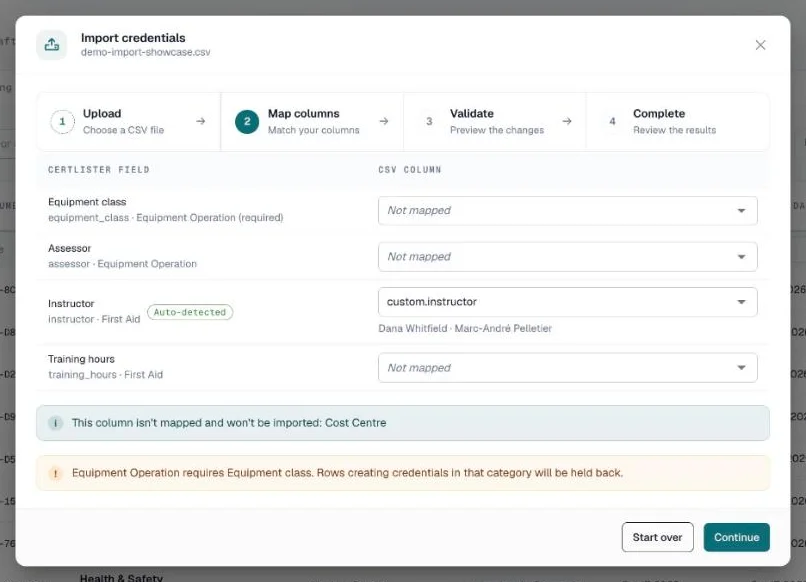
How CertLister Matches Your Columns
Two header forms are recognized automatically:
custom.<key>— the header CertLister's own CSV export writes (see "Can custom attribute values be exported to CSV?" below)- The field's key or label — a column named
scoreorScoreauto-maps to a field with that key or label, but only when exactly one custom field across your categories matches it. A header that could mean more than one field is left unmapped, so you choose by hand rather than have CertLister guess
A standard field always keeps a header it matches first: a custom field labelled "Title" can never take the column CertLister reads as the credential Title.
When a Row's Category Doesn't Have the Field
A value is saved only for a credential whose category defines that field. If a mapped column carries a value for a field the row's category doesn't have, the row is held back — it does not import, and the reason names the field and the category.
This also covers a row that names a category your organization doesn't have yet. Create the category and its custom fields first, then import again. Mapping the name onto an existing category in the Category Handling Dialog cannot rescue that row.
Updating vs. Creating
On a row that updates an existing credential:
| Column | Effect |
|---|---|
| Mapped, cell has a value | The field is set to that value |
| Mapped, cell is blank | The stored value is cleared, for a field that category defines |
| Not mapped | The stored value is left exactly as it is |
Clearing is refused when the field is required for its category — that row is held back instead of losing the value.
On a row that creates a new credential, every custom field required by the row's category must have a value, or the row is held back — the same rule that applies when you fill in the field by hand.
Value Length
A custom value can be up to 500 characters. A longer value holds the row back, with an explanation.
Adding or Fixing Values After an Import
Not every value has to come from the CSV. To add or correct one afterward:
- Go to Credentials
- Click the pencil Edit icon on the credential's row
- In the Edit credential drawer, find the Custom fields section under More options — it opens on its own when the category has custom fields
- Enter the values and click Update
Repeat for each credential that needs values.
Re-importing with the Custom fields columns mapped can add or change values, the same as any other mapped column. Leave those columns unmapped and a re-import changes nothing about custom values, whether or not the row otherwise updates the credential.
Learn more: Bulk Import Credentials from CSV
Troubleshooting
Custom fields do not appear in the credential drawer
Check:
- You selected a category that has at least one field defined — open the Categories page, click the category's pencil icon, and check the Custom fields section
- You are selecting the category before looking for the fields (fields load when the category is selected)
A custom field is blank in the PDF
Causes and fixes:
| Cause | Fix |
|---|---|
| The credential has no value saved for that field | Edit the credential and enter the value |
| The token key does not match the field key | Keys are case-sensitive and must be exact. {{custom.Score}} is not the same as {{custom.score}} |
| The credential was created before the field was added | Edit the credential to add the value |
The verify page does not show custom attributes for a credential
Check:
- The credential has at least one custom attribute value saved (edit the credential to confirm)
- The field's Public switch is on, and custom fields are not hidden in the category's Verification page section
The design shows {{custom.score}} instead of a real value
This is expected. The canvas has no real credential data, so a custom token shows as itself, {{custom.score}} (the design picker's thumbnails show it as [score]). To see real values, click Preview and pick a credential. The actual value is filled in when the PDF is generated.
Frequently Asked Questions
Q: How many custom fields can I add per category?
A: There is no fixed limit.
Q: Can different categories have different custom fields?
A: Yes — each category has its own independent field schema. "Python Training" can have Score and Instructor; "Food Safety" can have Permit Number and Expiry Region. These are completely separate.
Q: What happens to existing credentials when I add new fields to a category?
A: Existing credentials are not affected — new fields appear blank on them. A required field must be filled in whenever a credential in that category is saved, so editing an existing credential asks you to fill in a new required field.
Q: Can I use the same token key in multiple categories?
A: Yes. The Design Studio merges all unique keys across all category schemas into one list in the Attributes panel. A token like {{custom.score}} in your design will resolve to the score value of whichever category the specific credential belongs to.
Q: Are custom attribute values searchable in the credentials list?
A: Not currently. Search works on recipient name, credential number, and title.
Q: Can custom attribute values be exported to CSV?
A: Yes. The CSV export adds one custom.<key> column per custom field your organization defines, on every plan — it's your own data. A cell carries a value only when the credential's own category defines that key. Re-importing that same file maps those custom.<key> columns back onto their fields automatically, so export and re-import round-trip your data.
One exception: a value that starts with =, +, -, or @ is exported with a leading apostrophe, so spreadsheet software doesn't treat it as a formula. Re-importing removes that apostrophe again. What your spreadsheet program shows on screen for that leading apostrophe depends on the program — check the cell's raw content if the displayed value looks off.
Q: Do custom attributes work with the legacy SVG credential generator?
A: No. Custom values render on Design Studio designs and on the public verify page. The legacy SVG generator does not substitute {{custom.key}} tokens in a PDF — that path does no token substitution for custom fields at all. If you need custom values on the printed credential, use a Design Studio design.
Q: What happens to custom attribute data if I change plans?
A: Nothing changes. Custom attributes are on every plan, so your fields and their values stay exactly as they are.