
Generate Certificate PDFs in Bulk
Time to read: 4 minutes
Overview
A credential and its PDF are separate things. The credential is the record — the recipient, the title, the dates, the verify page. The PDF is a file rendered from one of your Design Studio designs and attached to that record. PDF generation is one of the credential management features.
Most of the time the two arrive together. But credentials imported from CSV, or issued before you built a design, exist without a PDF. This guide is how you fill those gaps for many credentials at once.
Available on every plan. Bulk PDF generation is not gated by plan. Admins and Managers can start a batch.
Generation runs in the background. You start a batch and leave — close the tab, go to another page, keep working. Progress appears in the top bar and follows you around the app.
Two ways to start a batch
Pick by what you already know:
| You are thinking | Start from | What it generates for |
|---|---|---|
| "These specific people need PDFs" | Credentials list | Whatever you select |
| "This whole course needs PDFs" | Categories row menu | That category |
Both end in the same dialog and dispatch the same background job. The difference is only how the batch gets chosen.
From the Credentials list
The most direct route, and the only one where you choose the credentials by hand.
1. Narrow the list
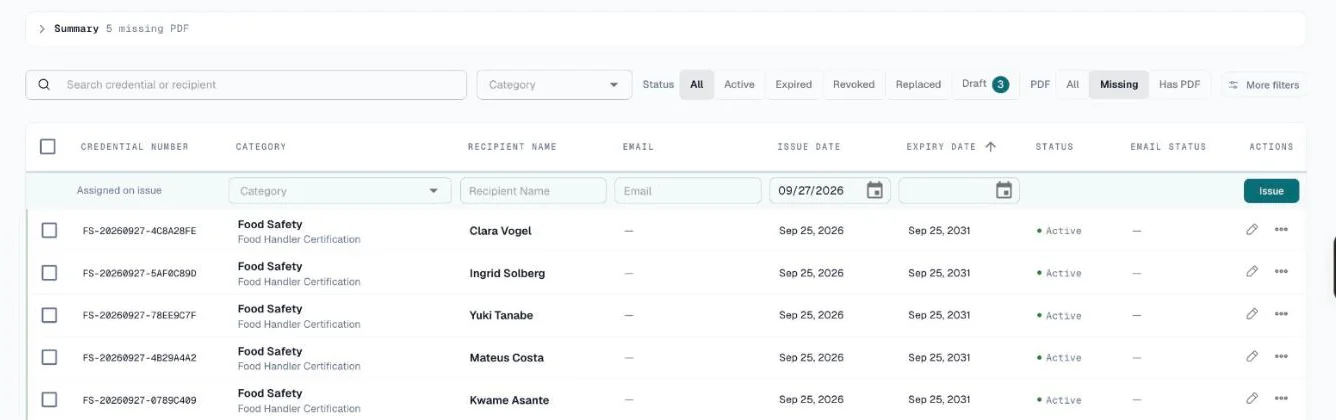
On Credentials, set the PDF filter to Missing. The list now holds only credentials that have no PDF yet, and the header tells you how many.
Drafts never appear under this filter. A draft has not been issued, so there is nothing to render a PDF from.
2. Select
Tick rows individually, or use the checkbox in the table header to take the whole page at once.
The list paginates, so the header checkbox only takes the page you can see. When more rows match than you have selected, the selection bar offers Select all N — one click to take every credential matching the current filter, across every page.

Batches cap at 500. If more than 500 match, the button reads Select all 500 and takes the first 500; hover it to see why. Run the rest as a second batch.
3. Generate
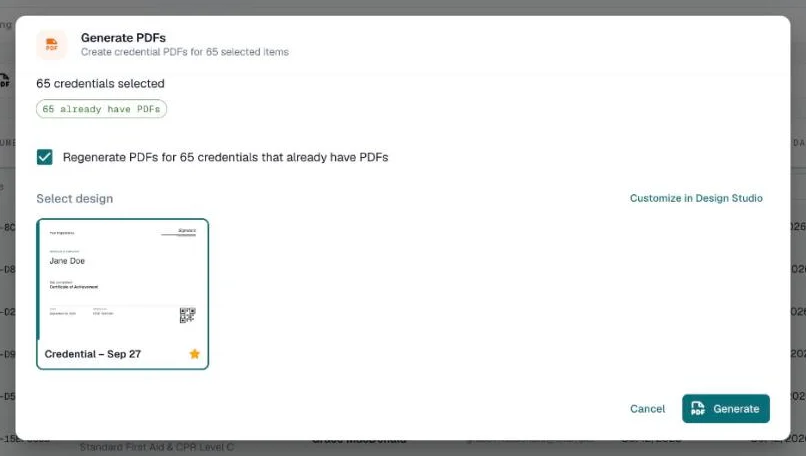
Click Generate PDFs in the selection bar. The dialog shows:
- How many you selected, split into those without a PDF and those that already have one
- A design picker — your saved Design Studio designs, with your default pre-selected
- A regenerate checkbox, only when some of the selection already has a PDF
Leave the regenerate box unticked and credentials that already have a PDF are skipped entirely. Tick it and their existing PDFs are overwritten with the new design.
Click Generate. The dialog closes immediately — the work is queued, not done.
From a category
When the batch you want is "everyone in this course".
- Go to Categories
- Click the ··· menu on the category row → Generate PDFs
- A dialog opens with that category's credentials counted, split into those without a PDF and those that already have one
If the category has a Default Design, it is pre-selected for you. Confirm to start.
Or never think about it again
Categories also carry an Auto-generate PDF on issue toggle. It stays off until the category has a Default design. Turn it on, and every credential issued into that category gets its PDF rendered in the background the moment it is created — no batch to run later. See Credential Categories.
Watching a batch
Once a job is running, a progress strip appears above the Credentials list and an activity indicator sits in the top bar. The top bar indicator follows you across the app, so navigating away does not lose the batch; the strip is there again when you come back to Credentials.


While it runs you can:
- Stop it — already-generated PDFs are kept; the rest are cancelled
When every PDF is made, the strip clears itself and a message says how many were generated. If some credentials fail, the strip stays, says so and offers a drill-down naming which ones and why. From there you can retry just the failures without rebuilding the batch, or Dismiss the strip.
Frequently Asked Questions
Q: How do I find which credentials are missing a PDF?
A: On the Credentials page, set the PDF filter to Missing. The summary panel above the table also carries a Missing PDF tile — click it to apply the same filter.
Q: What happens to credentials that already have a PDF?
A: They are skipped, unless you tick the regenerate checkbox in the dialog. Skipping is the default because overwriting a PDF a recipient may already have downloaded is rarely what you want.
Q: Can I use different designs for different credentials in one batch?
A: No — one design per batch. Run a separate batch per design, or set a Default Design on each category and generate per category.
Q: Can I close the tab while it runs?
A: Yes. Generation happens on our servers, not in your browser. Close the tab, sign out, come back later — the batch finishes either way and the results are waiting.
Q: How long does it take?
A: Seconds per credential, running several at a time. A batch of fifty is typically done in well under a minute.
Q: Why is there no Bulk Generator in my sidebar any more?
A: It was removed. Everything it did now lives on the Credentials page and in Design Studio, where the selection tools are better and the work runs in the background instead of tying up your browser tab. Old links to it land on the Credentials list, filtered to what is missing a PDF.
Q: What about wallet cards?
A: Select the credentials on the Credentials page, then choose Wallet cards from the selection bar's overflow menu. Wallet cards render in your browser, so keep that tab open until the run finishes. You can filter for what is missing one with the Wallet card filter under More filters.