
Reports & Analytics
Time to read: 5 minutes
The Reports page (/reports) gives you a comprehensive view of your organization's credential activity. It surfaces data that is not visible from the Credentials list alone — verification trends, email delivery rates, team security posture, and quota usage. Reporting is part of the certification tracking and verification software.
Navigate to Reports in the left sidebar, at the top of the Grow section.
Overview: Five Sections
The Reports page has a Sections list on the left.
| Section | What it shows | Plan required |
|---|---|---|
| Verifications | Verification counts, trend chart, top verified credentials, activity feed | All plans |
| Credentials | Status breakdown, expiry forecast, category summary, notices about expiring credentials | Basic and Pro |
| Email Delivery | Sent, delivered and bounce rates, automation by category, full email log | All plans |
| Team Activity | Member list, last login, MFA status | Basic and Pro (security flags: Pro) |
| Usage | Your plan's limits and credit history | All plans |
Verifications
Track how often credentials are being verified and by whom.
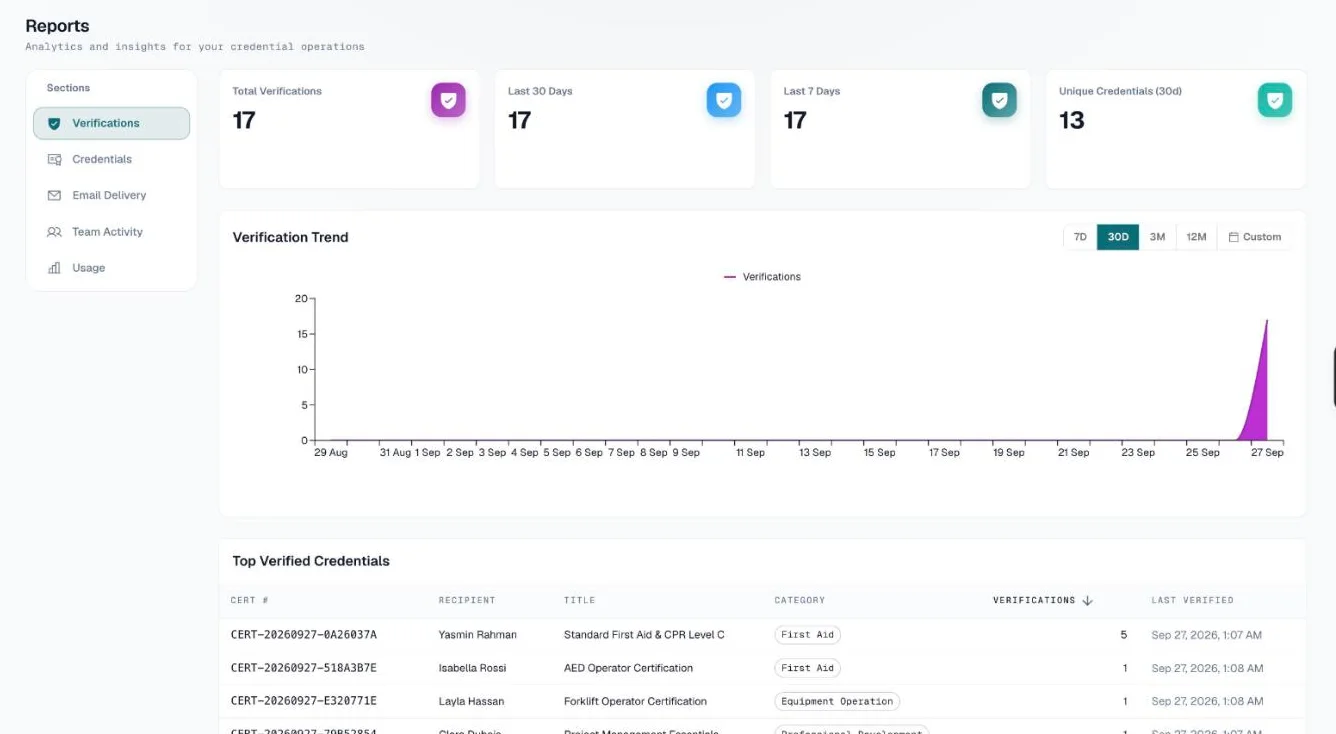
Summary stats
Four numbers at the top:
- Total Verifications — all-time count
- Last 30 Days — verifications in the past month
- Last 7 Days — verifications in the past week
- Unique Credentials (30d) — distinct credentials verified in the last 30 days
Bots — link previews and scripts that open a verify page — aren't counted here, in the trend chart or in Top Verified Credentials. Recent Activity still lists them, marked Bot.
Trend chart
A bar chart shows verifications per day on your own calendar, or per month for ranges longer than three months. Use the range buttons (7D / 30D / 3M / 12M / Custom) to zoom in or out; Custom lets you pick a start and end month, and covers both months in full.
Top Verified Credentials table
A table of your most-verified credentials. Columns: Credential no., Recipient, Title, Category, Verifications, Last Verified; sort by either of the last two. Paginated 10 / 25 / 50 rows. Click a credential number to open that credential.
Recent Activity Feed
The 100 most recent checks, newest first, bots included. Each shows the credential and recipient, the time, the IP address with its last part hidden, and a device label: Desktop, Mobile, Bot or Unknown. Export CSV downloads every verification, up to 10,000, whatever range the chart shows.
Credentials
A health check for your credential catalog. Available on Basic and Pro; on Free, this section shows an upgrade card instead.
Summary stats
- Total Credentials — total in your organization
- Active — credentials that are active and not expired
- Expiring in 30 Days — credentials about to expire
- Avg / Month — average monthly issuance rate since your first credential
The first three open the matching list on the Credentials page.
Status Donut Chart
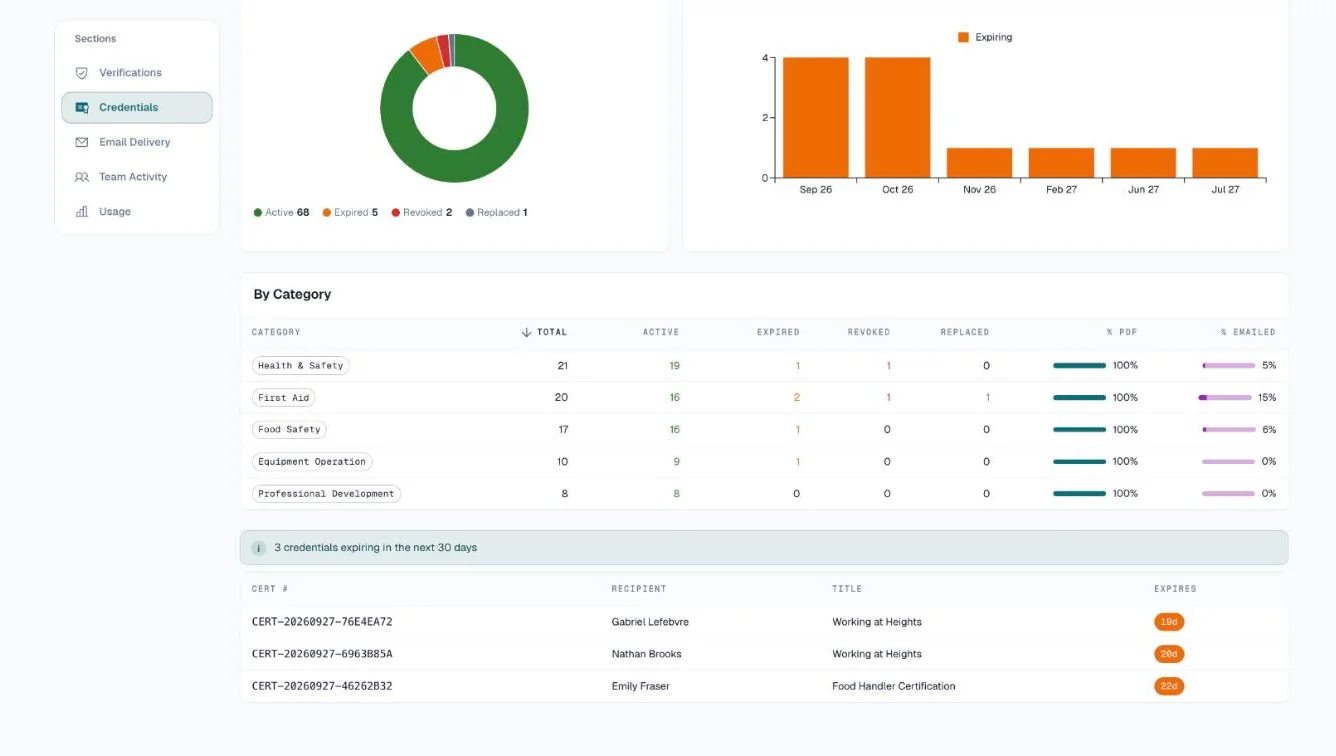
A pie chart showing the split between Active, Expired, Revoked, and Replaced credentials, with an inline legend showing counts.
Every credential falls into exactly one slice, so the slices always add up to your total. Replaced covers credentials a renewal has superseded — see renewing a credential.
Expiry Forecast
A bar chart of how many active credentials expire in each of the next 12 months, starting with this one. Revoked and replaced credentials, and ones that have already expired, aren't counted. Use this to plan renewals in advance.
Category Breakdown Table
A table showing, per category: Total, Active, Expired, Revoked and Replaced counts, and % PDF and % Emailed — the share of that category's credentials with a PDF, and that were emailed.
Notices
Below the table, notices list the credentials that need action: those that expired in the last 30 days, and active ones expiring in the next 30 days (up to 50 each). A credential leaves the expired list once you renew it. Click a credential number to open it, where you can renew it. When some credentials have no PDF, a notice says so, with a Generate PDFs button.
Email Delivery
See exactly what happened after you sent credential emails. Available on every plan.
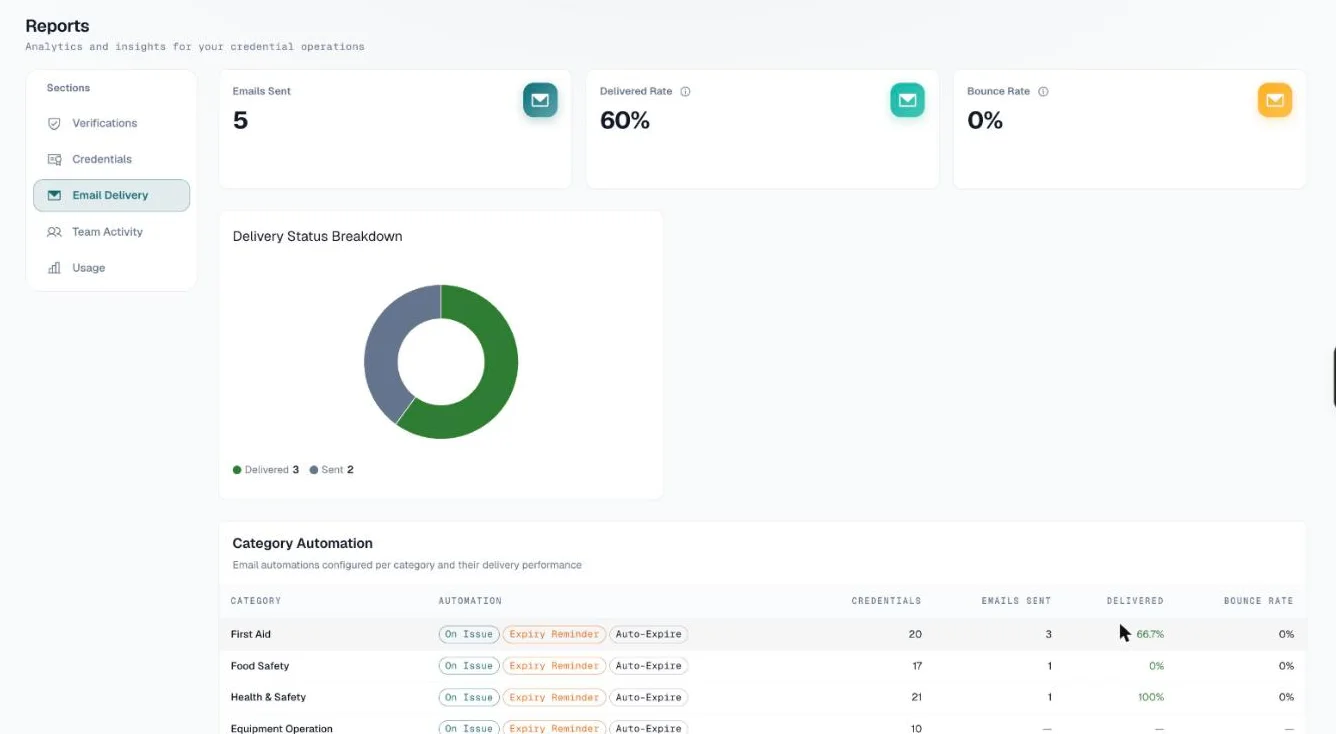
Summary stats
- Credentials emailed — credentials that have been emailed at least once
- Delivered Rate % — the share that reached the inbox, with the counts underneath
- Bounce Rate % — the share that bounced, failed, or were marked as spam, with the counts underneath; the number turns amber when the bounce rate is over 5%
Note: Open rate and click rate are intentionally not shown. Tracking opens and clicks requires recipient-side tracking pixels, which CertLister does not use. Delivery status (sent / delivered / bounced) is ISP-level and does not require any recipient action.
Event Breakdown Donut + Problematic Recipients
The left column shows a donut chart of delivery events by type (Delivered, Bounced, Failed, Spam, Sent, Delayed). The right column shows a Problematic Recipients table listing any recipient with a bounce, failure, or complaint, with the bounce reason. Click a credential number to open the credential and correct the address.
If your bounce rate exceeds 5%, an error alert appears above the table to prompt action. The Problematic Recipients table only appears when there is a problem to show.
Email settings by category
A table of your categories with the emails each one sends (On issue, Expiry reminder) and, for each one, credentials, how many were emailed, delivered rate and bounce rate. Credentials with no category get their own row, so the rows add up to the total above.
Email Log Table
A paginated list with one row per emailed credential, showing its latest email and delivery status. Expiry reminders aren't listed. Columns: Recipient name, Email address, Credential (title + number), Category, Status, Sent date, Last Update. Paginated at 25 / 50 / 100 rows per page.
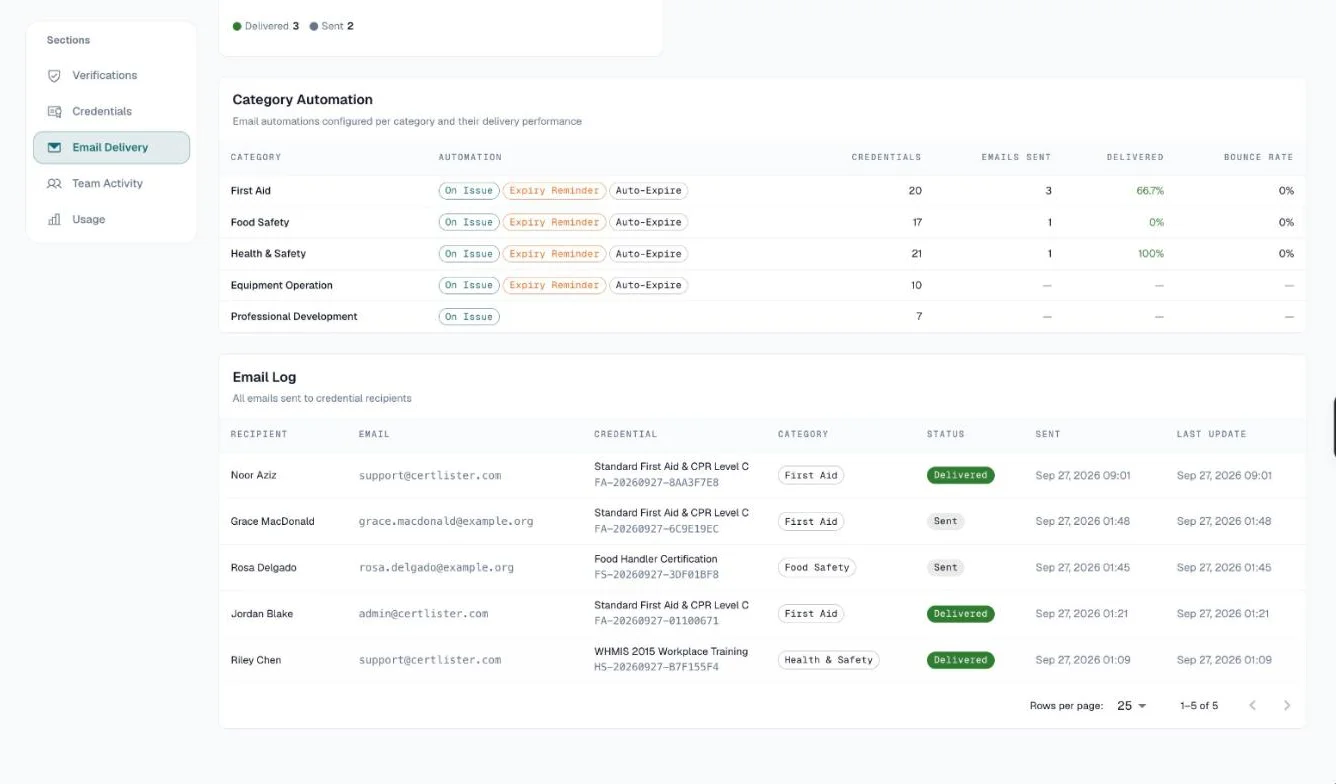
Status is a coloured dot with its label:
- Delivered — green
- Bounced / Failed — red
- Complained (spam) — amber
- Delayed — amber
- Sent — gray (no delivery confirmation yet)
Team Activity
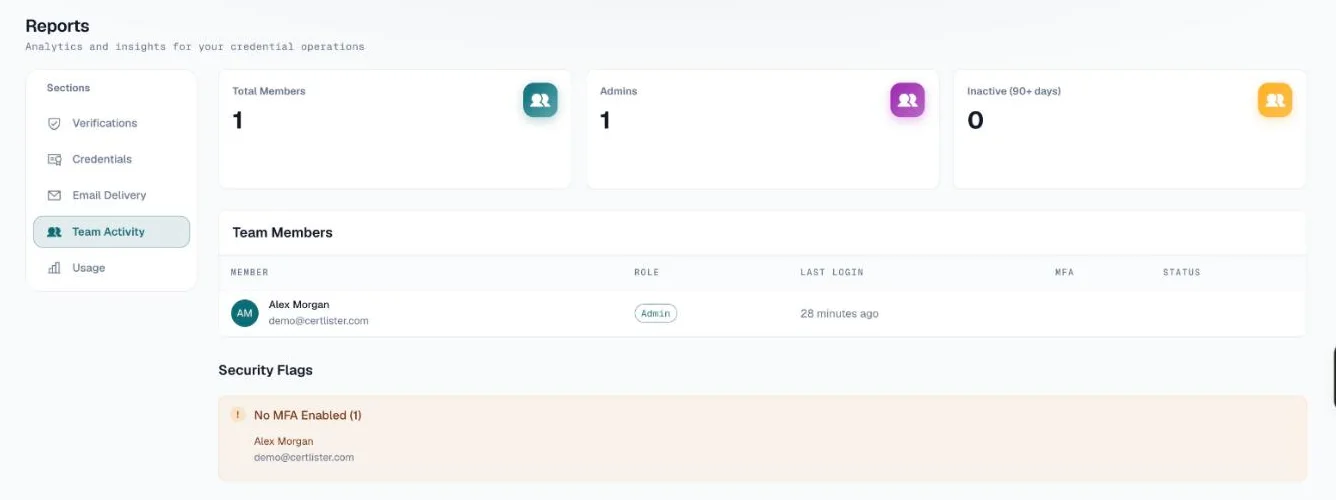
Monitor your team's access patterns and security posture. Available on Basic and Pro.
Summary stats
- Active members — members whose accounts are active
- Admins — count of admin and super-admin users
- Inactive (90+ days) — members who haven't logged in for 90 or more days
Team Members Table
Lists your members, including deactivated accounts, with: avatar initials, name and email, role, last login (shown as relative time — "3 days ago" or "Never"), MFA (On or Off), and status (Active, Locked or Deactivated).
Security Flags (Pro)
Three alert sections appear when applicable:
- Locked accounts — accounts currently locked out (shown as an error alert)
- Users without MFA — members who haven't enabled two-factor authentication (warning)
- Users inactive 90+ days — members who may no longer need access (info)
Use these alerts to periodically audit your team's security posture. Manage team in Settings opens Settings → Team, where you manage members and their roles.
Usage
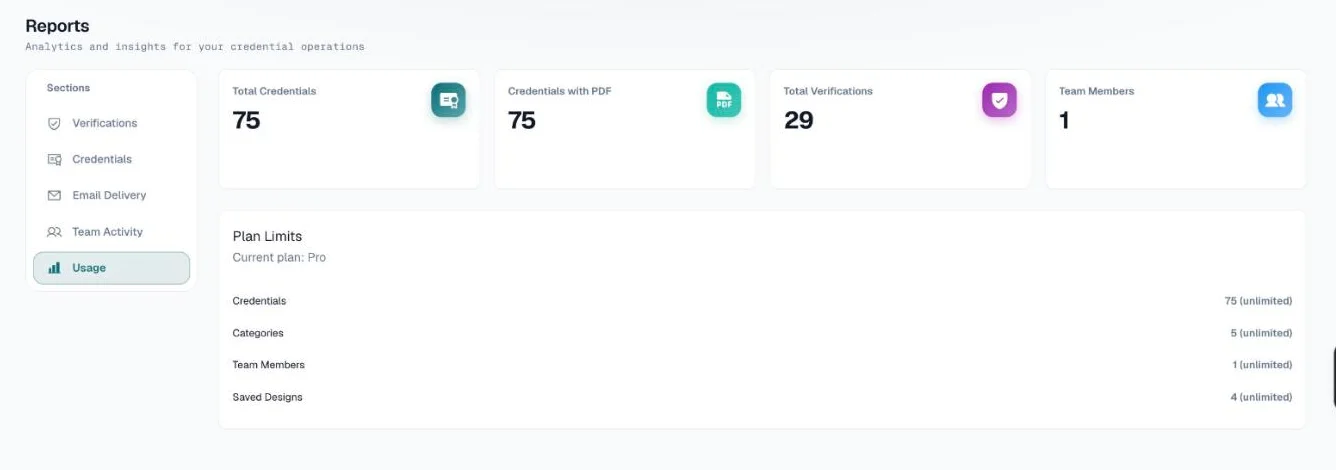
Available on all plans. Plan Limits names your current plan and lists how much of each limit you use. On Pro that includes Credentials, for example "75 (unlimited)"; on Pay As You Go and Basic your credits take that place — credits available, monthly credits used, and any purchased credits — with your Credit History below.
Troubleshooting
I don't see any data in the Verifications section. Verification data populates from the date your organization's credentials started being verified publicly. If you've never shared your verification portal or widget, there will be no data yet. Try verifying a credential yourself via your public portal to confirm tracking is working.
The Email Delivery section shows all zeros. Email delivery tracking uses Resend webhooks and runs on every plan. If you have not sent any credential emails yet, there is nothing to show. Delivery status can take a few minutes to arrive after a send.
The Bounce Rate is over 5%. A high bounce rate usually means some recipient email addresses are invalid. Review the Problematic Recipients table for specific emails, update or remove invalid addresses from your credentials, and avoid re-sending to bounced addresses.
Frequently Asked Questions
Q: How far back does the data go?
A: Verification data goes back to when CertLister began recording logs for your organization. Email delivery data goes back to your first tracked credential email. Credential activity data reflects your full catalog.
Q: Can I export report data?
A: Yes, in two places. In Verifications, the Recent Activity list has an Export CSV button (up to 10,000 events, bots included, every plan). You can also export your full credential list (including email and PDF status columns) from the Credentials page using the CSV export button.
Q: Why is the verification trend a flat line even though I know credentials have been verified?
A: The chart covers the range you picked — 30 days unless you change it. Widen it with 3M, 12M or a Custom range of months. If the section says "No verifications in this period.", no person verified a credential in that range — bots aren't counted. If a section says it couldn't load, click Try again; if it keeps failing, contact support@certlister.com.
Q: Which reports are available on each plan?
A: Every plan gets the Verifications section (summary, trend chart, top credentials and activity feed), the Email Delivery section and the Usage section. The Credentials and Team Activity sections need Basic or Pro, and the security flags in Team Activity need Pro.