
Understanding Your Dashboard
Time to read: 5 minutes
Overview
Your dashboard is the first thing you see when you log into CertLister. It gives you a quick overview of your credential statistics and trends. The dashboard summarises what the certification tracking and verification software records.
This guide explains what the dashboard shows and how to use it effectively.
Dashboard Layout
Your dashboard has these sections:
- Key figures (top row) - 5 numbers, each opening the credentials it counts
- Charts (below) - an issuance and expiry chart, and a breakdown by category
- Setup (admins only) - where your verification page, logo, emails and designs stand
Section 1: Key Figures
The top row shows 5 numbers at a glance. Click a number to open the credentials it counts.

Issued
What it shows:
- Every credential you've issued, whatever its status now (active, expired, revoked or replaced)
- Below the number: how many were issued this calendar month
Example: "125" with "+12 this month"
What it's useful for:
- Tracking growth over time
- Knowing your credential volume
Click to: View all credentials
Active
What it shows:
- Credentials that are valid today
- Excludes expired, revoked and replaced credentials
Example: "118"
What it's useful for:
- Seeing how many valid credentials are in circulation
- Compliance reporting
How it updates:
- Automatically when credentials expire (based on expiry date)
- When you manually revoke credentials
Click to: View only active credentials
Expiring soon
What it shows:
- Active credentials whose expiry date falls in the next 30 days
- The number turns orange when something is due
Example: "4"
What it's useful for:
- Contacting holders before their credential lapses
- Planning renewals a month ahead
Click to: Credentials filtered to "Active" and "Expiring in 30 days" — the same credentials, as a list
Expired
What it shows:
- Credentials past their expiry date
- Revoked and replaced credentials are not counted here, even when their expiry date has passed
Example: "7"
What it's useful for:
- Identifying credentials that need renewal
- Compliance tracking
- Planning recertification training
Click to: View only expired credentials
Verifications
What it shows:
- Number of times recipients or third parties looked up a credential on your public verify page in the last 30 days
Example: "42"
What it's useful for:
- Gauging how actively your credentials are being checked
- Spotting unusual verification activity
- Understanding recipient engagement after issuance
Note: This number opens Reports → Verifications, where detailed verification logs (who verified what and when) are available, on every plan.
Section 2: Charts
Two panels show how your credentials are spread over time and across categories.
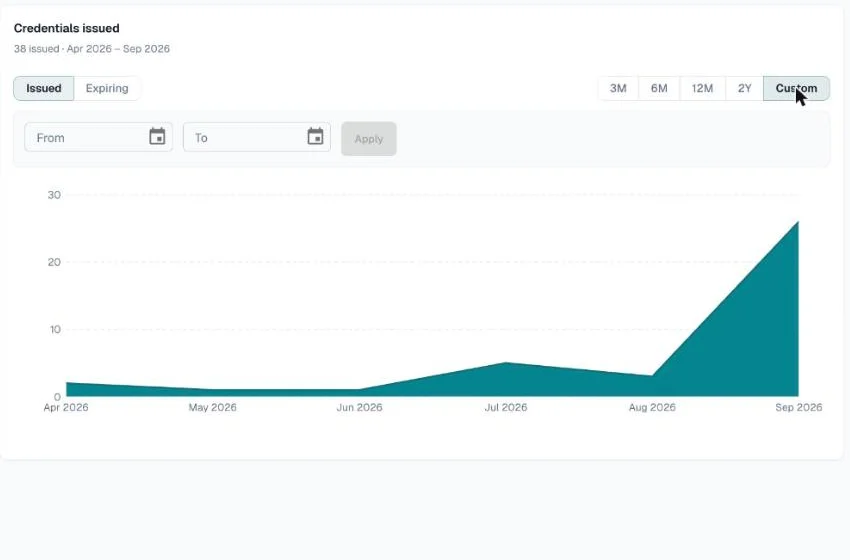
Credentials Issued / Due to Expire
What it shows:
- Area chart of credentials per month
- Switch between Issued (credentials issued each month) and Expiring (active credentials due to expire each month) using the toggle at the top of the chart
- The line under the title says how many credentials the chart holds and which months it covers
Controls:
- Issued / Expiring toggle — Issued looks back from the current month; Expiring looks forward from it
- Date range presets — 3M, 6M, 12M, 2Y, or Custom to pick a range of months. For Issued you can pick months up to the current one; for Expiring, the current month or later. Choose both months, then click Apply
- Interactive tooltips on hover
Good to know:
- Expiring counts only credentials that are still active and have not yet reached their expiry date. Revoked credentials, and credentials you have already renewed, are left out.
- The refresh icon in the dashboard header also reloads the date range you are looking at.
What it's useful for:
- Seeing issuance growth trends and identifying peak periods
- Planning ahead for renewal crunches (Expiring mode shows which months have the most credentials expiring)
- Spotting gaps where no credentials were issued
Credentials by Category
What it shows:
- Your categories ranked by how many credentials each holds, with the count and its share of all your credentials
- The six largest categories by name; any others are grouped into Other
- Credentials with no category, as No category
- How many categories you have, under the title, with a Manage link to the Categories page
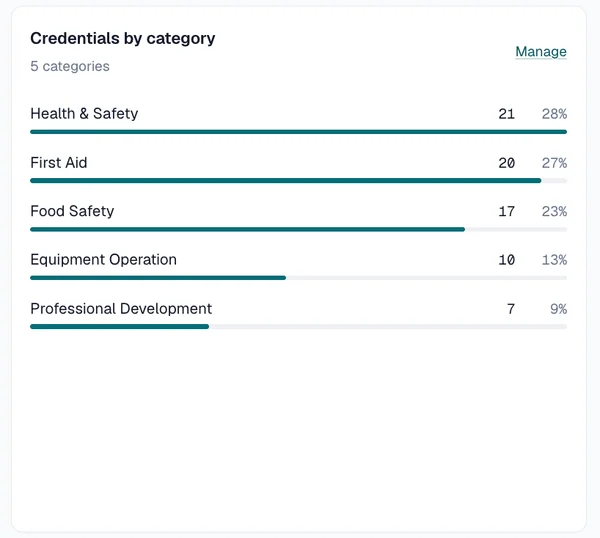
Click a row to: Open the credentials in that category. Other opens the Categories page.
What it's useful for:
- Understanding which credential types are most common
- Balancing training programs
- Resource allocation
Section 3: Setup
Admins also see a Setup card, below the charts. When you have no credentials yet, it sits beside the task that walks you through issuing one.
What it shows:
- Verification page - its public address, on your custom domain once that domain is active
- Custom domain - the domain and its status, or Not connected (Pro)
- Logo - whether one is uploaded
- Reply-to address - where recipients' replies go (Basic and Pro)
- Reminder schedule - how many days before expiry recipients are emailed. Reminders go out only for credentials whose category has Send expiry reminder email turned on
- Saved designs - how many designs you have
Click a row to: Open the page where that setting changes.
Navigating from the Dashboard
The Left Sidebar
The left sidebar groups navigation into three sections.
On a wide window you can give a page more room. Click the button at the bottom of the sidebar; its tooltip says Collapse sidebar. The sidebar shrinks to icons; point at an icon to see its name. Click the button again to expand it. Your browser remembers the choice. Design Studio always opens with the sidebar shrunk, so the canvas has more room.
Manage — the things you set up and work in day to day:
- Overview - Returns you to this page
- Categories - Organize credential types
- Credentials - View and manage all credentials
- Design Studio - Create and edit credential designs (drag-and-drop canvas), and apply one to every credential that still needs a PDF
- Verification Page - Configure your public verification page, embed widget, and branding
Grow — the surfaces that go looking for work:
- Reports - Credential activity, verification trends, email delivery, team stats
- Automations - Rules that act on credentials as they are issued, expire or bounce
- Integrations - API keys and webhooks
- Recipient Portal - Where recipients sign in to collect and manage their own credentials
Account:
- Settings - Organization settings, profile, billing
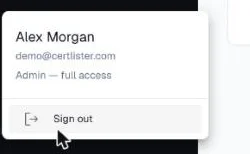
User Menu
Click your name at the bottom of the sidebar, or your avatar when the sidebar is shrunk. The menu shows your name, your email address, and your role, with a Sign out button. To change your profile, go to Settings → Profile.
Understanding Credential Statuses
Credentials can have these statuses. The dashboard counts Active and Expired credentials; the Credentials page also shows Revoked, Replaced, and Draft.
Active (Green)
What it means:
- Credential is currently valid
- Not expired or revoked
- Appears in public verification as valid
Shows as active when:
- No expiration date set
- Expiration date is in the future
Expired (Yellow/Orange)
What it means:
- Expiration date has passed
- No longer valid for compliance
- Shows as "Expired" in public verification
What happens:
- Status automatically changes daily at 2 AM UTC on and after the expiration date
- Recipient should renew or recertify
Revoked (Red)
What it means:
- Credential manually revoked by administrator
- Invalid even if expiration date hasn't passed
- Shows as "Revoked" in public verification
Common reasons to revoke:
- Fraudulent credential
- Recipient violated terms
- Credential issued in error
- Certification suspended
Replaced
What it means:
- A newer credential was issued as a renewal of this one
- Shows as replaced in public verification, with a link to the current credential
- Expiry reminders stop for it
Draft
What it means:
- Saved but not issued yet — no credential number and no public verification
- Uses no credit until it is issued
See Drafts.
Clickable Key Figures
Each number opens a filtered view:
Issued → All Credentials page
Active → Credentials filtered by "Active" status
Expiring soon → Active credentials expiring in the next 30 days
Expired → Credentials filtered by "Expired" status
Verifications → Reports → Verifications
Tip: Use these shortcuts to quickly access relevant data instead of manually filtering.
Dashboard Refresh
Dashboard numbers update:
- Every time you open the dashboard
- Automatically every 5 minutes while the page is open
- When you click the refresh icon in the dashboard header
The header shows when the numbers were last updated, for example "Updated 3 minutes ago".
If the numbers can't be loaded, a message appears at the top of the page with a Try again button. Numbers already on screen stay where they are.
Tips for Using Your Dashboard Effectively
Check Daily
Morning routine (2 minutes):
- Review the key figures - anything expiring soon?
- Look at the chart - normal issuance pattern?
- Check the category breakdown - anything unexpected?
Monitor Growth
Weekly task:
- Compare "Issued" to previous week
- Increasing? Your programs are growing
- Plateaued? Consider marketing or new programs
Track Expirations
Monthly task:
- Click Expiring soon to see who needs renewing in the next 30 days
- Check the Expired count
- Contact holders for renewal
- Plan recertification training
Keep Categories Organized
Quarterly task:
- Review the category breakdown
- Merge similar categories if needed
- Delete unused categories
- Keep it simple (5-15 categories is ideal)
Mobile Dashboard
CertLister works on phones and tablets.
Mobile view differences:
- Key figures sit two to a row
- Charts stack and adjust to screen width
- Touch-friendly navigation
Tip: Bookmark app.certlister.com on your phone for quick access.
Troubleshooting
Stats show wrong numbers
Problem: Numbers seem incorrect or outdated.
Solutions:
- Click the refresh icon in the dashboard header
- Refresh your browser (Ctrl+R or Cmd+R)
- Log out and log back in
"No data to display"
Problem: Dashboard shows empty state.
Reasons:
- You just created your account (no credentials yet)
- All credentials were deleted
- Data is still loading
Solution:
- Create your first credential
- Wait for data to load completely
- Check your internet connection
Charts not loading
Problem: Statistics cards show but charts are blank.
Reasons:
- Slow internet connection
- Browser compatibility issue
- JavaScript disabled
Solutions:
- Refresh the page
- Try a different browser (Chrome, Firefox, Safari, Edge)
- Check that JavaScript is enabled in browser settings
- Clear browser cache
Stats don't match credential count
Problem: Numbers don't add up (Active + Expired ≠ Issued).
Reason: You may have revoked or replaced credentials. Both are counted in Issued but in neither Active nor Expired. A credential becomes Replaced when you renew it — the replacement is Active, and the one it superseded is not.
Solution: This is correct behavior. Issued includes all statuses (Active + Expired + Revoked + Replaced). Expiring soon is part of Active, not in addition to it.
What the Dashboard Doesn't Show
To keep the dashboard focused, some information is not displayed:
Not on dashboard:
- Full list of all credentials (use Credentials page)
- Individual credential details (click through to view)
- Verification logs (use Reports → Verification)
- Team member activity (if multi-user organization)
- Billing information (use Settings → Billing)
Next Steps
Now that you understand the dashboard, here's what to do next:
1. Create Your First Credential
Learn how to issue credentials step-by-step.
2. Set Up Categories
Organize your credentials by type.
3. Explore the Credentials Page
View, search, filter, and export your credentials.