
Connect Moodle to CertLister
Time to read: 10 minutes
Plan required: Pro (Paths A and B use API & Webhook Integrations) · Any plan for Path C
Moodle is one of the most widely used learning management systems — and one of the most common questions we hear is: "Can CertLister issue a credential automatically when a learner completes a Moodle course?"
Yes. Moodle doesn't send webhooks out of the box, but there are three reliable ways to connect it to CertLister. This guide walks through all three, from fully automatic to fully manual.
Which Path Should I Use?
| Path A — Event Trigger plugin | Path B — Polling script | Path C — CSV export | |
|---|---|---|---|
| Real-time issuance | ✅ Instant | ⚠️ Near real-time (polling interval) | ❌ Manual |
| Code required | ❌ None | ✅ A small script | ❌ None |
| Moodle plugin required | ✅ Yes (Event Trigger) | ❌ No | ❌ No |
| Works on MoodleCloud | ❌ No (plugins can't be installed) | ✅ Yes | ✅ Yes |
| Moodle admin access needed | Site administrator | Site administrator (web services setup) | Teacher/manager |
| CertLister plan | Pro | Pro | Any |
Our recommendation: if you run your own Moodle (or your hosting partner can install plugins), use Path A — it's real-time, requires no code, and takes about 20 minutes to set up. If you're on MoodleCloud or can't install plugins, use Path B if you have a developer available, or Path C if you don't.
Path A — Event Trigger Plugin + Incoming Webhook (Recommended)
In this setup, the free Event Trigger plugin (tool_trigger, maintained by Catalyst IT) watches for the Course completed event in Moodle and sends an HTTP POST to a CertLister incoming webhook. CertLister creates the credential — and can email it to the learner — the moment they complete the course.
Moodle course completed → Event Trigger workflow → HTTP POST → CertLister webhook → Credential issued → Email sent
Step 1 — Create the Incoming Webhook in CertLister
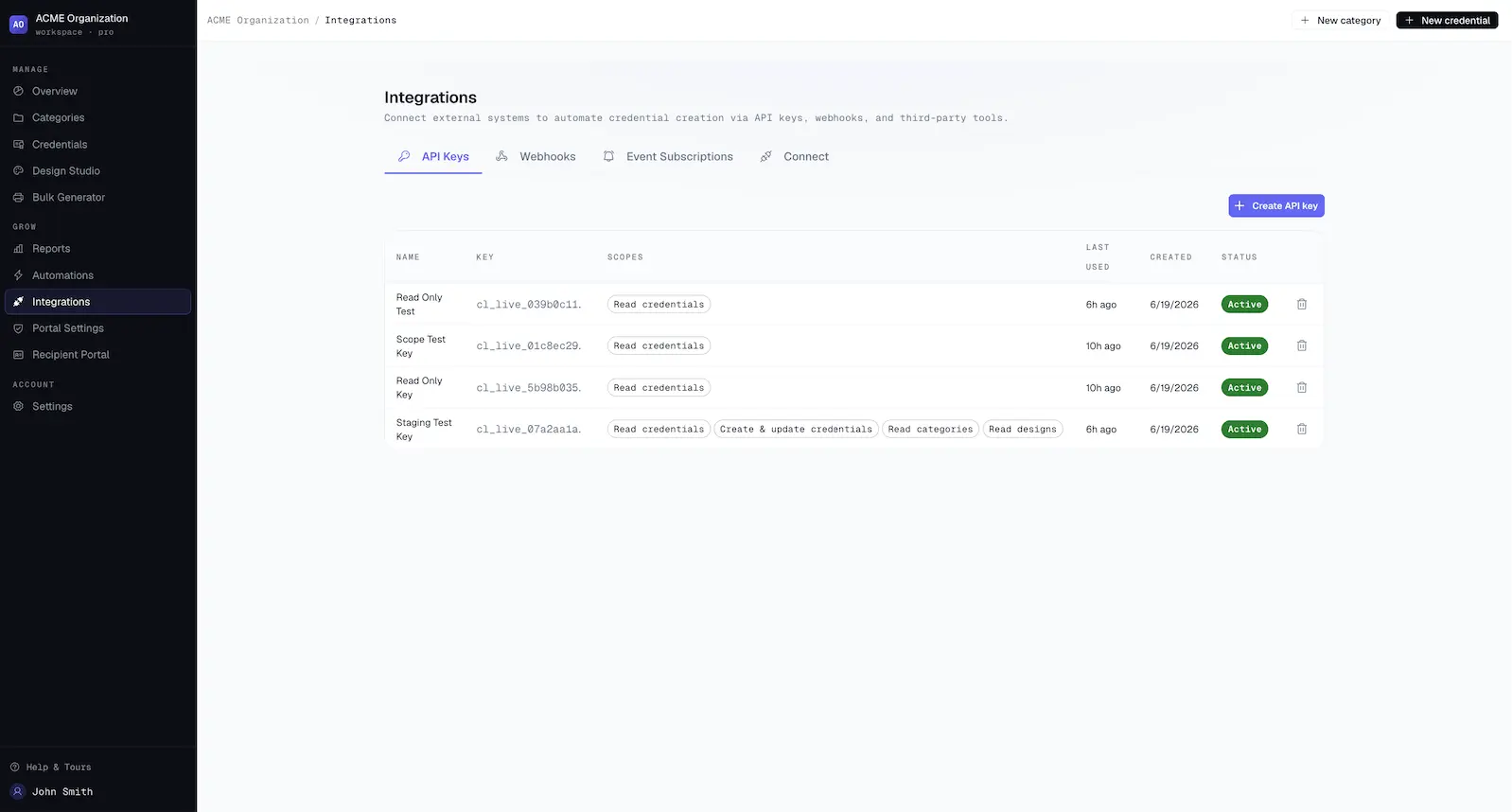
- In CertLister, go to Integrations → Webhooks tab
- Click Create endpoint
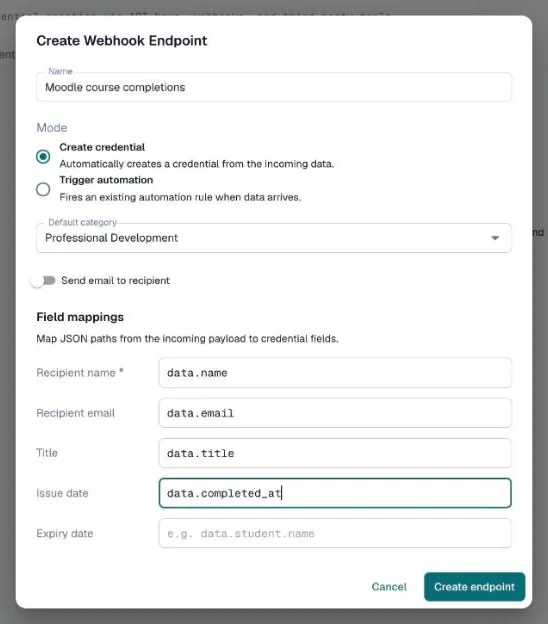
- Fill in:
- Name — e.g., "Moodle Course Completions"
- Mode — Create credential (automatically creates a credential from incoming data)
- Default category — the category new credentials should go into. Its default design is used for the PDF
- Send email to recipient — switch on to email each learner their credential automatically
- Configure Field Mappings — map the JSON fields Moodle will send to credential fields:
| Credential Field | JSON Path |
|---|---|
recipient_name | recipient_name |
recipient_email | recipient_email |
title | title |
(These match the JSON body you'll build in Moodle in Step 3. You can add more mappings for custom attributes — see Adding More Data below.)
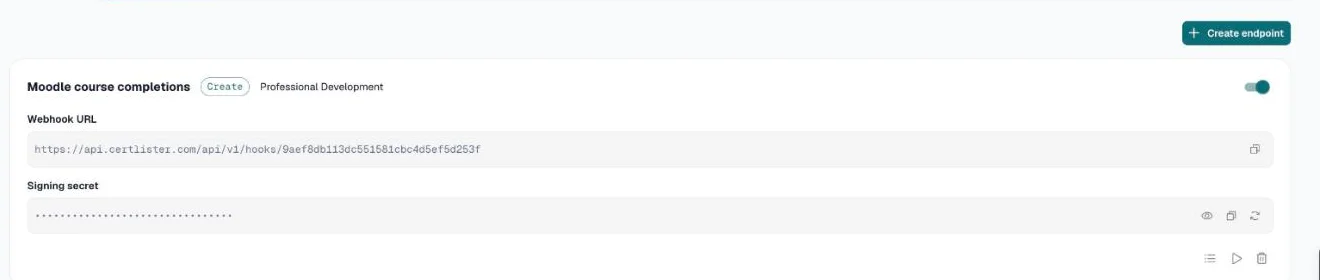
- Click Create endpoint, then copy the Webhook URL from the endpoint card. It looks like:
https://app.certlister.com/api/v1/hooks/your-endpoint-token
Keep this URL secret. The endpoint token in the URL is what authorizes requests. Anyone with the URL can create credentials in your account — treat it like a password, and regenerate it from the endpoint card if it ever leaks.
Step 2 — Install the Event Trigger Plugin in Moodle
- In Moodle, go to Site administration → Plugins → Install plugins
- Search the plugin directory for Event Trigger (
tool_trigger), or upload the ZIP from the plugin page - Complete the installation and upgrade steps
Note: Installing plugins requires site administrator access and is not possible on MoodleCloud. If that's your situation, jump to Path B or Path C.
Step 3 — Create the Workflow in Moodle
- Go to Site administration → Server → Event Trigger
- Click Add workflow and fill in:
- Name — e.g., "Send completions to CertLister"
- Event — search for and select Course completed (
\core\event\course_completed) - Active — leave off for now; you'll enable it after testing
- Add the workflow steps, in this order:
Step 3a — User lookup. The raw event only contains the learner's numeric userid. Add a User lookup step (reading the relateduserid field — for course completions, that's the learner) so the workflow gains fields like {user_fullname} and {user_email}.
Step 3b — Course lookup. Same idea for the course: add a Course lookup step reading the courseid field, which adds {course_fullname} and {course_shortname}.
Step 3c — HTTP POST action. Add an HTTP POST action step:
- URL — your CertLister webhook URL from Step 1
- HTTP headers:
Content-Type: application/json
- HTTP params (body):
{
  "recipient_name": "{user_fullname}",
  "recipient_email": "{user_email}",
  "title": "{course_fullname}"
}
The {placeholders} are replaced with real values from the lookup steps when the workflow fires.
- Save the workflow.
Tip — Learning mode: if you're unsure which datafields are available, enable the workflow's Learning mode, complete a test course once, and Event Trigger will record the event and show you every field you can use as a placeholder.
Step 4 — Test End to End
- In Moodle, enrol a test user in a course that has course completion criteria configured (Course → Course completion settings — completion must be enabled, or the event never fires)
- Complete the course as the test user (or mark them complete manually as a teacher)
- Moodle fires the event within a minute or two (event workflows run on Moodle's cron — make sure cron is running)
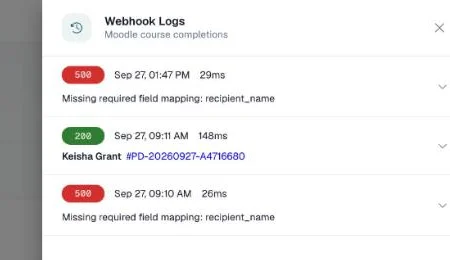
- In CertLister, go to Integrations → Webhooks and open the endpoint's Logs — you should see the request, its payload, and the result
- Check your Credentials page: the new credential should be there, and if Send Email is on, the learner has received it
Once the test passes, set the Moodle workflow to Active. Every course completion now issues a credential automatically.
Adding More Data from Moodle
Want the course short name, completion metadata, or other fields on the credential? Add them to the JSON body in Moodle:
{
  "recipient_name": "{user_fullname}",
  "recipient_email": "{user_email}",
  "title": "{course_fullname}",
  "course_code": "{course_shortname}"
}
Then map course_code to a custom attribute in the CertLister field mappings. Custom attributes can be printed on the credential design and shown on the verification page — see Custom Credential Attributes.
You can leave issue_date unmapped — CertLister stamps the credential with the date it's created, which for a real-time webhook is the completion date.
One Course, One Credential Type
A single webhook endpoint has one category and one design. If different Moodle courses should issue different credentials:
- Create one CertLister webhook endpoint per course (or per credential type), each with its own category and design
- In Moodle, create one workflow per course, adding a Filter step on
courseidso each workflow only fires for its course, and point each at the matching webhook URL
For a handful of courses this is quick; for large catalogs, consider Path B where a script can route dynamically.
Path B — Polling Script via Moodle Web Services
If you can't install Moodle plugins (e.g., MoodleCloud), a small script can poll Moodle's built-in web services API for completions and create credentials through CertLister's REST API. It's near real-time — as fresh as your polling interval.
Cron/scheduler → Moodle web services (completions) → CertLister REST API → Credential issued
Step 1 — Enable Web Services in Moodle
In Moodle, as a site administrator:
- Site administration → General → Advanced features → enable Web services
- Site administration → Server → Web services → Manage protocols → enable REST
- Web services → External services → add a custom service and add these functions to it:
core_enrol_get_enrolled_users— list learners in a coursecore_completion_get_course_completion_status— check a learner's completion
- Create a dedicated Moodle user for the integration, give it a role with only the capabilities those functions require, and authorize it for your service
- Web services → Manage tokens → create a token for that user
Moodle's own web services documentation covers each screen in detail.
Step 2 — Create a CertLister API Key
- In CertLister, go to Integrations → API Keys tab
- Click Create API Key, name it (e.g., "Moodle Sync"), and give it the
credentials:readandcredentials:writescopes - Copy the key (
cl_live_...) — it's shown only once
Step 3 — Run a Polling Script
The script below checks one Moodle course for completions and issues a credential to anyone who completed it and doesn't have one yet. Run it on a schedule (cron, GitHub Actions, Cloud Scheduler — every 15 minutes works well).
// moodle-sync.js — Node.js 18+
const MOODLE_URL = "https://your-moodle-site.example.com";
const MOODLE_TOKEN = "your-moodle-ws-token";
const COURSE_ID = 42; // Moodle course id
const COURSE_NAME = "Workplace Safety Training";
const CERTLISTER_KEY = "cl_live_your_api_key_here";
const CERTLISTER_API = "https://app.certlister.com/api/v1/external";

async function moodle(wsfunction, params) {
  const query = new URLSearchParams({
    wstoken: MOODLE_TOKEN,
    wsfunction,
    moodlewsrestformat: "json",
    ...params,
  });
  const res = await fetch(`${MOODLE_URL}/webservice/rest/server.php?${query}`);
  return res.json();
}

async function certlister(path, options = {}) {
  const res = await fetch(`${CERTLISTER_API}${path}`, {
    ...options,
    headers: {
      Authorization: `Bearer ${CERTLISTER_KEY}`,
      "Content-Type": "application/json",
      ...options.headers,
    },
  });
  return res.json();
}

async function main() {
  const users = await moodle("core_enrol_get_enrolled_users", {
    courseid: COURSE_ID,
  });

  for (const user of users) {
    const status = await moodle("core_completion_get_course_completion_status", {
      courseid: COURSE_ID,
      userid: user.id,
    });
    if (!status.completionstatus?.completed) continue;

    // Skip learners who already have this credential
    const existing = await certlister(
      `/credentials?search=${encodeURIComponent(user.email)}`
    );
    const alreadyIssued = (existing.data || []).some(
      (c) => c.title === COURSE_NAME && c.recipient_email === user.email
    );
    if (alreadyIssued) continue;

    await certlister("/credentials", {
      method: "POST",
      body: JSON.stringify({
        recipient_name: user.fullname,
        recipient_email: user.email,
        title: COURSE_NAME,
        send_email: true,
      }),
    });
    console.log(`Issued credential to ${user.fullname}`);
  }
}

main();
Adapt as needed: loop over multiple courses, set category_id and design_id per course (list them via GET /external/categories and GET /external/designs), or add custom_attributes. The full endpoint reference is in API & Webhook Integrations.
Path C — CSV Export + Bulk Import
No plugins, no code, works everywhere — including MoodleCloud. Best for issuing credentials at the end of a course session rather than continuously.
- In Moodle, open the course and go to the Course completion report (Reports → Course completion) — or the gradebook — and download the report as CSV
- In a spreadsheet, keep the columns you need: learner name, email, and completion date
- In CertLister, go to Credentials → Import and upload the CSV, mapping columns to credential fields
- Review and confirm — CertLister creates the credentials and can email them in bulk
Full walkthrough: Bulk Import Credentials.
Good to Know
Rate limits. Incoming webhooks accept 30 requests per minute per endpoint, and the REST API allows 100 requests per minute per key. Normal course completions never approach this — but if you bulk-mark a large cohort complete in Moodle at once, Event Trigger may fire hundreds of webhooks in a burst and some will be rejected with 429. For large batch operations, prefer Path B (the script paces itself) or Path C.
Duplicate protection. Webhook create mode creates a credential for every request it receives. Moodle only fires Course completed once per learner per course, so duplicates are rare in practice — but if you re-run completions (e.g., resetting and re-completing a course), check the webhook Logs and your Credentials list.
Completion must be configured. The Course completed event only fires for courses with completion criteria enabled in Moodle (Course → Course completion settings). If webhooks never arrive, this is the first thing to check — then confirm Moodle's cron is running, since Event Trigger workflows execute on cron.
Credential verification. Every credential issued from Moodle gets the same verification page, QR code, and recipient portal access as any other CertLister credential — see Recipient Portal.
Troubleshooting
| Symptom | Likely cause | Fix |
|---|---|---|
| Nothing arrives in CertLister | Course completion not enabled, or Moodle cron not running | Enable completion criteria; check Site administration → Server → Tasks |
Webhook log shows 400 mapping error | JSON body fields don't match your field mappings | Compare the logged payload against the mappings; placeholder typos like {user_fullname } (stray space) are common |
Webhook log shows 401 | Wrong or regenerated endpoint token in the URL | Copy the current webhook URL from the endpoint card into the Moodle workflow |
| Credential created but no email | Send Email toggle off, or learner has no email in Moodle | Enable the toggle; confirm {user_email} resolves (check Moodle user profile) |
429 errors during bulk completions | Rate limit (30/min per endpoint) | Space out bulk completion marking, or use Path B/C for batches |
Moodle web service returns invalidtoken | Token expired or service not authorized for the user | Recreate the token under Manage tokens; confirm the user is authorized for the service |
Related Articles
- API & Webhook Integrations — full REST API and webhook reference
- Workflow Automations — trigger emails and actions when credentials are issued
- Bulk Import Credentials — the CSV import pipeline used in Path C
- Custom Credential Attributes — print Moodle course data on your credentials