
Recipient Portal
Time to read: 6 minutes
Plan required: any plan (recipient requests and PDF submissions need Pro)
The Recipient Portal is a self-service area where the people you've issued credentials to can sign in and access everything issued to them by your organization — no account creation, no password. They authenticate with a one-time code sent to their email. See the recipient portal feature page for what holders can do there.
From the portal, recipients can view credential details, download PDFs, add credentials to LinkedIn, and (on Pro) submit requests or upload supporting documents for your review.
Enabling the Portal
Step 1 — Set a verify URL slug
The portal URL is built from your verify slug (e.g. app.certlister.com/portal/your-org). If you haven't set one yet, go to Settings → Customization and set a Verify URL slug first.
Step 2 — Enable the portal
Click Recipient Portal in the left sidebar (under Grow). On the Configuration tab, turn on Enable recipient portal.
Once enabled, your portal URL appears below the toggle with a copy button. Share this URL with your credential holders — they can bookmark it and return any time.
How Recipients Sign In
The portal uses passwordless email authentication:
- Recipient visits your portal URL
- They enter their email address
- If you have issued at least one credential to that email, CertLister sends a 6-digit code to it (valid for 10 minutes). An email with no credentials gets no code.
- They enter the code — and they're in
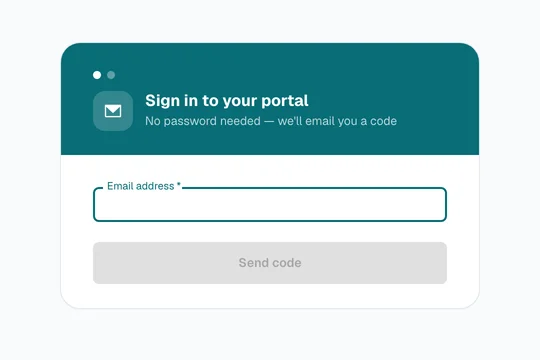
The code is automatically submitted as soon as the 6th digit is typed. Sessions last 24 hours. There is no account to create — the email address is the identity.
Email matching is case-insensitive. A recipient at John@Example.com will see credentials issued to john@example.com.
What Recipients See
After signing in, recipients see all credentials issued to their email address within your organization. Each credential card shows:
- Credential title and status (Active / Expired / Revoked / Superseded)
- Issued To name (if set on the credential record)
- Category
- Issue and expiry dates
From the card or the detail page, recipients can:
| Action | Available when |
|---|---|
| View verification page | Credential is not revoked |
| Download PDF | PDF exists + portal feature enabled |
| Add to LinkedIn | Credential is not revoked or superseded + feature enabled |
| Download wallet card | Wallet card exists + feature enabled |
| Download badge | A badge exists |
Revoked credentials are visible in the list (with a Revoked badge) but all download and share actions are hidden.
Feature Toggles
On the Configuration tab of Recipient Portal you can control which actions are available to recipients:
| Toggle | Default | Effect |
|---|---|---|
| PDF download | On | Show/hide the Download PDF button |
| LinkedIn sharing | On | Show/hide the Add to LinkedIn button |
| Wallet card download | On | Show/hide the wallet card button |
| Recipient request inbox | Off | Allow recipients to submit requests (Pro) |
| Credential PDF submissions | Off | Allow recipients to upload PDFs for review (Pro) |
Disabling a toggle hides the corresponding button for every recipient the next time their page loads — no re-publish needed.
Recipient Requests (Pro)
When Recipient request inbox is enabled, a "Submit a request" button appears in the portal. Recipients can send structured requests to your organization:
| Request type | When to use |
|---|---|
| Name correction | Credential shows the wrong name |
| Reissue request | Lost, damaged, or needs regeneration |
| Renewal request | Expired or about to expire |
| Dispute | Challenging a credential decision |
| General inquiry | Any other question |
Requests are linked to a credential the recipient picks from a dropdown — no manual typing of credential numbers. A general inquiry can be sent without one.
Managing requests (admin)
Go to Recipient Portal → Requests. The table shows all incoming requests with recipient email, type, linked credential, date, and status. Click a row to expand the full message.
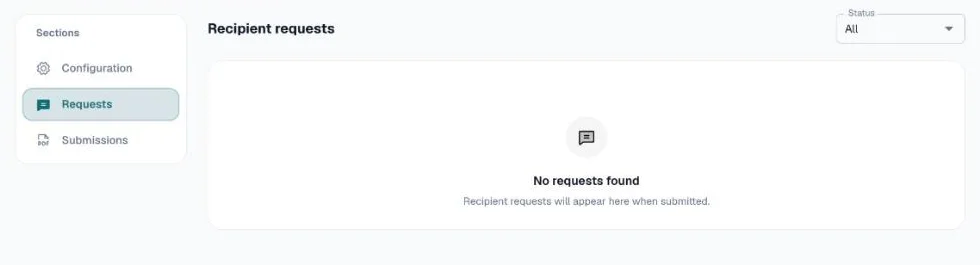
To respond, click the chat icon on any row:
- Set the status — In progress, Resolved, or Rejected
- For name corrections: enter the corrected name and CertLister updates the credential record automatically on save
- For reissue / renewal: a reminder prompts you to update the credential record via the Credentials page
- Add an optional response message — the recipient is notified by email when a response is added
Duplicate guard: If a recipient submits the same request type for the same credential while one is still open, they see "Couldn't send your request. Try again." and no duplicate is created.
The Requests tab shows a pending count badge so you can see at a glance when new requests arrive.
Credential PDF Submissions (Pro)
When Credential PDF submissions is enabled, recipients can upload a PDF tied to one of their credential records. This is useful when a recipient holds an externally-issued document and you want to attach it to their credential profile for verification.
Recipients select a credential from a dropdown, then upload a PDF (max 10 MB). You review and either approve or reject with an optional note.
On approval: the uploaded PDF becomes the downloadable PDF for that credential — recipients can immediately download it from the portal.
Reviewing submissions (admin)
Go to Recipient Portal → Submissions. Click the review icon (checkmark) on any pending row, choose Approve or Reject, and optionally add a note. The recipient is notified by email of the outcome.
Frequently Asked Questions
Q: Can recipients from different organizations use the same portal URL?
A: No — each organization has its own portal URL. The portal is scoped to credentials issued by your organization only.
Q: What if a recipient's email changed since the credential was issued?
A: The portal matches by email, so they'll need to sign in with the email address the credential was issued to. To update the email on the credential record itself, go to the Credentials page and edit the credential directly.
Q: Can I use a custom domain for the portal URL?
A: Not yet. The portal URL is always app.certlister.com/portal/{your-slug}. Custom domains are on the roadmap.
Q: Do recipients need to create an account?
A: No. The portal uses passwordless email OTP — recipients sign in with a one-time code each session. There is no account, no password, and no signup form.
Q: What happens when a credential is revoked?
A: Revoked credentials still appear in the recipient's list so they can see their history, but the Revoked badge is shown and all download / share buttons are hidden.
Q: How long does a portal session last?
A: 24 hours. After that the recipient needs to request a new sign-in code. The process takes under a minute.