
Categories: Organize Credentials & Configure Settings
Time to read: 10 minutes
Overview
Categories are the organizational backbone of CertLister. Every credential belongs to a category, and a category is where you configure almost everything about how those credentials behave:
- Default credential title — pre-fill the title field when creating new credentials
- Automation — whether emails are sent on issuance, whether credentials auto-expire, and how long until they do
- Default design and badge — link Design Studio designs so PDFs and badges can be generated automatically on issue
- Credential numbering — custom prefix per category
- Custom data fields — capture extra information on each credential
- Verification page — choose which fields appear and in what order on the public verify card
- Internal notes — private notes visible only to your team
- Bulk operations — generate PDFs, send emails, or manage multiple categories at once
Think of a category as a template for a class of credentials. "2024 Safety Training", "First Aid Level 2", and "Employee Onboarding" would each be separate categories, each with their own settings. Categories feed the expiry and reporting parts of the certification tracking and verification software.
Plan Availability
| Feature | Free | Basic | Pro |
|---|---|---|---|
| Create and manage categories | Yes (max 3) | Yes (max 20) | Yes (unlimited) |
| Default credential title | Yes | Yes | Yes |
| Default expiry months | Yes | Yes | Yes |
| Default design + auto-generate PDF | Yes | Yes | Yes |
| Internal notes | Yes | Yes | Yes |
| LinkedIn share button on verify page | Yes | Yes | Yes |
| Auto-expire on expiry date | Yes | Yes | Yes |
| Send issuance email to recipient | Yes | Yes | Yes |
| Send expiry reminder email | Yes | Yes | Yes |
| Bulk send emails to category recipients | Yes | Yes | Yes |
| Bulk generate PDFs | Yes | Yes | Yes |
| Custom credential attributes (fields) | Yes | Yes | Yes |
| Category credential prefix | Yes | Yes | Yes |
| Verify page field customisation | Yes | Yes | Yes |
Creating a Category
- Click Categories in the left navigation
- Click New category (top right)
- The New category drawer slides in from the right — fill in the name, the default credential title, and any settings you want now
- Click Create category
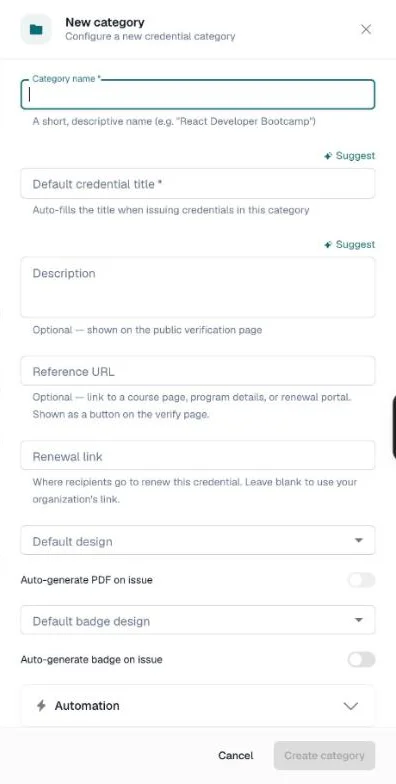
Note: Category names must be unique within your organization. CertLister checks as you type and warns you about the same or a similar name — see Duplicate name warning.
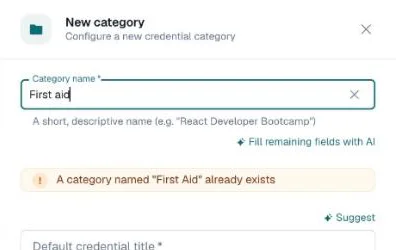
Fill in with AI (Pro): after you type a name, click Fill remaining fields with AI to draft the other fields, or click Suggest next to a single field. Check the result before you save.
Category Settings
All settings are accessible from the edit icon (pencil) on any category row, which opens the category drawer. Settings are grouped into the following sections:
- Basic info: name, default credential title, description, reference URL, renewal link
- Default design and default badge design, each with an auto-generate switch
- Sections: Automation, Custom fields, Verification page, Credential numbering, Open Badge criteria, Internal notes
Click an accordion header to expand it.
Basic Info
| Field | Notes |
|---|---|
| Name | Required. Max 100 characters. Must be unique in your organization. |
| Description | Optional. Shown on the public verification page. |
| Reference URL | Optional. A link to a course page, programme details, or renewal portal, shown as a button on the verify page. See Reference URL. |
| Renewal link | Optional. Where recipients go to renew this credential. Leave blank to use your organization's link. |
Default Design & Auto-generate PDF
Default design — the Design Studio design used for this category's credential PDFs. The list shows your saved designs, with (default) next to your organization's default.
When you click Generate PDFs for this category, this design is chosen for you.
Auto-generate PDF on issue — when on, a PDF is made in the background for each credential right after it is issued, using the default design. The switch is off until a design is selected.
Default badge design and Auto-generate badge on issue work the same way for digital badges. See Digital Badges.
Default Credential Title
The default title pre-fills the Credential Title field every time you create a new credential in this category. It saves time and enforces naming consistency across credentials in the same programme.
Example: If your category is "First Aid Level 2", setting the default title to "Certificate of Achievement — First Aid Level 2" means every credential in that category starts with that title already filled in. You can still override it per credential.
Title Presets
The Default credential title field is also a list of presets. Open it to choose from:
- System presets — standard phrases like "Certificate of Completion", "Certificate of Achievement", "Certificate of Attendance", "Certificate of Participation", "Certificate of Excellence"
- Your custom presets — titles you have saved for reuse across your organization
To save a custom preset: type a title in the field, then choose Save "…" as preset in the list. It is then available for every category.
To remove a custom preset: open the list and click Remove from presets next to it.
Custom presets are stored at the organization level and available to all admins and managers.
Automation
Three switches control how CertLister handles credentials in this category automatically.
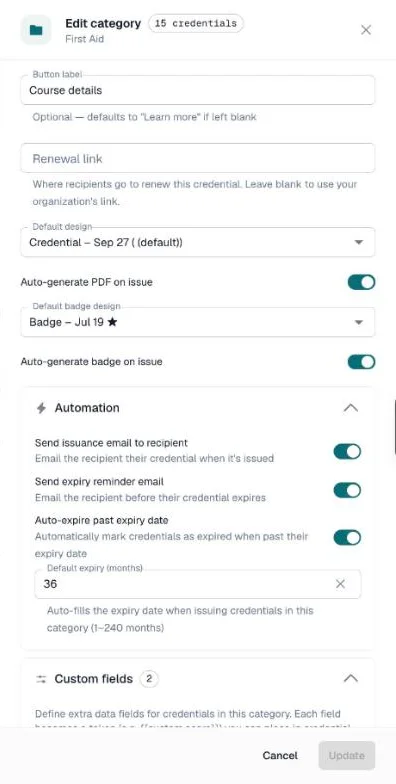
Send issuance email to recipient
When on, CertLister emails each recipient their credential as soon as it is created, provided a Recipient Email is saved on the credential. This is not a per-credential choice: the Issue credential drawer shows what will happen, and follows this switch.
See Credential Automation for full detail on email behaviour, overrides, and troubleshooting.
Send expiry reminder email
When on, CertLister emails each recipient before their credential expires. The schedule — up to five reminders — is set org-wide in Settings → Notifications (default: one reminder 7 days before).
Auto-expire past expiry date
When on, the daily job (runs at 2 AM UTC) automatically flips any Active credential in this category to Expired once its expiry date has passed.
Available on all plans.
Default Expiry Months
An optional number field (1–240 months) at the bottom of the Automation accordion.
When a category with this set is selected in the Issue Credential drawer, the expiry date field opens automatically and is pre-filled to today + the configured number of months. You can still adjust the date before saving. Leave this blank for credentials that don't expire or where the duration varies.
Example: Set to 24 for a CPR category — every time you issue a CPR credential and select this category, the expiry date is already calculated for you.
See Credential Automation for scenario examples and full troubleshooting steps.
LinkedIn Sharing
The Add to LinkedIn button switch is in the Verification page section, under Actions. When on, recipients can add the credential to their LinkedIn profile from the verify page. It follows your organization's default until you change it for a category.
Turn it off for internal or confidential credentials where public sharing is not appropriate.
Reference URL
Add a Reference URL to link verifiers and recipients to more information about the programme — for example a course enrolment page, programme requirements, renewal portal, or regulatory standard.
When set, a button appears in the footer bar of the public verify card alongside LinkedIn, QR code, and copy-link — for every credential in this category.
Fields:
| Field | Required | Notes |
|---|---|---|
| Reference URL | No | Type the address with or without https:// — CertLister adds it. Max 2,048 characters. |
| Button Label | No | The text shown on the button. Defaults to "Learn more" if left blank. Examples: "View Course", "Renew Credential", "Program Requirements". Max 60 characters. |
Show reference URL button — a switch in the Verification page section, under Actions. Lets you temporarily hide the URL button (e.g. while enrolment is closed or the link is under maintenance) without losing the saved URL.
The Reference URL is available on all plans at no extra charge.
Custom Attributes
Available on every plan.
Custom attributes let you define additional data fields that appear on every credential in the category. Common examples: "Score", "Instructor", "Location", "Batch Number", "Training Provider".
Custom attributes are managed from the Custom Fields accordion inside the category drawer. See Custom Credential Attributes for a full guide on defining fields, entering values, using tokens in Design Studio, and displaying them on the verify page.
Quick facts:
- Field keys are lowercase alphanumeric + underscores (e.g.,
score,instructor_name) - Values are entered per credential in the credential form
- Fields appear in the Design Studio via
{{custom.key}}tokens - You control whether each field is visible on the public verify card
Verify Page Fields
Available on every plan.
The Verification page section chooses which fields appear on the public verify card for credentials in this category, and in what order.
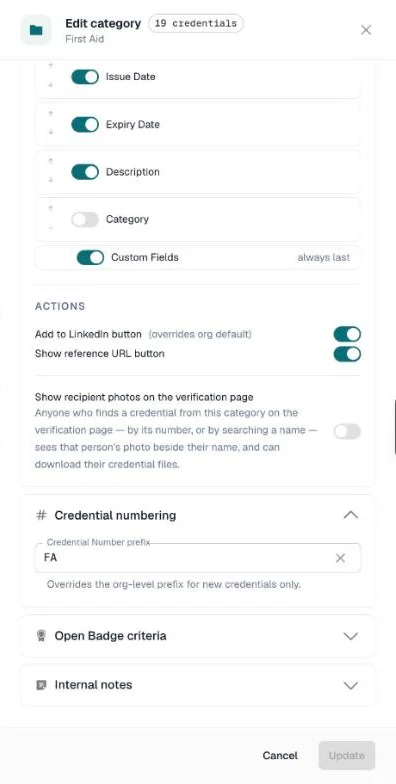
Fixed fields (switch on or off, position fixed):
- Recipient name
- Title
- Issuer / organization name
Reorderable fields (use the arrows to reorder, switch visibility):
- Credential number
- Issue date
- Expiry date
- Description
- Category (off by default)
- Custom fields (always last)
Actions:
- Add to LinkedIn button
- Show reference URL button
- Show recipient photos on the verification page — off by default. Turning it on asks you to confirm, because it publishes recipients' photos and their PDF and wallet card. See Add a photo to a credential.
Tip: These settings affect the credential card once a credential is found. The search and layout of the verify page itself are set in Verification Page.
Credential Numbering
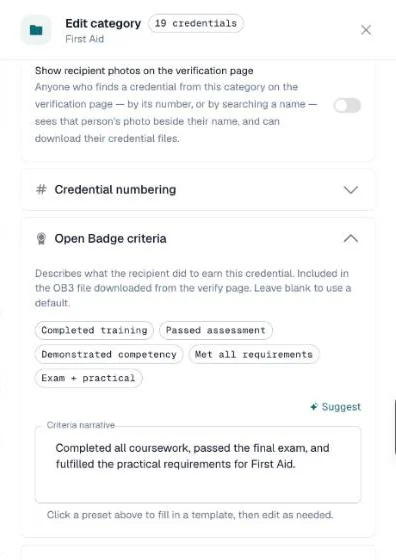
Set a Credential Number prefix (for example SAFETY) to give this category's new credentials their own prefix. Leave it blank to use your organization's prefix. Existing credentials keep their numbers. Available on every plan.
Open Badge Criteria
Describes what the recipient did to earn the credential. It is included in the Open Badge 3.0 file downloaded from the verify page. Click a preset — Completed training, Passed assessment, and others — to start from a template, then edit it.
Internal Notes
A free-text field (max 1,000 characters) for private notes about the category — programme details, admin reminders, contact information, etc.
Internal notes are never shown on the public verify page or in any recipient-facing view. They are only visible to admins and managers in your organization.
Bulk Operations
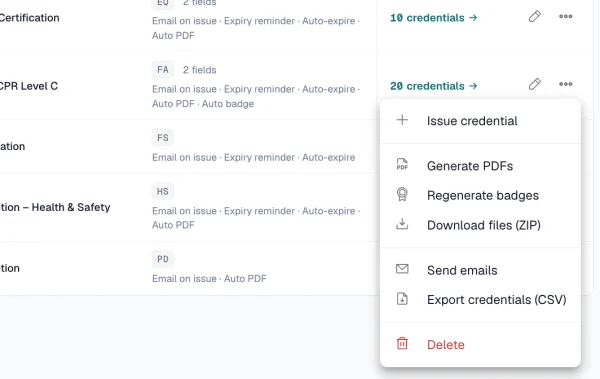
Row Menu
Each category row has a ⋯ menu with Issue credential, Generate PDFs, Generate badges, Download files (ZIP), Send emails, Export credentials (CSV), and Delete.
- Issue credential opens the credentials list filtered to that category, with the issue form already set to that category and its defaults filled in
- Download files (ZIP) puts the category's PDFs, cards or badges in one ZIP file, for up to 500 credentials at a time
- Export credentials (CSV) downloads the category's credentials as a spreadsheet, with the same columns as Export CSV on the Credentials page
Send Emails to an Entire Category
- Click the row's ⋯ menu → Send emails
- The Send issuance emails dialog shows how many credentials will get an email, and which are skipped — credentials without an email address, and ones already emailed
- Tick Attach PDF credential to email or Attach card PDF to email if you want the files attached
- Click Send emails
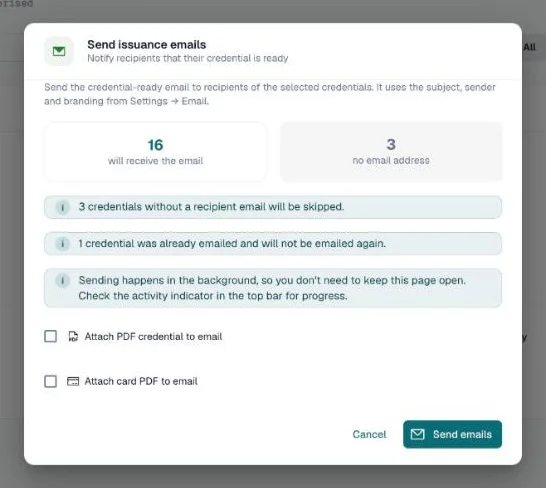
Sending happens in the background, so you don't need to keep the page open. Follow progress from the activity indicator in the top bar.
Generate PDFs for a Category
- Click the row's ⋯ menu → Generate PDFs
- The dialog shows how many credentials are selected and how many already have a PDF
- Tick Regenerate PDFs to replace existing ones too
- Choose a design — the category's default design is chosen for you
- Click Generate — the PDFs are made in the background; follow progress from the top bar
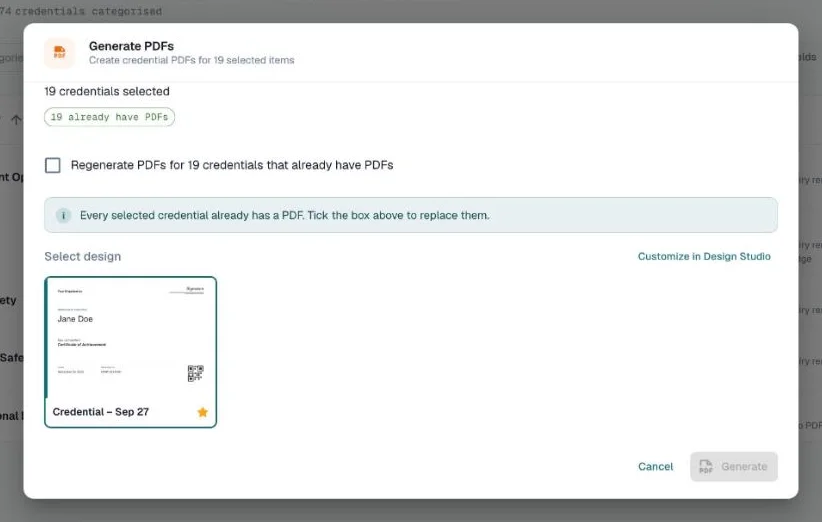
Available on every plan. See Generate PDFs for Your Credentials for the full workflow.
Bulk Edit Automation
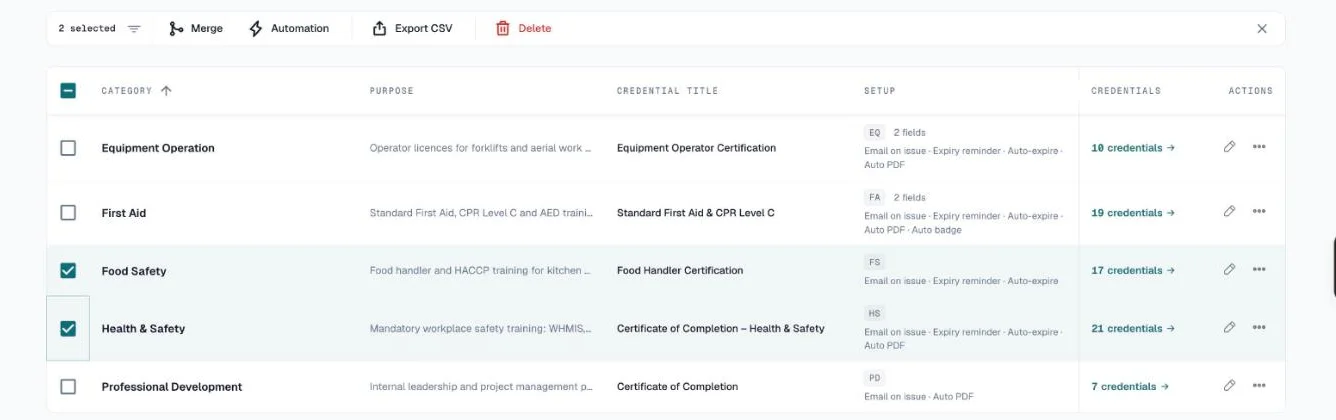
- Select categories with the row checkboxes — a bar appears with Merge, Automation, Export CSV, and Delete
- Click Automation
- For each of Send email on issue, Send expiry reminder, and Auto-expire, choose On, Off, or No change
- Click Apply to N categories
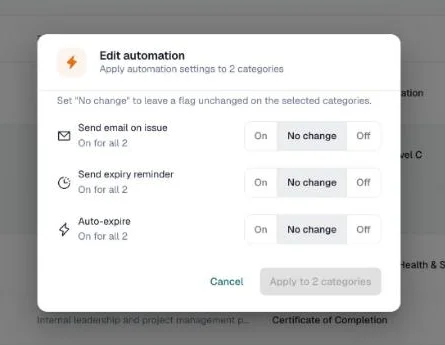
Useful when you're setting up a new organization and want consistent automation across all categories.
Merge Categories
Merging moves every credential and roster participant from the selected categories into one of them, then deletes the others.
- Select two or more categories
- Bulk bar → Merge
- Choose the target category — one of the selected ones
- Review the result: which category is kept, which are deleted, and what moves
- Click Merge categories
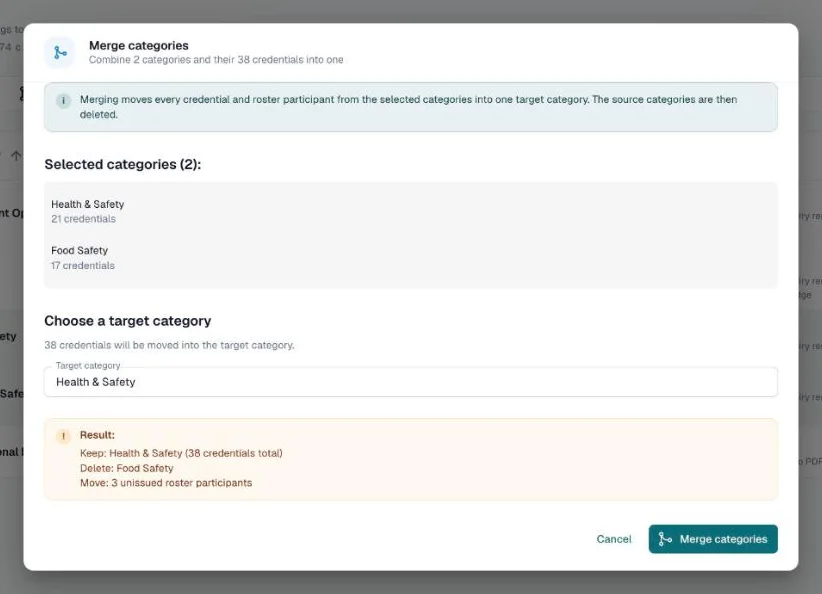
Warning: This can't be undone. Check that the target category has the right settings first. If the target category publishes recipient photos, the dialog warns you that the moved credentials' photos, PDFs and wallet cards become public too.
Bulk Delete
- Select the categories
- Bulk bar → Delete
- Choose what happens to their credentials:
- Move to "Uncategorized" — the credentials stay, with no category
- Move to another category — pick the category
- Click Delete categories
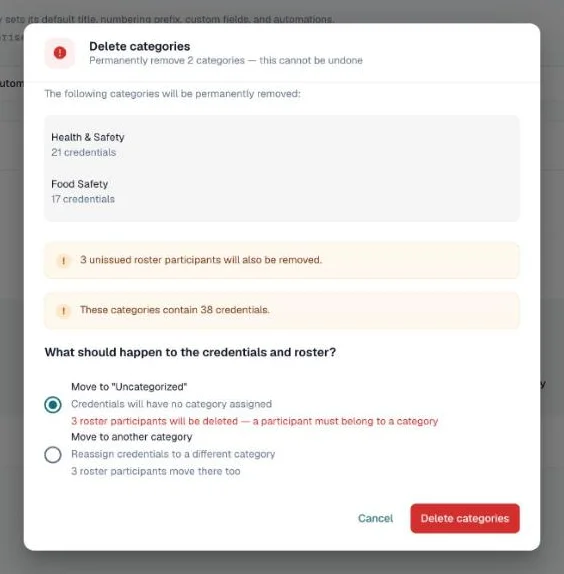
Deleting a category never deletes its credentials. Unissued roster participants must belong to a category, so they are removed when you choose Move to "Uncategorized", and moved when you choose another category.
CSV Import and Export
Import Categories from CSV
- Click Import CSV (top of the Categories page)
- Click Download CSV template for the columns
- Fill in your categories and upload the file, then click Next
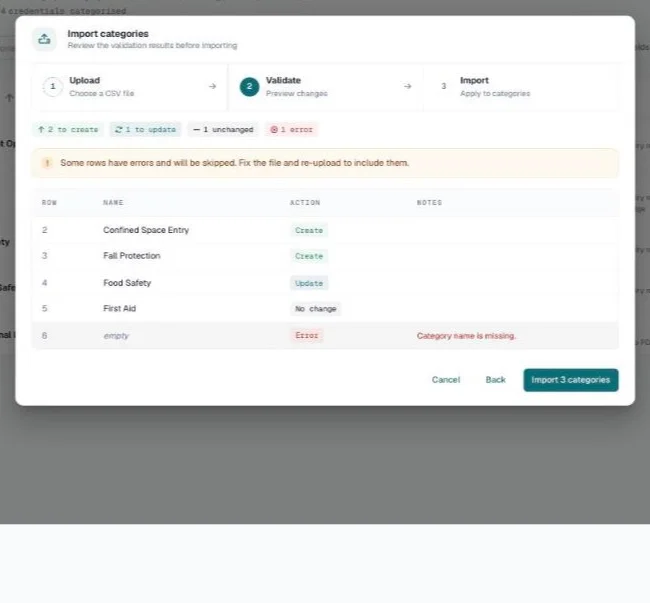
- CertLister checks the file and shows each row with its action:
- Create — a new category
- Update — an existing category (matched by name)
- No change — nothing to update
- Error — the row has a problem, shown in the Notes column; it is skipped
- Click Import N categories
Columns: name (required), plus description, default_title, cert_prefix, category_url, category_url_label, renewal_url, send_email_on_issue, send_expiry_reminder, auto_expire, default_expiry_months, auto_generate_pdf, auto_generate_badge, criteria_narrative, internal_notes, linkedin_share_enabled, show_url_on_verify, show_photo_on_verify, and custom_attribute_schema. The template has them all.
If some titles are blank, Fill missing titles with AI drafts them for you (Pro).
Note: The default design and the verification page field layout can't be set by CSV — set them in the category drawer.
show_photo_on_verifycan turn photo publishing off, never on.
Export Categories to CSV
- To export all categories: click Export CSV (top of the page)
- To export selected categories only: check the rows you want → bulk bar → Export CSV
The CSV export includes all standard fields plus a JSON representation of the custom attribute schema.
Troubleshooting
Deleting a category that has credentials
Deleting from the Categories page always asks what to do with the credentials: move them to "Uncategorized" or to another category. See Bulk Delete.
Category limit reached
If you see an error about reaching your category limit:
- Free plan: maximum 3 categories. Upgrade to Basic for up to 20.
- Basic plan: maximum 20 categories. Upgrade to Pro for unlimited.
Go to Settings → Plan & Billing to upgrade.
Duplicate category name warning
CertLister checks for duplicate and near-duplicate names as you type in the drawer. A warning chip appears on the row for categories with matching or very similar names.
- Exact match (case-insensitive): "A category named X already exists"
- Near-match (e.g., "First Aid Level 2" vs "First Aid Lv 2"): "Similar to existing category X"
The warning does not block saving — it is advisory. If you see it on an existing row, use Merge to consolidate the duplicates.
Auto-generate PDF not triggering
- Confirm the category has a Default design selected (the switch is off without one)
- PDF generation runs in the background after the credential is issued; check the credential's PDF credential section after a few seconds
Frequently Asked Questions
Q: Do category settings apply to existing credentials or only new ones?
A: The issuance email, expiry reminder and default expiry months are applied when a credential is issued, so changing them affects new credentials. The auto-expiry daily job processes all credentials in the category regardless of when they were created. Verify display config and custom attribute schema changes take effect immediately on the verify page.
Q: Can I move a credential from one category to another?
A: Yes. Open the credential with the pencil icon → change the Category field → Update. You can also move multiple credentials at once from the Credentials page using the bulk action bar.
Q: What happens to the verify page when I change the verify display config?
A: Changes take effect immediately. The next time anyone visits the credential's verify URL, they will see the updated field configuration.
Q: Can I have different credential numbering per category?
A: Yes, on every plan. Set a Credential Number prefix on each category to give each programme its own prefix. The numbering format is still an org-wide setting in Settings → Customization.
Q: If I delete a custom attribute field from the schema, what happens to existing credential data?
A: The field is removed from the schema and will no longer appear in the credential form or on the verify page. However, the stored values on existing credentials are not deleted immediately — they remain in the database but are no longer visible. If you re-add the same field key later, the stored values will reappear.
Q: Can I rename a category?
A: Yes. Click the pencil icon → change the Name field → Update.
Q: What is the LinkedIn share button and how do I control it?
A: The LinkedIn button appears on the public verify page, allowing recipients to add the credential to their LinkedIn profile. It is enabled by default. To turn it off for a category, open the category drawer → Verification page → switch off Add to LinkedIn button → Update. This only affects credentials in that category.
Q: Can I send emails to recipients in a category even if the category's issuance email setting is off?
A: Yes. Send emails (in the ⋯ menu on the category row) sends emails regardless of the issuance email category setting. The category automation setting only controls whether emails are sent automatically at the moment of credential creation. The bulk send is always a manual, on-demand action.
Q: Are internal notes visible to recipients?
A: No. Internal notes are private to your organization and are never shown on the public verify page, in emails, or on credential PDFs.
Q: What is the Reference URL and where does it appear?
A: The Reference URL is an optional link you can attach to a category — for example a course page, programme requirements, or renewal portal. When set, it appears as a button in the footer bar of the public verify card alongside the LinkedIn, QR code, and copy-link buttons. It shows for every credential in that category. You can customise the button label (e.g. "View Course") and toggle it on or off without losing the saved URL.