
Design Studio: Create Custom Credential Designs
Time to read: 10 minutes
Don't see the Wallet card or Badge tab? An admin may have turned that feature off in Settings → Features.
Overview
The Design Studio is CertLister's visual credential editor. Build a fully custom credential design by placing text, attribute tokens, decorative elements, and images on a professional background — then generate print-quality PDFs for individual credentials or in bulk. See where design fits among the credential creation features.
What you can do:
- Start from 15 built-in templates, including Plain, and change their colours to match your brand
- Upload your own JPG or PNG background image as a credential canvas (Pro)
- Add and position text, labels, and dynamic data tokens
- Insert decorative SVG elements, icons, ribbons, and line dividers
- Upload your own images — logos, signatures, seals (Pro)
- Save multiple named designs and switch between them
- Generate PDFs for one credential or hundreds at once
Available on: All plans, with every template (Free: 3 designs; Basic: 5 designs; Pro: unlimited, plus your own backgrounds and images)
Older designs
Designs made before the Design Studio (the "legacy" SVG templates) still generate PDFs, but you can't create new ones. For new work, use the Design Studio.
How to Open the Design Studio
- Log into CertLister at https://app.certlister.com
- Click Design Studio in the left navigation
- The Design Studio opens with your current or default design loaded
The Layout
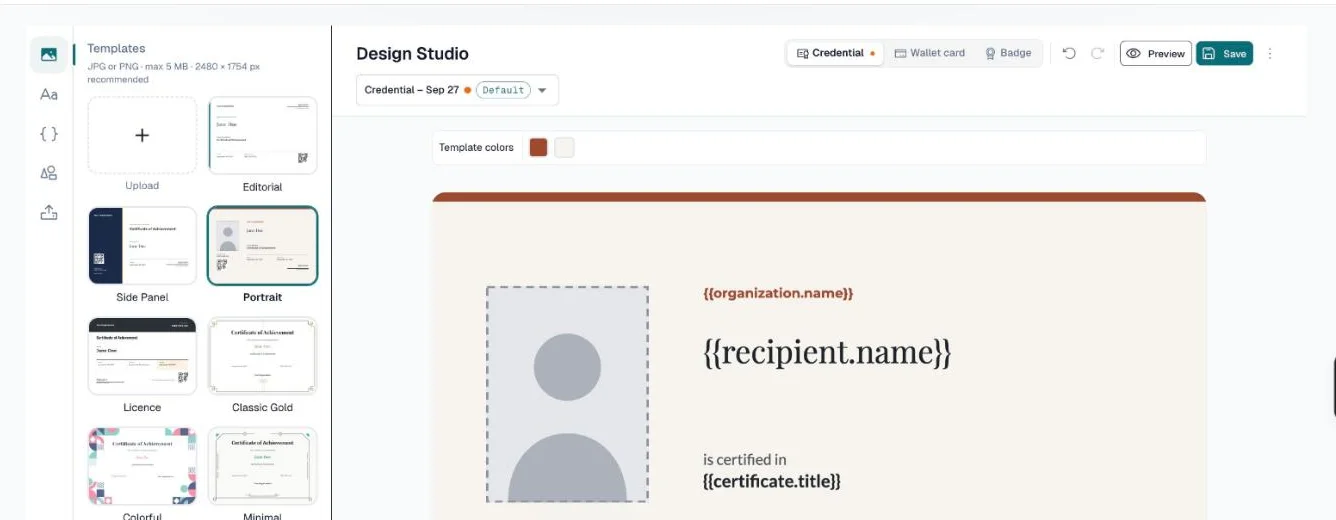
1. Tool rail (far left, narrow) — a strip of icons:
- Templates — choose a background or layout
- Text — add headings, body text, and ready-made phrases
- Attributes — insert the QR code, the recipient photo frame, and dynamic fields
- Elements — add lines, icons, and shapes
- Uploads — add your own images (Pro)
2. Panel (left, wider) — the options for the tool you picked.
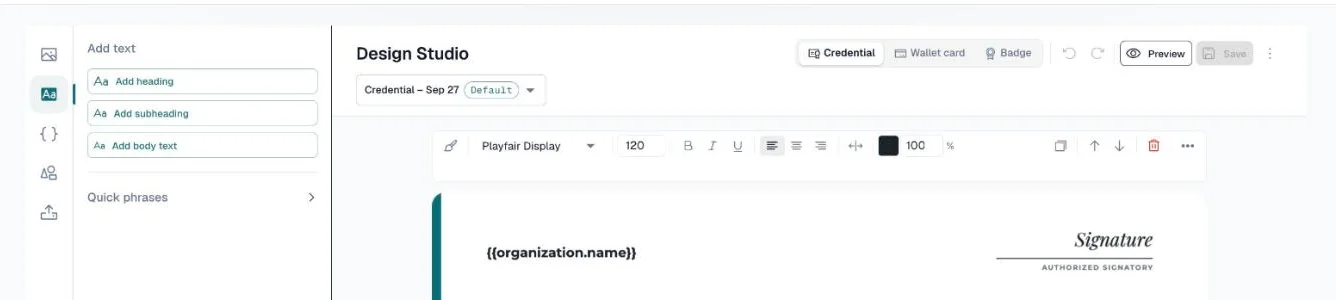
3. Canvas (centre) — your live design. Click an element to select it; drag to move it; drag its handles to resize shapes and images (for text, set the Font size instead). When an element is selected, a formatting toolbar above the canvas holds its font, size, bold/italic/underline, alignment, colour, opacity, and layer controls.
Top bar: the design name and a dropdown to switch designs, tabs for Credential, Wallet card, and Badge, undo and redo, Preview, Save, and a ⋮ menu.
Step 1: Choose a Template
- Click the Templates icon (top of the tool rail)
- The panel shows 15 templates:
- Plain — a plain page with the usual fields already placed. Change its colour under Template colors, and move, add or delete anything you like.
- Four layouts — Editorial, Side Panel, Portrait, and Licence — which come with text and fields already placed. Portrait has a frame for a recipient photo.
- Ten frames — Classic Gold, Colorful, Minimal, Modern, Clean Green, Clean Minimal, Classic Silver, Classic Ornate, Modern Bauhaus, and Art Deco — decorative backgrounds for you to fill.
- Click a thumbnail to apply it

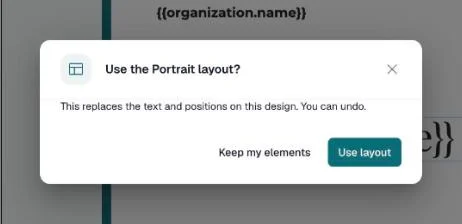
Choosing Plain or a layout replaces the text and positions on your design, so CertLister asks first. Click Use layout, or Keep my elements to change only the background. You can undo either way.
Template colors: above the canvas, while nothing is selected, the Template colors swatches change the colours of the template itself — its border, panel, or accent. Every template can be recoloured.
New organizations start with the Editorial design.
Plan note: Every template is available on every plan.
Uploading Your Own Background (Pro)
If none of the built-in templates fit your brand, you can upload a custom JPG or PNG background image.
How to upload:
- Click the Templates icon in the tool rail
- Click the Upload card, first in the grid (Pro plans only)
- Select a JPG or PNG file — maximum 5 MB
- The image is uploaded to your organization's private storage and appears as a thumbnail in the gallery
- Click the thumbnail to apply it as the canvas background
Image requirements:
- Format: JPG or PNG only (no SVG — backgrounds must be raster images)
- Maximum size: 5 MB
- Recommended resolution: 2480 × 1754 px (A4 landscape at 300 DPI)
- Aspect ratio: Approximately 1.41:1 (same as A4 paper). Images with a different aspect ratio will be stretched to fill the canvas and may appear distorted
Tip: The size and file type are repeated at the top of the Templates panel.
Deleting a custom background:
Hover over any custom template thumbnail and click the trash icon that appears. If any saved designs reference that background, a warning shows how many are affected. You can still delete it — affected designs will show an alert the next time they are opened, prompting you to choose a new background. Any previously generated PDFs are unaffected.
Downgrade note: If you downgrade from Pro to Basic or Free, you can no longer upload new custom backgrounds, but your existing uploads remain visible and usable.
Step 2: Add Text Elements
- Click the Text icon in the tool rail
- Click Add heading, Add subheading, or Add body text
- The element appears on the canvas — drag it where you want it
- Double-click it on the canvas to edit the text
- Style it with the formatting toolbar above the canvas
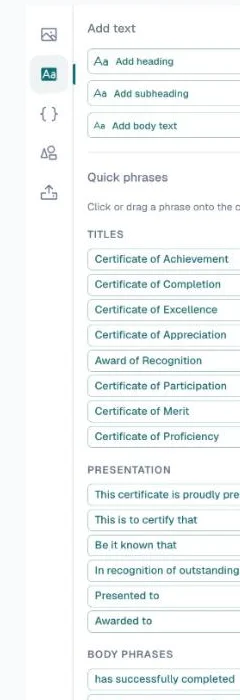
Quick phrases: below the buttons, Quick phrases (collapsed until you click it) lists ready-made titles ("Certificate of Achievement"), presentation lines ("This is to certify that"), and body phrases. Click or drag one onto the canvas.
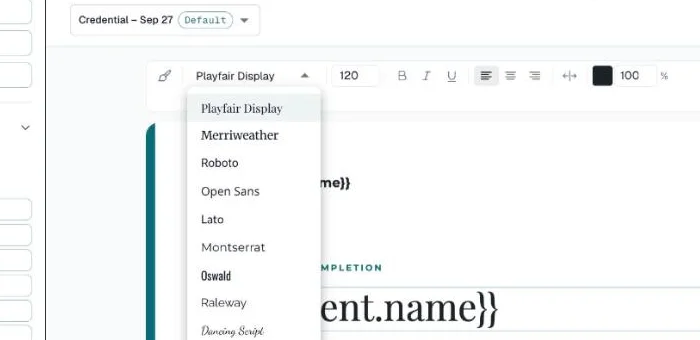
Available fonts: Playfair Display, Roboto, Open Sans, Lato, Montserrat, Merriweather, Oswald, Raleway, Dancing Script, Great Vibes
Step 3: Insert Credential Attribute Tokens
Attribute tokens are dynamic placeholders that are replaced with real credential data when a PDF is generated. For example, {{recipient.name}} becomes "Sarah Johnson" in the final PDF.
- Click the Attributes icon in the tool rail
- The panel shows the Verification QR code, the Recipient photo frame, Dynamic fields, and your categories' Custom fields:
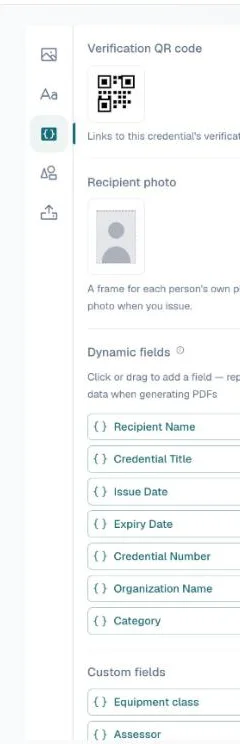
Verification QR Code
At the top of the panel, there is a Verification QR code element. Click it or drag it onto the canvas to add a QR code to your design.
At generation time, the QR code is automatically replaced with a real QR code that links directly to that credential's public verification page. Anyone who scans it with a phone can instantly verify the credential — no typing required.
- Add it to your design once; each generated PDF gets its own unique QR code
- Resize and reposition it like any other element
- Works on all plans — no upgrade required
Recipient Photo
A frame where each person's own photo is drawn when the PDF is made. See Add a photo to a credential.
Dynamic Fields
| Token | What it inserts |
|---|---|
{{recipient.name}} | Recipient's full name |
{{certificate.title}} | Credential title |
{{issue.date}} | Issue date |
{{expiry.date}} | Expiry date (blank if none) |
{{certificate.number}} | Unique credential number |
{{organization.name}} | Your organization name |
{{category.name}} | Credential category name |
{{custom.fieldkey}} | Custom attribute value |
- Click a token button to add it to the canvas at a default position, or drag the button directly onto the canvas where you want it
- Style the token element like any other text element — font, size, color, alignment
You can also type a field inside any text, for example Awarded to {{recipient.name}}. Each PDF fills it in. A field name that doesn't exist prints as typed, and the toolbar points it out.
Tip: Place {{recipient.name}} as a large Heading. It is the most prominent piece of information on most credential designs.
Custom attributes are on every plan. See the Custom Credential Attributes help article for a full guide.
Step 4: Add Decorative Elements
- Click the Elements icon in the tool rail
- Browse the panel: Lines (horizontal and vertical), Icons, Shapes and Ribbons
- Click an element to add it to the canvas, or drag it to a specific position
- Change its colour with the formatting toolbar
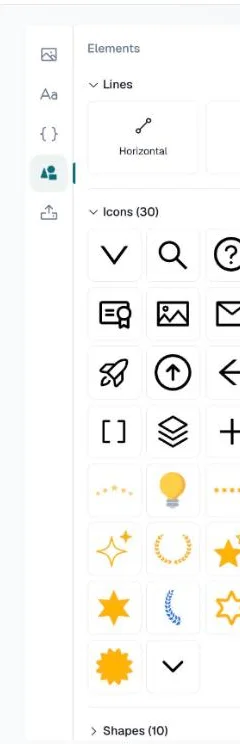
Tip: A horizontal line divider between the credential title and the recipient name gives the design a clean, structured look.
Step 5: Upload Your Own Images (Pro)
- Click the Uploads icon in the tool rail
- Click Upload image and select a JPG, PNG, or SVG file (max 2 MB per file)
- The uploaded image appears in your gallery and persists across sessions
- Click the image thumbnail to add it to the canvas, or drag it directly onto the canvas
Common uses: Organization logos, signature images, official seals, stamps, watermarks
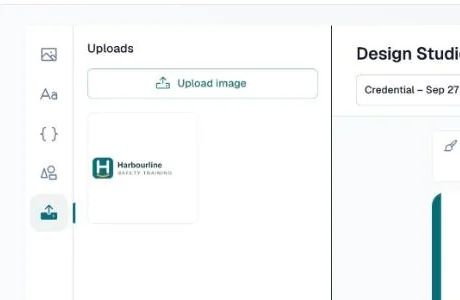
Requires Pro plan. Basic and Free plan users see a lock icon on the Uploads panel.
Working with Elements on the Canvas
Once elements are on the canvas:
- Move: Click and drag to reposition
- Resize: Drag the handles on shapes and images. Text has no corner handles: set its Font size, or turn off Auto-width to get side handles that set its wrap width
- Select: Click any element to select it (handles appear around it)
- Delete: Select an element and press Delete or Backspace, or use the delete button in the formatting toolbar
- Layer order: Use the forward and backward buttons in the formatting toolbar
Managing Multiple Designs
Your organization can save multiple named designs and use different ones for different credential types.
Switching Between Designs
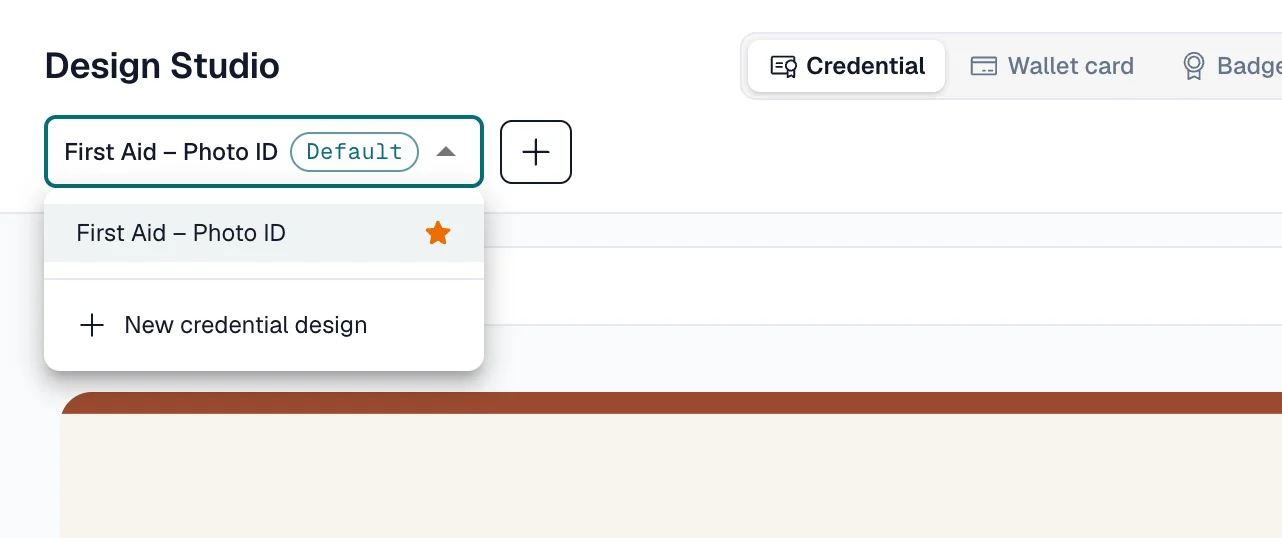
- Click the design name dropdown under the Design Studio title
- Select any saved design to load it on the canvas
Creating a New Design
- Click the + button (New credential design) next to the design name. The same option is also the last row of the design name dropdown.
- Choose a template — Plain is the nearest to a blank page. A design needs a template and at least one element before it can be saved
- Click Save. The design gets a name automatically (the canvas type and today's date); rename it any time from the ⋮ menu
Renaming, Duplicating, or Deleting a Design
Click the ⋮ menu at the top right to access:
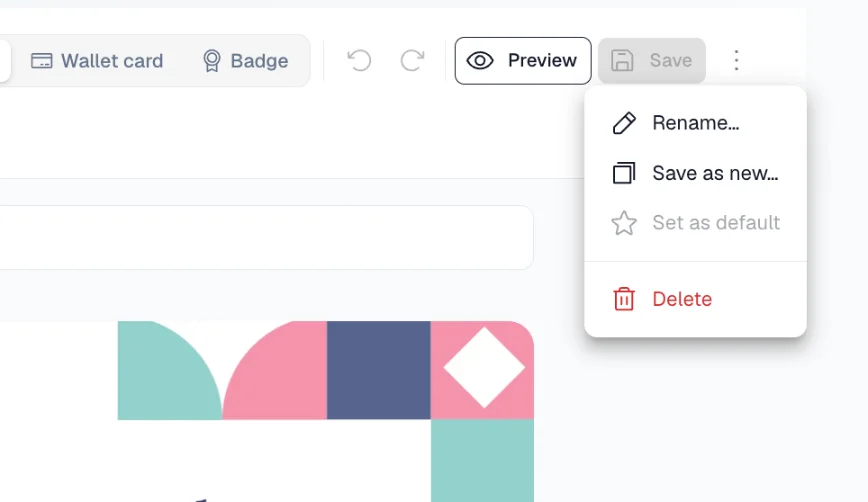
- Rename — Update the design name
- Save as new — Duplicate the current design under a new name
- Set as default — Mark this design as your organization's default
- Delete — Permanently remove the design (at least one design must remain, counting credential, wallet card and badge designs together)
Unsaved Changes
An orange dot appears next to the design name when there are unsaved changes, and Save turns on. If you try to leave the page, the browser will warn you. Click Save before navigating away.
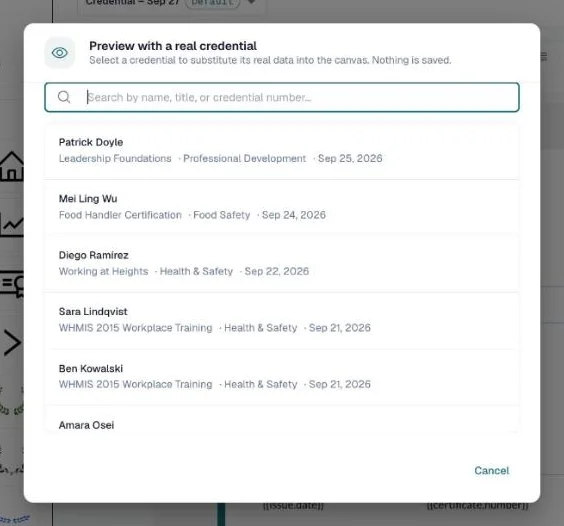
Preview with Real Data
Click Preview and pick a credential to see the design filled with that person's data. Nothing is saved.
Design Limits by Plan
| Plan | Saved designs |
|---|---|
| Free | 3 |
| Basic | 5 |
| Pro | Unlimited |
Saving Your Design
Click Save in the top right corner of the header. A confirmation message appears when the design is saved successfully.
Note: Only Admin users can create, edit, or delete designs. Manager and User roles can view designs but cannot save changes.
Generating PDFs from Your Design
Once your design is saved, use it to generate credential PDFs.
Single Credential PDF
- Go to Credentials
- Open the credential's ⋯ menu and click Generate PDF (or Regenerate PDF)
- Select your design in the dialog
- Click Generate — the PDF is created in the background and attached to the credential
Bulk PDF Generation (all plans)
From the Credentials list:
- Go to Credentials and set the PDF filter to Missing
- Tick the rows you want, or use Select all N in the selection bar to take everything that matches
- Click Generate PDFs, pick a design, and confirm
The work runs in the background — you can close the tab, and progress follows you in the top bar. See the bulk PDF guide for the full picture, including generating per category and automatically on issue.
Troubleshooting
Changes are not saving
- Click Save in the top right before navigating away
- Check for the orange unsaved-changes dot next to the design name
- Confirm you have the Admin role — Managers and Users cannot save design changes
Custom attribute tokens show as {{custom.score}} on the canvas
This is normal. The canvas has no real credential data, so a custom token shows as itself, {{custom.score}} (the design picker's thumbnails show it as [score]). Click Preview and pick a credential to see real values. When you generate an actual PDF, the placeholder is replaced with the real value (e.g., "92%").
The Uploads panel shows a lock icon
- Image uploads require a Pro plan
- Upgrade in Settings → Plan & Billing
My custom background looks stretched or squashed
- The canvas is always 2480 × 1754 px (A4 landscape). If your uploaded image has a different aspect ratio, it will be stretched to fill the canvas
- Re-upload the image at 2480 × 1754 px, or crop it to a 1.41:1 ratio (same as A4) before uploading
A design shows "The background image for this design was deleted"
- A custom background template that this design referenced has been deleted
- Open the Templates panel and choose a new background — your existing text and elements are preserved
- Save the design to confirm the new background
The Upload template card shows a lock icon
- Uploading custom backgrounds requires a Pro plan
- Click the card to go to the billing page to upgrade
Text is cut off in the generated PDF
- The text element on the canvas may be too narrow for the font size
- Select the element and widen it or reduce the font size
- Re-generate the PDF after saving the design change
Generated PDF looks slightly different from the canvas preview
Minor font rendering differences between the canvas (browser) and the PDF engine are normal. The preview is approximately 95–98% accurate. Always download and review a sample PDF before bulk generating.
Frequently Asked Questions
Q: Does the QR code on the PDF link to the right credential?
A: Yes. Each generated PDF gets its own unique QR code pointing to that specific credential's verification page. Scanning it with a phone opens the public verification page with the credential details pre-loaded — no manual searching required. The QR code is generated at PDF creation time and uses the correct URL for whichever environment you're running on (staging or production).
Q: Can I use the Design Studio on the Free plan?
A: Yes. The Free plan includes 3 saved designs and every template. Basic raises the limit to 5 saved designs, and Pro makes them unlimited.
Q: Can multiple team members edit the same design at the same time?
A: The Design Studio does not currently lock designs for exclusive editing. If two Admin users save the same design simultaneously, one save will overwrite the other. Coordinate with your team to avoid this.
Q: What fonts are available?
A: 10 fonts are loaded from Google Fonts: Playfair Display, Roboto, Open Sans, Lato, Montserrat, Merriweather, Oswald, Raleway, Dancing Script, Great Vibes.
Q: Can I import my own fonts?
A: Not currently. Only the 10 built-in font families are available, each with the bold and italic styles it has.
Q: What image formats can I upload?
A: JPG, PNG, and SVG — up to 2 MB per file. Pro plan required.
Q: Can I export a design to use outside CertLister?
A: Not currently. Designs are used only within CertLister to generate credential PDFs.
Q: Do I need design experience to use the Design Studio?
A: No. Start by choosing a background template, then drag the standard attribute tokens onto the canvas. Most organizations have a working design in under 15 minutes.
Q: What canvas resolution do generated PDFs use?
A: The canvas is 2480 × 1754 pixels — A4 landscape at 300 DPI — producing print-quality PDFs.
Q: Can I upload my own background image?
A: Yes, on Pro plans. Go to the Templates panel and click the Upload card. Upload a JPG or PNG up to 5 MB. For best results, use an image that is exactly 2480 × 1754 px — the canvas dimensions. Images with a different aspect ratio will be stretched to fit.
Q: What happens to designs that used a deleted custom background?
A: The design is not deleted — only the background reference is cleared. The next time the design is opened, an amber alert will appear asking you to choose a new background. Your existing text elements and layout are fully preserved. Previously generated PDFs are not affected — they are stored as independent files.