
Getting Started with CertLister
Time to read: 3 minutes
New here? The 11-minute app tour walks through every area of the app, in the order you set it up.
What Is CertLister?
CertLister is a digital credential management platform for training providers, schools, professional associations, and HR teams. It lets you:
- Issue credentials — create digital credentials for course completions, qualifications, and achievements
- Generate PDFs — produce print-quality credential PDFs using the built-in Design Studio
- Track status — see which credentials are active, expired, revoked, or replaced at a glance
- Verify authenticity — give employers and recipients a public page to confirm any credential is genuine
- Automate delivery — send credentials to recipients by email and trigger expiry reminders automatically
How CertLister Is Organized
Organizations
When you create an account, CertLister creates an organization for you. Your credentials, categories, designs, and team members all belong to your organization. Each organization has its own public verification page. The website's certification tracking and verification software page shows the same features from the outside.
Categories
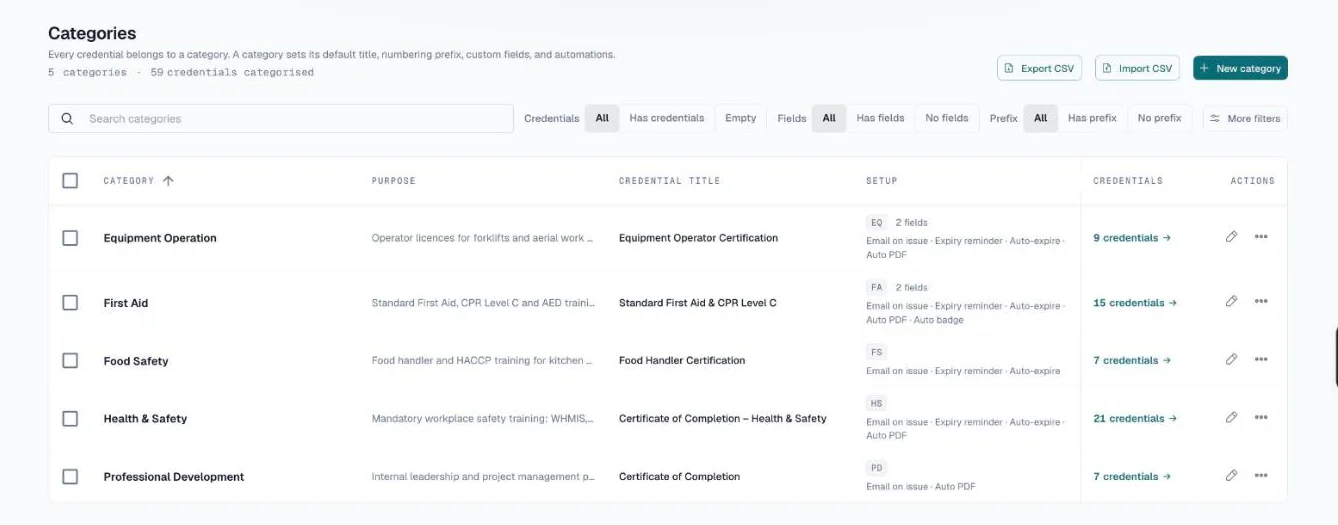
Credentials are grouped into categories — one per type of certification you issue (e.g., "CPR Certification", "Food Safety", "Leadership Training"). Categories let you:
- Keep credentials organized
- Apply automation settings (issuance emails, expiry reminders) to an entire category at once
- Define custom data fields (score, instructor, permit number) per category type
Create at least one category before issuing credentials.
Credentials
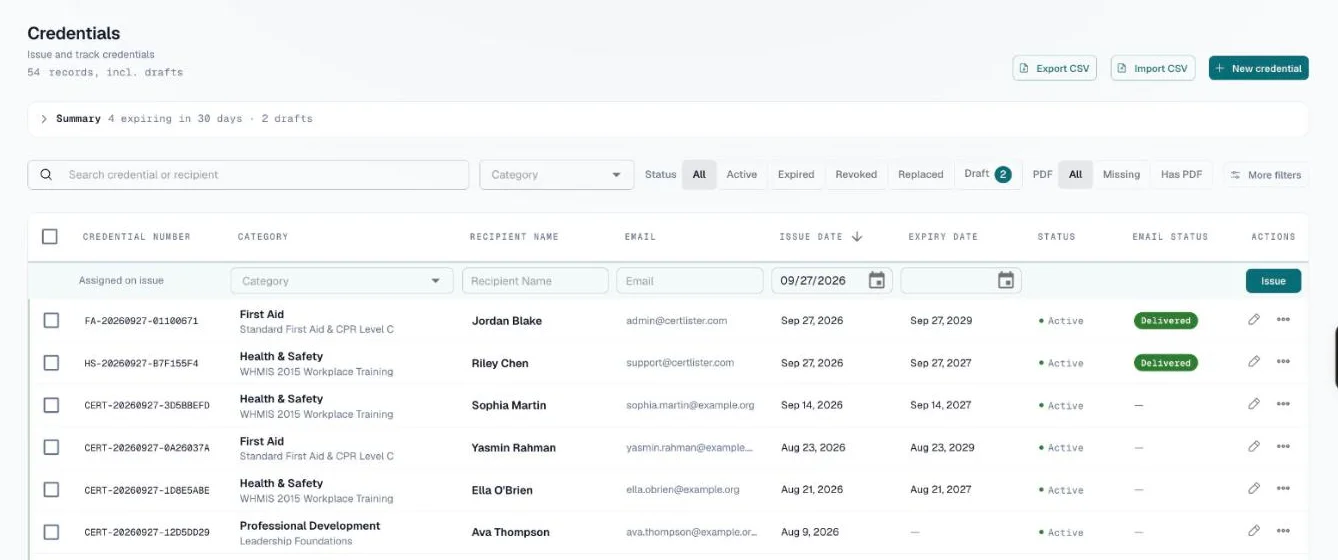
A credential is a record of one person completing one program. It holds:
- Recipient name and email
- Credential title and category
- Issue date and optional expiry date
- Status (Active, Expired, Revoked, Replaced)
- An attached PDF — generated by the Design Studio or uploaded manually
Designs
The Design Studio is the visual editor for building credential layouts. You choose a background template, drag in text and attribute tokens, and save the result as a named design. When you generate a PDF, CertLister fills in the recipient's data and produces a print-quality file.
Your First 30 Minutes
The fastest path from sign-up to your first real credential:
Create a category — Go to Categories → New category. Give it a name (e.g., "CPR Certification").
Issue a credential — Go to Credentials → New credential, or use the quick issue row at the top of the list. Fill in the category, recipient name, title, and issue date.
Get the PDF — If the category has Auto-generate PDF on issue turned on, the PDF is made for you. Otherwise open the credential's ⋯ menu and click Generate PDF. Every template in the Design Studio is available on every plan.
Test verification — Copy the credential number, open a private browser window, and go to your verification page URL (shown at the top of Verification Page) to confirm it shows correctly.
That's the full cycle. From here you can add more credentials, invite team members, set up automation, and customize your design.
Key Pages in the App
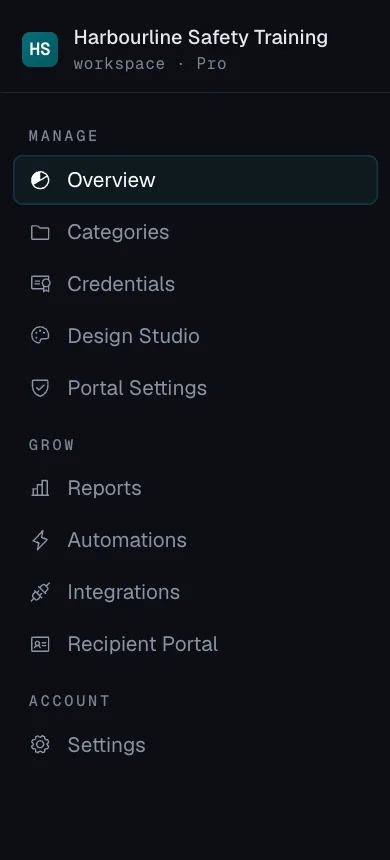
All pages are in the left sidebar, in three groups.
| Page | What it's for |
|---|---|
| Overview (dashboard) | Stats at a glance — credential counts, what is expiring soon, and a breakdown by category |
| Categories | Create and manage credential types |
| Credentials | Issue, search, filter, and manage all credentials; generate PDFs in bulk |
| Design Studio | Design credential PDFs, wallet cards, and badges |
| Verification Page | Your public verification page, its embed code, custom domain, and branding |
| Reports | Verifications, credential activity, email delivery, team activity, and usage |
| Automations | Rules that act on events, such as a reminder before a credential expires |
| Integrations | API keys, webhooks, and event subscriptions |
| Recipient Portal | Where recipients sign in to see their credentials and send you requests |
| Settings | Profile, organization, team members, email, notifications, billing |
Recommended Next Steps
- Create your account → — step-by-step sign-up guide
- Issue your first credential → — full walkthrough
- Design Studio → — build your credential layout
- Plans & Billing → — compare Free, Basic, and Pro features
Getting Help
Browse the rest of the Help Center, or email support@certlister.com — we respond within 24 hours on business days.