
Workflow Automations
Time to read: 8 minutes
Plan required: any plan (1 automation on Free, 3 on Basic, unlimited on Pro)
Workflow Automations let you define rules that run automatically in response to events in CertLister. Each automation follows a simple pattern: when something happens, if optional conditions are met, then run a sequence of actions. See the workflow automations feature page for what the triggers and actions cover.
Examples of what you can automate:
- Generate a PDF and email it to a recipient the moment a credential is issued
- Send an expiry reminder to recipients 30 days before their credential lapses
- Notify your admin team whenever a recipient submits a portal request
- Trigger a webhook to your LMS when a credential is revoked
Plan Availability
| Feature | Free | Basic | Pro |
|---|---|---|---|
| Workflow automations | Yes (1) | Yes (up to 3) | Yes (unlimited) |
| All standard actions (generate PDF, send email, wait, notify admin) | Yes | Yes | Yes |
| Send webhook action | No | No | Yes |
How Automations Work
An automation has three parts:
- Trigger — the event that starts the automation (e.g., "a credential is issued")
- Conditions (optional) — filters that must all be true before the actions run (e.g., "only if the category is Safety Training")
- Actions — the steps to execute in order (e.g., generate PDF, wait 2 minutes, send email)
If any condition fails, the automation is recorded as skipped and no actions run. If an action fails, the error is logged but execution continues with the next action — a failed PDF generation does not prevent the email from being sent.
Getting Started
Step 1: Go to Automations
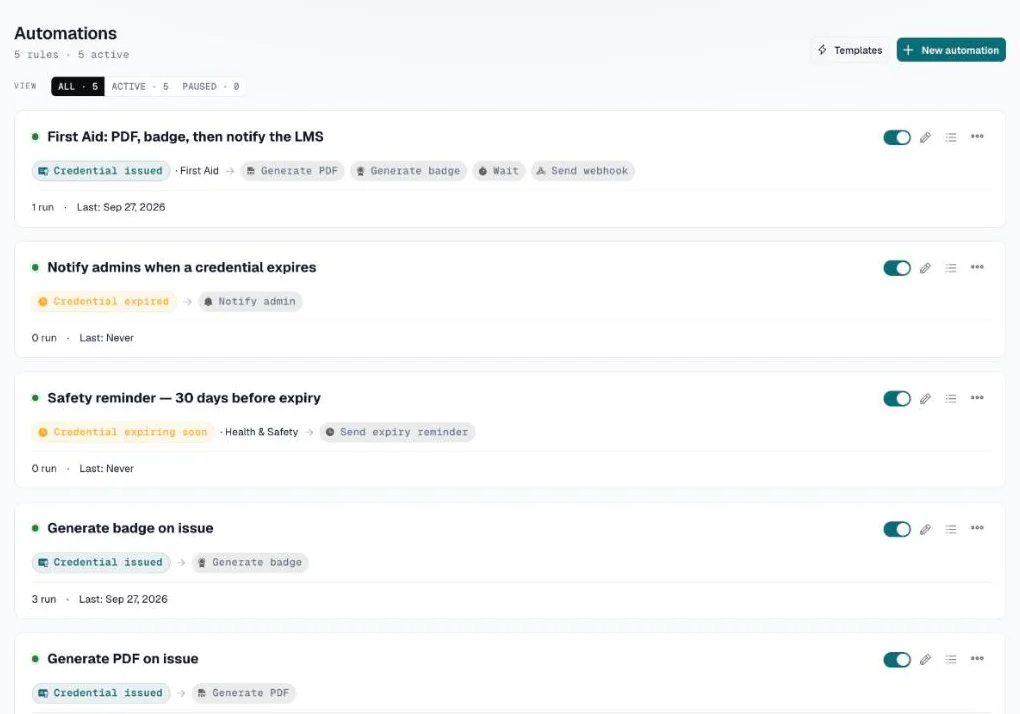
Click Automations (lightning bolt icon) in the left sidebar. Each automation is a card with its trigger and steps, a switch to turn it on or off, and icons to edit it and open its run log.
Step 2: Choose a template or start from scratch
If you have no automations yet, the template gallery is shown automatically. Otherwise click Templates at the top. Templates are pre-configured starting points for the most common scenarios — select one to open it in the editor pre-filled.
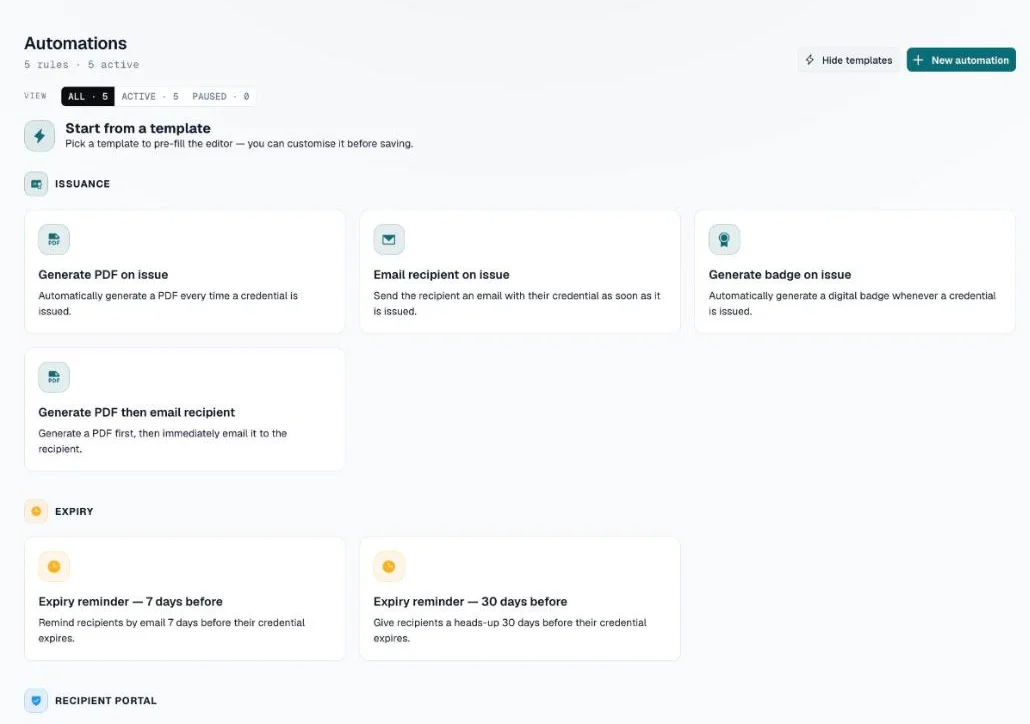
To start from scratch, click New automation in the top right.
Step 3: Build your automation
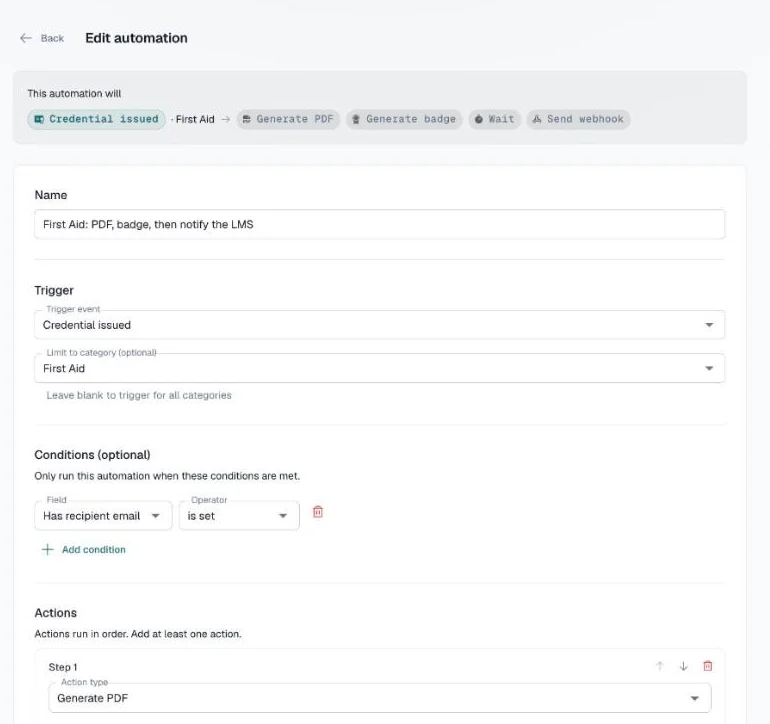
The editor has four sections:
- Name — give the automation a descriptive name (e.g., "Issue email — Safety Training")
- Trigger — choose what event fires the automation
- Conditions (optional) — add filters to narrow which credentials this applies to
- Actions — add the steps to run, in order
At the top, This automation will sums up the trigger and steps in one line.
Step 4: Save and enable
Click Create automation (or Save changes when editing). A new automation starts paused, so nothing runs until you switch it on. Turn it on, or off again, from the automations list — the toggle is on the right side of each automation card.
Triggers
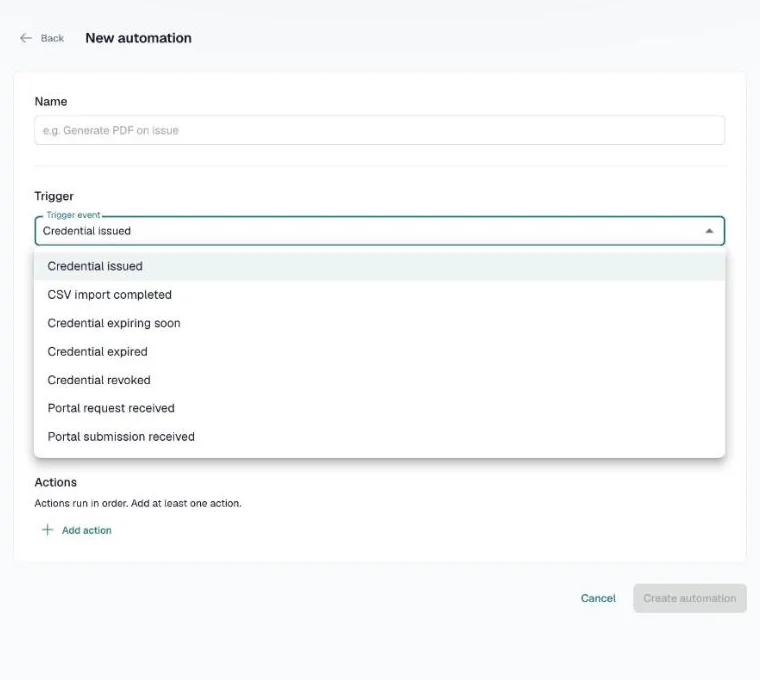
Credential issued
Fires whenever a credential is issued one at a time — from the New credential drawer, through the API, or by an incoming webhook. A CSV import does not fire it: an import fires CSV import completed once instead.
Optional filter: Restrict to a specific category, or leave blank to match any category.
Typical actions: Generate PDF, Send recipient email
CSV import completed
Fires once after an entire CSV import batch finishes. Does not fire per-row.
Typical actions: Notify admin
Credential expiring soon
Fires daily for credentials whose expiry date is exactly N days away and whose status is still Active.
Configuration: Set Days before expiry (1–365) and optionally restrict to a specific category.
Typical actions: Send expiry reminder email
Note: This trigger runs once per credential per day and includes a duplicate-send guard — if the daily job runs twice, the reminder is only sent once.
Credential expired
Fires after the daily job transitions a credential's status from Active to Expired (when its expiry date has passed).
Typical actions: Notify admin
Credential revoked
Fires when a credential's status is changed to Revoked — whether individually or via bulk status update.
Typical actions: Notify admin, Send webhook
Portal request received
Fires when a recipient submits a request through the Recipient Portal (name correction, reissue, renewal, dispute, or inquiry).
Typical actions: Notify admin
Portal submission received
Fires when a recipient uploads a PDF submission through the Recipient Portal.
Typical actions: Notify admin
Conditions
Conditions are optional filters. Add them when you want an automation to run only for certain credentials. All conditions must be true — they are AND'd together.
| Field | Operators | What it checks |
|---|---|---|
| Has recipient email | is set / is not set | Whether the credential has an email address |
| Has PDF | is set / is not set | Whether a PDF has been generated |
| Has badge | is set / is not set | Whether a badge has been generated |
| Has expiry date | is set / is not set | Whether the credential expires |
| Category | equals / does not equal / is one of | The credential's category |
| Status | equals / does not equal / is one of | Active, expired, revoked, or draft |
Example: You want to email recipients on issue, but only when they have an email address and only in the "Food Safety" category. Set the trigger's category to Food Safety, then add the condition Has recipient email is set.
Actions
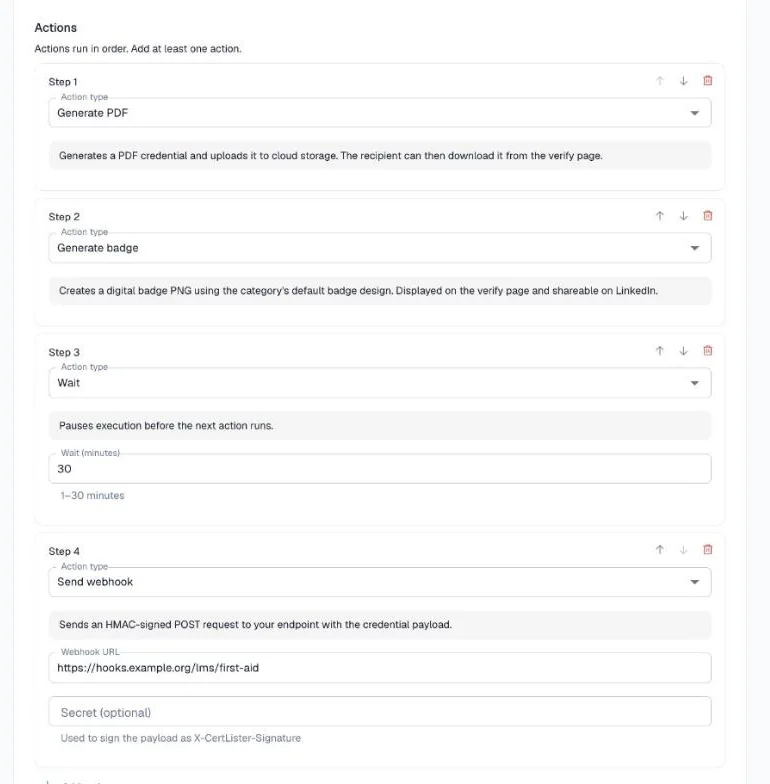
Actions are the steps that run when the trigger fires and all conditions pass. They execute in order from top to bottom. Use the arrow buttons to reorder them.
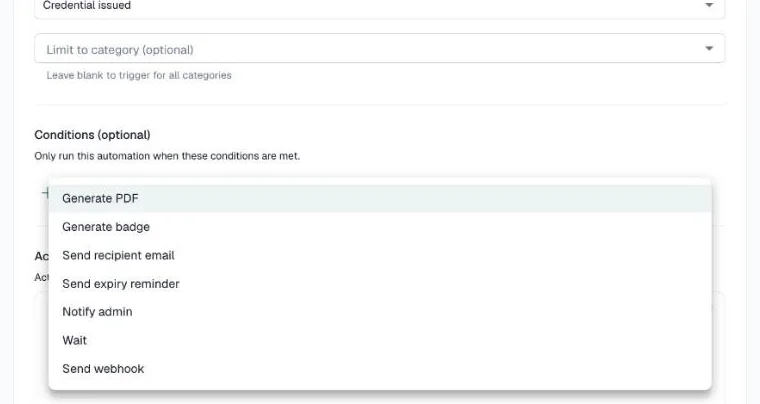
Limits: Maximum 10 actions per automation; maximum 2 wait steps per automation.
Generate PDF
Generates a credential PDF using the category's default Design Studio template (falls back to the organization's default design if the category has none set).
When to use: Any automation where you want to ensure a PDF exists before emailing it. Imported credentials are not covered, because an import fires CSV import completed, which carries no single credential; give them PDFs with Generate PDFs in bulk.
Generate badge
Generates a digital badge PNG for the credential using the category's default badge design.
When to use: When you want to automatically create a shareable badge image at the moment of issuance.
Send recipient email
Sends the standard issuance email to the credential's recipient using your organization's email template and branding.
Option — Attach PDF: Check this to attach the credential PDF directly to the email. If no PDF has been generated yet, the email is sent without the attachment, and the step still counts as a success.
Important: If you enable "Attach PDF", put a Generate PDF step earlier in the same automation. If the two steps are in separate automations, they can run at the same time and the email may fire before the PDF is ready. The editor shows a note about this whenever you check the option.
Send expiry reminder
Sends the expiry reminder email to the recipient. The editor offers it with any trigger, but it is written for Credential expiring soon — use the two together.
Notify admin
Sends an internal notification email to each active Admin and Manager in your organization. Useful for alerting your team when something happens without emailing the recipient.
Wait
Pauses execution for 1–30 minutes before moving to the next action.
When to use: If you want a short buffer between steps — for example, waiting a couple of minutes between generating a PDF and sending it, as an extra safety margin.
For delays longer than 30 minutes (e.g., "send a follow-up the next day"), set up a second automation with a
Credential expiring soontrigger at the appropriate day offset rather than using a wait step.
Send webhook (Pro)
Posts a JSON payload with the credential to an external URL (Zapier, Make, your own endpoint, etc.). Enter the Webhook URL and, optionally, a Secret: with a secret, the request is signed with HMAC-SHA256 in the X-CertLister-Signature header so your endpoint can verify it came from CertLister.
The Automation Card
Each automation on the list page shows:
- Name, with a status dot — green when the automation is on, grey when it is paused
- Toggle to switch it on or off instantly
- Edit (pencil icon) to open the editor
- Run Log (list icon) to view execution history
- The rule at a glance: a chip for the trigger (and its category, if any), "· if …" for any conditions, and a chip per step (e.g., "Generate PDF", "Send recipient email")
- Run stats: total runs and the date of the last run
The ··· menu on each card has Duplicate and Delete. Deleting an automation also deletes its full run history.
Run Log
Every time an automation fires, the outcome is recorded. Click the Run Log icon on any automation card to open the history drawer.
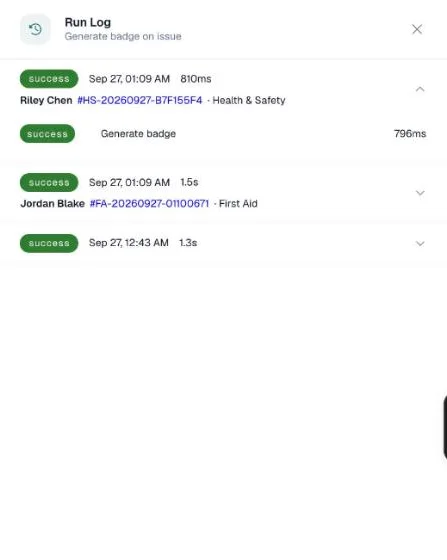
Each log entry shows:
| Field | Description |
|---|---|
| Status | Success, Partial, Failed, or Skipped |
| Timestamp | When it ran |
| Duration | Total time from trigger to last action |
| Recipient / Credential | The credential that triggered it (if applicable) |
Click any row to expand it and see the result of each individual action — including duration and any error messages.
Status meanings
| Status | Meaning |
|---|---|
| Running | The automation is still working through its steps — for example during a Wait |
| Success | All actions completed without errors |
| Partial | Some actions failed, others succeeded (e.g., PDF sent without attachment because no PDF existed) |
| Failed | All actions failed, or the automation threw an error before any action ran |
| Skipped | Conditions did not match — no actions were executed |
Overlap with Category Automation Settings
CertLister also has per-category automation toggles (Send issuance email, Send expiry reminder, Auto-expire). These run independently from Workflow Automations — there is no automatic suppression between the two.
If both a category flag and an automation would send the same email, the recipient will receive two emails.
The app surfaces this conflict in two places:
- Category editor — an amber warning appears below the "Send issuance email" toggle when an enabled automation would also send an issuance email to that category.
- Automation card — an amber warning appears when the automation's
send_emailaction targets a category that already hassend_email_on_issueenabled.
Recommendation: Once you start using automations for email delivery, turn off the corresponding category flag for that category to avoid duplicates.
Common Automation Recipes
Issue credential → generate PDF → send email (most common)
- Trigger: Credential issued (optional: restrict to a category)
- Action 1: Generate PDF
- Action 2: Send recipient email — with "Attach PDF" checked
This ensures every new credential gets a PDF and the recipient is emailed immediately with the attachment.
Expiry reminder at 30 days
- Trigger: Credential expiring soon — 30 days before
- Action: Send expiry reminder
Pairs well with a second automation at 7 days for a closer reminder.
Notify admin on portal requests
- Trigger: Portal request received
- Action: Notify admin
Your team gets an email every time a recipient submits a request through the portal.
Auto-badge on issue
- Trigger: Credential issued (restrict to category if needed)
- Action: Generate badge
Every new credential in this category gets a digital badge generated immediately.
Frequently Asked Questions
Q: Can I have multiple automations respond to the same trigger?
A: Yes. For example, you can have one automation that generates a PDF on issue and a separate one that notifies the admin on issue. They run independently.
Q: If an automation fails partway through, do earlier actions get undone?
A: No. Actions are not transactional — a generated PDF is not deleted if the subsequent email fails. Each action's result is logged independently so you can see exactly what succeeded and what didn't.
Q: Can I test an automation before enabling it?
A: The best approach is to create a test credential in a test category and observe the run log. There is no "dry run" mode, but disabling the automation before you're ready means it won't fire even if credentials are created.
Q: Does a disabled automation still log runs?
A: No. Disabled automations are not evaluated when a trigger fires — they produce no run log entries until re-enabled.
Q: What happens if the recipient has no email address and the automation tries to send an email?
A: The send email action is skipped for that credential and logged as failed with a note that no recipient email was found. Other actions in the automation continue as normal.
Q: Are automations retroactive — do they run on existing credentials?
A: No. Automations only fire in response to events happening after they are created and enabled. Creating an automation does not process historical credentials.
Q: How does the expiry reminder trigger know not to send twice?
A: The daily scheduler checks the run log before firing. If an entry already exists for the same automation and credential on the same calendar day, the trigger is skipped for that credential.
Q: I'm on Basic and have 3 automations already. Can I add more?
A: No. The Basic plan limit is 3 automations. You'll need to delete an existing automation or upgrade to Pro for unlimited automations.