
Create Your First Credential
Overview
Clicking New credential opens a drawer on the right side of the page. It has three parts: the Category at the top, then Recipient, then Credential (title and dates). You can issue to one or more recipients in a single step. Issuing is one part of the certification tracking and verification software.
Time required: 2–5 minutes
What you'll need:
- Recipient name (required)
- Credential title (required)
- Issue date (required, defaults to today)
- Recipient email (optional — needed for the issuance email and expiry reminders)
- Category (optional — pre-fills the title and expiry, and decides which emails and files are made)
The quick way: issue from the table
To issue one credential at a time, you don't need the drawer. The Credentials table has a row at the top for it:
- Pick a Category. The issue date is today, and the expiry comes from the category.
- Type the recipient's name and email.
- Read the line under the row. It says what issuing will do: whether an email goes out, whether a reminder is sent before expiry, and how many credits you have left.
- Press Enter or click Issue.

The row then clears the name and email and keeps the category and dates, so you can type the next person straight away.
When the row can't decide for you, it says why and shows Continue in form. That happens when the category asks for extra fields, or when the person already holds this credential and it is expiring or has expired. The drawer opens with what you typed.

If the email address can't receive mail, the row says so in red. Fix the address, or click Issue anyway.

The row is shown to Admins and Managers on screens at least 900px wide. To issue to several people at once, add notes, or attach your own PDF, use the drawer described below.
Step-by-Step: Issue a Credential
Step 1: Open the Drawer
- Click Credentials in the left navigation
- Click New credential (top right)
- The Issue credential drawer slides in from the right
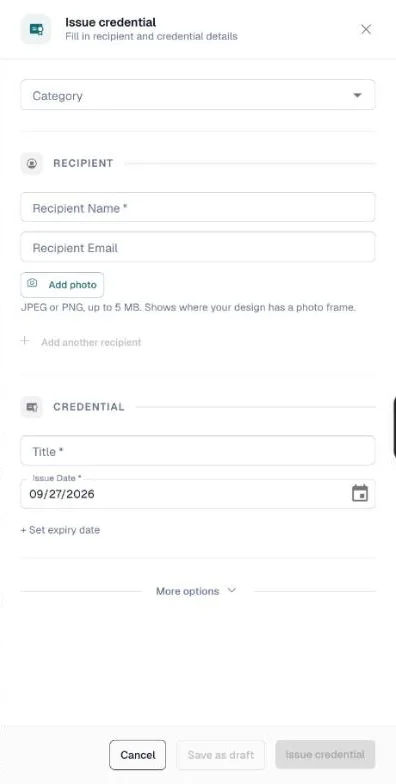
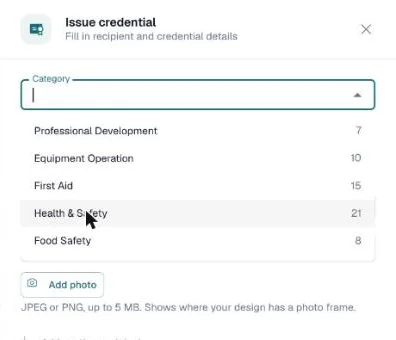
Pick the Category first. The dropdown is searchable — start typing to filter — and shows how many credentials each category already holds.
When the category has a default credential title, the Title field fills in for you. When it has a default expiry, the expiry date is set to today plus that period. You can change both for this credential.
No categories yet? Go to the Categories page and create one first. Or leave Category blank — uncategorized credentials work fine.
Step 2: Recipient
| Field | Notes |
|---|---|
| Recipient Name | Required. The full name that appears on the credential and the verify page. |
| Recipient Email | Optional. Needed for the issuance email and expiry reminders. |
| Add photo | Optional. Shown on the credential only when its design has a photo frame. See Add a photo to a credential. |
Email on issue is a category setting. A line under the recipients tells you what will happen — for example "1 recipient will be emailed when issued. Set in this category's settings." To change it, edit the category's Send issuance email to recipient setting. There is no per-credential checkbox.
Issuing to several people? See Multi-Recipient Issuing below.
Step 3: Credential
Title
Required. The name of the achievement, certification, or course. It appears on the credential PDF and the verify page.
Examples: "CPR Certification", "First Aid Level 2", "OSHA Safety Training", "Data Privacy Fundamentals"
Issue Date
Required. Defaults to today. Change it if you are backdating a credential.
Expiry Date
Hidden unless the category sets a default expiry. To add one, click + Set expiry date; to take it off, click Remove expiry date.
Send expiry reminder email: When the credential has an expiry date, this checkbox appears under the dates. Tick it to email the recipient before the credential expires.
Step 4: More Options (Optional)
A collapsed "More options" section is at the bottom of the form. Click to expand it. It contains:
| Field | Notes |
|---|---|
| Description | Optional. Shown on the verification page. |
| Credential Number | Leave blank to use your organization's numbering. A typed number can have up to 100 characters, but not /, ?, #, % or \. Not available when issuing to several recipients. |
| Custom Fields | Appear when the category has custom fields; the section opens by itself when you pick such a category. |
| Attach PDF | Upload your own credential PDF instead of generating one from the Design Studio. |
Step 5: Issue
Click Issue credential. CertLister checks the form, creates the credential, and runs the category's settings (email, PDF, badge). You can also click Save as draft to finish it later — see Draft credentials.
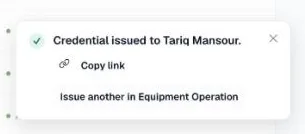
The drawer closes and a message appears at the bottom right: Credential issued to …, with two actions:
- Copy link — copies the link to this credential's verify page
- Issue another in … — opens the drawer again with the same category, title, and dates, so you only type the next recipient
Multi-Recipient Issuing
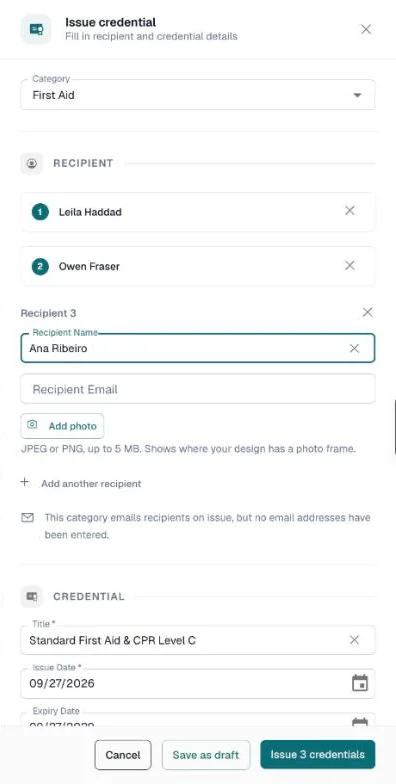
You can issue the same credential to up to 20 recipients in one step.
- Fill in the first recipient's name (and optionally email)
- Click Add another recipient — the first row collapses to a numbered summary, and a new empty row opens
- Fill in the next recipient and repeat
- Click a collapsed row to edit it; click × to remove it
The button changes to Issue N credentials.
While issuing: the footer shows progress — "Issuing 1 of 3…" — and a Stop button. Credentials are issued one at a time, so the list updates as each one is created. If you stop, the ones already issued stay issued.
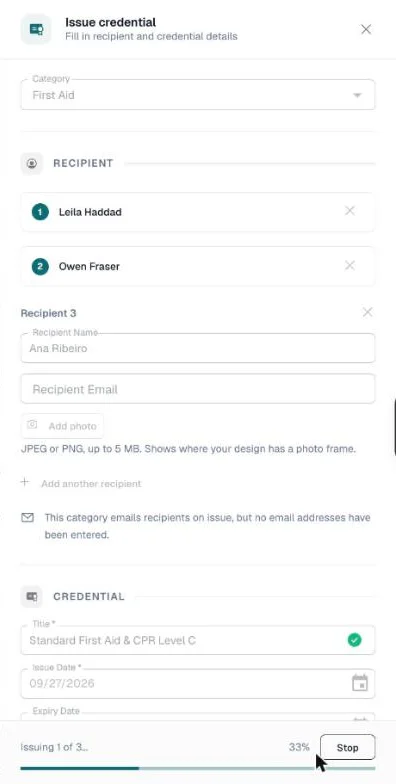
When it finishes, the message says N credentials issued, with Issue another in ….
More than 20 people? Use Bulk Import to create many credentials from a CSV file.
Credential Number is not available with several recipients — each credential gets its own number.
After Issuing
Your credential is immediately:
- Visible in the Credentials list (Active status)
- Verifiable via your public verification portal
- Tracked in your dashboard statistics
Generate a PDF
If the category's Auto-generate PDF on issue setting is on, the PDF is made for you. Otherwise:
- Find the credential in the list
- Open its ⋯ menu and click Generate PDF
To make PDFs for many credentials at once, select them and choose Generate PDFs from the bulk bar. See Design Studio for creating your credential design.
Share Verification Instructions
When sending credentials manually, include the credential's verify link or your portal URL so recipients can share it and employers can verify it.
Editing a Credential
- On the Credentials page, click the pencil icon on the credential's row (or ⋯ → Edit)
- The Edit credential drawer opens
- Make your changes and click Update
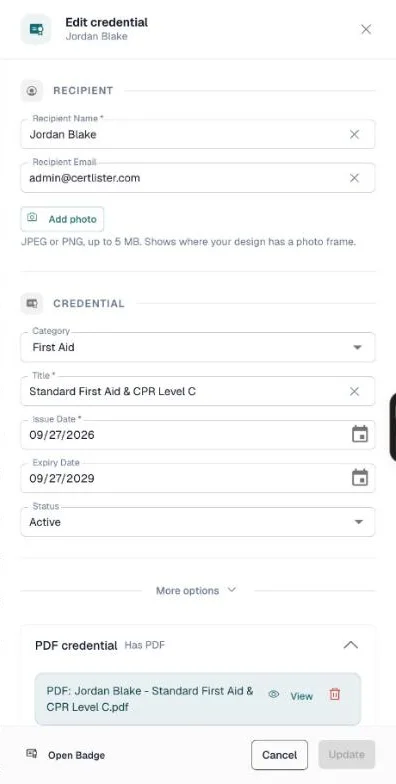
What's different when editing:
- One recipient only
- A Status field: Active, Expired, or Revoked
- No email notice — issuance emails are only sent when a credential is created
- Sections at the bottom: PDF credential (view, remove, or attach a PDF), Wallet card, Badge, Verification history, and Email history (when each email was sent and delivered)
- An Open Badge button in the footer downloads the credential as an Open Badge 3.0 file
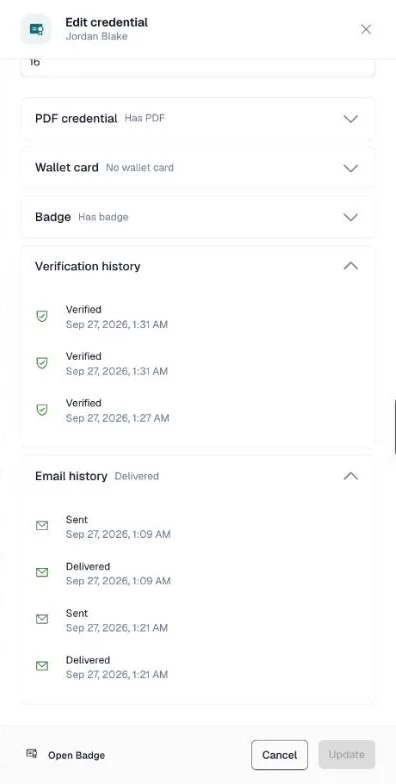
What you can edit: recipient name, email, and photo; category; title; issue and expiry dates; status; description; custom fields; the attached PDF.
What you cannot edit: the Credential Number — it is fixed when the credential is issued. It shows at the top of the Credential section.
Editing doesn't remake the PDF. If you changed the name or title and need an updated PDF, open the row's ⋯ menu and click Regenerate PDF, or select several credentials and choose Generate PDFs.
Renewing a Credential
When someone earns the same credential again — a recertification, an annual refresh — issue it as a renewal rather than a second credential. The new one replaces the old one, so the recipient ends up with one current credential instead of two, and a verifier can tell which is which.
How it works
Fill in the recipient's name and email and pick a Category in the Issue Credential drawer. If that person — the same name and email — already holds a credential in that category which is expiring or has already expired, a notice appears above the recipient list. People who share one email address, such as a manager who receives everyone's credentials, are told apart by their names, so each person is offered only their own credential to renew:
One recipient already holds a credential in this category that is expiring or has expired.
Each affected recipient also gets a line under their email, naming the credential and its expiry date. Click Renew to issue the new credential as a replacement.
If the email holds an expiring or expired credential under a different name — say "Robert J. Smith" when you typed "Robert Smith" — the line names that person instead, with no Renew. If it is the same person, enter the name exactly as it appears there and Renew is offered.
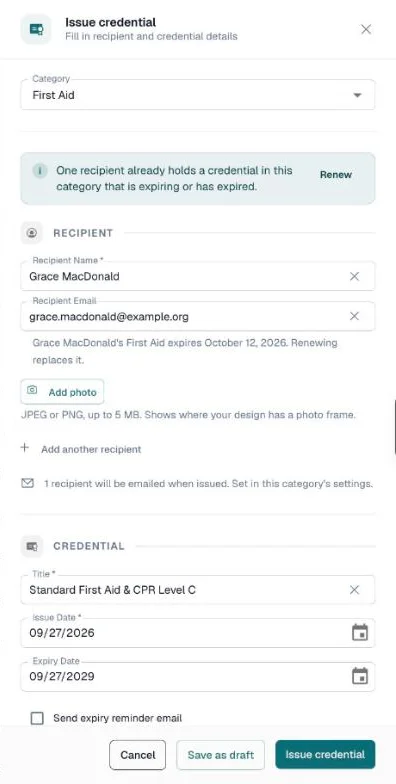
"Expiring" means your own reminder lead time — the same setting that decides when expiry reminder emails go out (7 days before expiry by default). It is not a separate number. Change your reminder schedule and this prompt follows it.
What renewing does
| Result | |
|---|---|
| The new credential | Issued normally — its own credential number, its own verify page, its own PDF |
| The old credential | Status becomes Replaced |
| Expiry reminders | Stop for the replaced credential — it will not chase the recipient about a credential they have already renewed |
| The old verify page | Keeps working, says the credential has been replaced, and links forward to the current one |
| Credits | A renewal is a new credential, so it uses a credit like any other issue |
Anyone holding an old link — printed on a certificate, saved in a supplier file — still lands on a page that works and points them at the current credential.
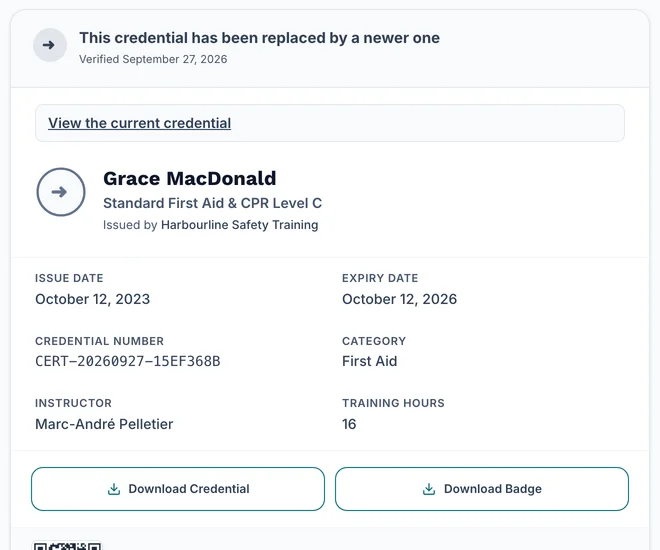
To list replaced credentials, use the Replaced status filter on the Credentials page.
The footer button always issues as new. Pressing Issue credential at the bottom of the drawer creates an unrelated second credential, even after you have pressed Renew, and even when it is relabelled "Issue anyway". Renewing is always the Renew action on the notice.
Undoing a renewal
Delete the replacement, and the credential it replaced comes back automatically — to Active, or to Expired if its expiry date has since passed.
You cannot set Replaced by hand: it is not in the Status dropdown when you edit a credential. It is a record of something that happened, not a state you assign. To take a credential out of circulation without issuing a replacement, revoke it instead.
Deleting a Credential
- Open the credential's ⋯ menu on the Credentials page
- Click Delete
- In the Delete this credential? dialog, click Delete credential
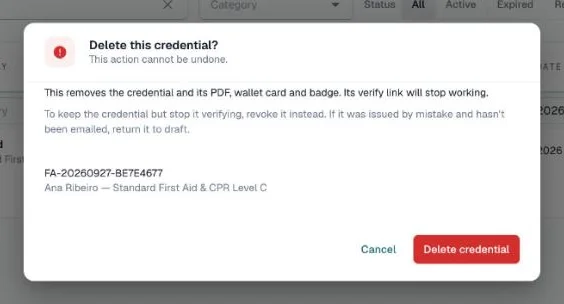
Deletion is permanent. The credential, its PDF, wallet card, and badge are removed, and its verify link stops working. Deleting gives back the credit it used.
Alternatives in the same menu:
- Revoke — keeps the credential in your records; it verifies as "Revoked". Use this when you want an audit trail.
- Return to draft — for a credential issued by mistake that hasn't been emailed yet; it undoes the issue and keeps the details as a draft.
Troubleshooting
"Issue credential" button stays disabled
The button activates as soon as:
- At least one recipient has a name
- The Credential Title field is filled
- The Issue Date is set
If category auto-fill populated the Title but the button is still gray, check that the title field is not empty (it may have filled with whitespace).
Expiry date shows an error
The expiry date must be on or after the issue date. If you set an issue date in the past and auto-fill populated a short expiry, the expiry may have ended up before today — adjust it manually.
"This number is already used in your organization"
Another credential in your organization already has the number you typed. Capitals don't count, so acme-1 matches ACME-1. The message shows under Credential Number in More options. Type a different number, or clear the field to use your organization's numbering.
Email notification not sent
- Confirm the recipient email is valid and saved on the credential
- Check that the category's Send issuance email to recipient setting is on — the line under the recipients in the drawer tells you before you issue
- Open the credential and look at Email history to see whether it was sent, delivered, or bounced
See Credential Automation for full email troubleshooting.
PDF upload failed
- File must be a PDF (not a renamed image or Word document)
- Maximum size: 10 MB
- If the file is larger, compress it with an online tool before uploading
Tips for Issuing Many Credentials
| Scenario | Recommended approach |
|---|---|
| Same credential, 2–20 people | Multi-recipient rows in the drawer |
| Same credential, 20+ people | Bulk Import (CSV) |
| Different credentials, large batch | Bulk Import with multiple rows per person |
| Recurring programme (same category each time) | Set a default credential title on the category, then use Issue another in … after each issue |
| Needs PDF immediately on issue | Turn on Auto-generate PDF on issue on the category (requires a default design) |