
Invite Team Members
Overview
CertLister supports multi-user organizations on Basic and Pro plans. You can invite team members and assign them one of three roles: Admin, Manager, or User.
Available on: Basic (up to 5 members) and Pro (unlimited members)
User Roles
| Role | What they can do |
|---|---|
| Admin | Full access: manage credentials, categories, team, billing, and settings |
| Manager | Create and manage credentials and categories; cannot access billing or team settings |
| User | View credentials and categories; cannot create, edit, or delete |
How to Invite a Team Member
- Go to Settings → Team
- Click "Invite Member"
- Enter their email address
- Select their role (Admin, Manager, or User)
- Click "Send Invitation"
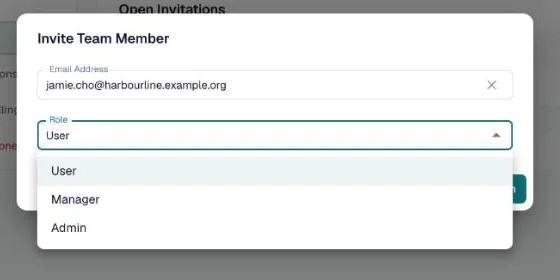
The invited person will receive an email with a link to join your organization. The invitation expires after 7 days.
Managing Open Invitations
Invitations that are sent but not yet accepted are shown on the Team tab under Open Invitations, with their role, status and expiry date.
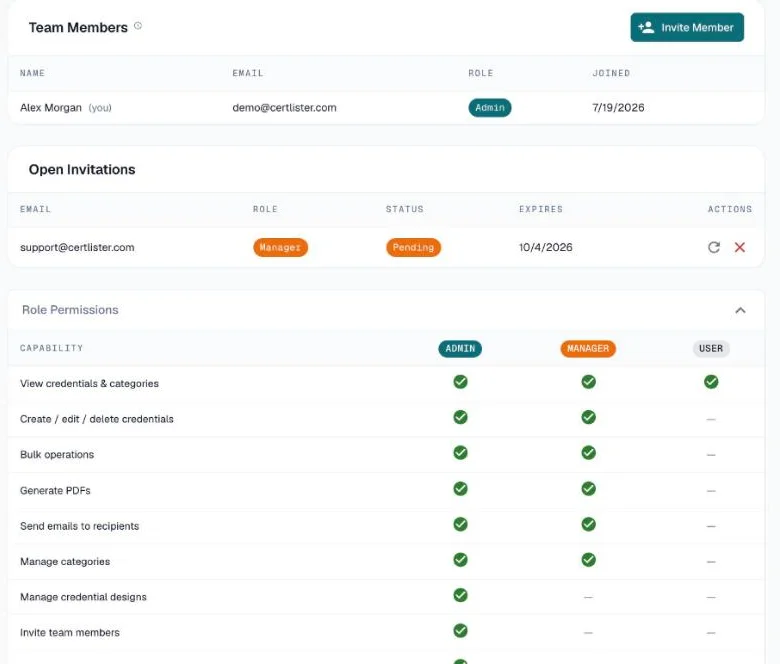
Open Role Permissions below the invitations to see exactly what each role can do.
You can:
- Resend an invitation (the circular arrow) if the email wasn't received
- Revoke an invitation (the ×) if you sent it by mistake
Changing a Member's Role
- Go to Settings → Team
- Find the team member in the list
- Click the role dropdown next to their name
- Select the new role
- The change takes effect immediately
Only Admins can change roles.
Removing a Team Member
- Go to Settings → Team
- Find the team member
- Click the remove icon (or three-dot menu)
- Confirm removal
Removed members immediately lose access to your organization. Their credentials and data remain — only the user account link is removed.
Troubleshooting
Invitation email not received
- Ask the member to check their spam/junk folder
- Verify you entered the correct email address
- Click the resend arrow in Settings → Team → Open Invitations
- Invitation links expire after 7 days — resend if needed
"Team member limit reached"
You've reached the member limit for your plan (5 on Basic). Upgrade to Pro for unlimited team members, or remove an existing member to make room.
Invited the wrong person
Revoke the invitation immediately from Settings → Team → Open Invitations. If they already accepted, remove them from the team members list.