Quick Start Checklist

A step-by-step checklist for setting up CertLister from account creation to going live.

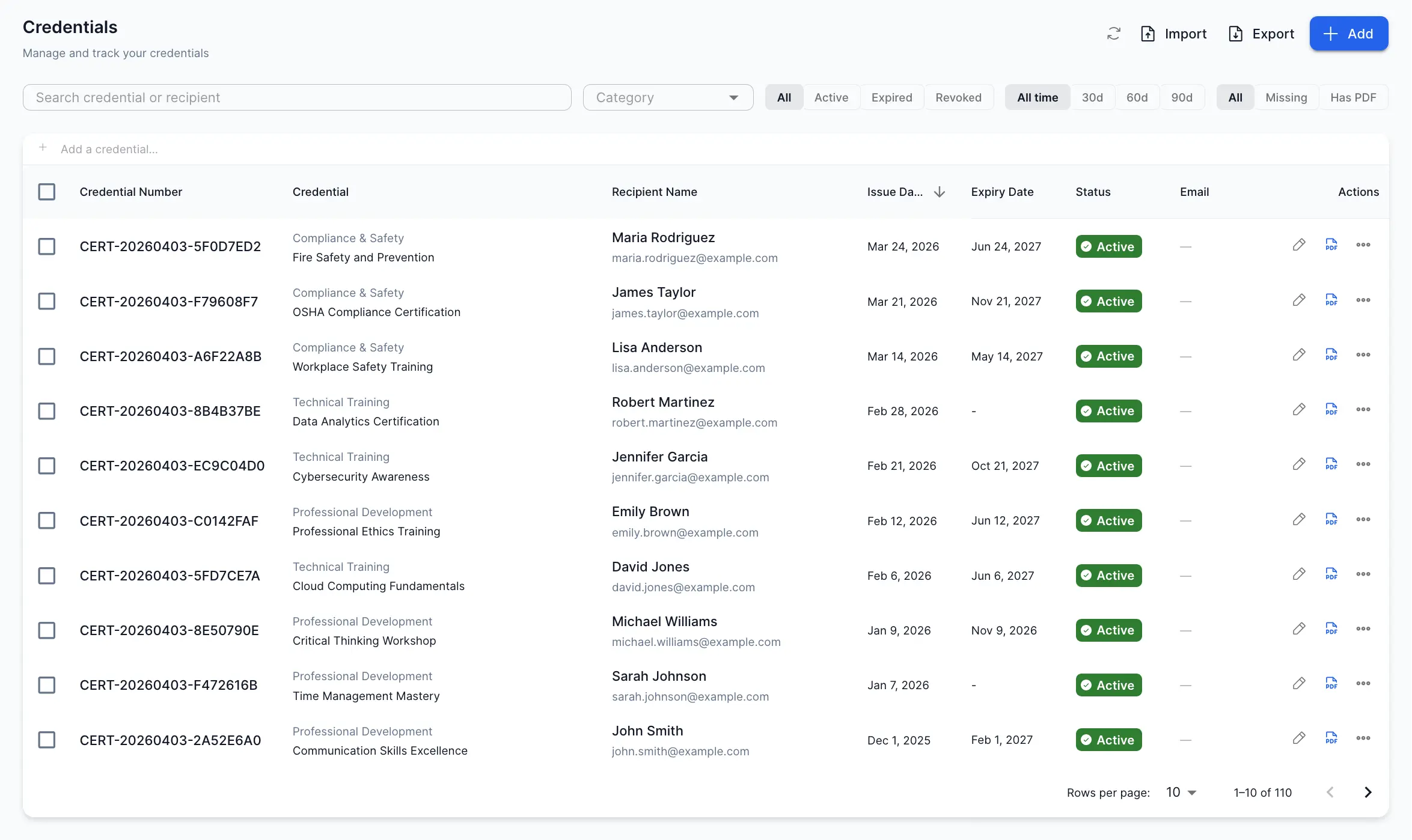
CertLister credentials list page

Quick Start Checklist


Overview

This checklist guides you through setting up CertLister from day one to being fully operational. Complete all steps to get the most out of your credential management system.

Total time: 1-2 hours Skill level: Beginner-friendly


Phase 1: Account Setup (15 minutes)

Task 1: Create Your Account

What to do:

  1. Sign up at app.certlister.com/auth/register
  2. Choose email/password or Continue with Google
  3. On the Set up your workspace page, enter your organization name, size, and industry — or click Skip for now and fill these in later from Settings → Organization

Note: Organization details are optional at sign-up. You can always update them later.


Task 2: Take the Interactive Tour

What to do:

  • Click "Start Tour" when prompted after sign-up
  • Follow the 3-minute guided walkthrough
  • Learn where key features are located

Why it matters:

  • Saves time finding features later
  • Shows you the basics
  • Interactive and visual

Skipped the tour? Access it later: Settings → Help & Tours


Task 3: Understand Your Dashboard

What to do:

  • Review the 5 stat cards (Total, Active, Expired, Categories, Verifications)
  • Check your statistics (even if zero)
  • Explore the 2 analytics charts (Trend Chart, Category Distribution)

Time: 5 minutes


Phase 2: Clean Up Sample Data (10 minutes)

Task 4: Delete Sample Credentials

What to do: CertLister created 20 sample credentials when you signed up. Delete these before adding real data.

Steps:

  1. Go to Credentials page
  2. Select all (checkbox at top)
  3. Click "Delete Selected"
  4. Confirm deletion

Why: Frees up space in your Free tier (50 credential limit)


Task 5: Review Sample Categories

What to do: CertLister created 5 sample categories. Review and decide what to keep.

Steps:

  1. Go to Categories page
  2. Review the 5 sample categories
  3. Delete ones you won't use
  4. Rename ones that fit your needs
  5. Keep any that match your credential types

Sample categories:

  • CPR Certification
  • First Aid
  • Safety Training
  • Professional Development
  • Vocational Skills

Tip: You can always create new categories later. Start with 3-5 categories max.


Phase 3: Set Up Categories (15 minutes)

Task 6: Plan Your Category Structure

What to do: Before creating credentials, decide how you'll organize them.

Questions to answer:

  1. What types of credentials do you issue?
  2. How many different types? (aim for 5-15 categories)
  3. Do you need subcategories? (no - keep it simple)

Example structures:

Vocational School:

  • Welding Certification
  • HVAC Training
  • Electrical Safety
  • Plumbing Certificate
  • Automotive Skills

Corporate Training:

  • Compliance Training
  • Safety Certifications
  • Professional Development
  • Technical Skills
  • Leadership Training

Healthcare:

  • CPR/BLS
  • First Aid
  • ACLS
  • Infection Control
  • Patient Safety

Task 7: Create Your Categories

What to do: Create 3-5 categories to start with.

Steps:

  1. Go to Categories page
  2. Click "+ Create Category"
  3. Enter category name
  4. Add description (optional but recommended)
  5. Save
  6. Repeat for each category

Tips:

  • Use clear, descriptive names
  • Be consistent with naming (all title case or all lowercase)
  • Add descriptions to help team members choose correctly

Phase 4: Create Your First Credentials (30 minutes)

Task 8: Issue Your First Credential

What to do: Create a real credential for a student, trainee, or employee.

Steps:

  1. Click "Add Credential" (Dashboard or Credentials page)
  2. Fill out:
    • Recipient name
    • Credential title
    • Category
    • Issue date
    • Expiration date (if applicable)
  3. Click "Save"
  4. View the generated PDF

Task 9: Test the Design Studio Templates

What to do: Visit the Design Studio to see which of the 10 background templates you prefer.

Steps:

  1. Go to Design Studio in the left sidebar
  2. Click the Templates icon to browse all available backgrounds — Classic Gold, Classic Silver, Classic Ornate, Colorful, Minimal, Art Deco, Modern, Modern Bauhaus, Clean Green, and Clean Minimal
  3. Select a template and customize the layout
  4. Generate a test credential PDF
  5. Decide which template fits your brand

Tip: You can delete test credentials after reviewing, or use them for training team members.


Task 10: Practice Editing a Credential

What to do: Learn how to fix mistakes by editing a credential.

Steps:

  1. Open one of your test credentials
  2. Click "Edit"
  3. Change something (e.g., fix a typo in the name)
  4. Save changes
  5. View the updated credential

Why practice: You'll occasionally need to fix data entry errors or update information.


Phase 5: Set Up Verification (15 minutes)

Task 11: Test Public Verification

What to do: Make sure your verification portal works.

Steps:

  1. Open a credential you created
  2. Copy the credential number
  3. Open a new browser window (incognito/private mode is best)
  4. Go to your verification portal:
    • https://certlister.com/verify (or your custom URL)
  5. Enter the credential number
  6. Verify it shows correct information

What you should see:

  • Recipient name
  • Credential title
  • Issue date
  • Status (Active)
  • Your organization name

Task 12: Add Verification Info to Credentials

What to do: Make sure recipients and employers know how to verify.

Options:

Option A: Include in Email When sending credentials, include:

Your credential number: CERT-XXXX-XXXX
Verify at: https://certlister.com/verify

Option B: Print on Credential (Future) If using custom templates (Pro feature), add verification URL directly on credential PDF.

Option C: On Your Website Add a verification link/widget to your website.

Learn more: Credential Verification: Verify Page & Embedding


Phase 6: Bulk Operations (Optional, 20 minutes)

Skip this if you'll create credentials one at a time.

Task 13: Prepare CSV for Bulk Import

What to do: If you have existing credential data, prepare it for import.

Steps:

  1. Open your existing data (Excel, Google Sheets, etc.)
  2. Format as CSV with these columns:
    • recipient_name
    • credential_title
    • category_name
    • issue_date
    • expiration_date (optional)
  3. Save as CSV file

Learn more: Bulk Import Credentials from CSV


Task 14: Test Bulk Import with Sample Data

What to do: Import a small batch (5-10 credentials) to test the process.

Steps:

  1. Create a CSV with 5-10 credentials
  2. Go to Credentials → Import
  3. Upload your CSV
  4. Review any errors
  5. Confirm import
  6. Verify credentials were created correctly

Why test first: Catch formatting issues before importing hundreds of credentials.


Phase 7: Configure Settings (10 minutes)

Task 15: Update Organization Profile

What to do: Make sure your organization information is correct.

Steps:

  1. Go to Settings → Organization
  2. Review/update:
    • Organization name (appears on credentials)
    • Contact email
    • Website (optional)
    • Address (optional)
  3. Save changes

Task 16: Set Your Preferences

What to do: Customize settings to match your workflow.

Settings to review:

  • Date format (MM/DD/YYYY or DD/MM/YYYY)
  • Time zone
  • Email notifications (on/off)
  • Default template

Where: Settings → Notifications (for email preferences)


Task 17: Review Security Settings

What to do: Make your account secure.

Steps:

  1. Go to Settings → Profile
  2. Review your current password strength
  3. Consider changing your password if you used something simple during sign-up
  4. Use Settings → Team to ensure only the right people have Admin access

Phase 8: Go Live (5 minutes)

Task 18: Announce to Stakeholders

What to do: Let people know you're using CertLister.

Announce to:

  • Students/Trainees: "We now issue digital credentials with instant verification"
  • Employers: "You can verify our credentials at certlister.com/verify"
  • Team members: "We've switched to CertLister for credential management"
  • Website visitors: Add verification widget to website

Communication channels:

  • Email announcement
  • Website update
  • Social media post
  • Include in next newsletter

Task 19: Update Credential Distribution Process

What to do: Decide how you'll deliver credentials going forward.

Options:

Option A: Email PDFs

  • Generate credential
  • Download PDF
  • Email to recipient with verification instructions

Option B: Print and Mail

  • Generate credential
  • Download PDF
  • Print on cardstock
  • Mail to recipient

Option C: Bulk Distribution

  • Import credentials in batch
  • Generate all PDFs
  • Email via mail merge tool

Document your process so team members follow the same workflow.


Ongoing Maintenance Tasks

Daily Tasks (5 minutes)

  • Check dashboard for any issues
  • Create credentials as needed
  • Respond to verification questions (if any)

Weekly Tasks (15 minutes)

  • Review upcoming expirations (30-day view)
  • Clean up any test credentials
  • Check verification logs (who's verifying?)
  • Plan renewal training if needed

Monthly Tasks (30 minutes)

  • Export credentials for backup
  • Review categories (merge or delete unused)
  • Check verification activity trends
  • Update team on credential statistics
  • Plan next month's training sessions

Quarterly Tasks (1 hour)

  • Review user list (remove inactive users)
  • Audit credential data for accuracy
  • Evaluate if you need to upgrade plan
  • Review and update credential templates
  • Analyze verification trends

Completion Checklist

Phase 1: Account Setup

  • Created account
  • Took interactive tour
  • Understand dashboard

Phase 2: Clean Up

  • Deleted sample credentials
  • Reviewed sample categories

Phase 3: Categories

  • Planned category structure
  • Created 3-5 categories

Phase 4: Credentials

  • Created first credential
  • Tested Design Studio templates
  • Practiced editing

Phase 5: Verification

  • Tested public verification
  • Added verification info to process

Phase 6: Bulk Operations (optional)

  • Prepared CSV format
  • Tested bulk import

Phase 7: Settings

  • Updated organization profile
  • Set preferences
  • Reviewed security settings

Phase 8: Go Live

  • Announced to stakeholders
  • Updated distribution process

You're fully set up when all relevant items are checked!


What to Do Next

Start Issuing Credentials

You're ready! Begin creating credentials for:

  • Completed training sessions
  • Course completions
  • Professional certifications
  • Achievement recognition

Explore Advanced Features

Once comfortable with basics, explore:

  • Expiration tracking - Automated renewal reminders
  • Bulk operations - Import/export hundreds of credentials
  • Design Studio - Brand your credentials fully (Basic and Pro feature)
  • Verification widget - Embed verification on your own website

Get Help When Needed

Resources:

  • Help Center - Browse all articles (you're here!)
  • Email Support - support@certlister.com

Common Questions

Q: How long does this entire setup take?

A: Most organizations complete setup in 1-2 hours. If you're working alone and only issuing a few credentials, you can be up and running in 30 minutes.


Q: Can I skip steps?

A: Yes! The checklist is comprehensive. Skip:

  • Bulk operations if creating one credential at a time
  • Team setup if working alone
  • Advanced settings if defaults work for you

Minimum to get started:

  • Tasks 1-7 (Account + Categories)
  • Task 8 (First credential)
  • Task 11 (Test verification)

That's under 30 minutes.


Q: What if I get stuck?

A: Each task links to detailed help articles. If you can't find an answer:

  • Search the Help Center
  • Email support@certlister.com
  • Check troubleshooting articles

Q: When should I upgrade from Free to Basic or Pro?

A: Upgrade when you:

  • Reach 50 credentials (Free tier limit)
  • Need to invite team members (Basic includes up to 5 users)
  • Want all background templates in the Design Studio
  • Need bulk operations and CSV import
  • Want unlimited credentials (Pro)

Still need help?

We respond to every message within 24 hours.