Free Certification Tracker Template
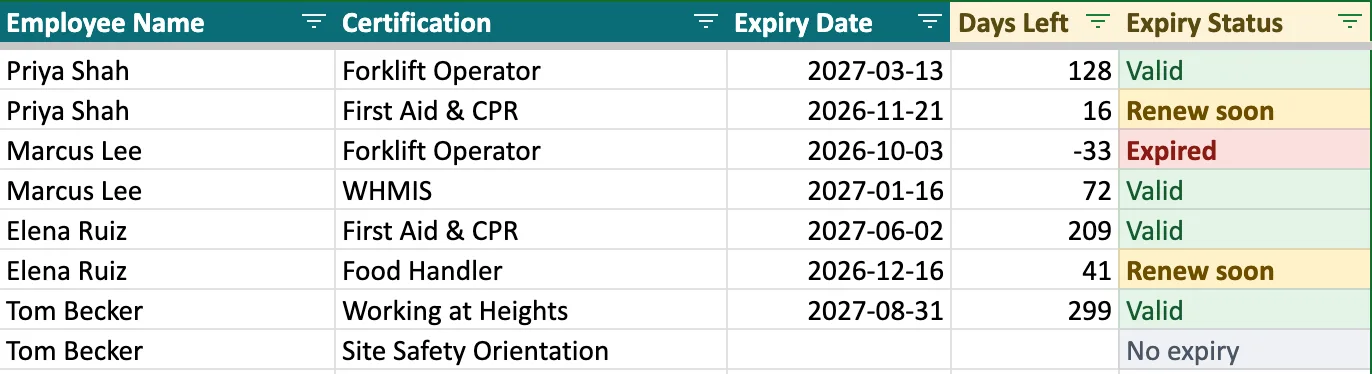
For Excel and Google Sheets. List who holds which certification and when it expires. The status turns amber as the expiry date gets close, and red once it has passed.
Free. No email, no sign-up. Also in French and Spanish.
Google Sheets asks you to sign in to a Google account to make your copy.
What's in the file

List
One row per person per certification. Days left and status fill in by themselves.

Matrix
A training matrix: people down the side, certifications across the top, each cell coloured by expiry.
Start here
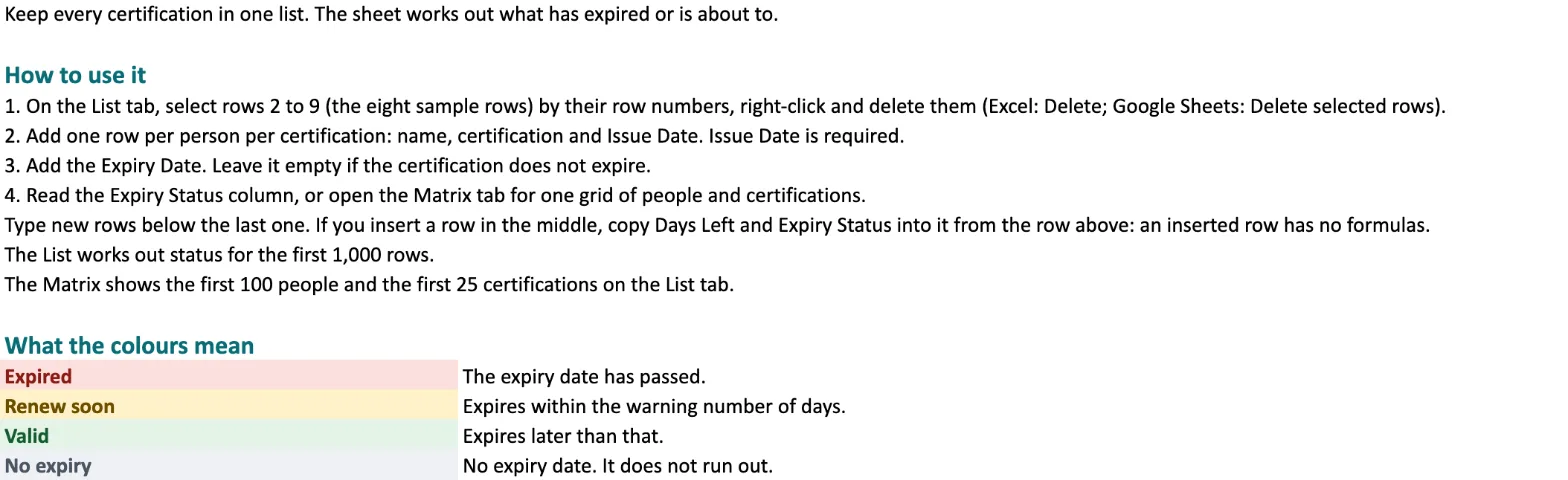
How to use it, what the colours mean, and how to change the 60-day warning.
How to use it
- Open the file and read the Start here tab.
- Delete the sample rows on the List tab.
- Add one row for each person and each certification they hold.
- Check the Matrix tab to see who is missing what.
When the spreadsheet stops working
What a spreadsheet can't do
- Email you before a date arrives. A sheet only changes colour when someone opens it.
- Keep every renewal of a credential in one history.
- Give staff and auditors a page where they can look up a credential.
Move your list into CertLister
- On the List tab, save the file as CSV UTF-8. In Excel: File → Save As → CSV UTF-8. In Google Sheets: File → Download → Comma-separated values.
- In CertLister, go to Categories → New category. Type a name and a default credential title. Any title works, because each row's Certification replaces it.
- In that category's row, open the ⋯ menu → Import credentials (CSV) and choose your file. The columns match by themselves. Select Continue, then Process all credentials.
- Open the category → Automation and turn on expiry reminders. CertLister then emails each person before their certification expires.
Delete the sample rows first. Their example.com addresses make the import warn that emails could not be verified.
What carries over
Employee name, email, certification (as the credential title), issue date and expiry date. CertLister lists the other columns as not imported.
Free adds 10 credentials a month. A longer list needs Basic (1,000 credentials a month) or a credit pack.
See every expiration date before it passes
Import your records from a CSV file. CertLister lists what expires next and can remind each holder by email.
Free plan: 10 credentials a month. No credit card.
Questions
Is it free?
Yes. Download it, copy it and change it as you like. There is nothing to sign up for.
Does it remind me when a certification is about to expire?
No. A spreadsheet only changes colour when you open it. For email reminders before the date, use CertLister.
Which version of Excel do I need?
Excel 2010 or newer, or Google Sheets. The formulas use only common functions, and we checked them in Excel for Mac and in Google Sheets.
How many rows does it hold?
The List works out status for the first 1,000 rows. The Matrix shows the first 100 people and the first 25 certifications.
Can I add columns?
Yes. Add them to the right of the existing columns, and leave the existing ones as they are. CertLister lists extra columns as not imported, unless a column's name matches a CertLister field (for example ID, Status, Date, Course or Department). Check the Map columns step.
Will uploading the file email my staff?
No. Importing creates the credentials. It makes no PDFs and sends no emails. Emails go out only when you send them, or once you turn on expiry reminders.
Can people look up my staff after I upload?
Yes. Anyone can find a person by name on your verification page, unless you turn name search off in Verification Page → Options. Check that setting before you upload.