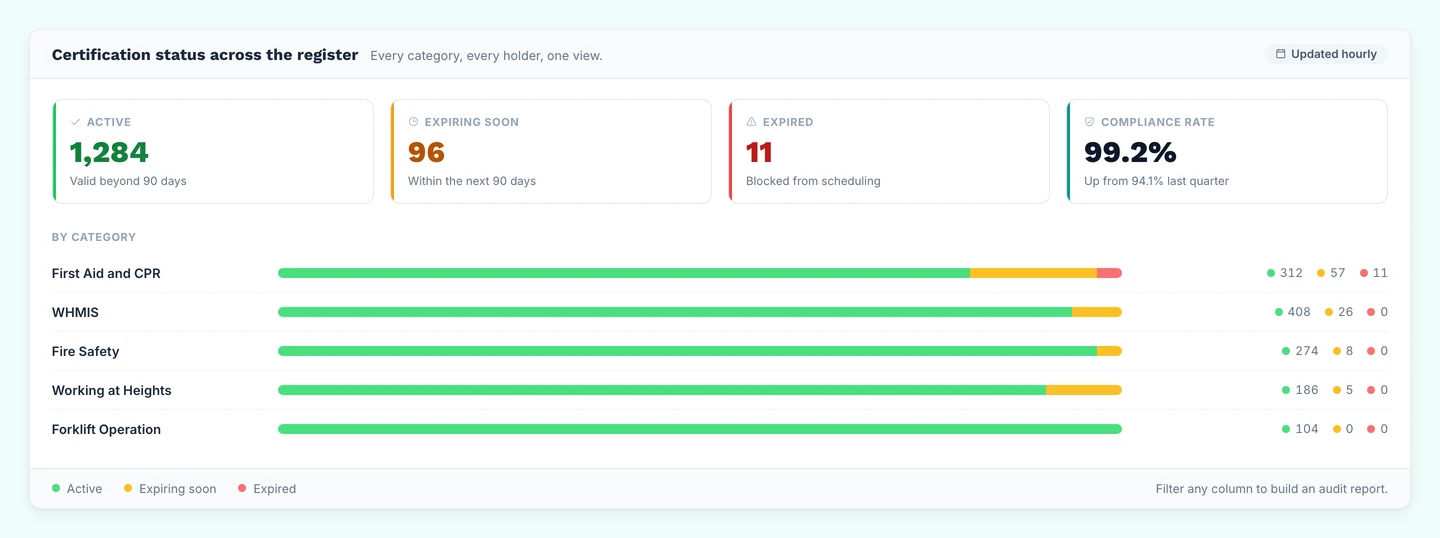
Certification expiry tends to surface at the worst moment. An auditor finds that 15% of your certifications have lapsed. Someone works a job they are no longer qualified for. A client checks a credential and finds it out of date.
None of it has to be a surprise. Every expiry date is known on the day the certification is issued, so the real work is making sure someone acts on it in time.
This guide sets out seven practices that keep expiry under control, what to do when a certification has already lapsed, and the mistakes that undo good tracking. CertLister is the worked example, but the practices work with any tool. For how HR teams run this day to day, see certification tracking for HR teams.
Chapter 1
Why Certificate Expiration Tracking Matters
This chapter sets out what a lapse can cost, so you can judge how much tracking your organization needs.
Certifications expire for good reasons. First aid techniques change, safety knowledge fades, and professional licenses need periodic recertification to stay meaningful.
When a certification lapses and nobody notices, the risk takes four forms:
- Compliance risk: a regulator can cite you when someone without a current certification does regulated work
- Safety risk: out-of-date knowledge in a safety-critical role
- Liability risk: legal exposure if something goes wrong while the certification had lapsed
- Reputational risk: clients and partners who check your people's certifications may lose confidence
In regulated work the cost is specific. In the United States, OSHA can propose a penalty of up to $16,550 for each serious violation and up to $165,514 for each willful or repeated one, the maximums in force since January 2025 (29 CFR 1903.15). Some standards also set the renewal cycle directly. Forklift operators must have their performance evaluated at least once every three years (29 CFR 1910.178(l)(4)(iii)), so an employer who lets an operator keep driving past that point is out of compliance whether or not anything has gone wrong.
The seven practices below close the gaps that let a lapse go unnoticed. For safety training in particular, safety certification expiry tracking covers the job-site side in more detail.
Chapter 2
Best Practice 1: Centralize All Certifications in One System
Put every certification in one register, so nothing expires in a file nobody checks.
The most common gap is tracking certifications in several places: spreadsheets, email folders, paper binders and HR systems that don't talk to each other. Each one may be accurate, but nobody can see all of them at once.
Start with a single source of truth. Every certification for every person should live in one system. That lets you:
- See every certification and its status in one view
- Spot gaps before they become compliance issues
- Answer auditors and clients accurately
- Show people their own certifications
If you use spreadsheets today, first merge them into one sheet with one row per certification. Then look at certification expiry tracking software that sends the reminders for you, or follow the employee certification tracking guide for a step-by-step setup.
Include Contractors and Suppliers in the Same Register
A contractor's lapsed certification can stop work on your site just as an employee's can. Collect each contractor's certifications when they are onboarded, before their first shift, and add them to the same register as your staff rather than a separate supplier file.
Record the issuing body and the certificate number so the document can be checked. At onboarding, also decide who follows up when a contractor's certification is close to expiry: the contractor, their employer or your site lead. The same applies to suppliers whose certifications you rely on, such as a calibration lab's accreditation or a food supplier's safety certificate.
In CertLister, contractors and suppliers don't need an account. You hold their records, and reminders go to whatever email address you put on each one, so use the contractor's own address if they should receive them. The issuing body and the issuer's certificate number go in custom fields you add to the category.
Try this step
Check your spreadsheet in a free account: rows with problems are flagged before anything is saved. The free plan includes 10 new credentials a month.
- Category: every certification type in the same list.
- Status: Active, Expired or Replaced, at a glance.
- Export CSV: one file to hand an auditor.
Chapter 3
Best Practice 2: Set Expiry Dates at the Time of Issuance
Record the expiry date on the day a certification is issued or arrives, so no record waits for a date that never comes.
Don't leave expiry dates for later. When you issue or receive a certification, enter its expiry date at once, even if it is two years away.
It sounds obvious, but many organizations skip it. They then spend hours rebuilding dates from paper records, email archives and issuers' websites. Take the date from the certificate itself rather than from a general rule, because the same kind of certification can last a different length with a different issuer.
A missing date does more harm than it seems. A record with no expiry date gets no reminder and never shows up in a list of what expires soon, so it fails without anyone noticing. If a certification really never expires, leave the date blank on purpose and note that it doesn't expire, so a blank never means "not entered yet".
In CertLister, give each category a Default expiry (months), for example 24 for a certification that lasts two years. It fills in the expiry date when you issue a credential in that category, and the CSV import offers it for rows that arrive without one. A credential with no expiry date gets no reminders and doesn't appear in the expiry views.
- Expiry Date: set when you issue. A category's Default expiry (months) fills it in.
- Remove expiry date: only for a certification that never expires.
Chapter 4
Best Practice 3: Create Tiered Reminder Schedules
Build a reminder schedule with several steps, timed to how long renewal takes, and see which steps CertLister sends for you.
A single reminder is easy to miss, forget or put off. Several reminders, each more urgent than the last, give people more than one chance to act.
A common schedule has these steps:
- 90 days before expiry: first notice, low urgency. Plan the renewal.
- 60 days before expiry: second notice. Book the course or exam.
- 30 days before expiry: urgent notice. Act now.
- 14 days before expiry: final warning. Renewal is critical.
- After it expires: a notice that the certification has lapsed, so the person is taken off work that needs it.
In CertLister, set the steps in Settings → Notifications → Recipient expiry reminders: up to five, each 1 to 365 days before expiry, such as 90, 60, 30 and 14. The schedule applies to your whole organization. Reminders also depend on a switch in each category, Send expiry reminder email. In a category you create, it stays off until you turn it on.
Each reminder goes by email to the holder, so a credential needs a recipient email and an expiry date to get one. Reminders are included on every plan, the free one too. The Notifications tab also shows in how many of your categories reminders are turned on, which is the first thing to check when reminders don't seem to arrive.
The schedule only covers days before expiry. For the step after expiry, a workflow automation can email your admins and managers when a credential expires. Turn on Auto-expire past expiry date for that category, because the rule runs only once a credential has been marked Expired.
Set the First Reminder From the Renewal Lead Time
Work backwards from how long renewal takes, not from a round number. If the refresher course runs once a quarter and needs a manager's approval, a 30-day first notice can arrive after the last course the person could attend. Add the time between courses, the approval time and a week of margin, and send the first reminder then. A certification someone can renew online in an afternoon can start at 30 days.
In CertLister, one schedule covers every category with reminders on. If one certification type needs an earlier first reminder, add an automation for it: the trigger Credential expiring soon, the Days before expiry you need, that category, and the action Send expiry reminder. The category's reminder switch must still be on, and choose a day your schedule doesn't already use, or people get two emails. The free plan includes one automation, Basic three, and Pro as many as you need.
Decide Who Is Told at Each Step
The holder books the course, so the early reminders go to the holder. The later steps are where a supervisor or compliance lead needs to know, because they may have to change a schedule or find cover. Write down who that person is for each certification type before you need them.
In CertLister, reminders go only to the holder. Your admins and managers get the Expiry digest every Monday, listing the credentials that expire in the next 30 days, and each of them can turn it off in Settings → Notifications. An automation with the action Notify admin can also email them a set number of days before expiry, or once a credential has expired. It emails every admin and manager on your CertLister team, not one named supervisor, so a site lead who isn't on the team still needs telling.
Try this step
Turn on expiry reminders for one certification type in a free account.
- 60, 30 and 7 days before: up to five steps, each 1 to 365 days before expiry.
- Organization setting: one schedule covers every category.
- Turned on in 8 of 8 categories: check this first when reminders don't arrive.
Chapter 5
Best Practice 4: Build Renewal Processes Before You Need Them
Write down how each certification is renewed, so a reminder leads straight to action instead of a search.
Don't wait for a certification to expire to find out how to renew it. For every certification type you manage, write down:
- What the renewal involves, such as a course, an exam, a form or a fee
- How long it takes, from booking to the new certificate
- What it costs, and who pays
- Who has to approve it
- How far ahead it has to start
Keep this where the people managing certifications can find it, not in an email chain from three years ago. The lead time you write down here is the one your first reminder should use (Best Practice 3).
In CertLister, give each category a Renewal link, such as the training provider's booking page, or set one for your whole organization in Settings → Email. Each expiry reminder then carries a button to it, so the holder can book without asking anyone.
Chapter 6
Best Practice 5: Make Expiry Status Visible at a Glance
Set up a view that tells you what lapses next in seconds, without anyone reading dates.
When your team needs to check certification status, it should take seconds, not minutes of searching a spreadsheet. A useful view shows:
- How many certifications are current, expiring soon and expired
- What expires in the next 30 days, and in the months after
- Certifications by category or department
- One person's certifications, past and present
If you build the view yourself, color helps: green for current, amber for expiring within 60 days, red for expired. Keep it to those three meanings, so a color never needs explaining.
In CertLister, the Overview page shows tiles for Active, Expiring soon (next 30 days) and Expired credentials, a chart that switches to Expiring to show what falls due each month, and Credentials by category. On the Credentials page, the Status filter shows one status at a time, More filters → Period shows what expires in the next 30, 60 or 90 days, and the Expires soonest sort puts the next lapse at the top. A credential counts as Expired from the day after its expiry date, so nobody has to update it by hand.
- Expiring soon: the next 30 days, beside Active and Expired.
- Expiring: the chart shows what falls due each month.
- Credentials by category: how many of each type you hold.
Chapter 7
Best Practice 6: Conduct Regular Certification Audits
Run a short quarterly review that catches what reminders miss, and keep a record that you did.
Reminders only cover the dates you entered. A regular review catches the rest: wrong dates, new people whose certifications were never added, and records for people who have left. Once a quarter is enough for most teams.
During each review:
- List every certification that expires in the next six months.
- Check a sample of expiry dates against the certificates themselves.
- Look for anyone missing a certification their role needs.
- Update the register for people who have joined, left or changed roles.
- Save a copy of the list, and note who did the review and when.
This takes an hour or two each quarter. It also gives an auditor proof that you check your records, not only that you keep them.
In CertLister, switch the chart on the Overview to Expiring and choose 6M to see how many credentials fall due in each of the next six months. On the Credentials page, sort by Expires soonest to work through them in order, filter by Expired to catch any lapse, and click Export CSV to save the list for your records. With a filter on, the export holds only the matching credentials, with their custom fields.
Chapter 8
Best Practice 7: Keep Historical Records
Keep the old record when a certification is renewed, so you can show who was certified on any past date.
When a certification expires and is renewed, don't delete the old record. Keep it alongside the new one.
Historical records matter for:
- Audit trails: showing continuous certification over time
- Disputes and incidents: proving someone was certified on a specific date
- Trend analysis: seeing which certifications lapse most often
- Compliance documentation: some regulations require proof of past certifications. See compliance certificate tracking for details.
How long to keep them depends on the rules you work under. How long do you have to keep training records? sets out the main ones.
In CertLister, expiry removes nothing: an expired credential stays in the register, marked Expired. When you Renew a credential, the old one is marked Replaced and its verification page links to the new one. Type a person's name in the search box on the Credentials page to see all their credentials, expired and replaced ones included. A credential leaves the register only when someone deletes it, so delete only records entered by mistake.
Chapter 9
When a Certification Has Already Lapsed
When a certification has already lapsed, take these steps in order, starting on the day you find it.
- Take the person off any task that needs the certification, starting today. If your scheduling system cannot block them, tell whoever builds the schedule. How to prevent scheduling staff with expired credentials covers that check in detail.
- Record the gap: the date the certification expired, the date you found out, and what the person worked on in between. An auditor will ask, and a note written on the day holds up better than one put together later.
- Book the renewal and note the booking on the record, so the next person who looks sees it is in hand.
- Keep the expired record when the new certification arrives. It shows when the person was and was not certified.
Then find out why it was missed. A missing email address, a category with reminders off or a date that was never entered will cause the next lapse too.
In CertLister, filter the Credentials page by the Expired status to find every lapse at once. When the holder renews, use Renew on the old credential. The new credential replaces it, and the old credential's verification page links forward to the new one.
Chapter 10
Common Mistakes to Avoid
Check your own setup against these five habits, which undo good tracking more often than a missing feature does.
Mistake 1: Relying on holders to track their own expiry
Some people track their own certifications well. Many don't, and one busy month is enough to forget. Build tracking into your organization's systems instead of making compliance depend on each person.
Mistake 2: Tracking that depends on one person
If one person tracks certifications and that person leaves, the knowledge leaves with them. Use a system other people can open, not one person's memory or private spreadsheet.
Mistake 3: Ignoring early warnings
When your system shows certifications expiring in 90 days, act on them then. Waiting for the 14-day warning leaves no room if the next course is full.
Mistake 4: Tracking only some certifications
Partial tracking gives a false sense of security. If some certifications are tracked and others aren't, your compliance gaps are the ones you can't see.
Mistake 5: Assuming reminders reach people
A reminder needs an email address, an expiry date and reminders turned on for that certification type. Check all three when you add a new type, and look for records with a blank email or expiry date after every import.
Chapter 11
Where Software Fits
Use this chapter to decide whether a spreadsheet is still enough, and what to look for when it isn't.
A spreadsheet can carry these practices for a small team, such as a trade business with a dozen workers and a few certifications each, as long as one careful person owns it. Past a few dozen certifications, or once contractors or a second site are involved, the reminders and status checks a spreadsheet leaves to memory start to slip.
If you are choosing a tool, judge it against the practices in this guide:
- Reminders in several steps, at lead times you choose, sent to the holder without anyone pressing send
- A list of what expires in the next 30, 60 or 90 days, with a status that changes on its own when a date passes
- Room for contractors and suppliers, without giving them accounts
- History kept when a certification is renewed, and an export an auditor can use
- A way for clients or inspectors to check a certification without calling you
Our certification expiry tracking software page sets a spreadsheet, an HR system module and a dedicated tracker side by side. If you already have an HR system, Can your HR system track employee certifications? lists the questions to ask it. For how public verification fits in, see what a digital credential platform is.
Chapter 12
Summary
With these practices in place, this is what you can count on:
- You know about each expiry 90 days or more ahead, because every date was entered at issue.
- Renewal steps are written down, and the first reminder matches how long renewal takes.
- Anyone who needs it sees certification status in seconds.
- Expired and replaced records are kept for audits and disputes.
- A lapse that slips through is handled the same day, in a set order.
See CertLister's certification expiry tracking software → — or view pricing. Free plan available, no credit card required.