How to Prevent Scheduling Staff With Expired Credentials
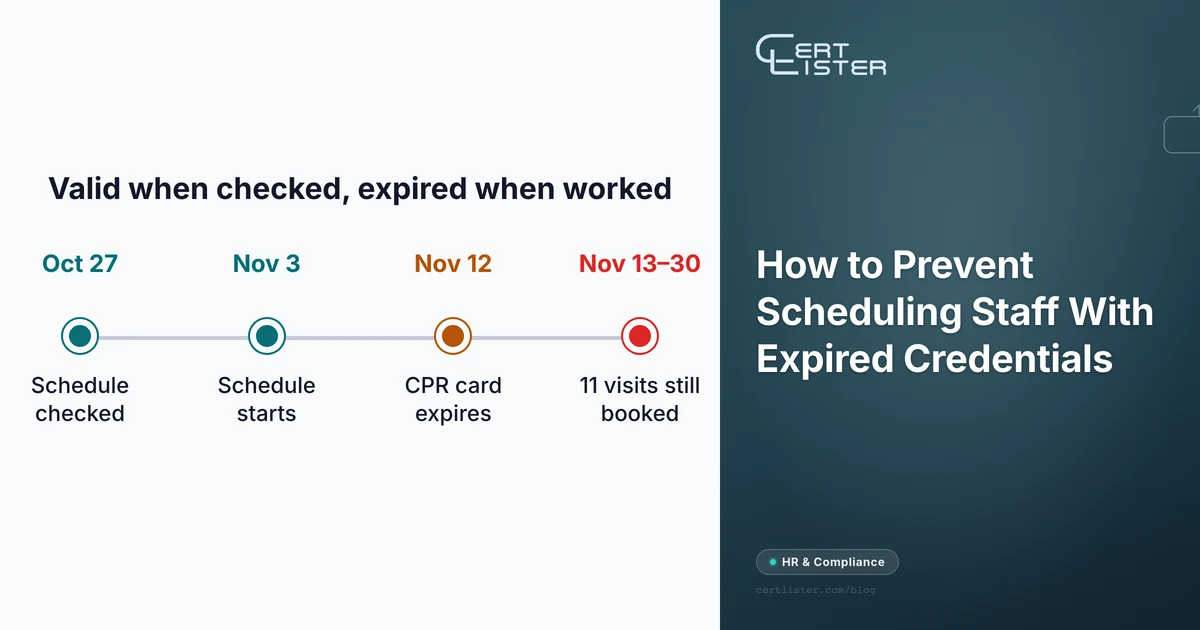
A home care agency's scheduler published the November schedule on October 27. Before she did, she checked that every aide on it held a current CPR certification, and every one of them did. One aide's card expires on November 12. The aide is booked for eleven visits after that date, and nothing in the agency's process will notice until a client's family asks, or an inspector does.
The check wasn't skipped. It was run against the wrong date: the day the schedule was built, not the day of each visit. This is a common way it happens. The expiry dates live in one place and the schedule in another, and the check between them happens once, on a day when everything still looks fine.
To prevent it, check every credential (the certifications and licenses a shift requires) against the date of each shift, warn the person who builds the schedule early enough to act, and close the side doors where the check gets skipped: swaps, call-ins, agency staff and people back from leave. The six steps below work whether or not your scheduling software can block an assignment.
Why Staff With Expired Credentials End Up on the Schedule
Five gaps let it happen:
- The dates and the schedule are in different systems. Certifications sit in an HR system, a spreadsheet or a training provider's portal. The schedule is in a scheduling app, another spreadsheet or on a whiteboard. Whoever builds the schedule rarely opens the other one.
- The check uses today's date. A schedule published four weeks ahead was checked on the day it was built. Anything that expires during those four weeks passes.
- Only the holder is reminded. The aide gets the reminder email. The scheduler, who decides who works, hears nothing.
- "Booked" is treated as "renewed." The refresher course is on the 20th, the certification expires on the 12th, and the shifts in between stay on the schedule.
- Last-minute changes skip the check. A swap agreed in a group chat, an open shift picked up in an app, a 5 a.m. call-in, an agency worker sent at short notice.
Each step below closes one or more of these.
Step 1: Write Down What Each Shift Needs
Nobody can check a requirement that lives in a supervisor's head. Make a short list: one row per role or task, one column per credential it needs, and a note where the rule applies per shift rather than per person. Rules on such a list look like this:
- Every registered nurse shift: an active nursing license and a current CPR certification.
- Every forklift task: an operator whose performance has been evaluated in the last three years.
- Every night shift: at least one trained first aider on site.
Some of these come from a regulator, and the rule is usually written about the moment before work starts. OSHA's forklift standard, 29 CFR 1910.178(l), says that "prior to permitting an employee to operate a powered industrial truck," the employer "shall ensure that each operator has successfully completed the training required," and that each operator's performance is evaluated "at least once every three years." Putting someone on a shift is the moment of permitting.
Keep the list to what your regulator, your client contracts and your own policy actually require. A list of forty nice-to-have courses gets ignored. Write it once: the same list drives the check in step 2 and the scheduling tool's settings in step 4.
Step 2: Check Each Credential Against the Shift Date
This step would have caught the aide in the opening. A credential has to be valid on the day of the shift and, for an overnight shift, until the shift ends. So the question to ask before you publish a schedule is whether anyone's credential expires before the last shift they are booked for.
In practice:
- Before you publish, list every credential that expires before the end of the period the schedule covers. If you publish four weeks at a time, starting a week out, that is everything expiring in the next five weeks.
- For each person on that list, either the renewal is recorded before the expiry date, or the person comes off every shift that needs it from that date on.
- If a credential expires partway through a shift, treat the whole shift as uncovered.
With one list sorted by expiry date, this takes a few minutes. With a separate file for each person, it takes an afternoon, and it gets skipped.
Step 3: Warn the Scheduler as Far Ahead as the Schedule Runs
Reminders are usually set for the holder: 60 days, 30 days, 7 days. The scheduler needs a different lead time: the time a renewal takes, plus how far ahead the schedule is published.
If schedules go out four weeks ahead and a refresher course takes three weeks to book and attend, the scheduler needs to know seven weeks before the expiry. A 30-day reminder arrives after the person has already been booked onto shifts they may not be able to work.
Send the scheduler a list, not one email per certification. A weekly list of everything expiring within the planning window matches how a schedule is built, and a name on it is easy to compare against the schedule. For a way to decide who hears at each stage, from the scheduler to the safety lead, see the escalation ladder in our safety certification expiry guide.
Step 4: Make the Scheduling Tool Refuse the Assignment, or Warn
Many workforce scheduling tools can store credentials on a staff profile, with an expiry date, and warn or block when someone without a valid one is put on a shift that needs it. Look for settings called qualifications, skills, certifications or requirements on the staff profile and on the shift.
If yours can, test it before you rely on it. Create a test staff member with an expired credential and try every way a person reaches a shift:
- assigning them directly
- adding them to a recurring shift or a schedule template
- letting them pick up an open shift
- approving a swap to them
- a manager overriding the warning
A block that covers direct assignment but not swaps or templates catches the easy cases and misses the ones in step 5.
Then decide where the dates live. If the scheduling tool keeps its own copy of every expiry date, someone has to update it at every renewal, and a copy is soon wrong. Either make the scheduling tool your one record of credentials, or feed it from that record automatically, through a built-in integration or an automation tool such as Zapier or Make.
If your tool can't block or warn, run the step 2 check by hand before every schedule goes out, and name the person who runs it.
Step 5: Close the Side Doors
A schedule checked when it is published can still change many times before the shift, and each change needs the same check.
- Swaps and open shifts. The person taking the shift must meet that shift's requirements. On shifts with a requirement, make swaps need a manager's approval, and check the incoming person at that moment.
- Call-ins. Keep a short "who can cover" list for each requirement, rebuilt each week from the step 2 check, so whoever is calling around at 5 a.m. doesn't have to look anything up.
- Agency and contract staff. Ask for proof for each person, not the agency's word that everyone is trained, and check it with the issuer where you can. For forklift operators, OSHA's Temporary Worker Initiative bulletin says that "if the staffing agency supplies trained powered industrial truck operators, the host employer must still verify that training." In the UK, section 5 of the Private Security Industry Act 2001 makes it an offense to supply security services through an operative who needs a license and doesn't hold one. A business that is charged can defend itself by showing it took all reasonable steps to prevent it, and a record of each license check is the evidence it would point to.
- People back from leave. A certification can lapse during parental or sick leave. Check before the first shift back.
Step 6: Treat a Booked Course as Not Yet Renewed
A booked course can still fall through. Courses get canceled, people fail the assessment, and licensing boards take time to update their records. Until the new certificate is in your records, or the board's record shows the renewed license, schedule the person as if the credential ends on its expiry date.
Grace periods are the exception. Accept one only when the body that issued the credential, or your regulator, states it in writing, and record it next to the credential so the scheduler sees it.
Let the Licensing Board Tell You
For a license, the board's own record is what counts, and some boards will tell you when it changes. In the US, the National Council of State Boards of Nursing runs Nursys e-Notify, which sends employers "licensure status changes and expiration updates" for the nurses they enroll, with updates from all boards of nursing, and is free of charge. Enroll every nurse you employ, and send the alerts to whoever runs the step 2 check. An alert that reaches only HR doesn't change the schedule.
For other licenses, check whether the board publishes a lookup or offers alerts. Even a lookup you run by hand before an agency worker's first shift is better than a photocopy of a card.
When an Expired Credential Is Already on the Schedule
Sometimes the check finds one after the schedule is out. Then:
- Take the person off every shift that needs the credential, starting with the next one, and fill those shifts from the who-can-cover list.
- Record what happened: who, which shifts, and whether any were worked after the expiry.
- Find which step failed. Was the check run against the wrong date, did the scheduler not hear in time, or did a swap get past it?
Our article on certificate expiration tracking best practices covers the rest of handling a lapse, from renewal to the record you keep afterwards.
Where CertLister Fits
CertLister is certification expiry tracking software, not a scheduling tool, and it has no ready-made connection to one. It holds the dates and sends the warnings; your schedule stays where it is. For the full walk-through, see our employee certification tracking guide.
- Employees, agency staff and contractors go in the same list. Each kind of credential gets its own category with a default validity period, and a record needs only a name and an email address.
- Holders get reminder emails on up to five dates you choose before an expiry.
- Admins and managers get a Monday email of everything expiring in the next 30 days.
- For a warning as far ahead as your schedule runs, set up an automation with the trigger Credential expiring soon, set to the number of days you need (1 to 365), and the action Notify admin. It emails every admin and manager in your account; it can't be sent to one named person.
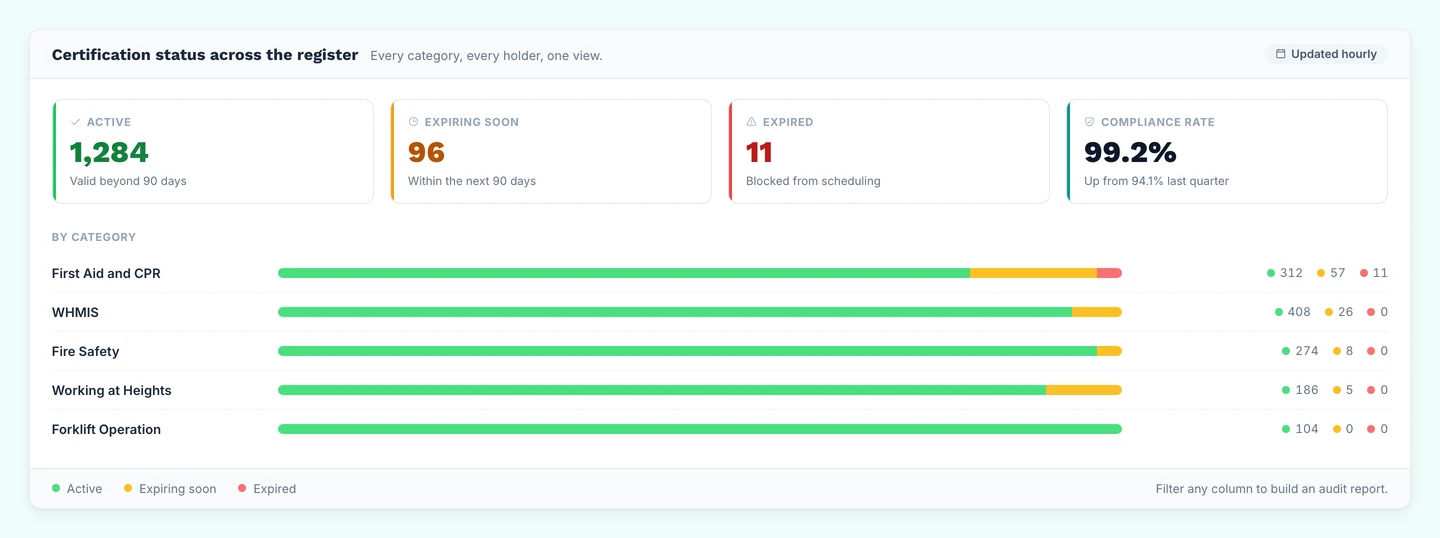
- For the step 2 check, filter the credentials list to what expires in the next 30, 60 or 90 days, and export it to CSV to set beside the schedule.
- Each credential has a verification page that shows whether it is active or expired. For a certificate someone earned elsewhere, CertLister keeps your record and a copy but does not check with the body that issued it, so the page confirms your record, not the original.
- On the Pro plan, an automation can send a webhook when a credential is about to expire, or has expired if Auto-expire is on for its category, to Zapier, Make or your scheduling tool's API, so the scheduling side can flag the person itself.
The Short Version
- Write down which credentials each shift or task needs.
- Before you publish a schedule, check every credential against the last shift it covers, not against today.
- Warn the scheduler as far ahead as the schedule runs, plus the time a renewal takes.
- Make the scheduling tool block or warn, and test every way into a shift. If it can't, name the person who checks by hand.
- Check swaps, call-ins, agency staff and returns from leave against the same list.
- Until the renewed certificate is on file, keep the person off shifts that need it, even if the course is booked.
CertLister is a digital credential platform for training providers and the organizations that rely on their certificates. Keep every credential your people hold in one record, contractors included, with reminders before each expiry and a list of what expires next that you can check a schedule against. Start free →
See every expiry date before it passes
Import your records from a CSV file. CertLister lists what expires next and can remind each holder by email.
Free plan: 10 credentials a month. No credit card.