Employee certification tracking looks simple until it isn't. A company with 20 employees and three certification types manages fine with a spreadsheet. Add a second site, a new compliance rule, staff turnover and certifications that expire on different schedules, and the spreadsheet starts to fail.
The failures are quiet. Someone's forklift license expired two weeks ago and nobody noticed. A new hire's food safety certificate was never entered because it arrived before the current sheet existed. An auditor asks for everyone with a current WHMIS certification, and you spend an afternoon putting the list together from three places.
This guide covers what a tracking system has to do, what to record, and how to set one up step by step. CertLister is the worked example, but the checklist applies to any tool. For how HR teams use it day to day, see certification tracking for HR teams.
Chapter 1
What Employee Certification Tracking Actually Requires
Here are the five jobs a tracking system has to do, and the fields to record for each certification, so you can judge any tool against them.
A complete, searchable record. You need to know who holds what, when it was issued and when it expires, for every certification type, site and employee. That includes former employees, whose records an audit may still ask for.
Warning before expiry, not after. The point of tracking dates is to act before they pass. A useful system shows what expires in the next 30, 60 or 90 days, not only what has already lapsed.
Reminders that run on their own. A calendar entry or a weekly manual check stops working the first time its owner is away. Reminders need to go out whether or not anyone remembers to send them.
Proof for audits. When a regulator, client or internal auditor asks, you should be able to hand over a filtered list or an export in minutes, not search through email attachments. This is the core of compliance certificate tracking.
Verification by people outside the company. Clients, licensing bodies and site supervisors sometimes need to check a certification themselves. A QR code on the credential that opens a public credential verification page lets them do it without calling HR.
What to Record for Each Certification
| Field | Why it matters |
|---|---|
| Holder name and email | Who the certification belongs to, and where reminders go |
| Certification type | Lets you report on one type at a time, such as every first aid certification |
| Issuing body | Tells an auditor who can confirm it |
| Certificate or license number | The reference the issuer uses to look it up |
| Issue date | Shows when the person became certified |
| Expiry date | Drives reminders and status. Leave it blank only if the certification never expires |
| Evidence | A copy of the certificate, or a link where it can be verified |
| Status | Active, expiring soon or expired, so nobody has to work it out from the dates |
In CertLister, the category holds the certification type. The holder's name and email, the credential number and the dates are standard fields. Anything else, such as the issuing body, goes in a custom field you add to the category.
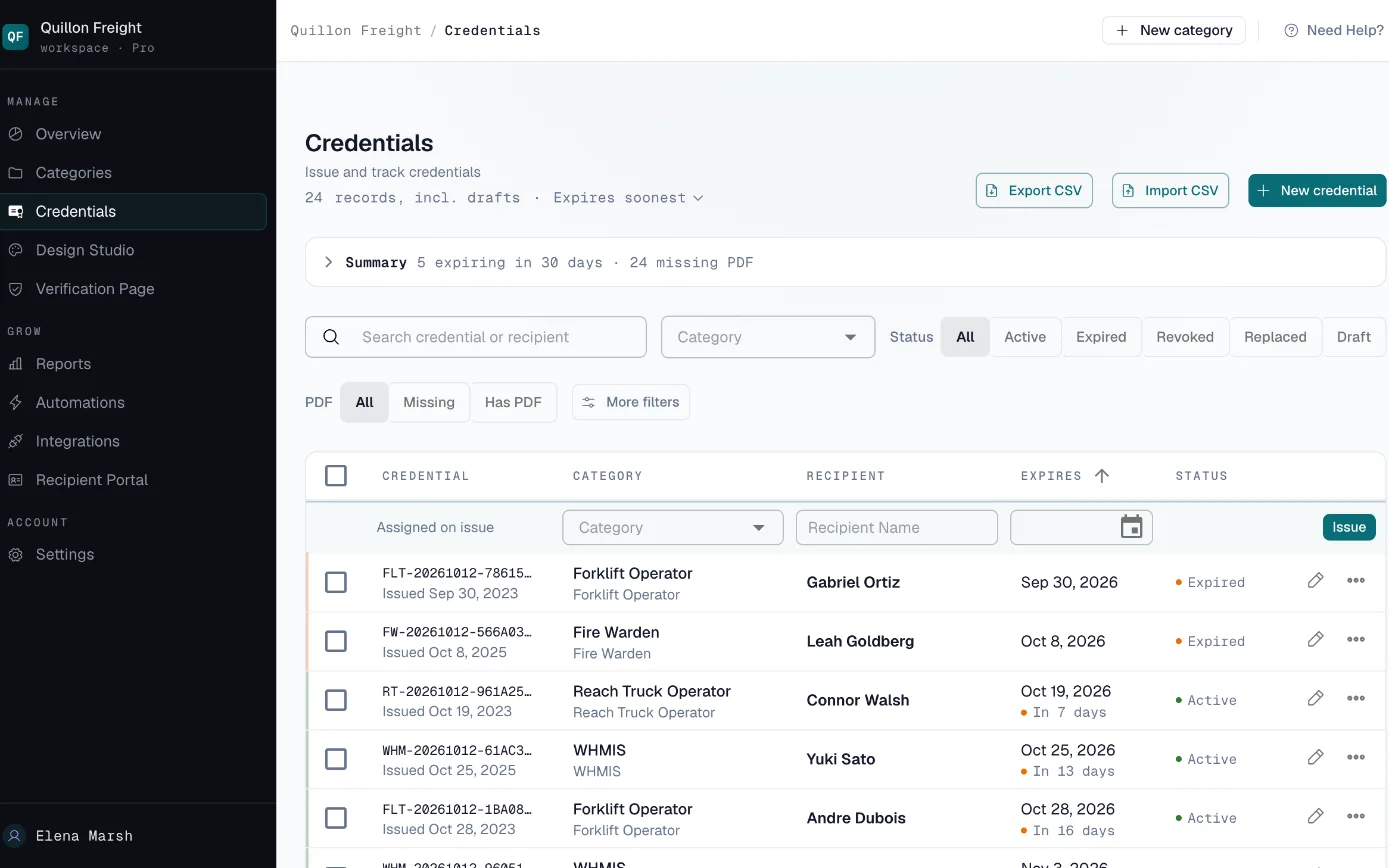
- Expires: sorted soonest first, so the next expiry is at the top.
- In 5 days: a warning before the date passes.
- Status: Active, Expired or Replaced, with no dates to work out.
Chapter 2
Your Options for Tracking Employee Certifications
This chapter helps you choose between the four kinds of tool HR teams use, based on who holds the certifications and who needs to check them.
A spreadsheet works for a small team with a few certification types and one careful owner. It has no reminders and no status of its own, so it fails quietly when that owner is busy or leaves.
An HR system or HCM module can track certifications for the people already in it. If every certification belongs to an employee and nobody outside the company needs to verify one, it may be all you need. Before relying on it, check that it sends reminders for every certification type you track, and that contractors can be added without being set up as employees. Can your HR system track employee certifications? lists the questions to ask it.
A learning management system records the courses people complete inside it. It tends to be weaker for certifications earned elsewhere, such as a first aid certificate from an outside provider.
A dedicated tracker such as CertLister holds any certification for anyone, including contractors, sends reminders on a schedule you set, and lets clients or inspectors check a credential without logging in. Our side-by-side comparison shows when each option is enough.
Chapter 3
Setting Up Your Certification Categories
Create one category per certification type before you import anything, so every record lands in the right place from the start.
In CertLister, certifications are organized into categories. A category stands for one certification type, such as WHMIS, First Aid, Forklift Operation or Food Handler. Its settings apply to every credential in it: the default expiry, the reminder switch, the custom fields and the design its PDFs use.
Setting up categories first pays off. The import puts each row into a category, and one flat list is hard to filter and report on later.
Category setup checklist:
- One category per certification type, not one per class or session. The free plan includes three categories, Basic 20, and Pro as many as you need.
- Set a Default expiry (months), for example 24 for a certification that lasts two years. It fills in the expiry date when you issue a credential in that category, and the import offers it for rows that have no expiry date.
- Add custom fields for the details you track, such as the issuing body or a course code, and choose which of them show on the public verification page.
- Turn on Send expiry reminder email and Auto-expire past expiry date if you want reminders and automatic status changes. Both are off in each category you create until you turn them on (more in the Reminders chapter).
- Choose the Default design for the category's PDFs, made in Design Studio.
Certifications Employers Commonly Track
If you are starting your category list, these are typical by industry.
| Industry | Certifications often tracked |
|---|---|
| Construction and trades | Working at heights, forklift and aerial lift operation, first aid, WHMIS or hazardous materials |
| Healthcare | CPR and BLS, ACLS, professional licenses, infection control training |
| Food service | Food handler certificates, allergen awareness, responsible alcohol service |
| Manufacturing and warehousing | Forklift operation, lockout/tagout, hazardous materials, first aid |
| Transportation | Commercial driver's licenses, dangerous goods handling, driver medical certificates |
| Security | Security guard licenses, first aid, use-of-force training |
| Education and childcare | First aid and CPR, background checks, child protection training |
How long each one stays valid depends on the issuer and the jurisdiction, so take the expiry date from the certificate itself rather than from a general list.
Try this step
Create a free account and add your first certification type. The free plan includes three categories.
- One category per certification type.
- Each category has its own numbering prefix and custom fields.
- Expiry reminder · Auto-expire: both switches are on in this category.
Chapter 4
Importing Your Existing Records
Move your existing spreadsheet in one pass, with problems shown to you before anything is saved.
If you're ready to replace your spreadsheet, start by saving it as a CSV file. The only column every row needs is Recipient Name. A new credential also needs a Title (unless its category has a default title) and an Issue Date.
Add Recipient Email, so reminders have somewhere to go, and Expiry Date for everything that expires. Other details, such as a license number or the issuing body, go into custom fields: add them to the category first, then match each column to its field.
On the Credentials page, click Import CSV, upload the file and match its columns to CertLister's fields. Before anything is saved, the import shows you rows with errors, duplicates, and rows that would update credentials you already have. Rows it can't import are listed with the reason, and you can download them, fix them and import them again.
Add a Category column so each row lands in its certification type. The import matches categories by name and offers to create any that don't exist yet. Importing doesn't create PDFs or email anyone on its own, so nobody hears from you until you choose to send.
Try this step
Check your spreadsheet in a free account: rows with problems are flagged before anything is saved. The free plan includes 10 new credentials a month.
- Map columns: pick the CSV column for each CertLister field.
- Recipient Email: Not mapped here. Map it, or reminders have nowhere to go.
- Validate: errors, duplicates and updates show before anything is saved.
Chapter 5
Managing Expiry Dates and Status
This chapter explains what each status means and how to list what expires in the next 30, 60 or 90 days.
Every credential in CertLister has one of four statuses: Active, Expired, Revoked or Replaced (by a renewal). The expiry date counts as the last valid day, so from the next day the Credentials list and the public verification page show the credential as Expired.
Turn on Auto-expire past expiry date in the category as well. It saves the Expired status to the record each night, and an automation for expired credentials only runs once that has happened.
"Expiring soon" is a filter, not a status. On the Credentials page, open More filters and choose a Period of 30, 60 or 90 days. To see whose First Aid certification expires in the next 30 days, pick the First Aid category and 30d, then sort by Expires soonest. The same filters give the views auditors usually ask for: everyone with a current credential in one category, everyone whose credential has expired, and everything due in the next quarter.
- More filters: pick a Period of 30, 60 or 90 days. This list uses 30.
- Expires, soonest first: the next one due is at the top.
- Still Active: a credential stays valid through its expiry date.
Chapter 6
Automating Expiry Reminders
Set reminders up once, and employees hear about each renewal without anyone in HR sending an email.
Chasing renewals by hand is the slowest part of certification management for most HR teams. In CertLister, expiry reminders are included on every plan, the free one too. They need two settings: one schedule for your whole organization, and one switch in each category.
- Set the schedule. In Settings → Notifications → Recipient expiry reminders, add up to five steps, each 1 to 365 days before expiry, for example 60, 30 and 7 days. The schedule applies to every category.
- Turn reminders on for each certification type. Open the category and switch on Send expiry reminder email. It is off in each category you create until you turn it on. A reminder only goes to a credential that has a recipient email and an expiry date.
- Add a renewal link. Give the category a Renewal link, or set one for your whole organization in Settings → Email, and the reminder carries a button to it.
Once this is set, reminders go out on their own, and HR's job shifts from chasing renewals to handling the exceptions. For how reminders and status work together, see certification expiry tracking software.
Your own team gets a weekly view too. On Mondays, admins and managers receive an Expiry digest listing the credentials that expire in the next 30 days (there is no email in a week with none). Each person can turn it off in the same Notifications tab.
Workflow automations are a separate feature for anything the schedule doesn't cover. A common one is a rule for expired credentials that emails your admins and managers when a credential in a category expires (turn on Auto-expire for that category so the rule runs). The free plan includes one automation, Basic three, and Pro as many as you need. Don't add a recipient reminder on a day your schedule already uses, or people get two emails.
Try this step
Turn on expiry reminders for one certification type in a free account.
- Send expiry reminder email: turn it on in each category that should send reminders.
- Auto-expire past expiry date: saves the Expired status each night.
- Default expiry (months): fills in the expiry date, which a reminder needs.
Chapter 7
Verification and Audit Response
Answer an auditor, client or site supervisor in minutes, with a list you export or a link they check themselves.
Show the list. Filter the Credentials page to what the auditor asked for, then click Export CSV. With a filter on, the export holds only the matching credentials, in the order on screen, with their custom fields. For an internal audit, you can also go through the list on screen together.
Share a verification link. Every credential has its own verification page that shows its details and its current status. The link keeps working as long as the record exists, so a link sent today still shows the right status next year. The person checking needs no CertLister account.
Put a QR code on the credential. Where credentials are checked in person, such as on a construction site, in a kitchen or on a hospital ward, add a QR code to the credential's design in Design Studio. A phone scan opens the verification page and shows the status at once.
- Expires in 5 days: the status on the day someone checks.
- Scan to verify: the QR code opens this page on a phone.
- Copy link: share the page. The person checking needs no account.
Chapter 8
Handling Employee Departures and Transfers
Keep a former employee's records, and know how to find them, when someone leaves or moves.
When an employee leaves, keep their records: an audit may ask what certifications they held while they worked for you. Leaving the company doesn't change their credentials in CertLister. A credential stays until someone deletes it, and deleting it also removes its verification page, so delete only records entered by mistake.
To pull one person's history, type their name or email address in the search box on the Credentials page. The search matches the recipient's name, email, credential number and the credential title. It doesn't search custom fields, so an employee ID kept in a custom field won't find them.
If a credential your company issued is no longer valid, such as an internal authorization that ended with the job, revoke it instead of deleting it. The record stays, and its verification page shows Revoked.
A transfer between departments or sites changes nothing in the records. A person's credentials stay together under their name and email, not under a site, so their history stays in one place. If you put the site in titles (see the next chapter), new credentials carry the new site and earlier ones keep the old one.
Chapter 9
Organizing a Multi-Site Workforce
Decide early how each site manager will see their own site's list, because that decides where you record the site.
CertLister has no separate location field. Keep one category per certification type, as described above, and put the site in the credential title, for example "First Aid (Hamilton plant)". The search box matches titles, so a site name plus the category and Period filters gives a site manager their own list, and the title comes through in the CSV export.
The title is public too: it shows on the credential's verification page and usually on its PDF, so use a site name you are happy to show. You can also add a Location custom field, which shows on the credential and, if you choose, on its verification page. Search and filters don't look at custom fields, though, so use it as well as the title, not instead of it.
However you record it, name one person at each site who acts on that site's expiring credentials. A central register only works if someone local follows up, and the most important moment is when shifts are planned. How to prevent scheduling staff with expired credentials covers that check.
Chapter 10
What Good Certification Tracking Looks Like
Use this list to check that your setup does what it should.
- Every current employee certification is in the system with correct issue and expiry dates.
- The Credentials page shows the status of every certification type at any moment.
- Expiry reminders go out on their own. HR only handles the exceptions.
- Any auditor request can be answered in under five minutes with a filtered list or a CSV export.
- If you turn on the recipient portal, employees sign in with a code sent to their email, download their own credentials and open each one's verification page to share it, without asking HR.
The setup (categories, the import, the reminder schedule) takes a few hours. After that, it saves hours of manual checking every month.
If you track employee certifications in a spreadsheet today, the most useful first step is getting the expiry dates into a system that shows them and sends reminders for you. Everything else builds from there.